
Tips & guides
5 PDF Splitting Mistakes Almost Everyone Makes
Published
Splitting a PDF seems straightforward.
Select a few pages, click a button, and you’re done.
At least, that’s the theory.
In reality, many users accidentally create extra work, damage document quality, or even expose sensitive information during the process.
👉 Here are five common PDF splitting mistakes—and how to avoid them.
❌ Mistake #1: Using Screenshots Instead of Splitting the PDF
This is surprisingly common.
Instead of splitting page ranges directly, some users take screenshots and save them as images.
The result?
⏺ Lower image quality
⏺ Larger file sizes
⏺ Lost text searchability
⏺ Broken document structure
✔ What to Do Instead
Use a proper PDF splitter that extracts pages directly from the original file.
Check the output quality and required functionality before sharing.
❌ Mistake #2: Splitting Before Reviewing the Document
Many people immediately start splitting pages without checking the document structure.
Later they discover:
⏺ Missing pages
⏺ Incorrect page order
⏺ Incomplete sections
✔ What to Do Instead
Before splitting:
1. Review the document
2. Identify logical sections
3. Confirm page ranges
A few extra seconds can save a lot of cleanup work later.
❌ Mistake #3: Uploading Sensitive Files to Random Websites
Not every PDF contains public information.
Many documents include:
⏺ Contracts
⏺ Financial records
⏺ Client information
⏺ Internal reports
Uploading these files to unknown online services can introduce unnecessary privacy risks.
✔ What to Do Instead
Whenever possible, use an offline PDF splitter such as LeoPDF.
Because LeoPDF processes files locally, your documents stay on your own device instead of being uploaded to third-party servers.
❌ Mistake #4: Repeatedly Exporting the Same PDF
Some users split a PDF, save it, reopen it, edit it again, and then export it multiple times.
Each extra processing step increases the chance of:
⏺ Formatting changes
⏺ Quality loss
⏺ File inconsistencies
✔ What to Do Instead
Plan the workflow first.
Make the required changes once and export only when you’re finished.
❌ Mistake #5: Choosing a Tool Based Only on Features
Many PDF tools advertise dozens of features.
But more features don’t necessarily mean better results.
A tool packed with options may still struggle with the most important task:
Preserving the original document.
✔ What to Do Instead
Focus on reliability first.
A good PDF splitter should:
✔ Preserve formatting
✔ Maintain image quality
✔ Handle large files smoothly
✔ Keep document structure intact
LeoPDF supports local page-range splitting and page organization. A standalone page-extraction feature is not included; use a documented operation for the result you need.
🥇 Recommended Tool: LeoPDF
If you frequently work with PDF files, LeoPDF offers a simple and reliable way to manage them.
With LeoPDF, you can:
✔ Split PDFs by page range
✔ Split a selected page range into output files
✔ Reorder PDF pages before or after splitting
✔ Create multiple PDF files at once
✔ Check the saved formatting
✔ Use supported LeoPDFree Windows tasks free
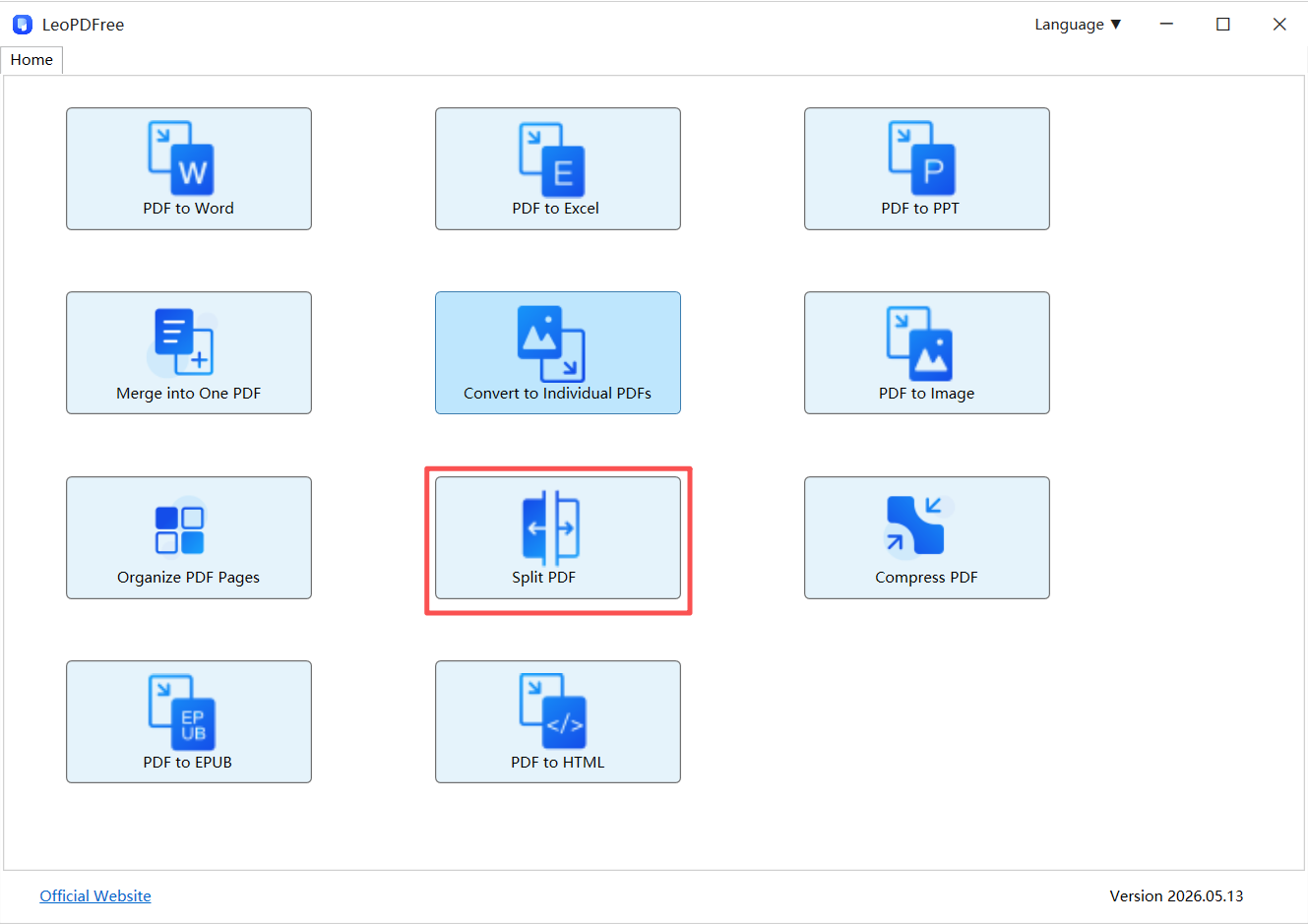
👉 Because everything happens locally, there is no need to upload sensitive documents.
Quick Summary
| Mistake | Better Approach |
|---|---|
| Taking screenshots | Split page ranges directly |
| Splitting too early | Review document structure first |
| Uploading sensitive files | Use offline tools like LeoPDF |
| Repeated exports | Minimize processing steps |
| Chasing features | Prioritize document quality |
Final Takeaway
Most PDF splitting problems aren’t caused by the PDF itself.
They’re caused by workflow mistakes.
If you want cleaner, faster, and more reliable results:
✔ Split page ranges instead of taking screenshots
✔ Review documents before splitting
✔ Keep sensitive files local
✔ Avoid unnecessary exports
✔ Use LeoPDF or another reliable offline PDF splitter to preserve document quality
👉 The smartest PDF workflow isn’t about doing more.
It’s about avoiding the mistakes that cause problems in the first place.
Why screenshots are a different result
A screenshot captures visible pixels, not the original text, links or page objects. Enlarging it can reveal reduced detail, and a PDF made from screenshots may no longer support the same text search. If your goal is separate PDF sections, use supported splitting rather than making image copies.
Before sharing, check that all intended pages are present and in order. This check is more useful than assuming that any tool always preserves every document property.