
Tips & guides
Reorganize or Edit a PDF: Three Workflows and Their Layout Risks
Published
Reordering pages and editing their contents are different jobs. Start by deciding whether you need to change sequence, revise text, or rebuild a layout. Keep the original PDF and choose the smallest operation that meets the requirement.
1. Reorganize pages without editing their contents
When only the order is wrong, use a page-organization tool rather than converting the document. Check the thumbnail sequence, move the required pages, save a copy and verify that the expected pages remain. This changes organization, not the page’s text formatting.
Use the page-organization controls in LeoPDFree to arrange PDF pages. Save a new copy and check the page order before sharing it.
Recommended Workflow
Step 1
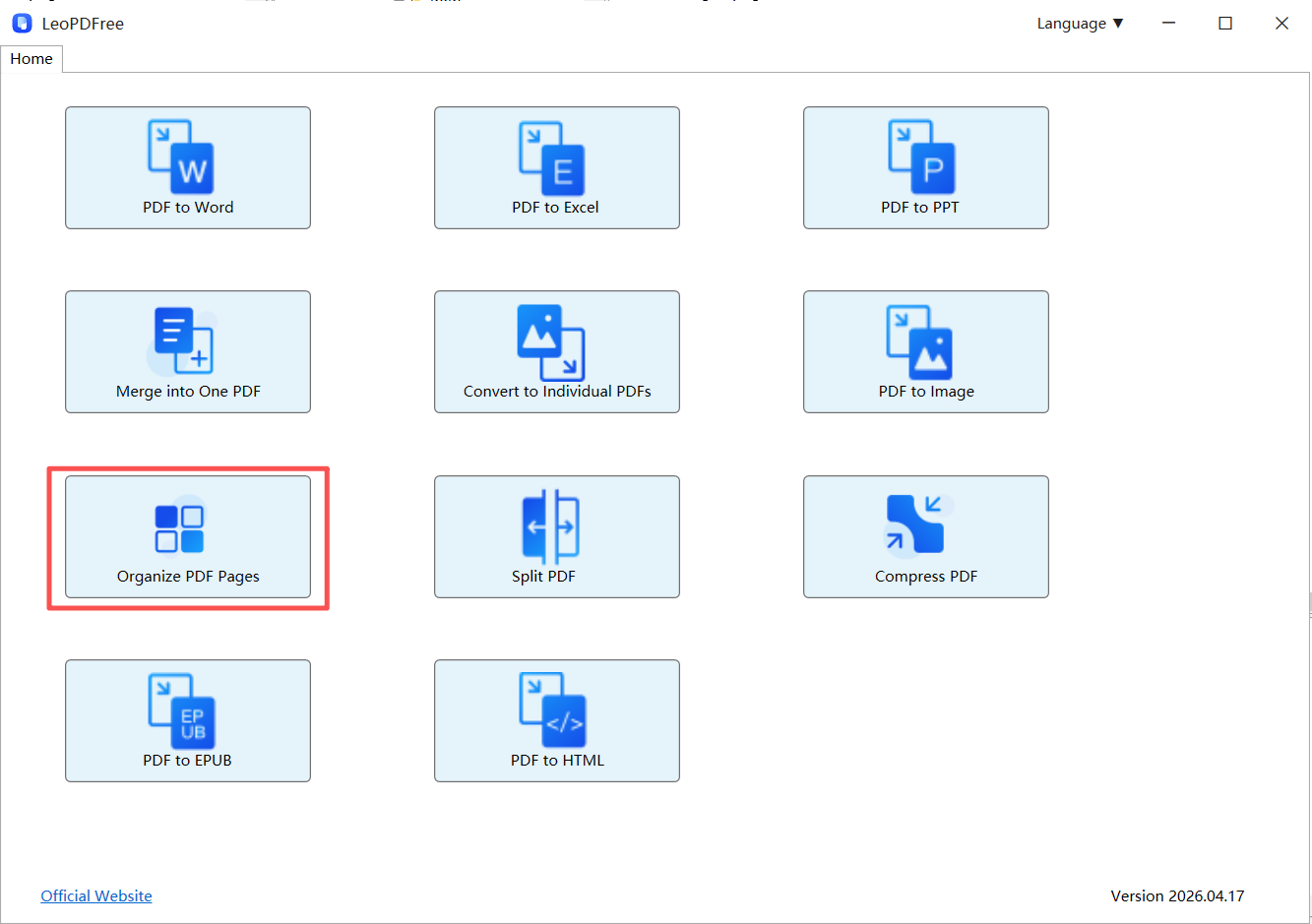
Download and successfully install LeoPDF on your computer for free. Open the software and click the “Organize PDF Pages” button on the interface to start loading the PDF file whose page order you want to rearrange, as shown below.
Step 2
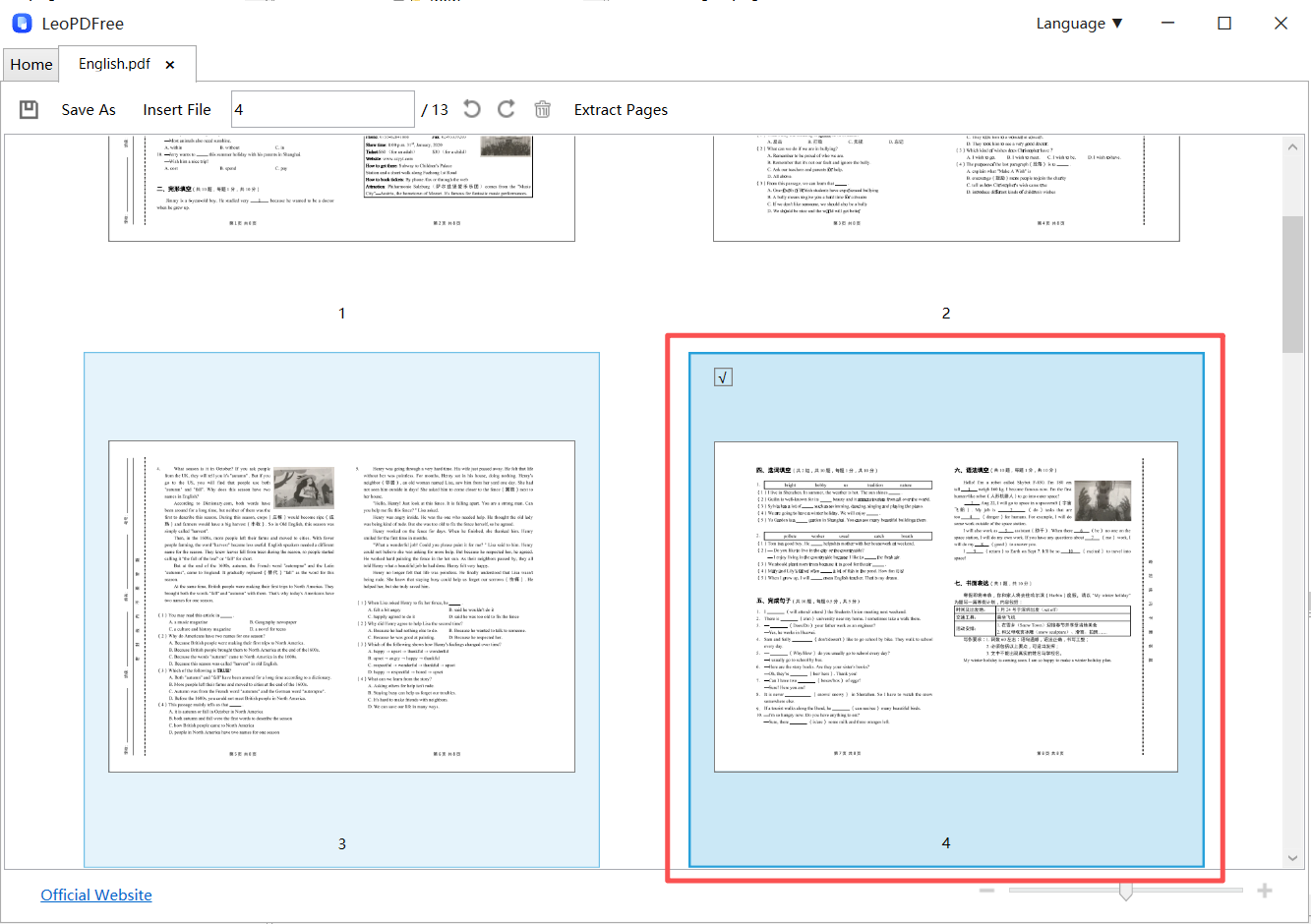
In the thumbnail view interface, add the PDF files you want to reorder. You can add files by pressing Ctrl + C or simply dragging and dropping the PDF files with your mouse.
After the PDF files are loaded, you can rearrange the pages according to your needs. Click to select pages with your mouse, or enter specific page numbers in the editing box above to quickly select the pages whose order you want to change, as shown below.
Step 3
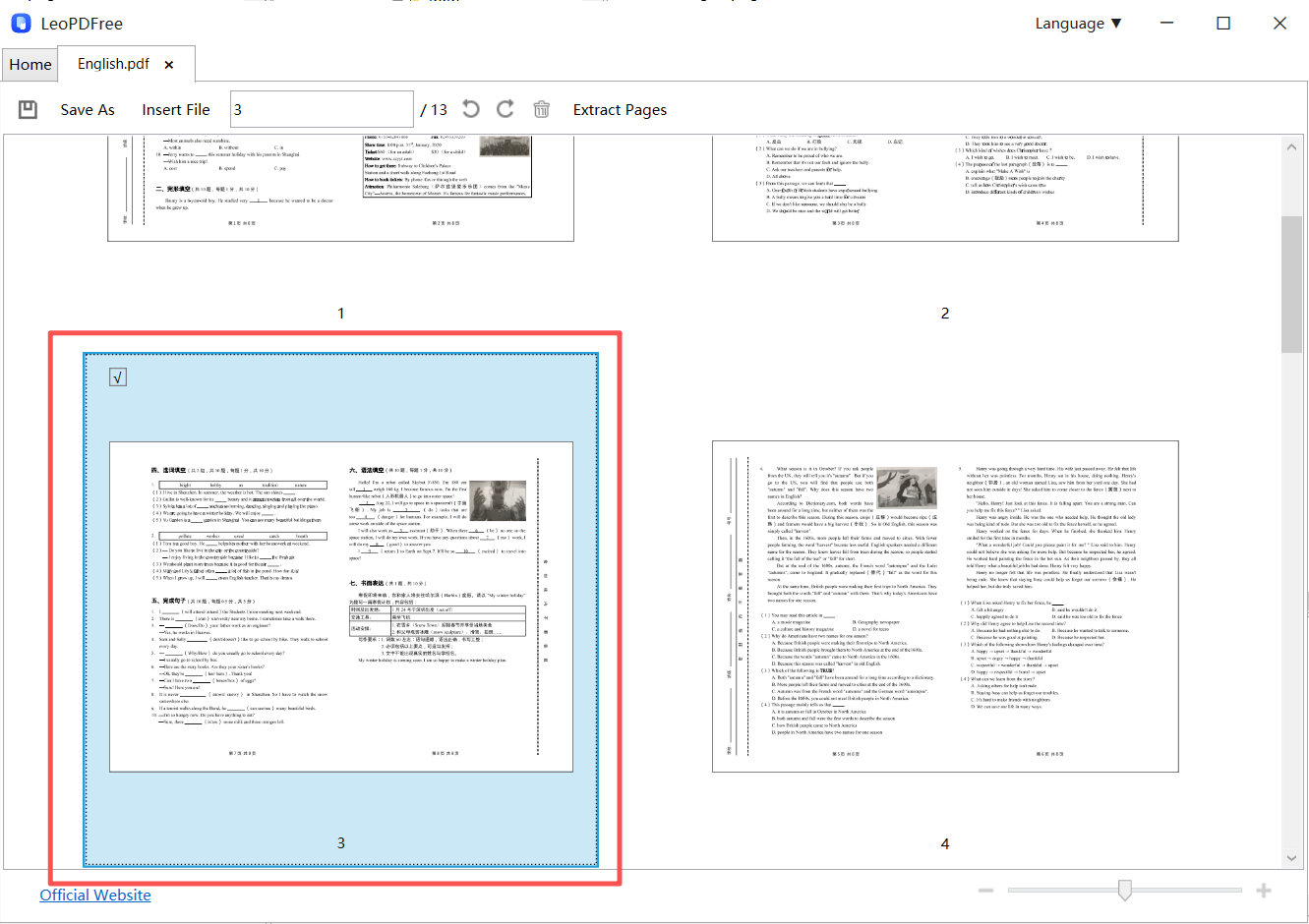
Next, simply drag the selected pages with your mouse to the position you want. It’s that easy, as shown below.
Step 4
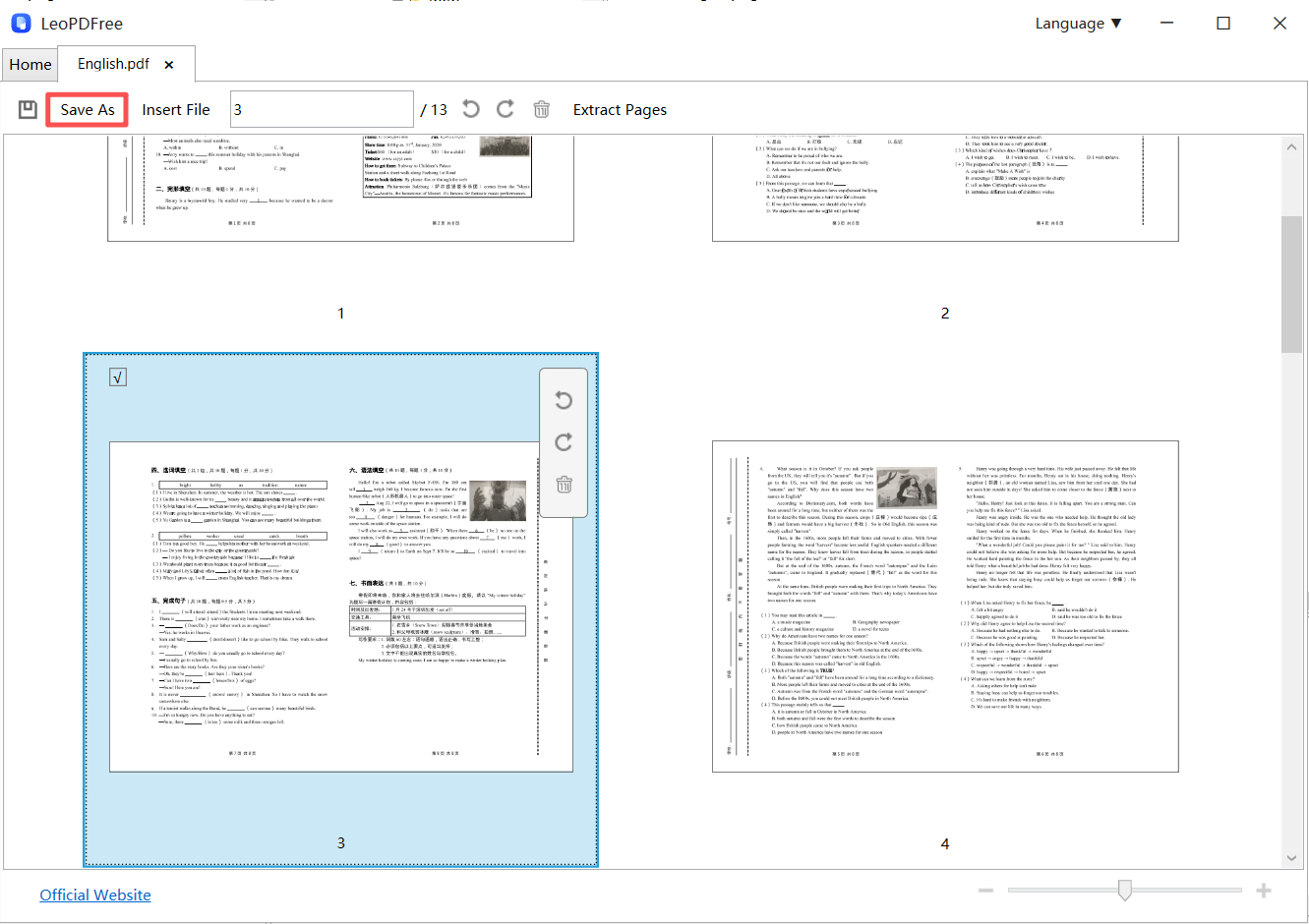
Once you’ve finished rearranging the pages, you can also click the “Delete” button to remove any unwanted pages, or use the “Rotate” button to fix upside-down pages.
When everything looks good, make sure to click the “Save As” button to save the new PDF layout. That’s all there is to it — simple and easy! As shown below, give it a try now.
2. Convert to Word when you need editable content
Choose the processing method before converting
LeoPDFree for Windows converts supported text-based PDFs to Word or Excel locally for free, without OCR. It does not upload files for these operations. LeoPDF store editions provide paid Word/Excel conversion with cloud OCR, including scanned text and handwriting; files processed in the cloud are deleted when conversion completes. Other supported tasks are free and local. Do not use the free Windows workflow as a substitute for OCR.
Open the PDF-to-Word function, add the document and save the Word output. Review paragraphs, fonts, columns and tables before editing. Export the edited document to PDF from a suitable word processor. This is a conversion-and-rebuild workflow, so the original layout is not guaranteed.
3. Revise the source or rebuild the required section
If the source Word, spreadsheet or design document is available, edit that source and export a new PDF. Otherwise, manually rebuilding a limited section may be clearer than repeatedly converting the whole document. An HTML intermediary is useful only when it actually contains suitable structure; it is not a universal layout-preservation trick.
Compare the final copy
Use the page-organization controls in LeoPDFree to arrange PDF pages. Save a new copy and check the page order before sharing it.
Questions about your LeoPDF edition?
Contact xuehui@leopdf.com with your platform, app version and the task you need.