
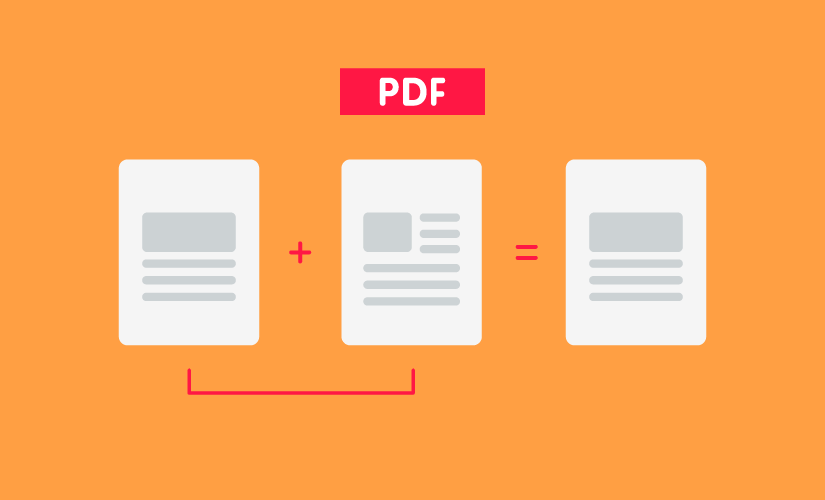
If you have a number of related PDF files, merging these files could make your work much easier. In this article, you will learn how to merge PDF files on Windows 10 or 7. We will help you combine PDF documents using online programs, third-party tools, and tools built into your operating system free.
Why Would You Want to Merge PDFs into One?
If you have never performed a PDF merge before, even a free one, you may want to know why merging your PDF files may be important. Below, we have outlined some of the reasons a large number of PDF users merge different documents:
Projects Featuring Multiple Team Involvement
If your project features more than one person or a number of teams, you will end up with documents being submitted from different angles. For example, if the teams were working on a proposal for, say new housing development, you will end up with reports from engineers, environmental agencies, architects, builders, etc.
If the documents are sent in varying formats, you can easily convert them into the PDF format and then merge them. This will make the presentation a lot easier for you.
Archived Documents
Places such as the record libraries may have hundreds or even thousands of files saved electronically, as separate files/documents rather than one big recording. If these files get merged, this could reduce the work done by the searchers significantly.
Image to PDF
PDF documents are an ideal way of sending numerous images or photos at once, especially if you do not want to create a ZIP archive. Nowadays, a large number of people are suspicious of ZIP archives – most of the ZIP archives feature viruses and malware. Instead of creating the ZIP archive, you can simply convert the images to PDF and then merge them into a single document.
All-in-One Job Applications
Numerous organizations have eliminated the need to print resume, application letters, and other credentials by allowing the applicants to upload their applications online. However, some platforms will allow you to upload only a single file at a time.
Most job applicants will have their cover letter, application, certificate, resume, and other documents saved in different files. The only way to upload all the documents as a single file is to merge them.
Interrupted Scanning Process
Scanning a whole book is a time-consuming task. You may want to interrupt the scanning and take some time to relax or attend to other duties. Also, the scanner may decide to malfunction while you are not done with the scanning process.
You won’t need to start scanning your book again. If you already know how to merge PDF files on Windows 10 and Mac, you can continue from where you had left off and then merge the different files into one full book.
Method 1: Merge PDF Files on Windows 10
The first tool you should give a try is this one: LeoPDF. It’s a PDF toolkit that helps convert or make changes to your PDF documents, including merging multiple PDF documents into one file for free. To conclude, LeoPDF has the following advantages:
No registration or activation is needed.
Offline use on computers to avoid privacy risks.
Easy to use. You just need a few clicks to get your PDF edited and converted.
How to merge PDF documents for free using LeoPDF:
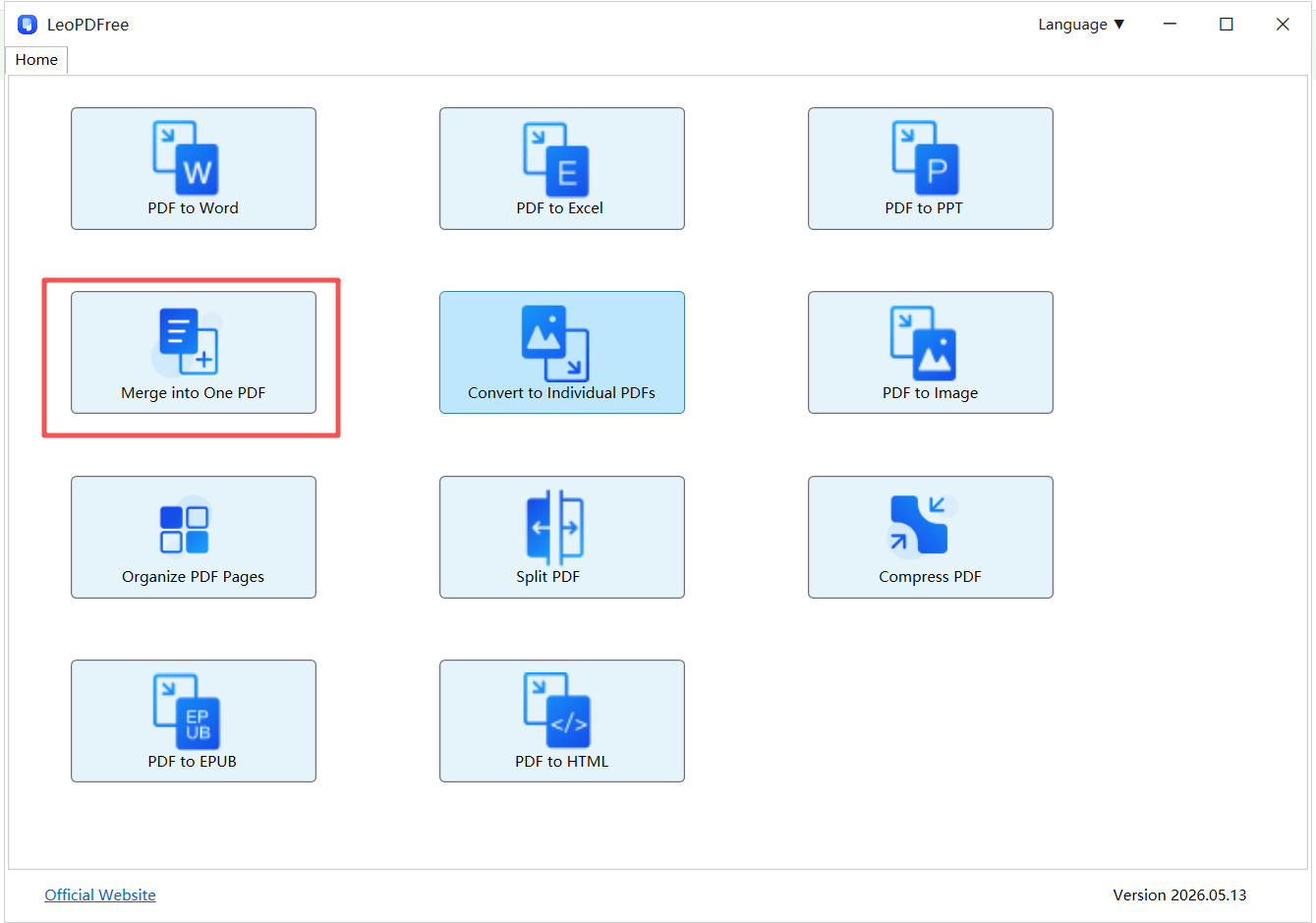
Step 1. Download LeoPDF on your Windows 10 computer. Launch it on your computer, and click on the “Merge into One PDF” section to go to the next screen.
Free DownloadSecure Download
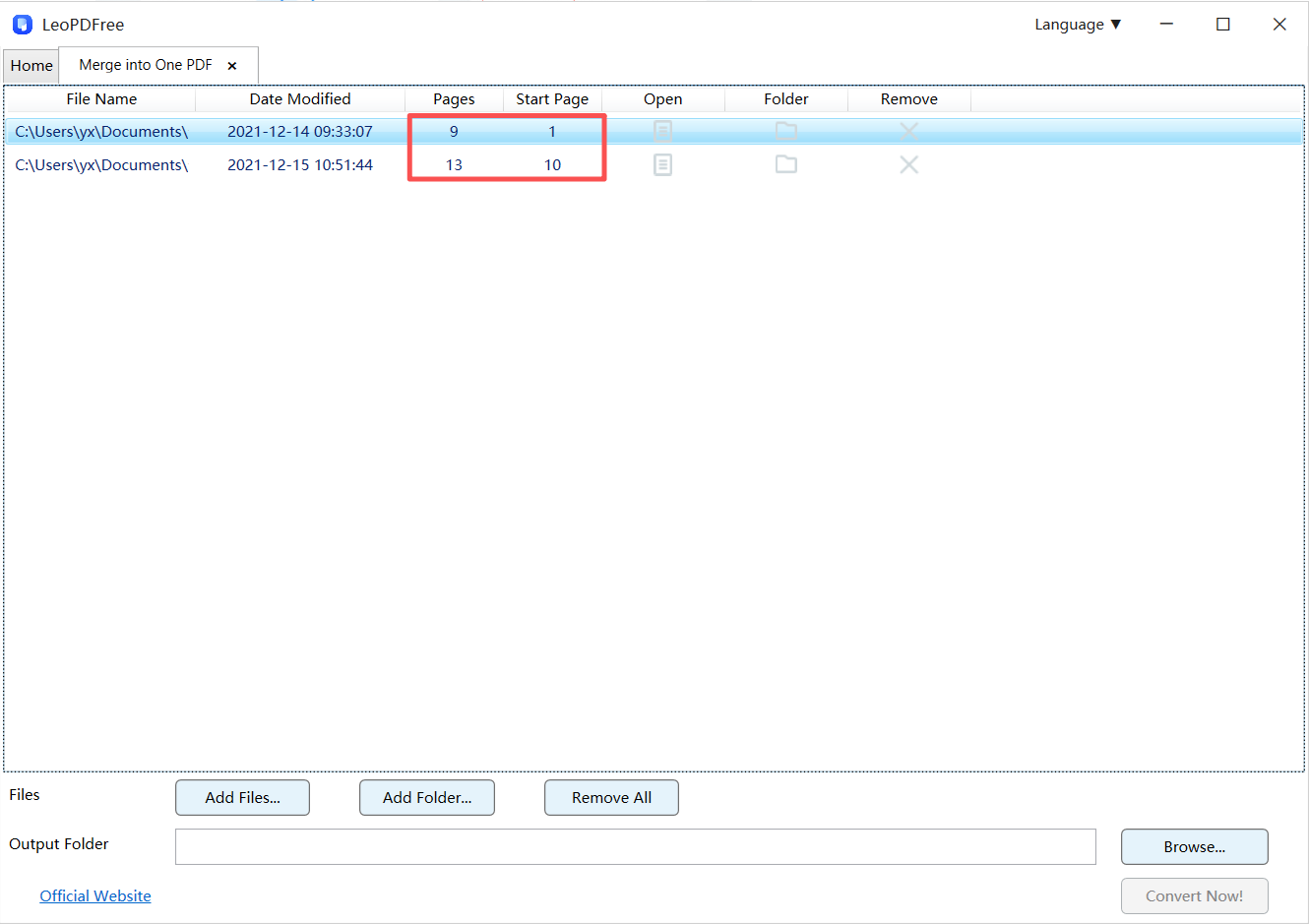
Step 2. On the next screen, you can click “Add Files…” to add your files, or simply drag and drop them directly into the merge box. To rearrange the files, just click and drag them up or down with your mouse. As shown below.
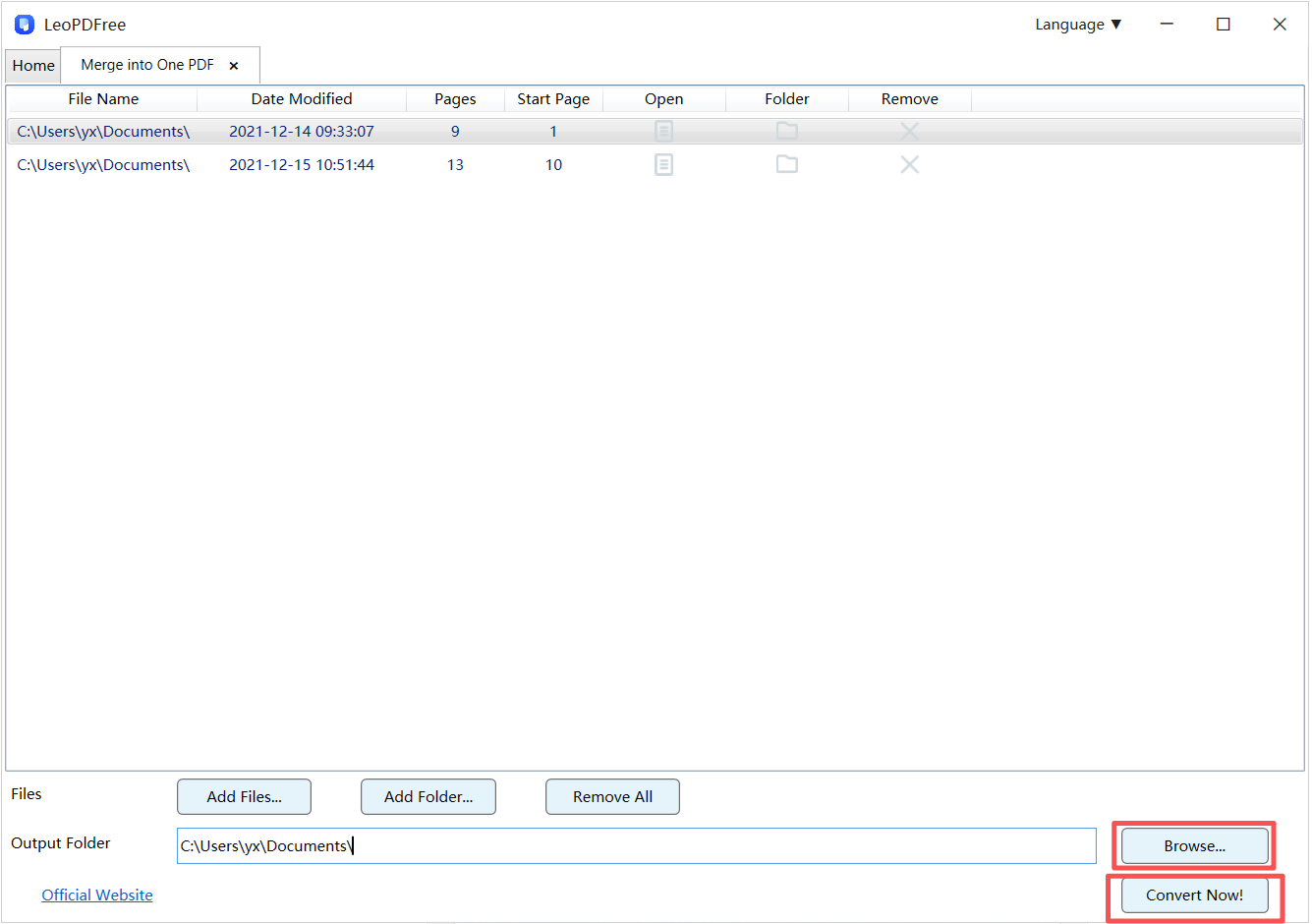
Step 3. Next, click the “Browse…” button to choose where you want to save the merged file. Once you are all set, simply click the “Convert Now!” button. The software will quickly complete the process, depending on the size of the files being merged. As shown below.
Step 4. Once the software finishes merging, a small pop-up window will appear. You can click the “Check Now” button to quickly view your newly merged file. As shown below.
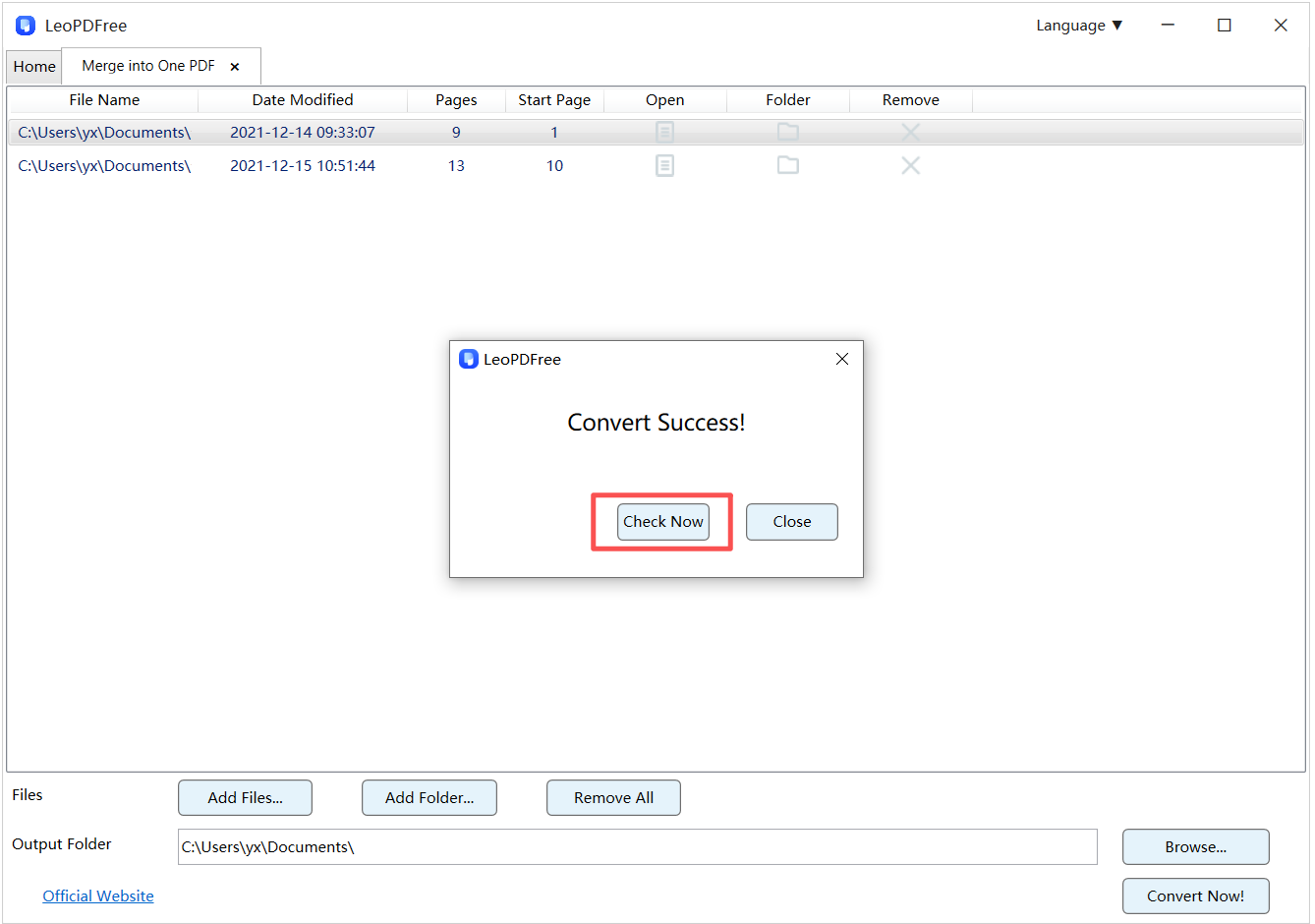
Like other online tools, LeoPDF can help you merge PDF files. What sets it apart, however, is that LeoPDF is a completely free PC desktop application. Users can complete all tasks entirely offline, eliminating any risk of data leaks and giving you peace of mind when merging PDF files that contain sensitive information.
Method 2: How to Merge PDF Files on Mac?
If your computer is running on macOS, you won’t even need a third-party tool to merge PDF documents. The Preview feature built into macOS is capable of helping you with the merging. Being a fairly organic process, you shouldn’t find learning how to merge PDF files on Mac complicated. Below, we have the steps you will need to follow to perform the PDF merge with Preview free:
Step 1: Open Finder on your Mac and select all the PDF files you would like to merge.
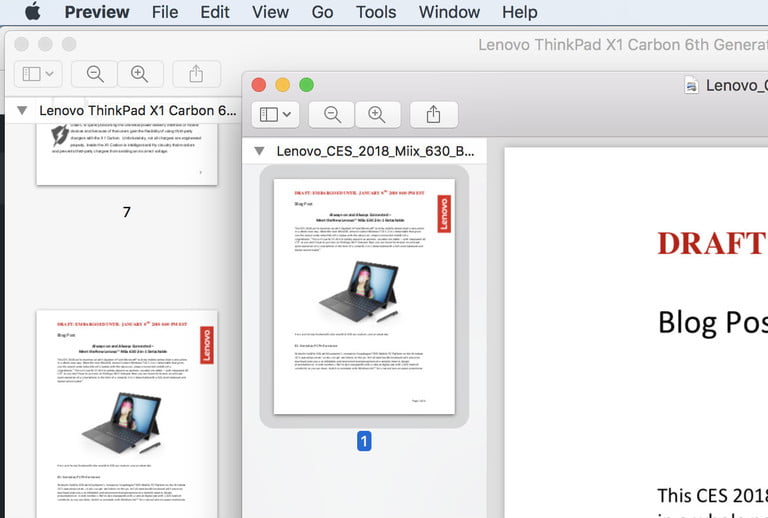
Step 2: Open all the files in Preview. This should bring them up in the simple preview mode. If you have a bigger screen, you should be able to space the preview windows so that you can see the documents all at once. If you have a smaller screen, ensure that you have the ability to view at least 2 previews at the same time.
Step 3: For every Window, go to the View menu and then choose Thumbnails. This should open a sidebar showing the thumbnails for the pages in each PDF file.
Step 4: Use drag and drop to build the PDF file you want. You can either drag the page thumbnails into a specific order of your choosing or you can drag the whole PDF into another one to combine the 2 documents.
Note: You should be able to view visual cues when dragging the pages. The cues should help you figure out where the pages will appear. A divider line should be able to show you whether the page is being dragged below or above the current page. Use the cues to avoid making mistakes.
Step 5: After you are done with merging your documents, rename the final file.
Method 3: How to Merge PDF Online Free?
Online programs, unlike the Preview feature described above, will work on any operating system, Windows or Mac. All you will need is a web browser and internet connection. Most of the online programs are usually free – you won’t have to worry about parting with your money.
Before you decide to use an online program to merge your files, you need to make sure that the documents you intend to merge online are not sensitive. To merge PDF documents online on Windows 10 you will have to upload them to a third-party server. This means that the documents can be accessed by third-party entities. Even if an online program promises that it respects your privacy, this does not mean that the people running the program do respect the promise.
Use PDF2Go.com
Step 1: On your computer web browser, visit PDF2go website.
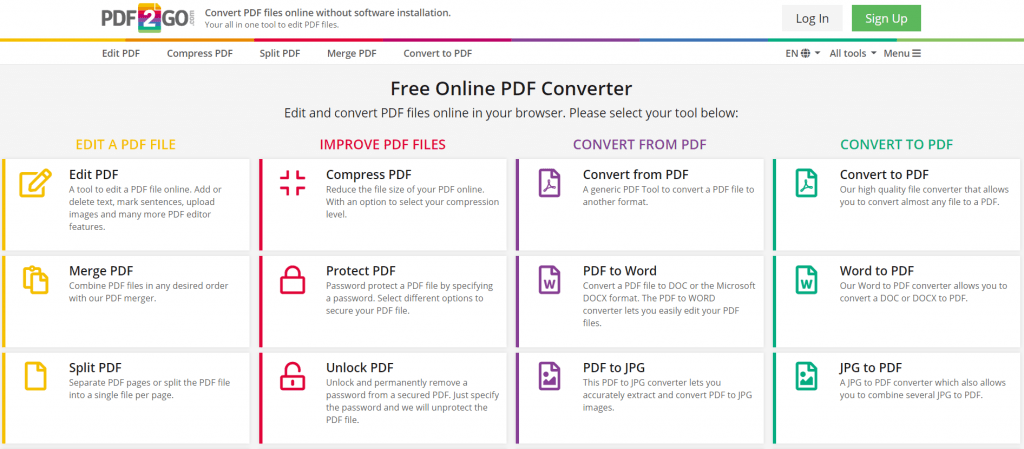
Step 2: Drag and drop the files you would like to merge in the work area. Alternatively, you can click the Choose File button. If your documents reside in the cloud storage, you can select the Enter URL, Dropbox, or Google Drive option.
Step 3: Sort the files by dragging and dropping them – put them in your preferred order.
Step 4: Tap the Save button and then hit on Save again to get the merged PDF.
The tools mentioned above will all use the same core steps. You will need to upload your PDF files > rearrange them > Hit the merge button > download the merged PDF file.
Method 4: How to Merge PDF Files with Adobe?
Adobe Acrobat DC is ideal for both Windows 10 and Mac users. The tool is not completely free. However, you can download the free trial version and use it for 7 days. After the 7 days, you will have to upgrade to the paid version.
The tool is a full PDF package – meaning that it has every PDF feature you would need. Since we are assuming that your goal is to just merge PDF documents, we won’t focus on the other features. To learn how to merge PDF files on Mac and Windows 10 using Adobe Acrobat DC, follow the steps we have outlined below:
Step 1: Download and install Adobe Acrobat DC on your computer.
Step 2: After the installation, open the software and select the Tools tab – this should be available on the upper left-hand corner.
Step 3: Tap the Combine Files option.
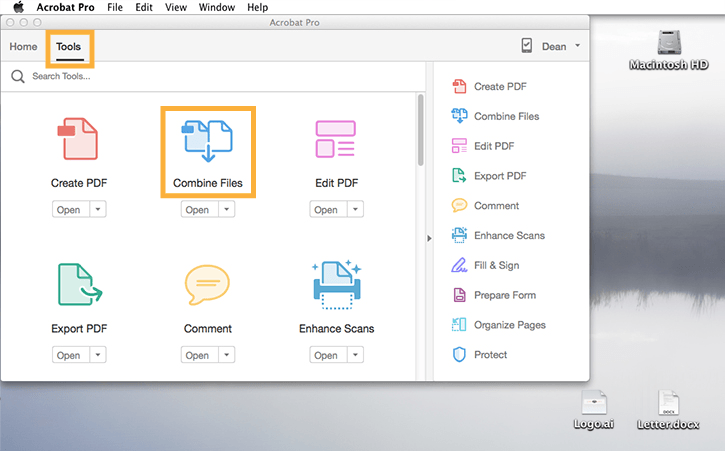
Step 4: Click the Add Files button. Select all the PDF files you wish to merge.
Note: This method will work for all types of files, not just PDF files.
Step 5: After adding your files, select them and then hit the combine button. The button is available on the top-right corner.
Step 6: The PDF files should be merged into one. Now, save your files by tapping File > Save As > add a name > click the save button.
Summary
Merging PDF files on Windows 10 free is not that hard than we think. This article shows you the various free methods you can use to combine your documents quickly. Although the online programs are free, try to avoid them if your documents feature sensitive information. If you are using a Mac computer, you will not need third-party software, you can use the Preview feature. If using an online program to merge PDF files on Windows 10 is not an option, you may need to install a PDF tool on your computer – in this case, we would recommend the Adobe Acrobat DC.
