Tips & guides
How to Split a PDF: Free Methods and a Paid Alternative
Published
This guide includes a free local LeoPDFree workflow and separately identified alternatives that can require payment. Check the selected feature and saving conditions before starting.
Splitting a PDF into multiple files is a common need in both work and study. Whether you want to extract specific pages, split a large PDF into smaller files, or separate each page into an individual document, there are simple and reliable solutions available.
In this guide, we’ll walk you through free and easy methods to split a PDF into multiple files, suitable for beginners and advanced users alike.
Why Do You Need to Split a PDF into Multiple Files?
There are many practical reasons to split PDF files, such as:
▪Sending only selected pages to others
▪Reducing file size for easier sharing
▪Separating chapters or sections
▪Uploading PDFs with page limits
▪Organizing scanned documents
No matter your purpose, PDF splitting can save time and improve efficiency.
Things to Know Before Splitting a PDF
Before you split a PDF file, keep the following points in mind:
▪Page order:Make sure the pages are arranged correctly
▪File security:Some PDFs may be password-protected
▪File quality:Splitting should not reduce clarity or resolution
▪Split mode:Decide whether to split by page range or individual pages
Choosing the right method ensures a smooth experience.
Method 1: Split a PDF Using an Online PDF Tool
Online PDF splitters are ideal for quick tasks and occasional use.
Pros:
▪No installation required
▪Easy to use
▪Works on any device
Cons:
▪File size limits
▪Internet required
▪Privacy concerns for sensitive files
This method is best for small PDFs and non-confidential documents.
Method 2: Use a Free PDF Splitter Software (Recommended)
If you frequently work with PDF files, using dedicated software is the most reliable option.
With a free PDF tool like LeoPDF, you can:
▪Split PDF by page range
▪Split a specified page range
▪Split each page into a separate file
▪Compare the output quality with the original
▪Work offline for better security
Steps to Split a PDF into Multiple Files:
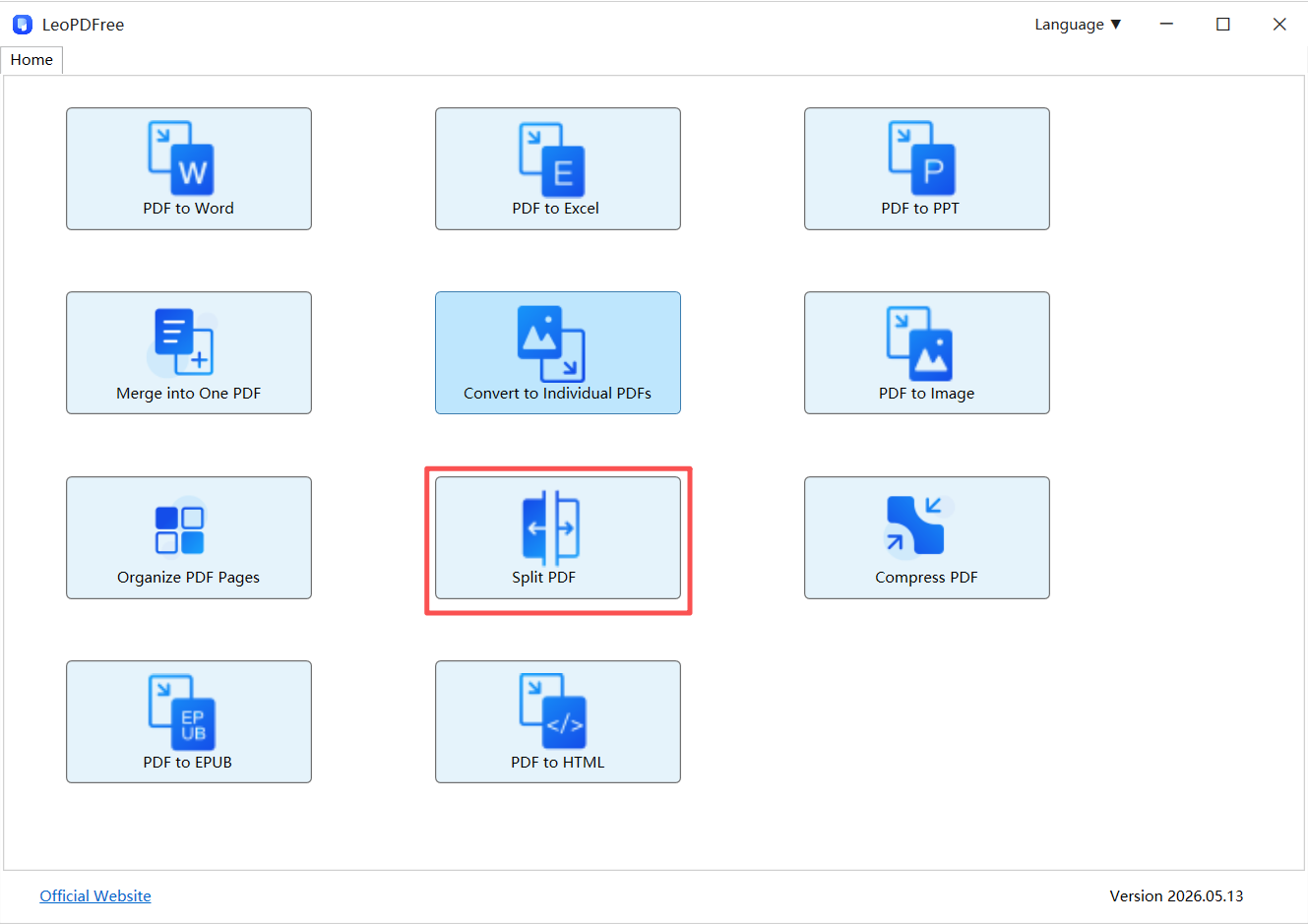
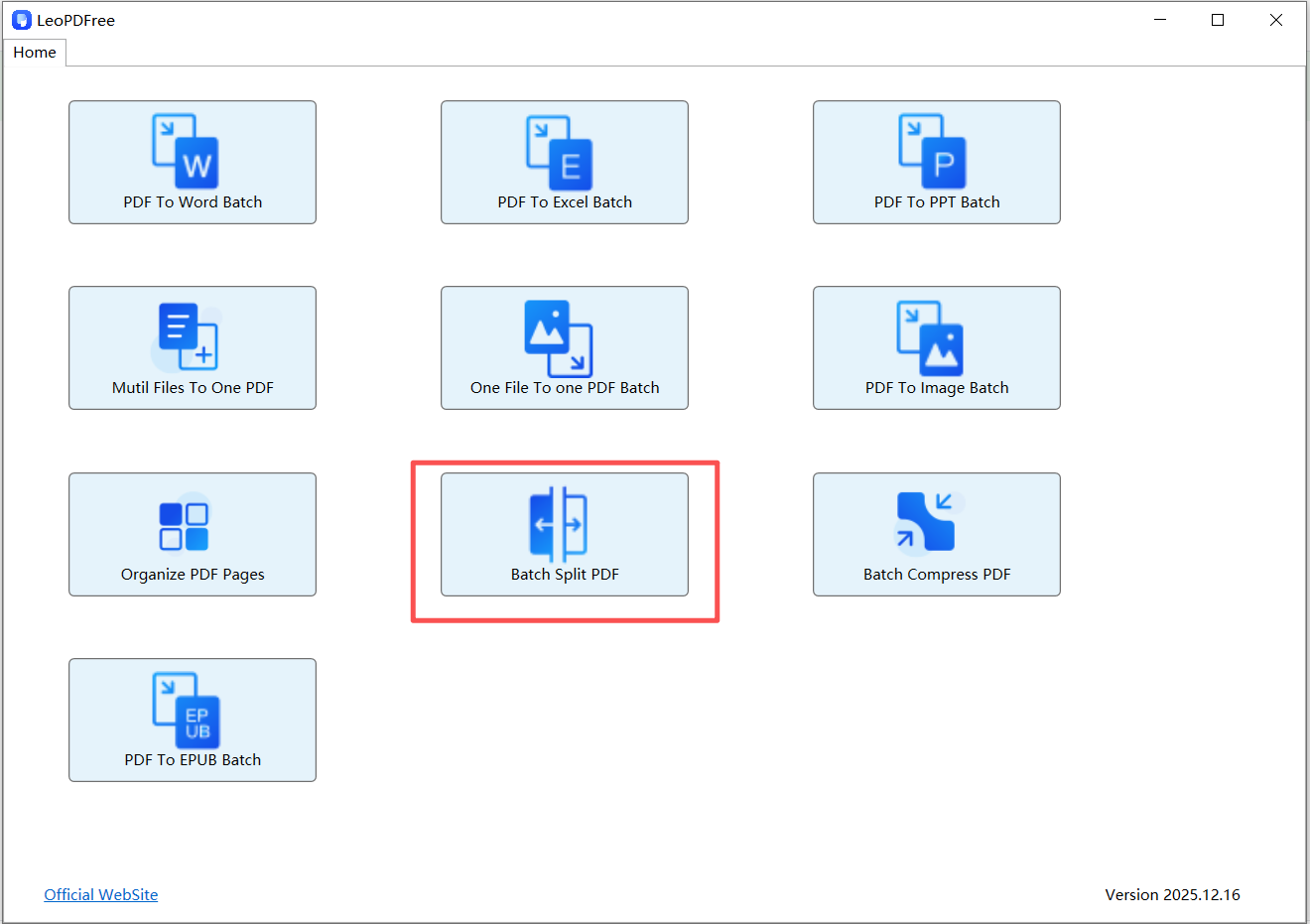
1️⃣.After successfully downloading and installing LeoPDF, open the software and click the “Batch Split PDF” button, as shown in the image below.
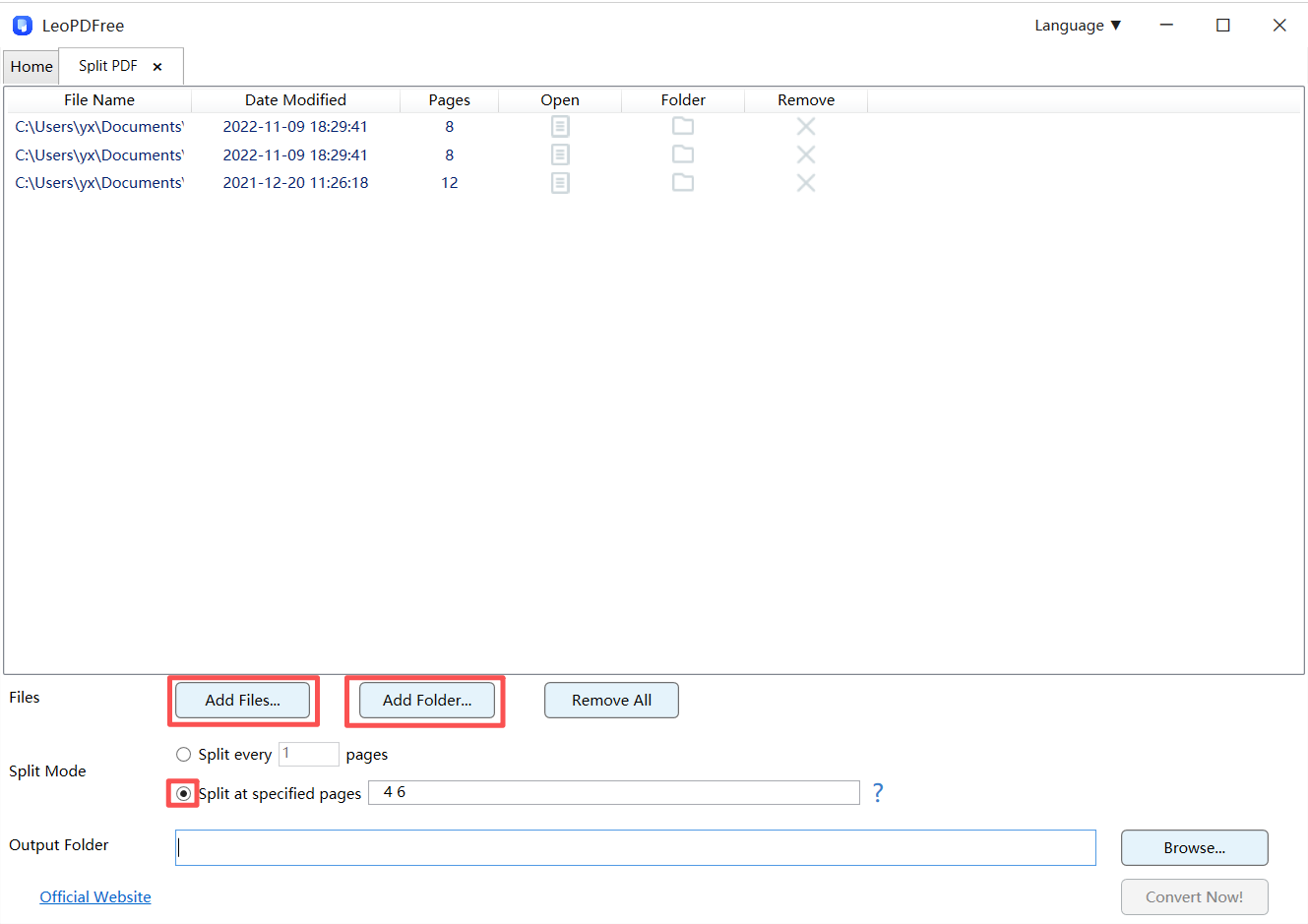
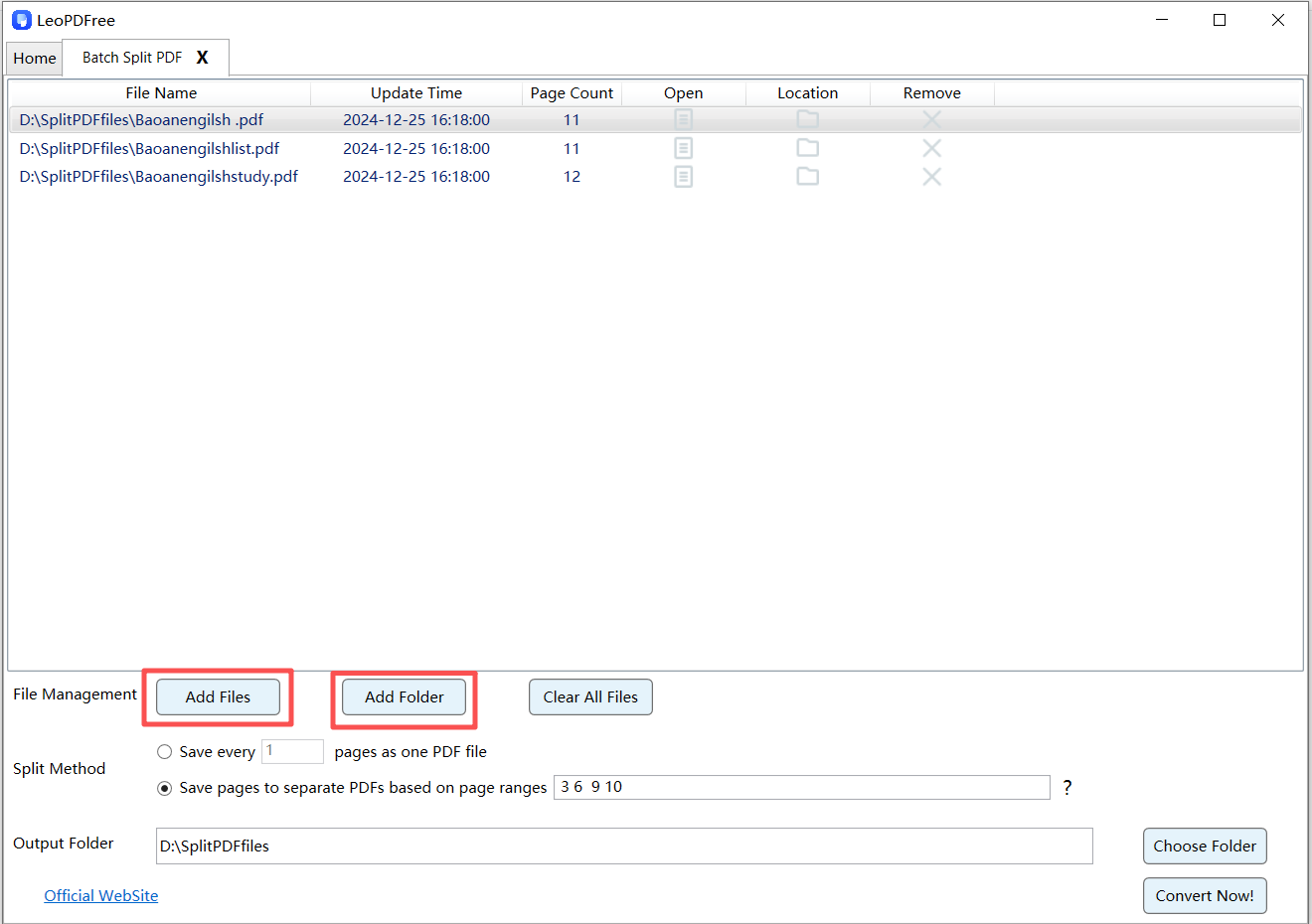
2️⃣.On the opened interface, click “Add Files” or “Add Folder” to add one or more PDF files you want to split, as shown in the image below.
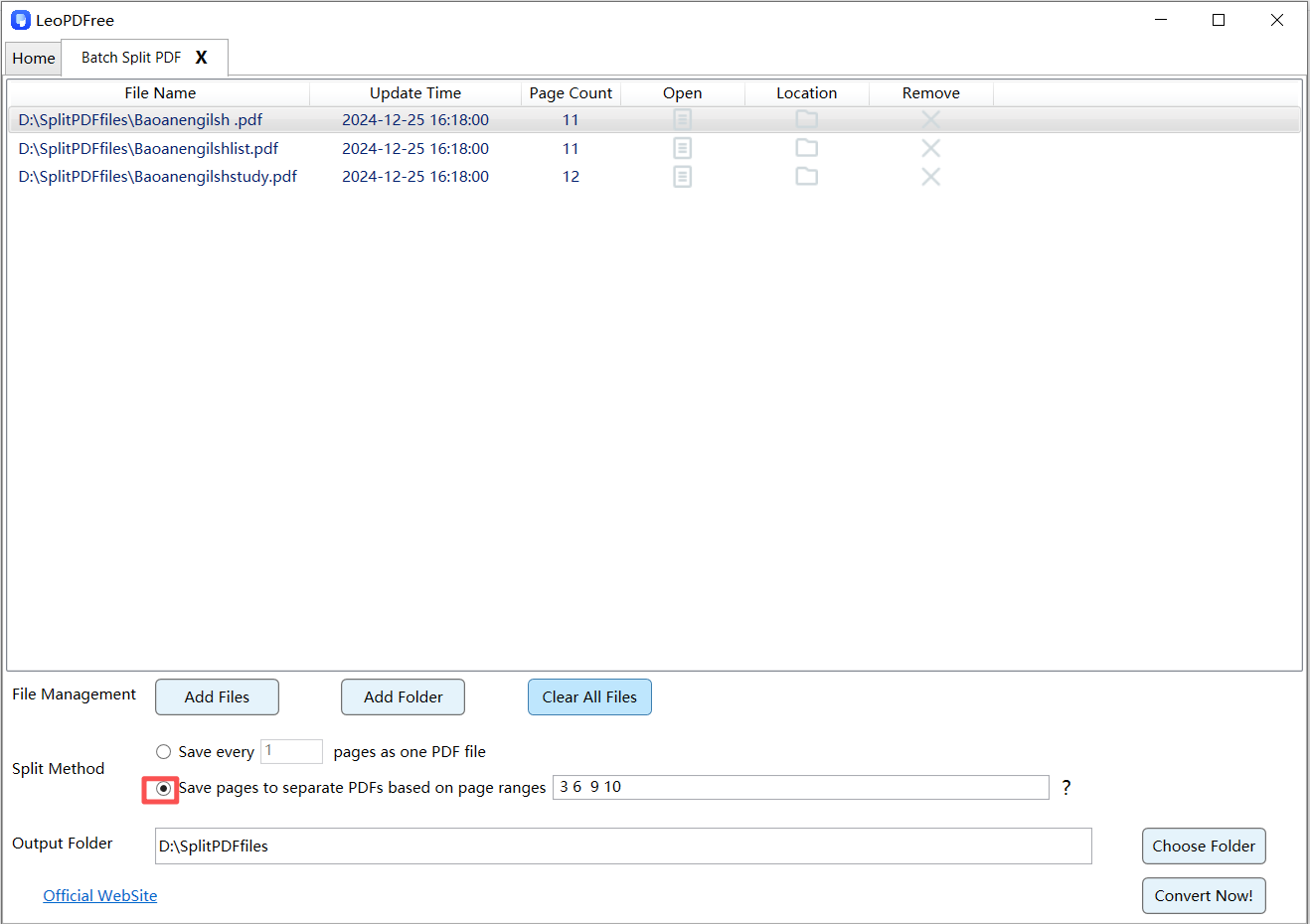
3️⃣.On the interface, select “Split Method” and choose one of the two splitting options according to your needs, as shown in the image below.
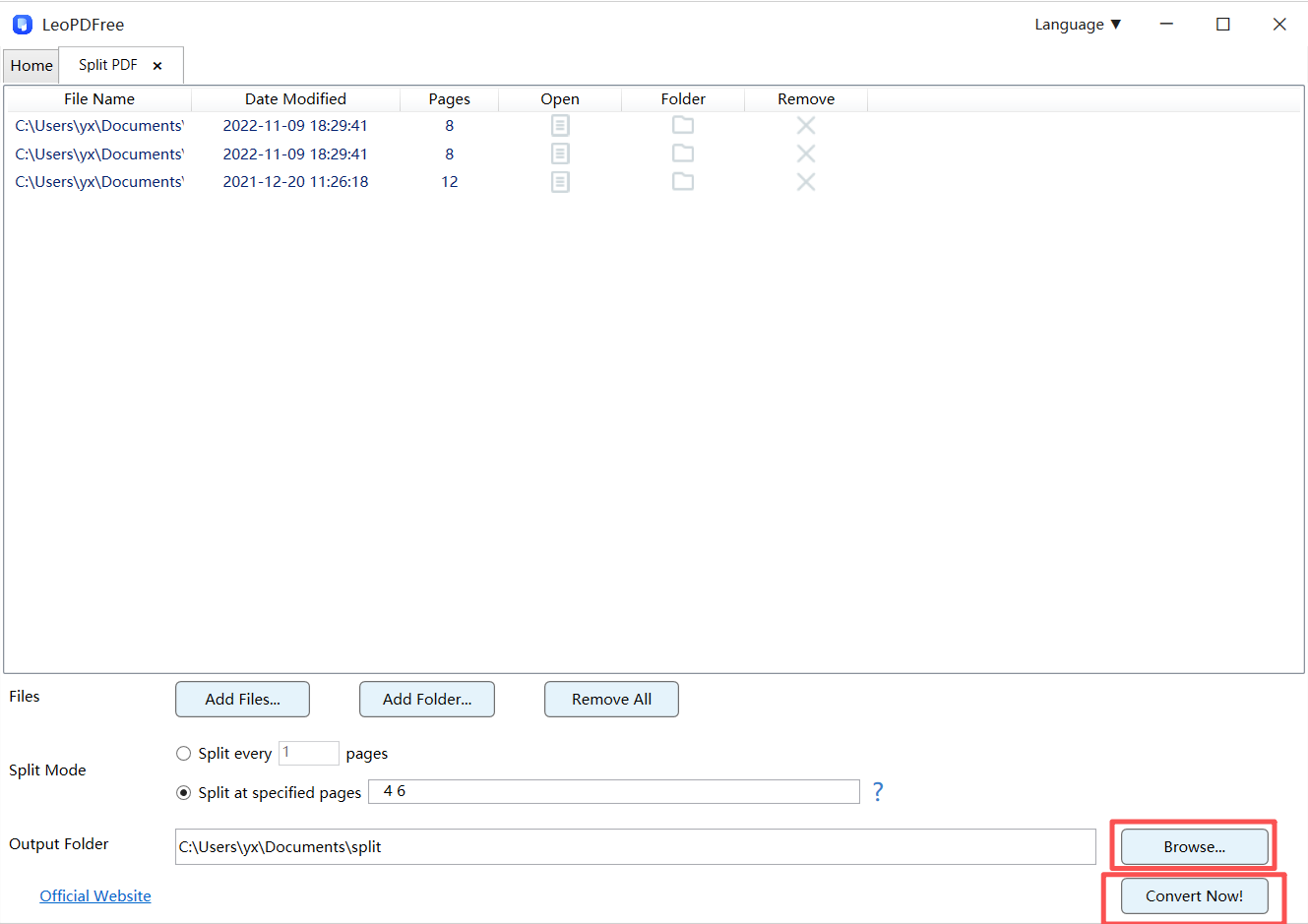
4️⃣.Click “Choose Folder” to set the save location for the split PDF files, as shown in the image below.
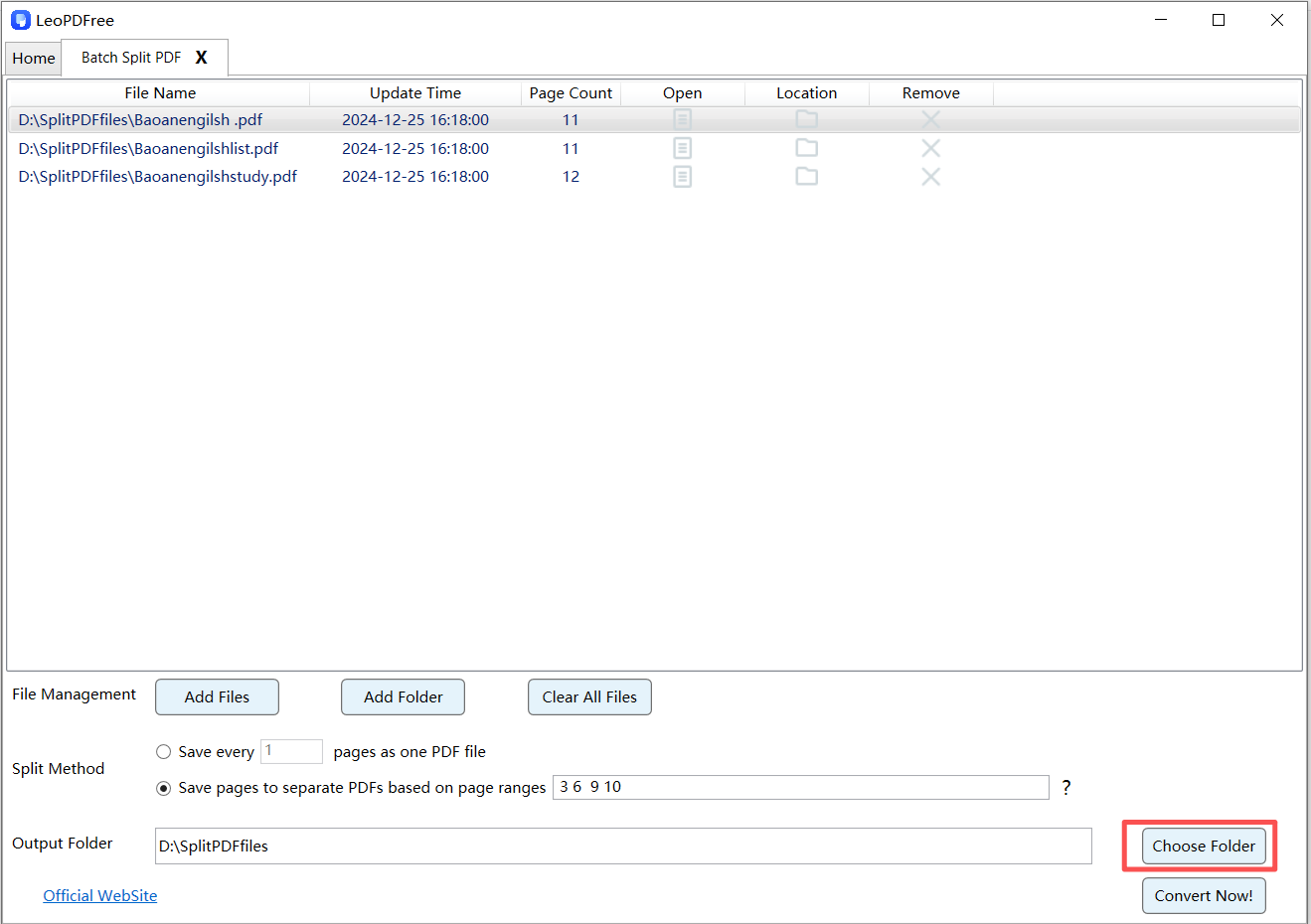
5️⃣.After all the preparations are complete, simply click “Convert Now!” on the interface. The tool will quickly complete the splitting process based on the file size, as shown in the image below.
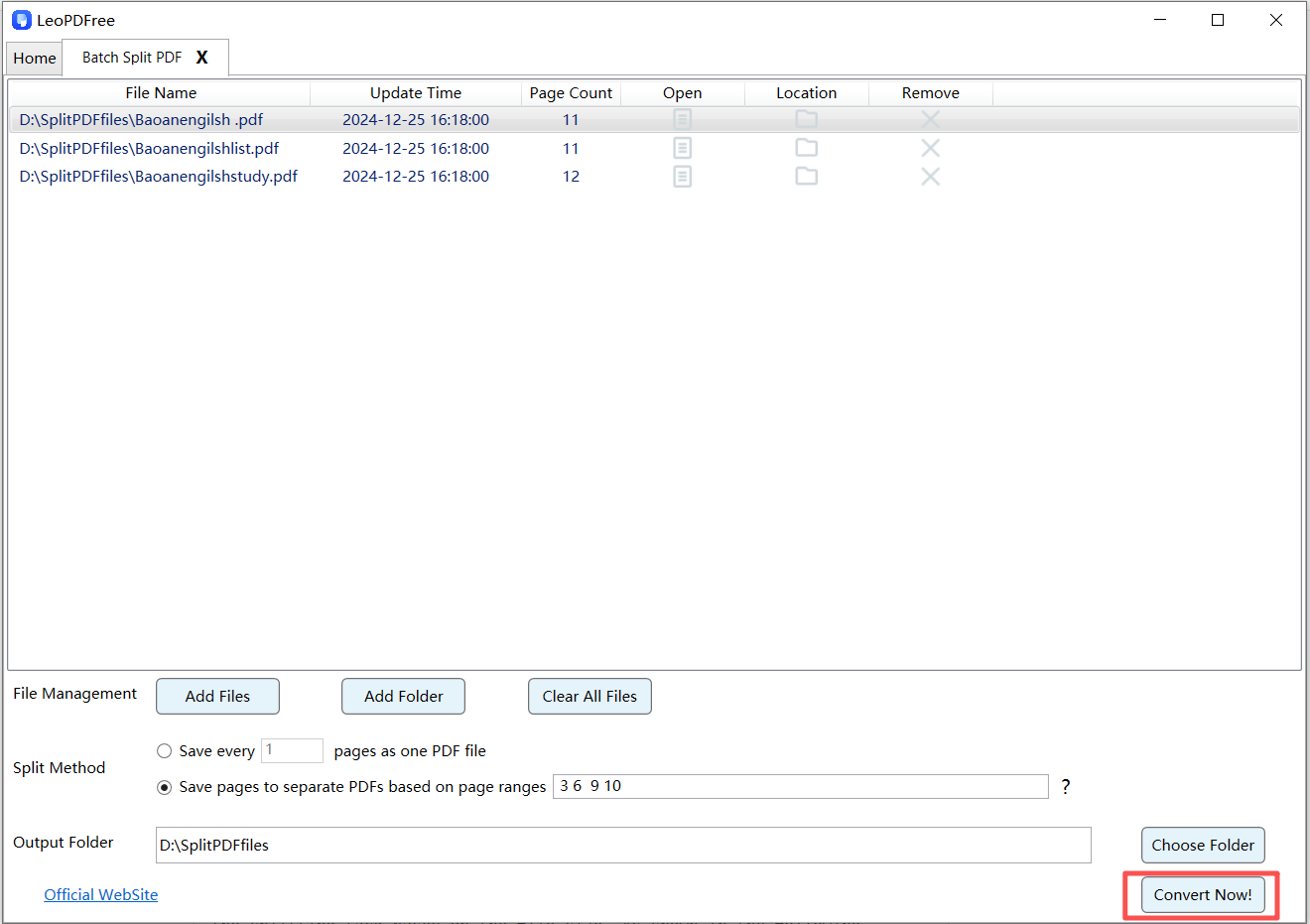
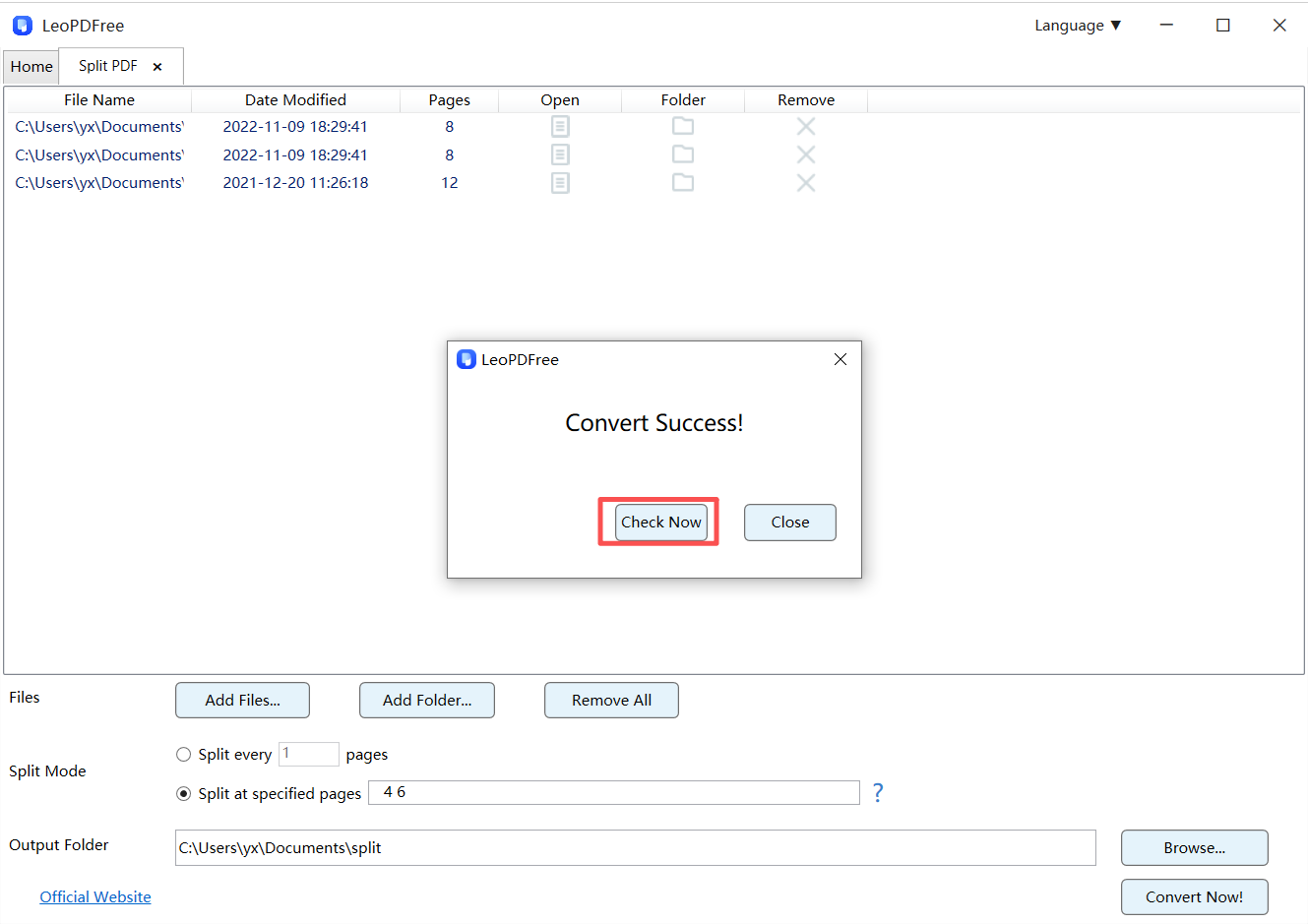
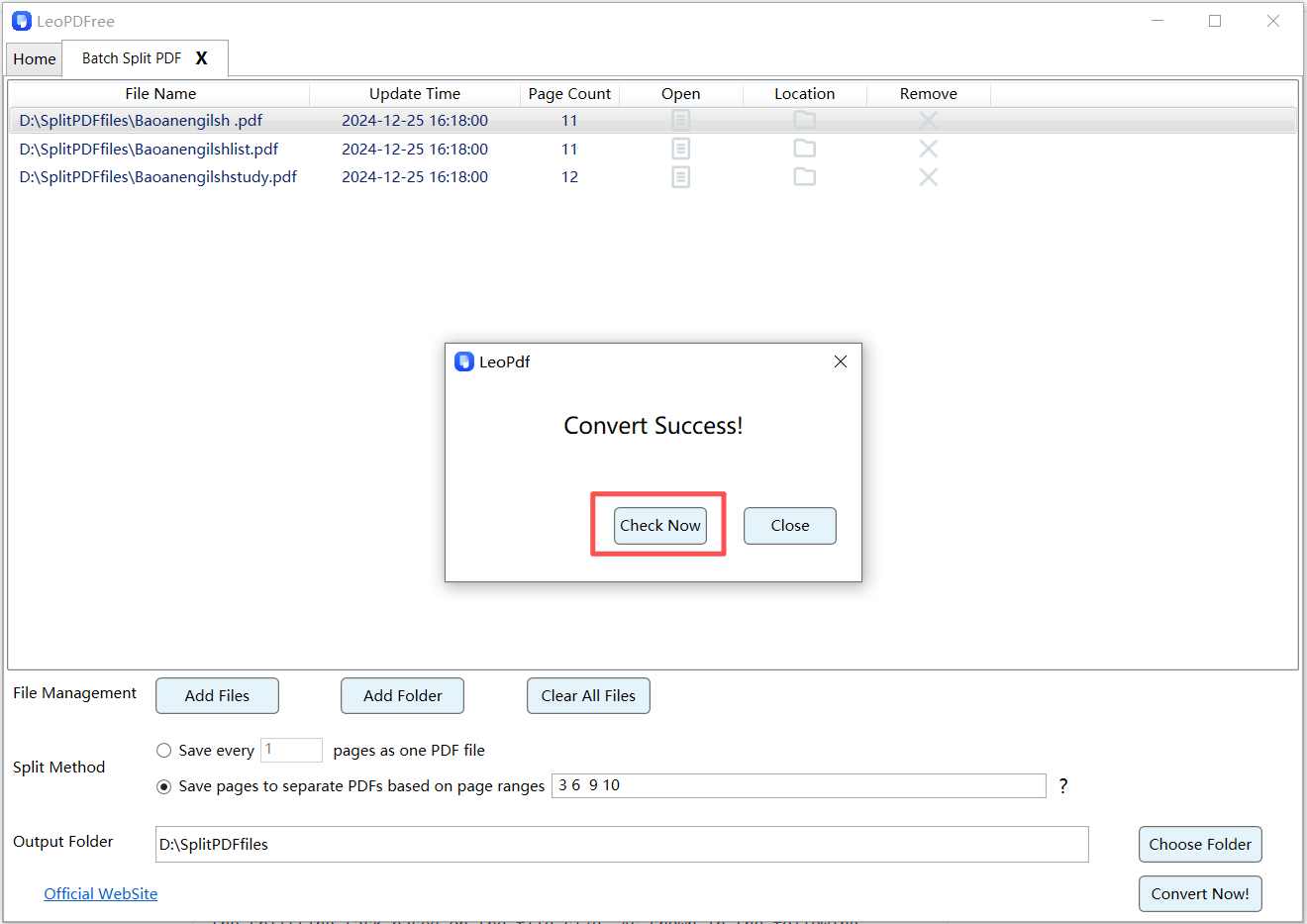
6️⃣.When the software pops up a new window, click “Check Now” in the window to quickly view the results of the split. It is very convenient and fast, as shown in the image below.
Method 3: Split a PDF Using Adobe Acrobat
Adobe Acrobat offers advanced PDF editing features, including PDF splitting.
Pros:
▪Professional-level control
▪Supports encrypted PDFs
Cons:
▪Paid software
▪Overkill for simple tasks
How to Split a PDF by Page Range or Individual Pages
Most PDF splitters support flexible splitting modes, including:
▪Split by page range (e.g., pages 1–5, 6–10)
▪Split each page into a separate PDF
▪Split supported page ranges into separate output files only
Simply choose the option that fits your needs before confirming the split.
PDF Splitting Tool Comparison
| Tool Type | Installation Required | Free | Best For |
|---|---|---|---|
| Online Tools | No | Limited Free | Casual users |
| Adobe Acrobat | Yes | No | Professionals |
| LeoPDF Software | Yes | Yes | Frequent users |
Frequently Asked Questions
Will splitting a PDF reduce quality?
No. A proper PDF splitter keeps the original resolution intact.
Can I split scanned PDFs?
Yes, scanned PDFs can be split just like regular PDFs.
Can I merge PDFs again after splitting?
Absolutely. Most PDF tools also support PDF merging.
Conclusion: What Is the Best Way to Split a PDF?
Splitting a PDF into multiple files is not complicated when you use the right tool.
For occasional tasks, online tools work well. For frequent or professional use, a free PDF splitter software like LeoPDF offers better control, security, and efficiency.
Whether you want to split a PDF by pages, extract specific sections, or manage large documents, there’s a solution that fits your needs. Choose the method that works best for you and get started today.
Plan boundaries and filenames before splitting
- Keep the source PDF and use its physical page positions, which can differ from printed page labels.
- Choose page ranges or one-file-per-page only when the installed tool offers that mode. Do not infer automatic chapter or bookmark splitting from a range splitter.
- Choose output filenames that identify the source and sequence. Check the last page of one section and first page of the next for gaps or overlap.
- For a large document, test a short representative range and confirm disk space before processing the complete source.
LeoPDF supports page-range splitting, not a separate page-extraction tool. Keep claims about other applications separate from the features shown by your installed LeoPDF edition.
Illustrated range-splitting workflow
Follow the illustrated LeoPDFree Windows workflow below, then open the output and compare it with the source document.