
In daily work and study, we often encounter issues with incorrect PDF page order, such as:
⏺ The pages are mixed up after merging multiple PDF files
⏺ Scanned documents have pages in the wrong sequence
⏺ Course materials or reports need to be reorganized
⏺ Contract attachments are arranged incorrectly
In these situations, you need to rearrange the PDF page order. So, how do you rearrange PDF pages?
In this article, we will introduce three simple and practical methods to help you quickly change the page order in a PDF file — whether you’re a beginner or a professional office user.

Method 1:Use professional and completely free LeoPDF editing software to adjust page order (Recommended)
The most reliable way to reorder PDF pages is by using professional PDF editing software.
Steps:
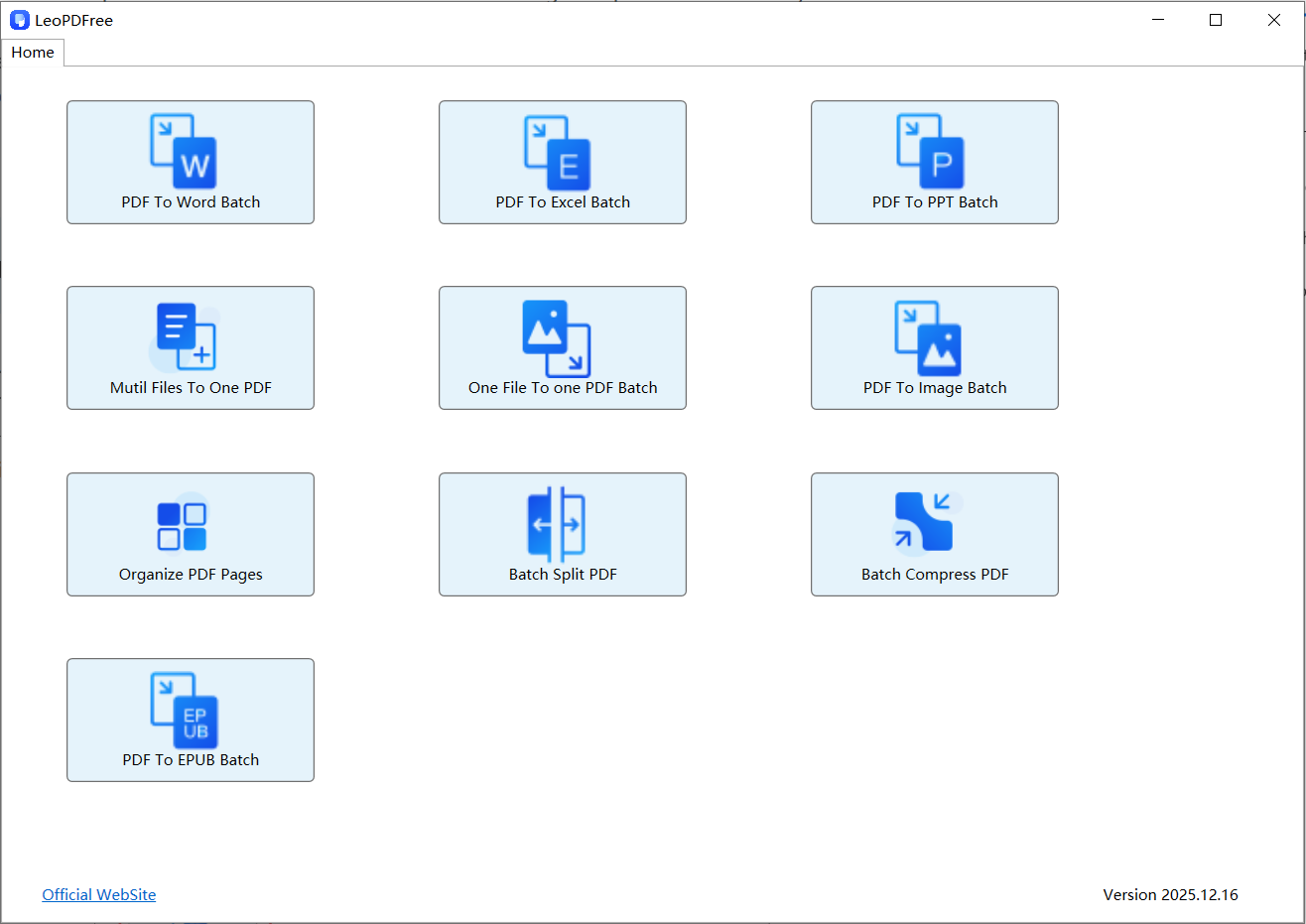
1️⃣.Download and install LeoPDF for free, then open the software, as shown in the image below.
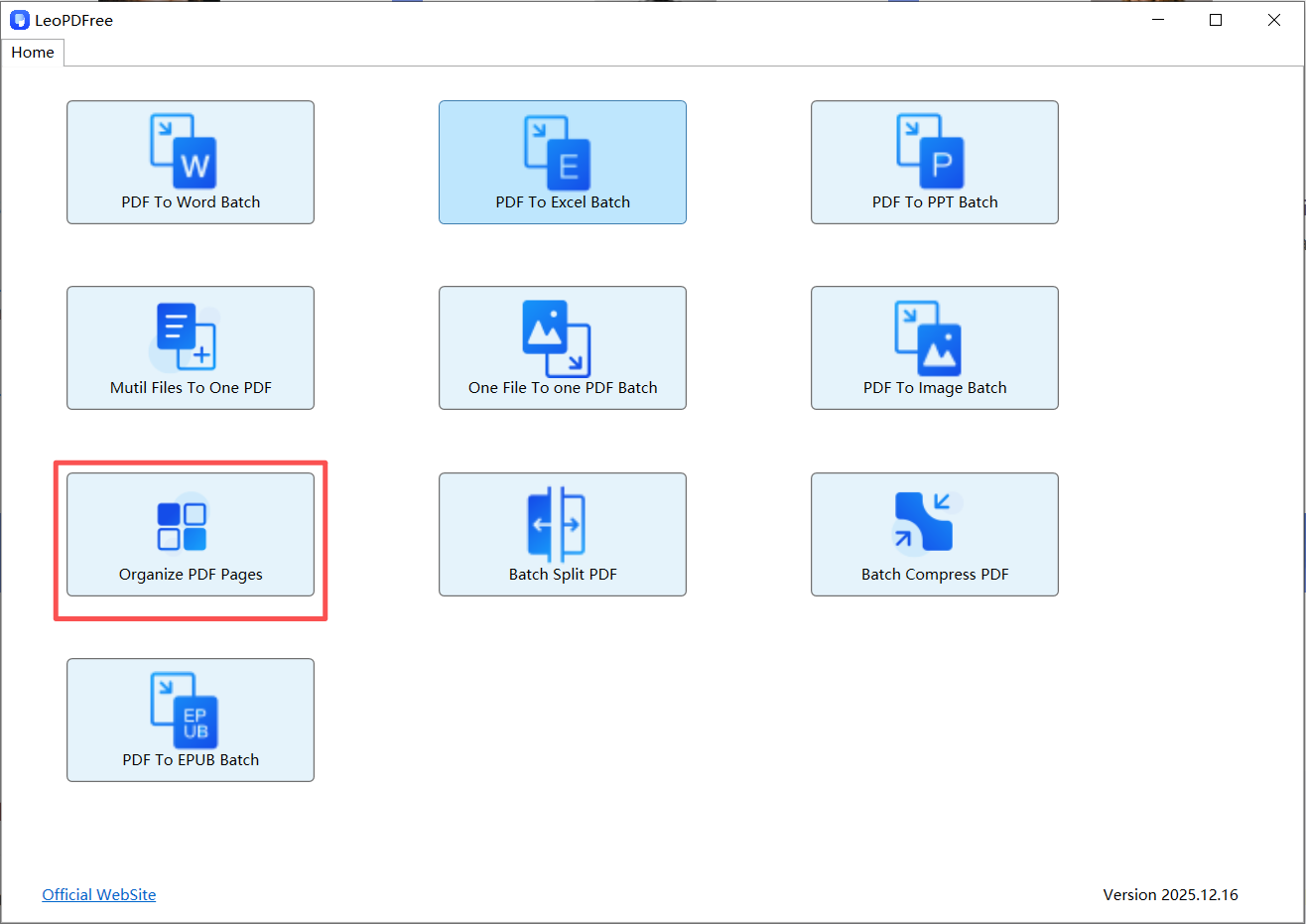
2️⃣.On the opened software interface, click “Organize PDF Pages” and add the PDF file whose page order you want to adjust, as shown in the image below.
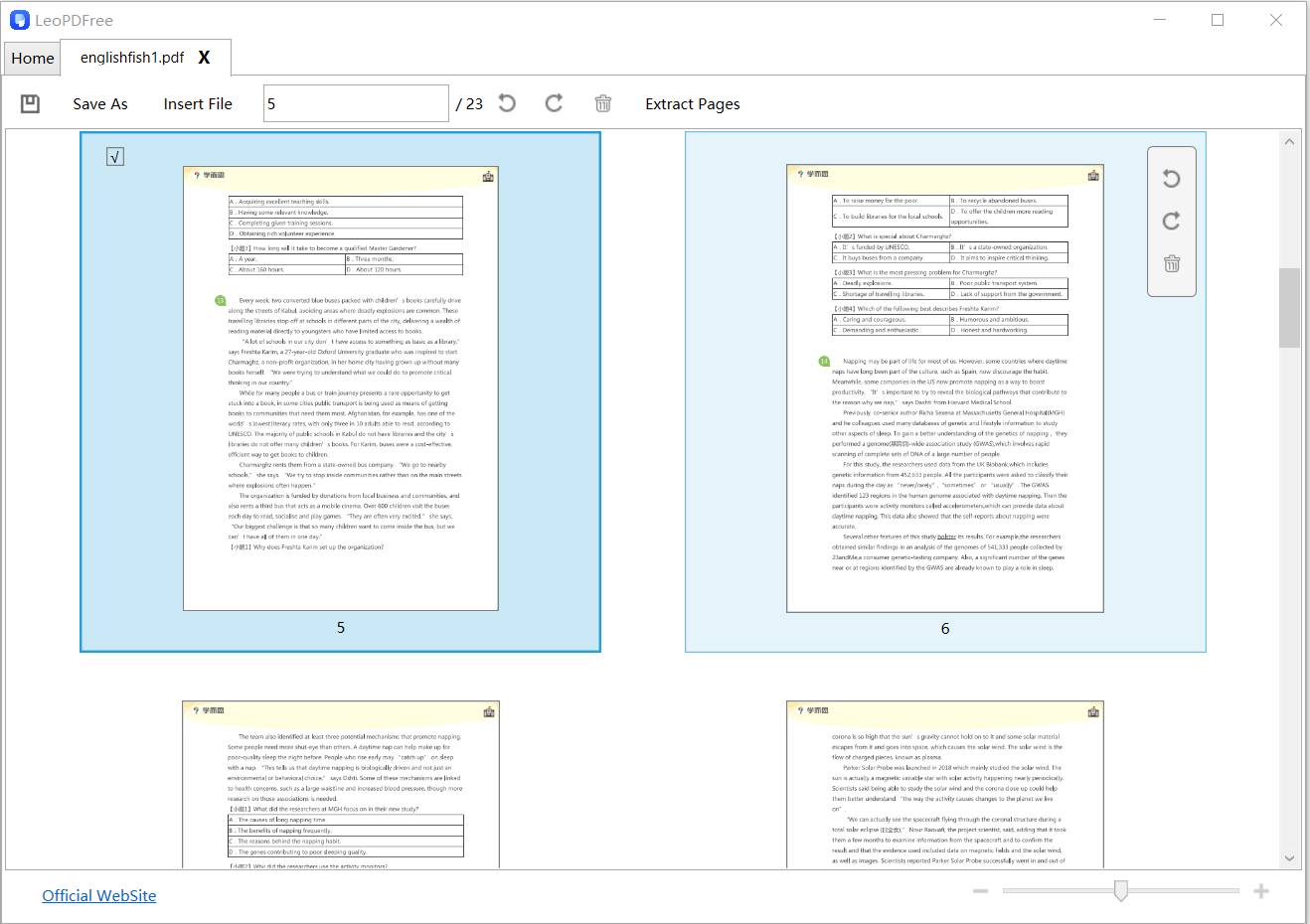
3️⃣.In the window where the PDF file for page order adjustment has been added, select the pages you want to adjust either by clicking the pages with your mouse or by entering the page numbers in the edit box above, as shown in the image below.
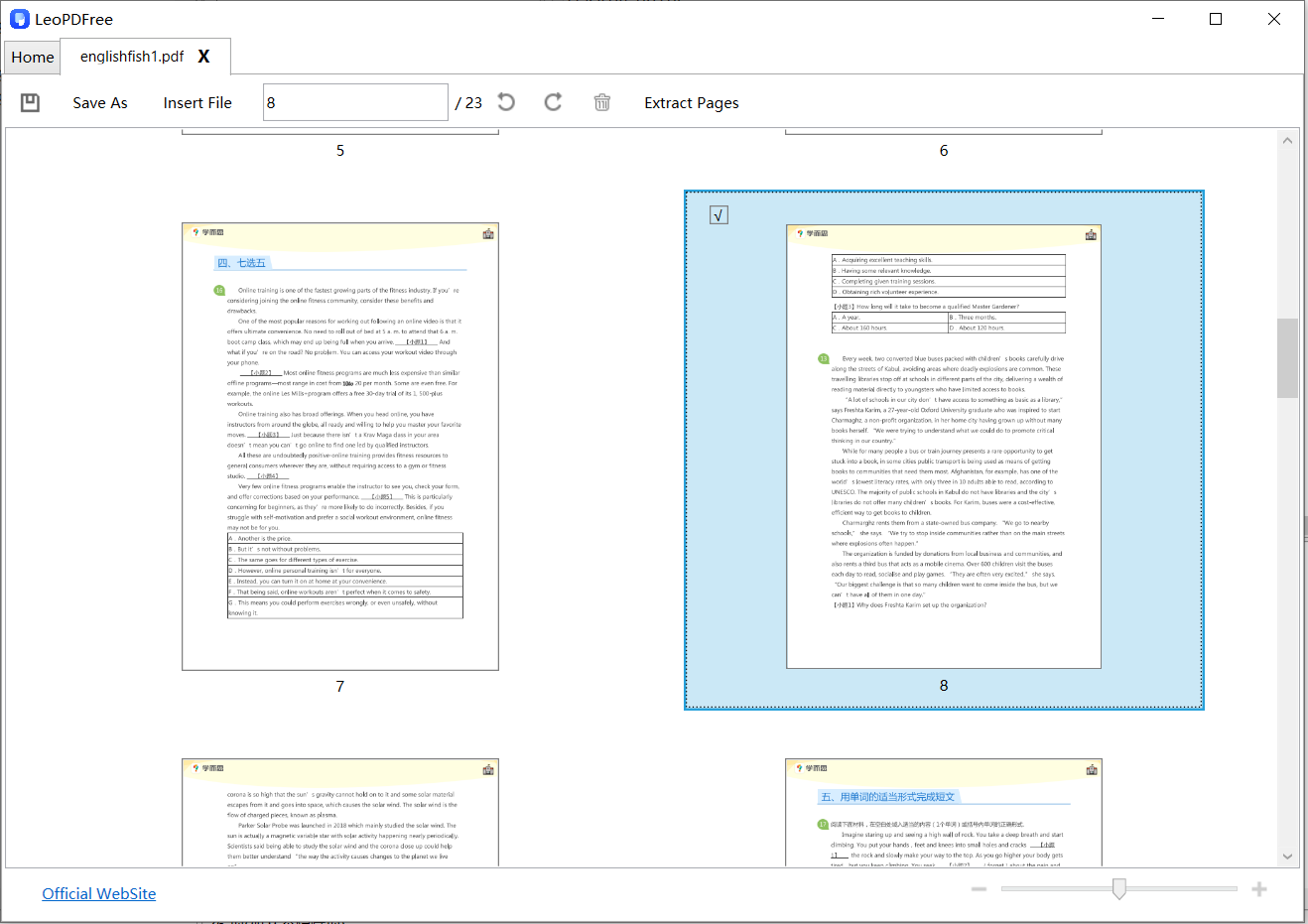
4️⃣.Use the mouse drag-and-drop method to move the selected pages to the desired position, as shown in the image below.
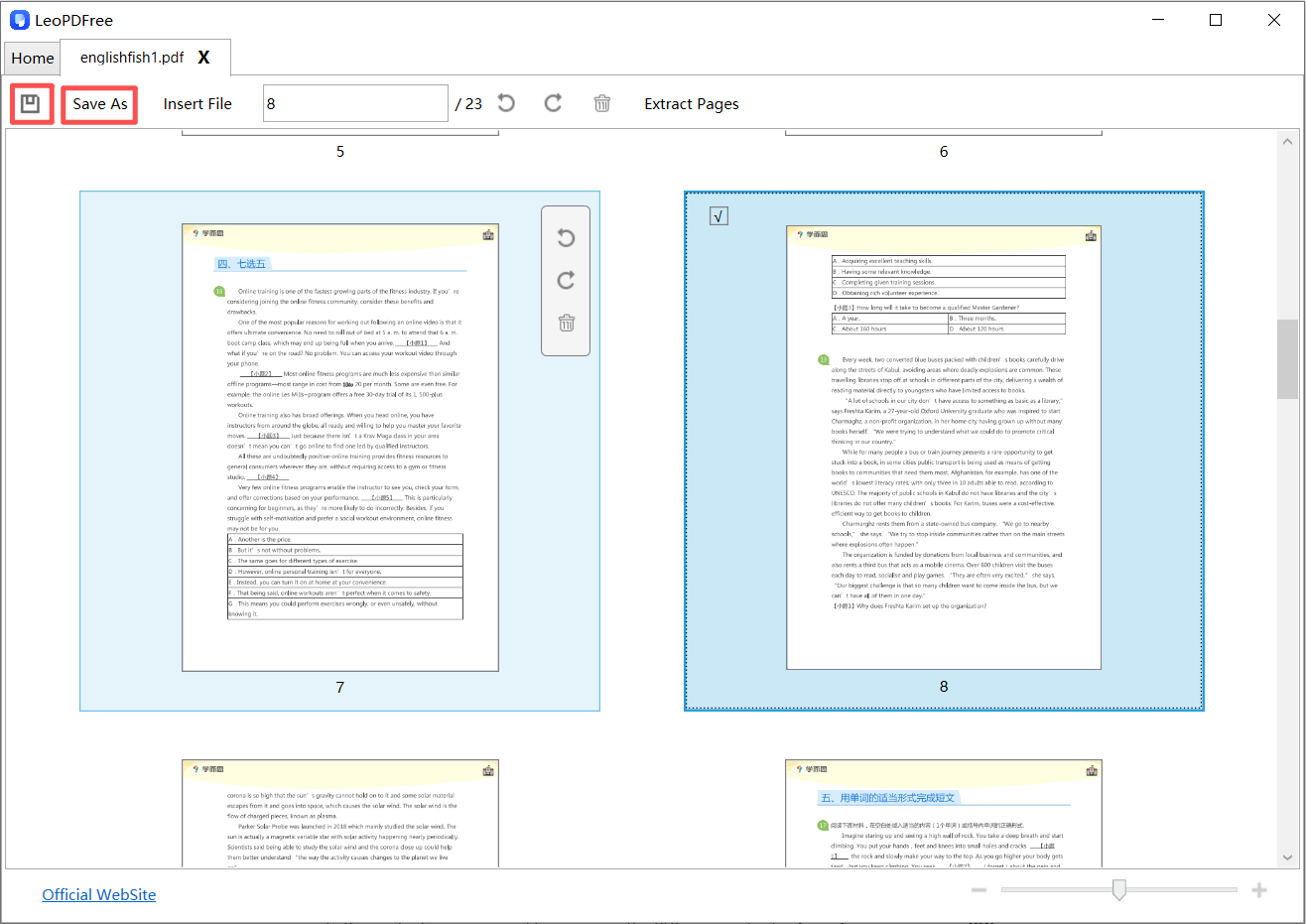
5️⃣.After adjusting the page order, be sure to click “Save As” or the save button to save the file with the updated page arrangement, as shown in the image below.
Advantages:
✅ Intuitive operation, simply drag and drop to complete the task
✅ Supports moving multiple pages in batches
✅ Does not affect the original file quality
✅ Allows simultaneous operations such as deleting, inserting, and rotating pages
Suitable for:
Office users who frequently work with PDF files and require high formatting quality.
Method 2: Change PDF Page Order Online (No installation required and limited free usage)
If you prefer not to install software, an online PDF page rearranger is a quick solution.
Steps:
1️⃣.Open an online PDF editing tool
2️⃣.Upload your PDF file
3️⃣.Enter the page management interface
4️⃣.Drag pages to reorder them
5️⃣.Download the updated PDF
Advantages:
⏺Works on Windows, Mac, and mobile devices
⏺No installation required
⏺Beginner-friendly interface
Things to Note:
⏺Avoid uploading confidential documents
⏺Free versions may limit file size or daily usage
Ideal for occasional PDF editing tasks.
Method 3: Split and Merge to Rearrange PDF Pages
If your tool does not support direct drag-and-drop reordering, you can use the split-and-merge method.
How It Works:
1️⃣.Split the PDF into individual pages or smaller sections
2️⃣.Rename or organize the files in the correct order
3️⃣.Merge the pages back together in your preferred sequence
While this method involves more steps, it works with almost any PDF tool.
Frequently Asked Questions (FAQ)
Will rearranging PDF pages reduce quality?
No. Changing the page order only reorganizes the structure of the document and does not affect image or text quality.
Can I move multiple pages at once?
Yes. Most PDF editors allow multi-page selection and batch movement.
