
Tips & guides
Free Offline PDF Splitters: LeoPDFree, PDFsam and Quality Checks
Published
Not all PDF splitters are created equal.
Many free tools can split a PDF into smaller files—but some also introduce new problems:
⏺ Blurry images
⏺ Broken formatting
⏺ Missing bookmarks
⏺ Unexpected compression
⏺ Reduced document quality
If preserving the original document matters, choosing the right PDF splitter is critical.
👉 Here are the best types of free offline PDF splitter tools that actually maintain document quality in 2026.
Why Quality Loss Happens During PDF Splitting
Technically, splitting a PDF should be simple.
The problem is that some tools don’t simply split page ranges—they rebuild the PDF entirely.
When that happens, documents may suffer from:
⏺ Font substitutions
⏺ Image recompression
⏺ Layout shifts
⏺ Metadata loss
👉 The more processing involved, the greater the chance of quality degradation.
What a Good PDF Splitter Should Do
A professional PDF splitter should:
✔ Split page ranges directly from the original document
✔ Preserve fonts and images
✔ Keep page layouts unchanged
✔ Maintain document structure
✔ Avoid unnecessary recompression
In short:
The best PDF splitter is often the one that changes the least.
Best Option for Most Users: Offline PDF Splitters
For everyday PDF workflows, local tools avoid an upload step.
Tools like LeoPDF make it easy to:
⏺ Split PDFs by page range
⏺ Split a supported page range into separate output files
⏺ Create multiple PDF files at once
⏺ Reorder pages before splitting
⏺ Check the saved formatting
⏺ Use the supported LeoPDFree Windows features free
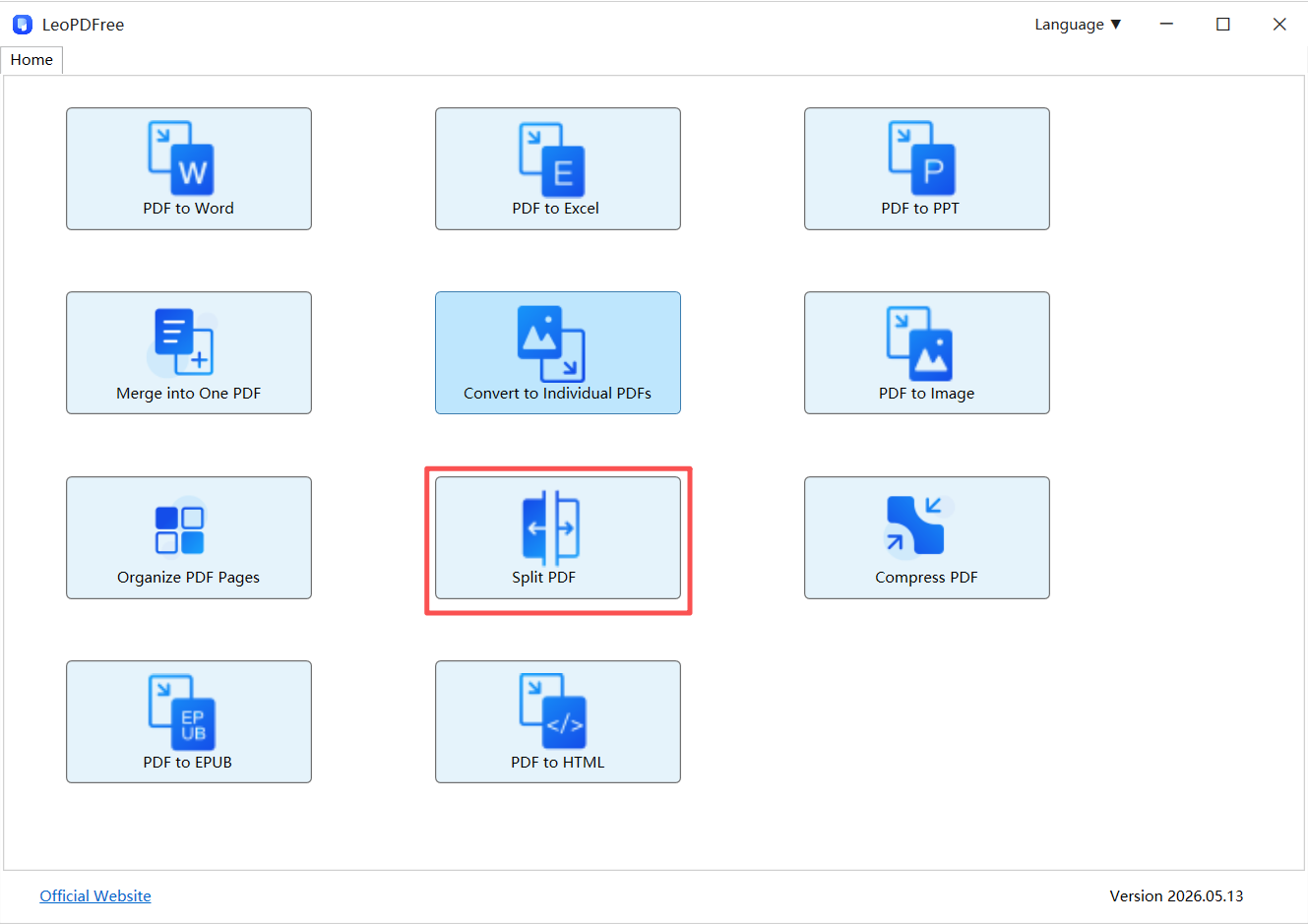
👉 Because processing happens locally, there is no need to upload files to external servers.
What Local Processing Changes
| Offline Tools | Online Tools |
|---|---|
| No upload required | Upload required |
| Original files stay local | Files sent to servers |
| Better privacy | Potential data exposure |
| No upload connection needed | Internet-dependent |
| Formatting depends on the tool and settings | Compression risks |
👉 For large PDFs and business documents, local processing often produces more consistent results.
Common PDF Splitting Methods Compared
| Method | Quality Retention | Ease of Use |
|---|---|---|
| Screenshots | Poor | Medium |
| Online Splitters | Good | Easy |
| Offline PDF Tools | Excellent | Easy |
👉 The difference becomes especially noticeable when working with reports, contracts, presentations, or image-heavy PDFs.
Pro Tip: Extract Pages Instead of Rebuilding Files
Many users unknowingly recreate PDFs after splitting.
A better approach is:
👉 Extract the pages you need directly from the original file.
This helps preserve:
⏺ Fonts
⏺ Images
⏺ Page structure
⏺ Document quality
⏺ Internal formatting
Less processing generally means better results.
Who Should Use Offline PDF Splitters?
Offline PDF splitters are particularly useful for:
⏺ Businesses
⏺ Legal professionals
⏺ Students
⏺ Accountants
⏺ Researchers
⏺ Anyone handling sensitive documents
👉 If privacy and document integrity matter, offline tools are usually the safer choice.
Final Takeaway
If you’re looking for a free PDF splitter that actually preserves quality:
✔ Choose an offline LeoPDF splitter whenever possible
✔ Avoid unnecessary recompression
✔ Split page ranges instead of rebuilding PDFs
✔ Keep sensitive documents on your own device
✔ Prioritize formatting retention over flashy features
👉 In most cases, the suitable PDF splitter isn’t the one with the most features.
Choose a tool and settings that meet your requirements, then verify the complete output instead of relying on a promise of exact preservation.
Another free local option: PDFsam Basic
PDFsam Basic documents splitting by page rules, size or bookmarks. Add a copy, choose the split rule offered by the application and set an output folder. Run it and verify the resulting page ranges. For bookmark splitting, inspect the existing bookmark levels first; a file without a suitable outline needs a different split rule.
Here, the free LeoPDF recommendation refers to LeoPDFree for Windows and its supported tasks. Check the edition comparison before assuming another platform offers the same operations or payment model.
Choose sections before checking quality
Plan the intended sections and give each output a clear name. Check the beginning and end of every section, the page sequence and any navigation features you still need. A range splitter and a bookmark-based splitter do not necessarily offer the same controls.
Keep the operation focused: split the PDF rather than converting its pages to screenshots and rebuilding them. Local processing avoids an upload, but it does not by itself establish better formatting retention than another tool.
Questions about your LeoPDF edition?
Contact xuehui@leopdf.com with your platform, app version and the task you need.