
In today’s society, especially when dealing with numerous PDF files in daily work, do you ever feel at a loss or unsure of where to begin when facing a large PDF file and wanting to extract a portion of it or split it into smaller, more manageable files? Well, you’ve come to the right place today! This guide will walk you through how to quickly split PDFs, and even complete beginners can easily master it.
Identify your splitting requirements
Before you begin, clarify your requirements. Do you want to extract specific pages or split the PDF by topic or chapter? Defining your goal will assist you in selecting the appropriate tools and methods. If you simply need to extract the first few pages, or if you require more complex splitting, such as by bookmarks or content, or if you have budget constraints and are seeking a completely free tool, among other needs, then a tool will be comprehensively recommended to you based on your actual requirements — the most suitable tool for you: LeoPDF.
How to split a file using the LeoPDF tool?
There are many PDF processing tools on the market, such as
Adobe Acrobat and ILovePDF. For beginners, completely free tools are more suitable for your needs as they are easy to operate, free of charge, secure, and efficient. Below, I will introduce you to the usage of LeoPDF.
Using the free LeoPDF tool is simpler than you think. Here’s a quick step-by-step guide:
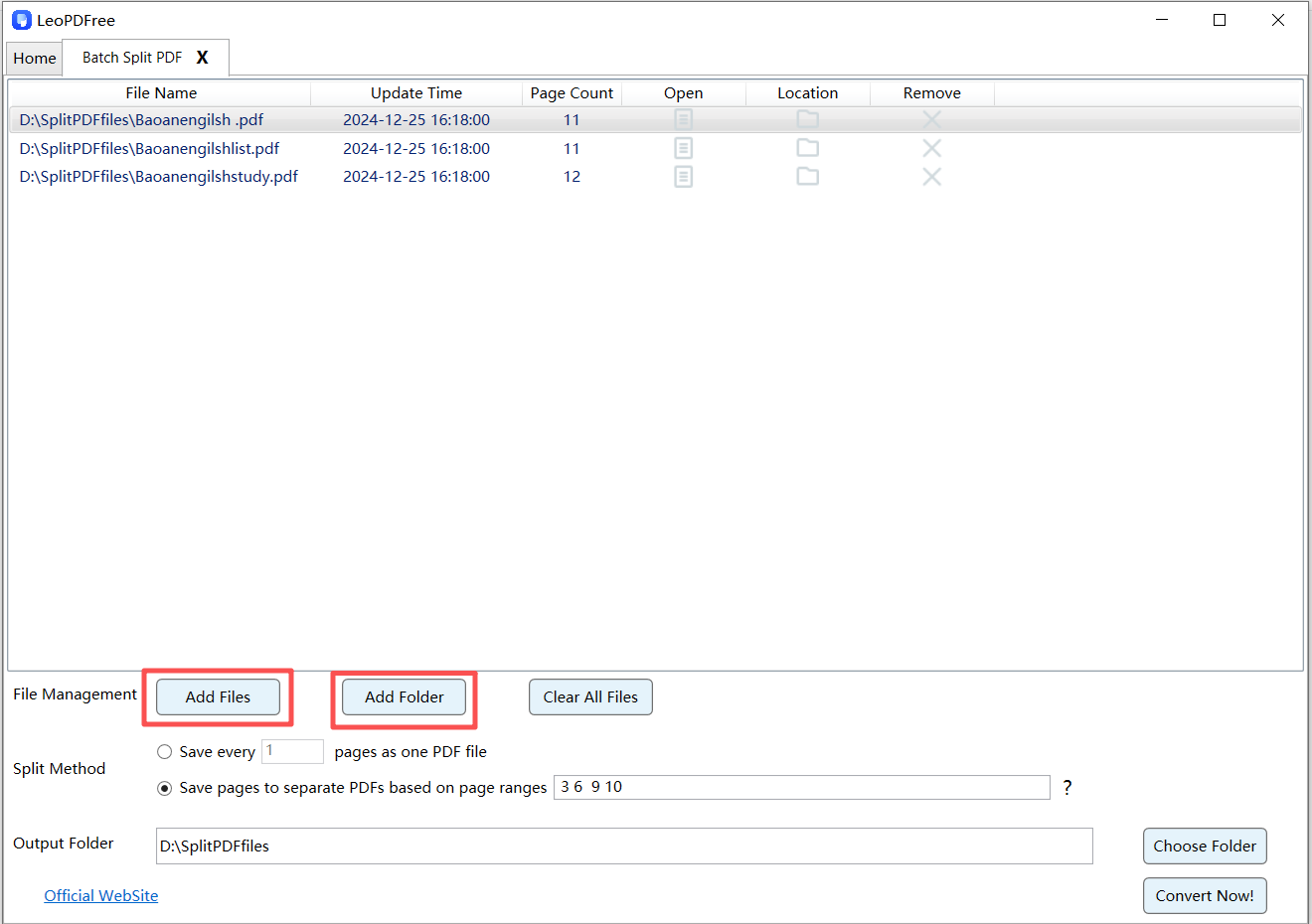
1️⃣.First, download and install LeoPDF for free. Then, open the software and click on “Batch Split PDF” on the interface. On the opened screen, click “Add Files” or “Add Folder” to add one or multiple files to be split. As shown in the following image:
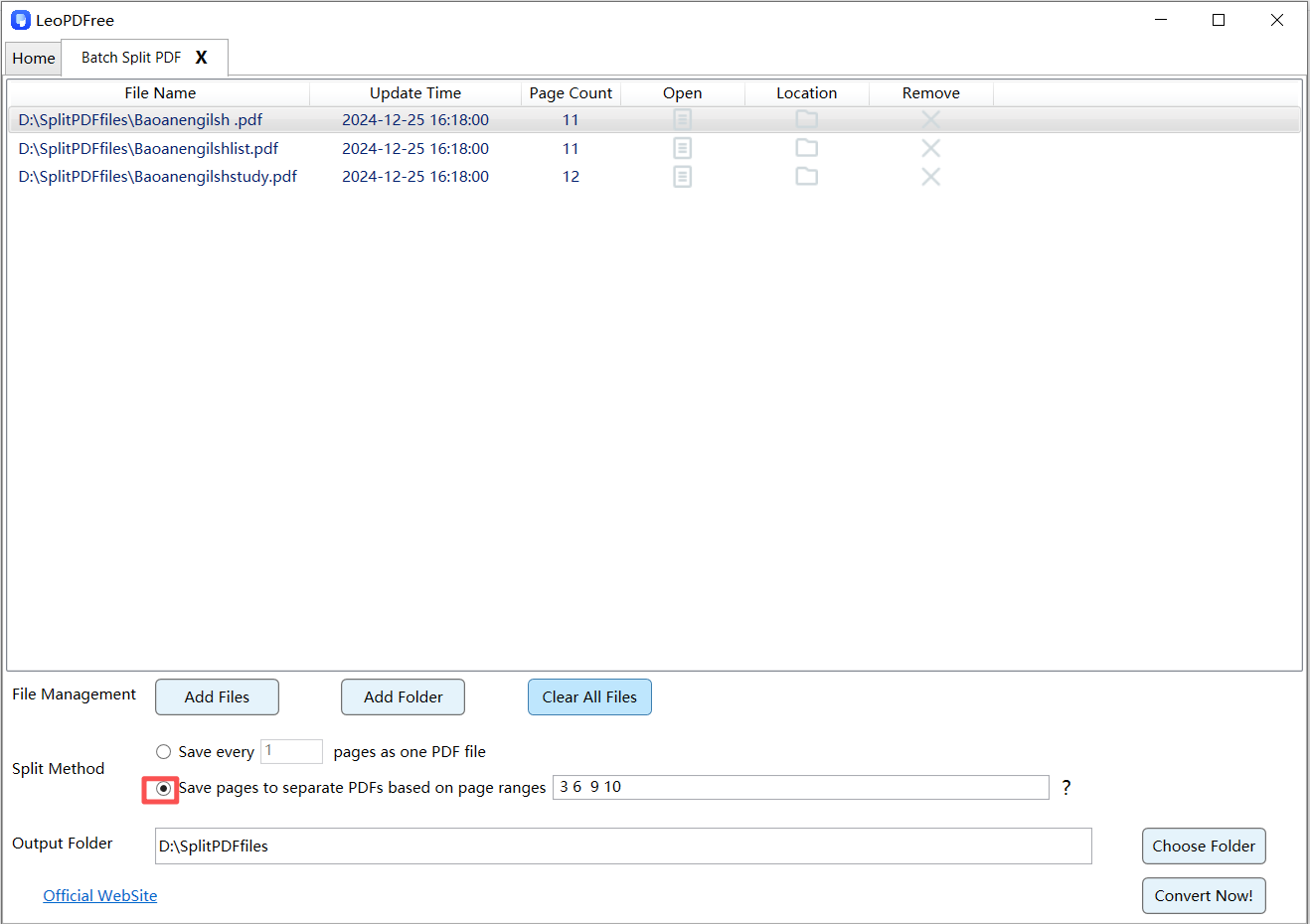
2️⃣.Based on your own needs under “Split Method”, choose whether to split each page into a separate PDF or to split into individual PDF files based on page range, as shown in the following figure:
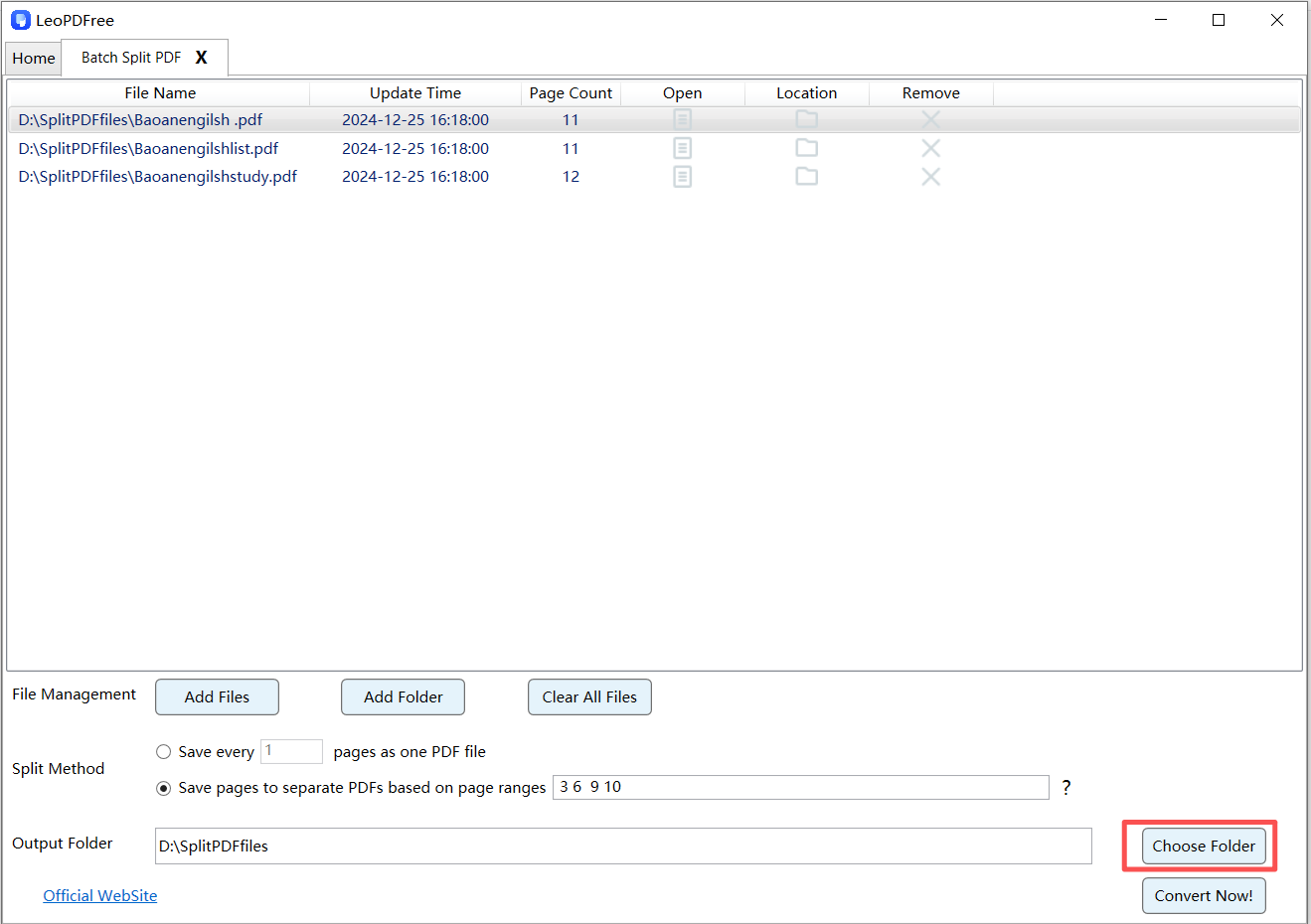
3️⃣.Then click “Choose Folder” on the interface to set the save path for the new split files, as shown in the following figure:
4️⃣.After all the preparation work for splitting is completed, simply click “Convert Now!” on the interface, and the tool will quickly perform the splitting task based on the file size. As shown in the following figure:
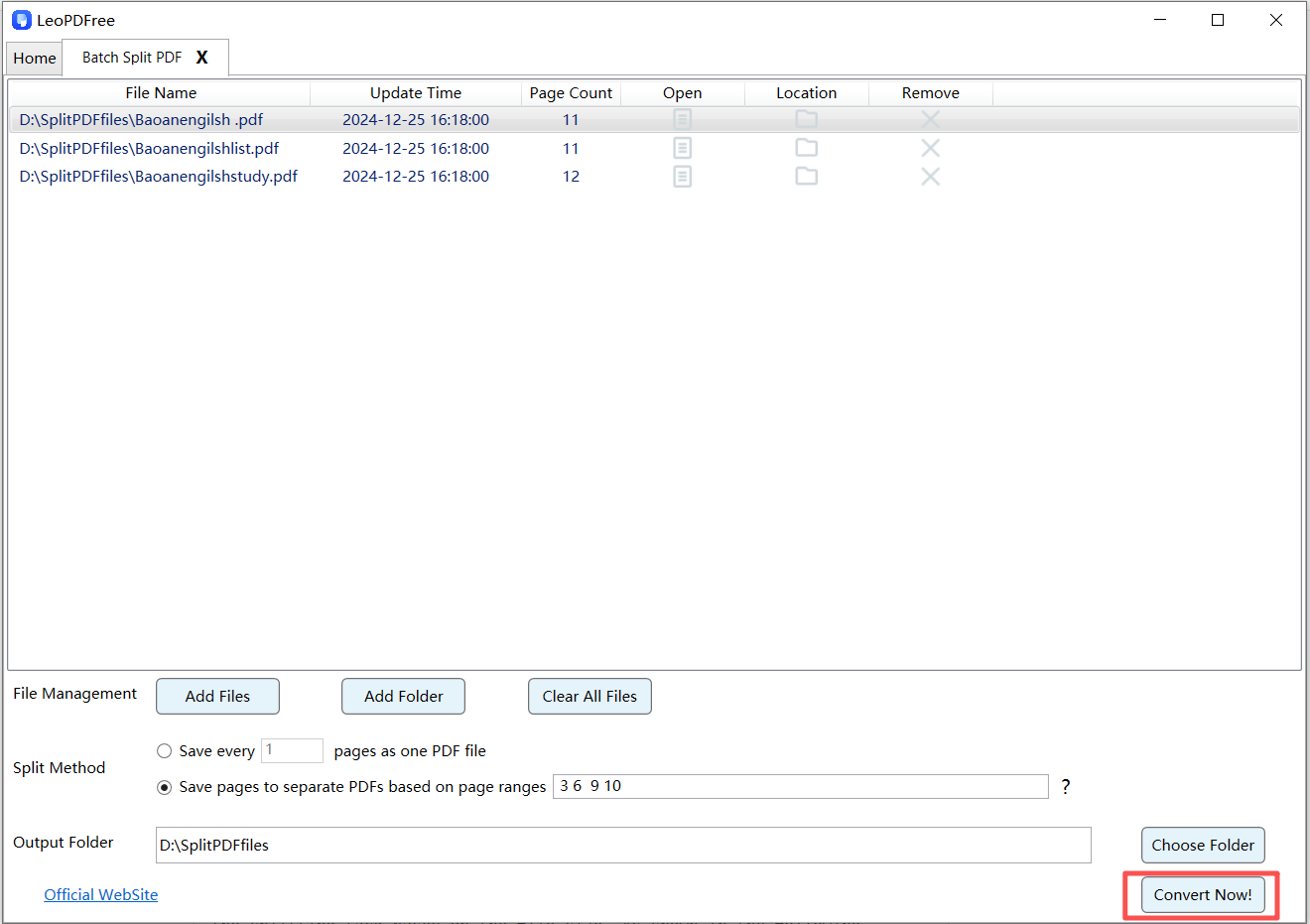
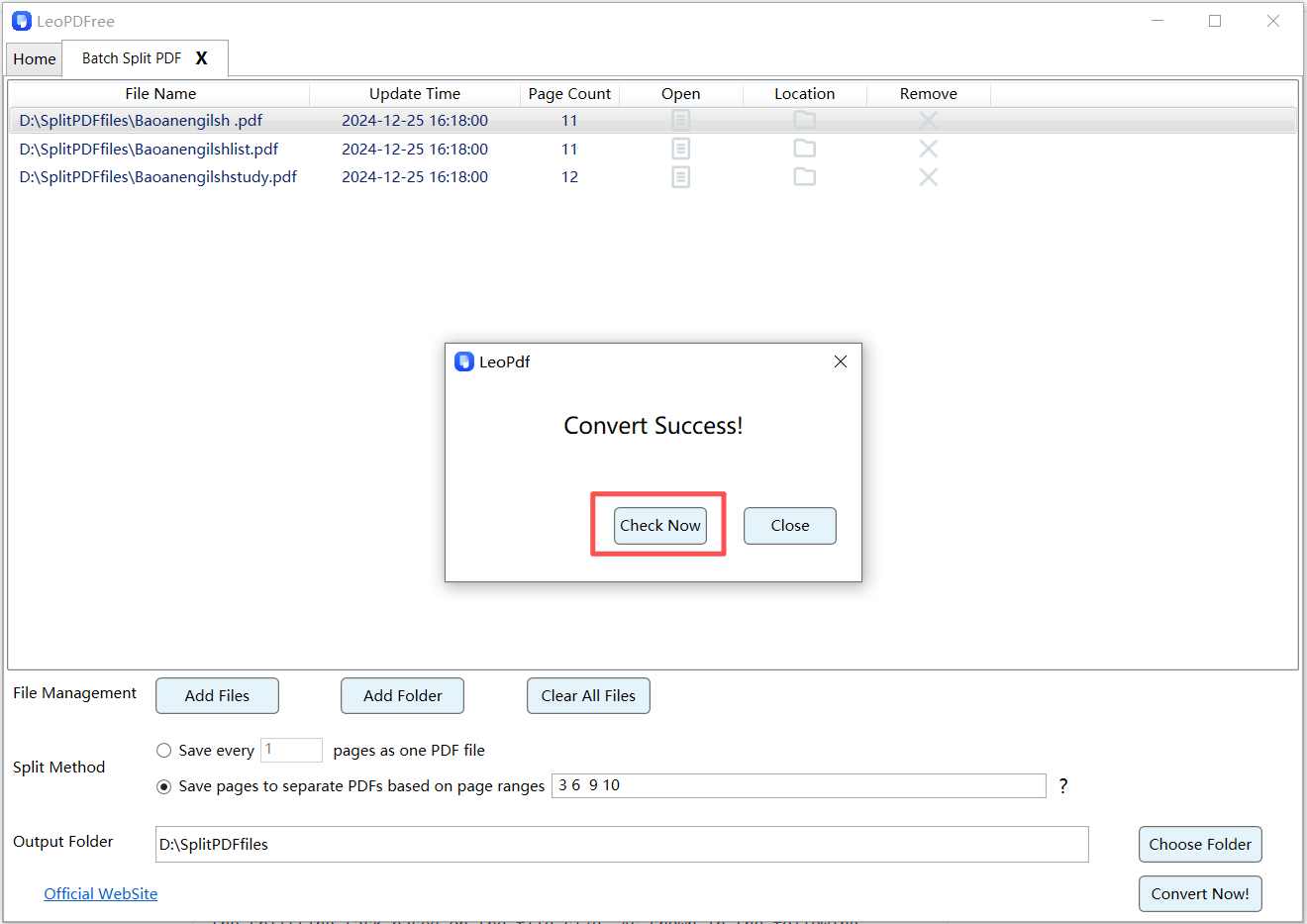
5️⃣.When the tool displays the “Convert Success!” message, congratulations! It means the tool has completed the splitting for you. At this point, you can click “Check Now” to view the splitting results. Of course, you can also directly go to the save path to check individually. So far, the entire splitting process is actually all done. Isn’t it very simple to use? Go and experience it!
Conclusion
LeoPDF is a completely free PDF splitting and conversion tool, renowned for being gratis , safe, simple, and efficient. It also offers a range of other features, such as page extraction, compression, merging, and PDF conversion (including conversion to Word, PPT, and Excel formats). This article will introduce this practical tool, which is particularly suitable for students and users with limited budgets. Today, I’m sharing this free PDF splitting tool with everyone. In the next issue, I will bring you more exciting content.
