
Large PDF files can be difficult to send, upload, or store. Many email services limit attachments to 20–25MB, and large documents can also take longer to open or download. That’s why many users search for how to reduce PDF file size on Windows.
In this guide, you’ll learn several simple and effective methods to compress PDF files on Windows, including using online tools, desktop software, and built-in features. These methods work on Windows 10 and Windows 11 and are suitable for beginners and office users alike.
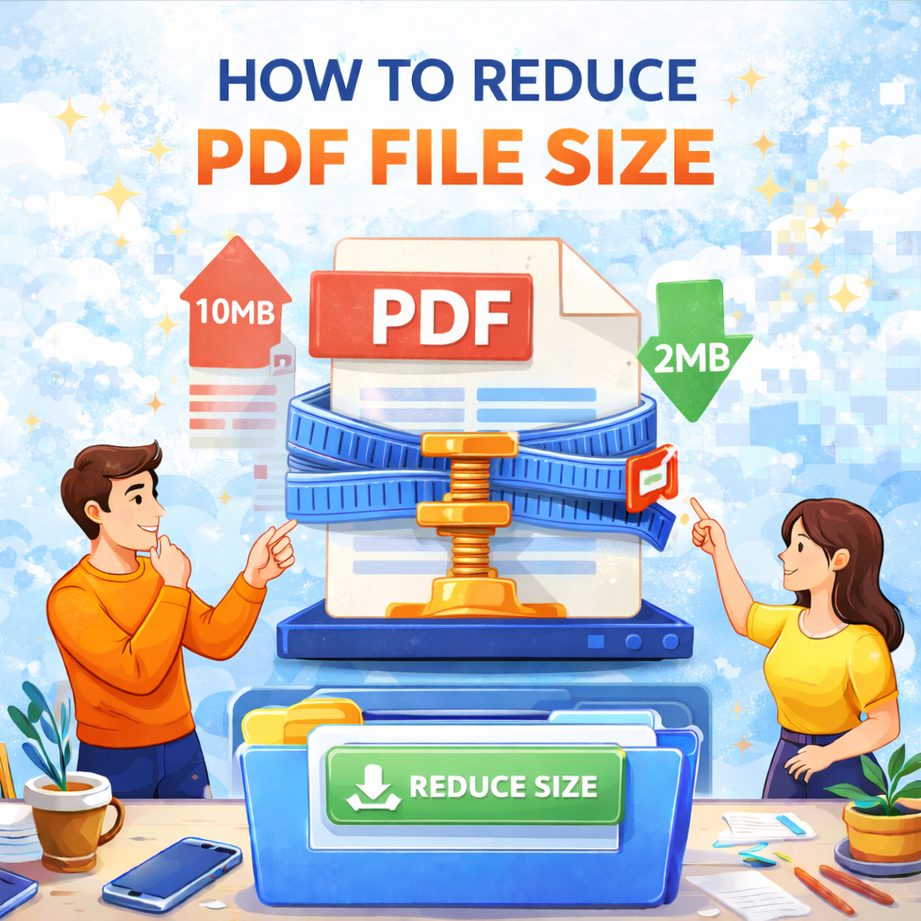
Why You May Need to Reduce PDF File Size
Before learning the methods, it’s helpful to understand the common situations where PDF compression is needed.
🔵 Sending PDFs as email attachments
🔵 Uploading documents to websites or forms
🔵 Saving disk space on your computer
🔵 Improving loading speed when sharing files
🔵 Managing large scanned PDF documents
Reducing PDF file size helps improve efficiency and makes file sharing much easier.
Method 1: Use an Online PDF Compression Tool (Fastest Way)
Using an online PDF compressor is one of the easiest ways to reduce PDF file size on Windows.
Steps
1️⃣. Open your web browser (Chrome, Edge, etc.)
2️⃣. Visit an online PDF compression tool
3️⃣. Upload the PDF file you want to compress
4️⃣. Click the Compress PDF button
5️⃣. Download the smaller PDF file
Advantages
🔵 No software installation required
🔵 Works on Windows, Mac, and mobile devices
🔵 Simple and beginner-friendly
Things to Note
🔵 Avoid uploading confidential documents
🔵 Some free tools may limit file size
This method is ideal for quick compression tasks.
Method 2: Compress PDF Using Desktop Software LeoPDF
If you frequently work with PDF files, using the completely free LeoPDF desktop software will be a better long-term solution.
Steps
1️⃣. Download and install LeoPDF on your computer for free, then open the software as shown in the image below.
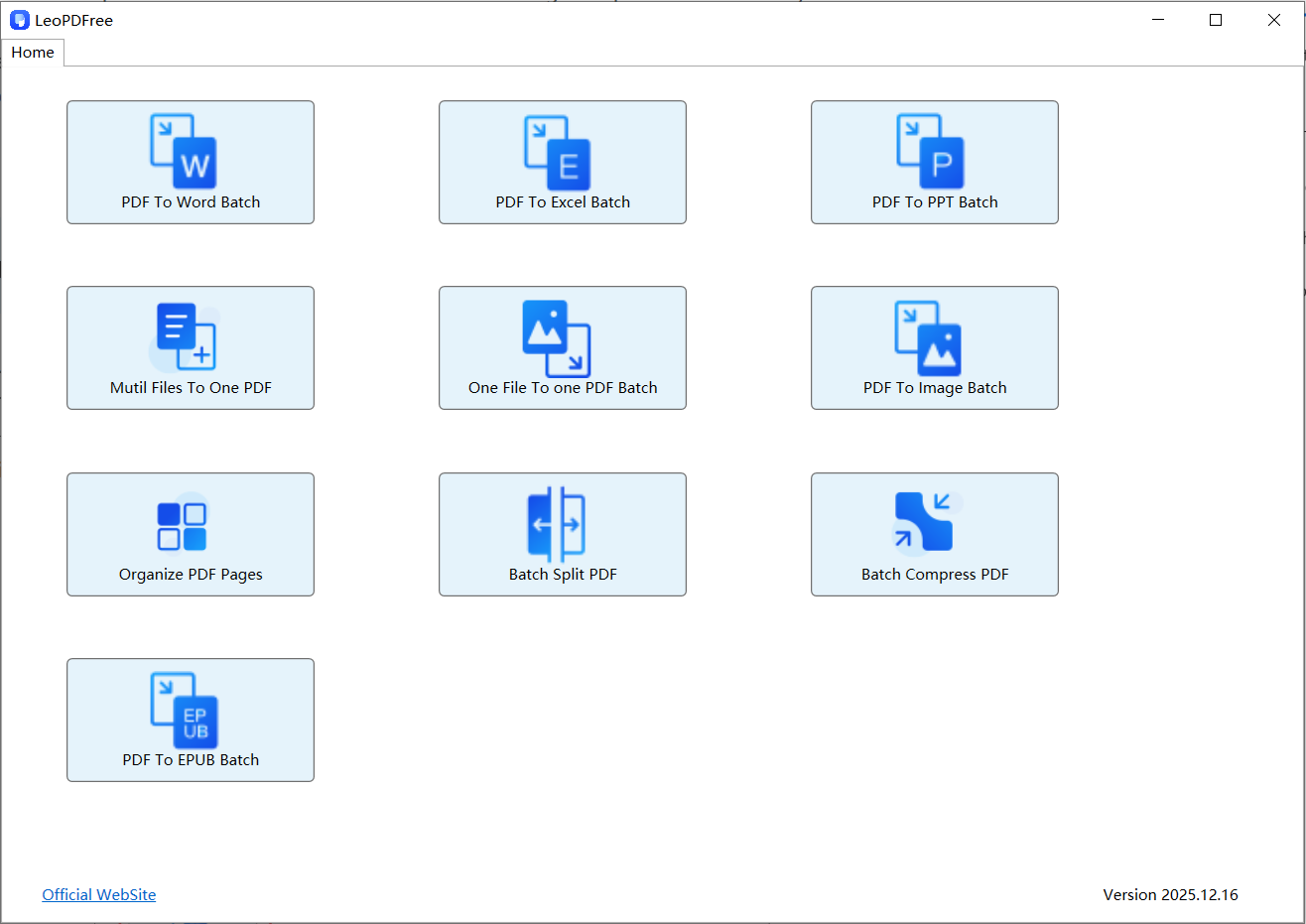
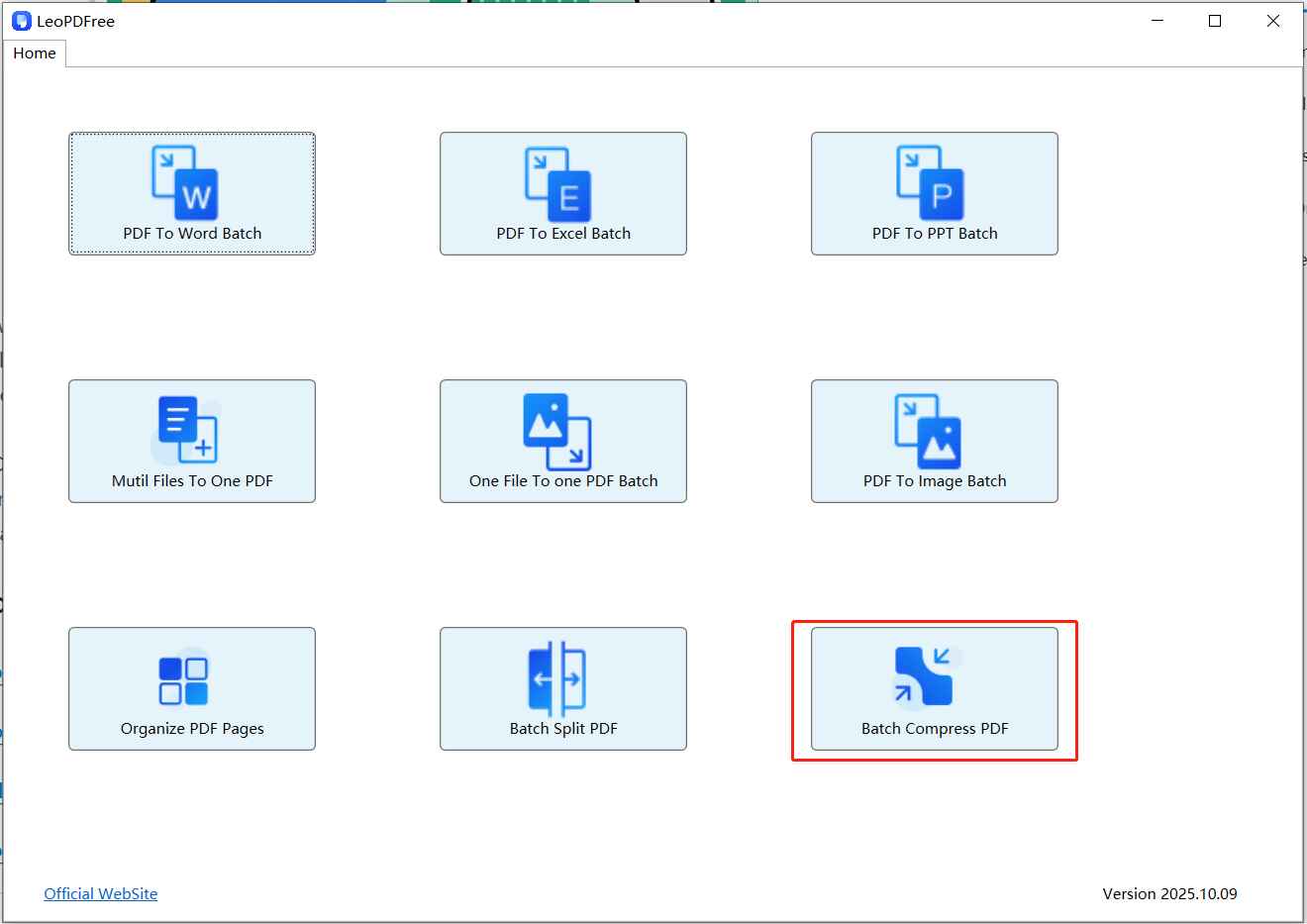
2️⃣. On the opened software interface, click “Batch Compress PDF” to start adding files for compression, as shown in the image below.
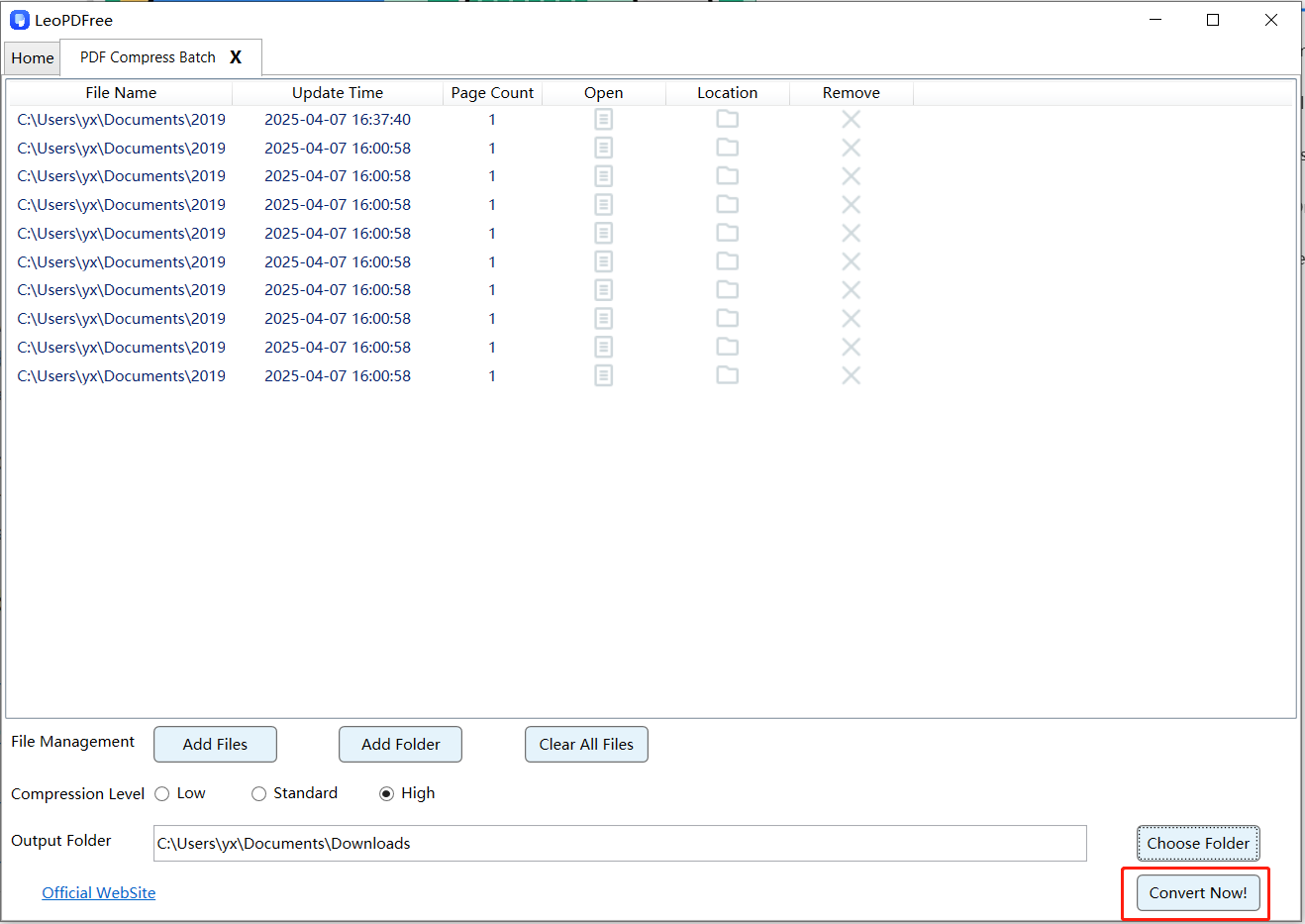
3️⃣. On the opened interface, click “Add Files” or “Add Folder” to add one or more files you want to compress, then choose the compression quality “Low,” “Standard,” or “High” according to your needs, as shown in the image below.
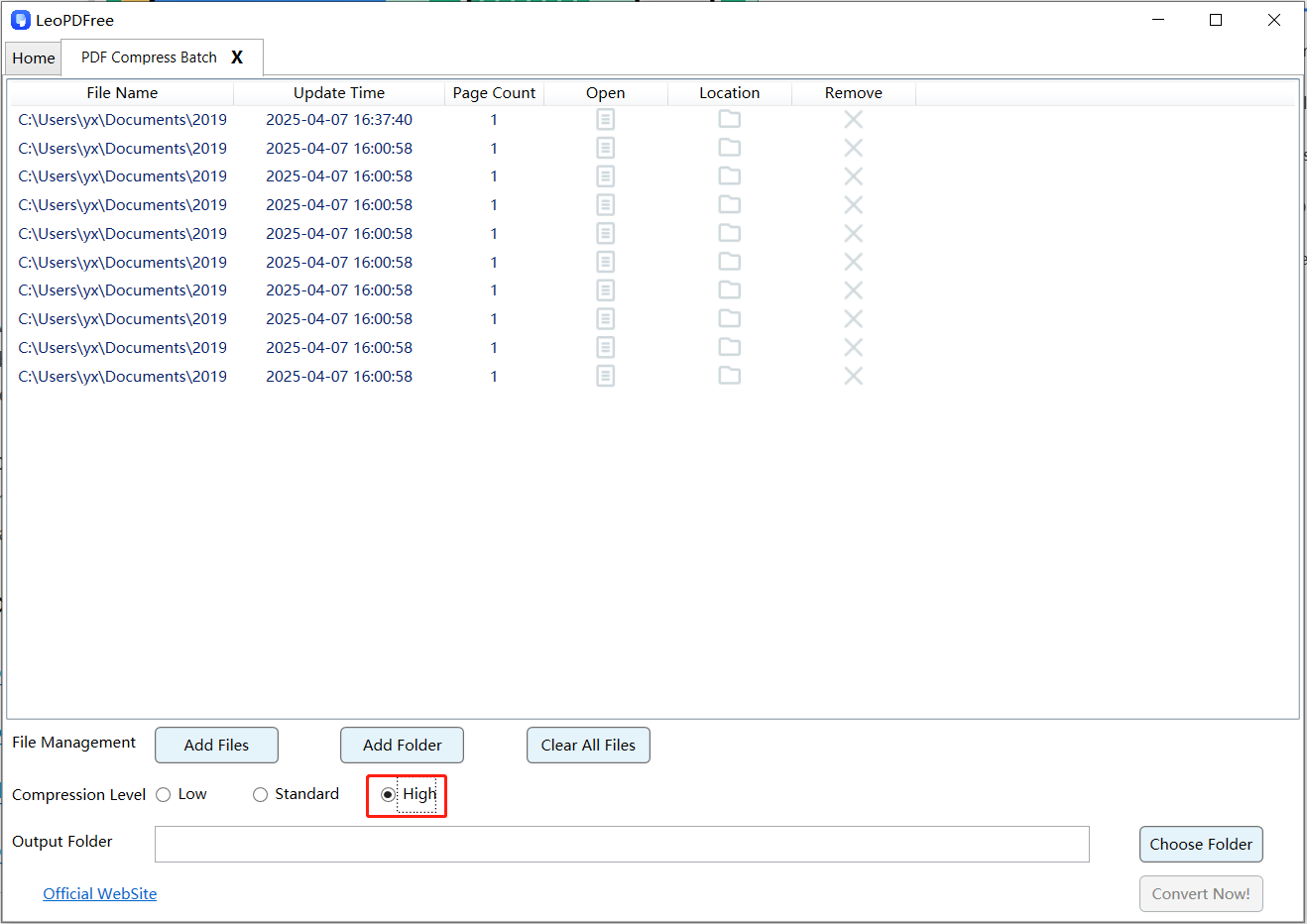
4️⃣. Next, click the “Choose Folder” button to set the save path for the compressed files. Once all preparations are complete, simply click the “Convert Now!” button, and the software will quickly complete the compression based on the file size, as shown in the image below.
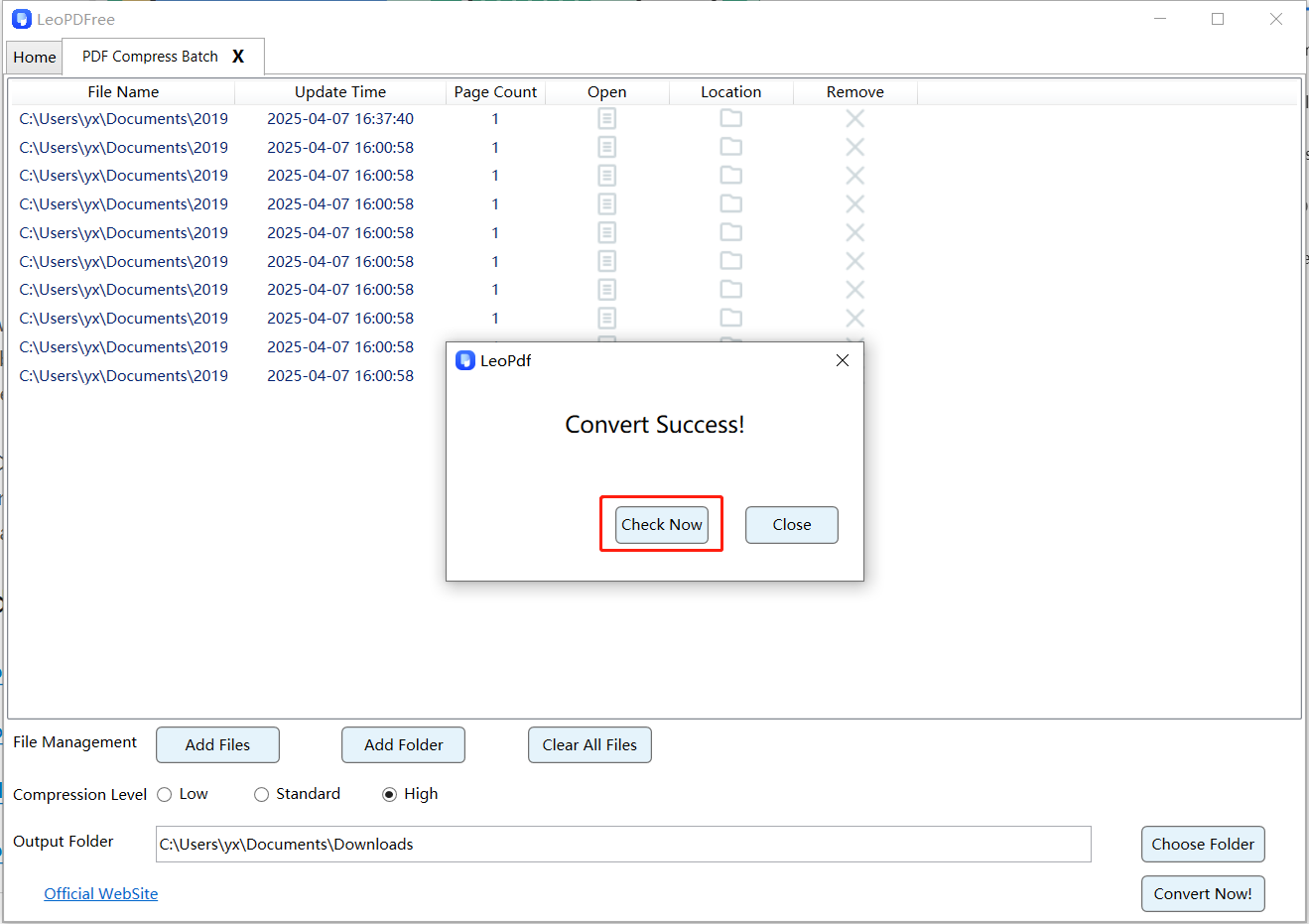
5️⃣. After the tool quickly completes the compression, a small pop-up window will appear. Then, click the “Check Now” button on the window to instantly preview the compression results. Alternatively, you can go directly to the save location to view the compressed files. This process is very convenient and efficient—go ahead and check the results!
Advantages
🔵 More control over compression quality
🔵 Works offline without internet access
🔵 Supports large PDF files
🔵 Better privacy protection
This method is recommended for business documents, reports, and contracts.
Method 3: Reduce PDF Size by Optimizing Images
Many large PDF files contain high-resolution images. Reducing image resolution can significantly decrease file size.
How It Works
🔵 Lower image resolution
🔵 Compress embedded images
🔵 Remove unnecessary metadata
This approach is especially useful for scanned PDFs and image-heavy documents.
Tips to Make a PDF File Smaller on Windows
Here are some practical tips that can help reduce PDF file size further:
🔵 Remove unnecessary pages
🔵 Delete embedded fonts if possible
🔵 Compress images inside the PDF
🔵 Convert scanned documents using OCR tools
🔵 Use optimized export settings
These small adjustments can dramatically reduce document size.
Frequently Asked Questions (FAQ)
Does compressing a PDF reduce quality?
It depends on the compression level. Moderate compression usually keeps the document readable while reducing file size.
What is the best PDF size for email attachments?
Most email providers recommend keeping attachments under 20MB.
Can I compress a scanned PDF?
Yes. Scanned PDFs often benefit the most from compression because they contain large image files.
Conclusion
Mastering how to reduce PDF file size on Windows can make file sharing more efficient and convenient. Whether you use an online compression tool for quick tasks or the completely free LeoPDF desktop software for professional documents, compressing PDFs is a highly practical skill.
Compressing PDF files before sending or uploading them can help you avoid file size limits, improve transfer speed, and make your file management more organized and efficient.
