
Handling PDF files on a Windows 11 computer has become a part of daily office work. Whether you are organizing contracts, merging scanned documents, or submitting assignments, you will likely encounter one common question: How do you merge PDF files on Windows 11?
This guide follows the structure of “Use Case → Solution → Steps → Suitable Users” to systematically explain several practical methods, helping you choose the most suitable approach based on your needs.
1. Recommended Merge Solutions for Different Scenarios
Before starting the detailed operations, quickly determine which situation applies to you:
✅ Do not want to install software → Use online tools
✅ Need long-term office use → Use professional PDF software
✅ Temporary emergency use → Use Windows built-in print function
✅ Need to process multiple files in batches → Use tools that support batch merging
After clarifying your needs, choosing the corresponding solution will be more efficient.
2. Method One: Merge PDFs Online (Fastest Way)
Suitable for: occasional users who prefer simple operations.
Steps
1️⃣.Open a web browser (Edge, Chrome, etc.)
2️⃣.Visit an online PDF merge tool website
3️⃣.Upload multiple PDF files
4️⃣.Adjust file order
5️⃣.Click “Merge” and download the result
Advantages
⏺ No software installation required
⏺ Works directly in Windows 11 browsers
⏺ Beginner-friendly interface
Limitations
⏺ File size restrictions may exist
⏺ Not suitable for sensitive documents
3. Method Two: Use professional LeoPDF software (stable and efficient)
Suitable for: long-term office users or people who require high-quality document processing.
Operation Process
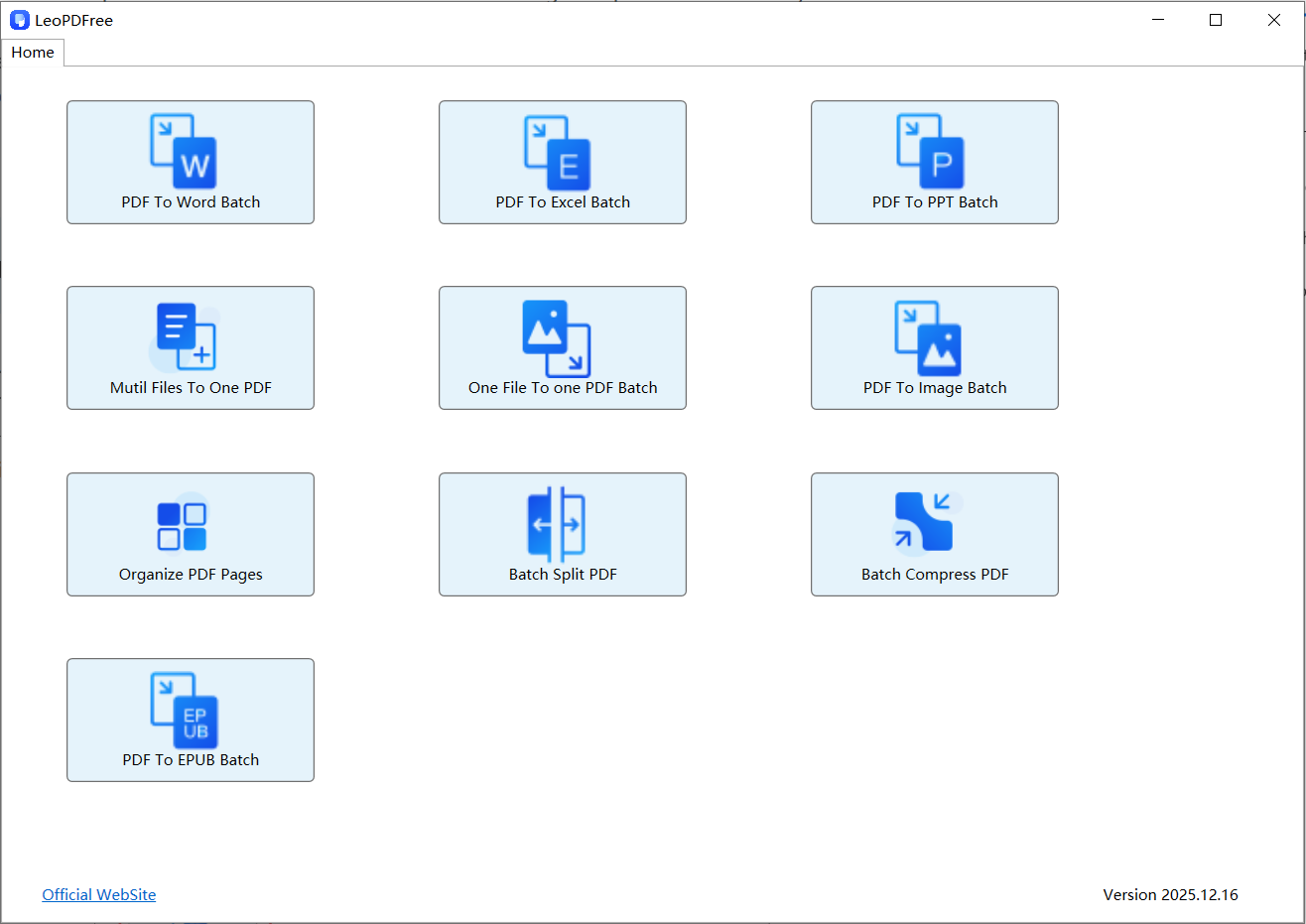
1️⃣.Download and successfully install LeoPDF, then open the software, as shown in the image below.
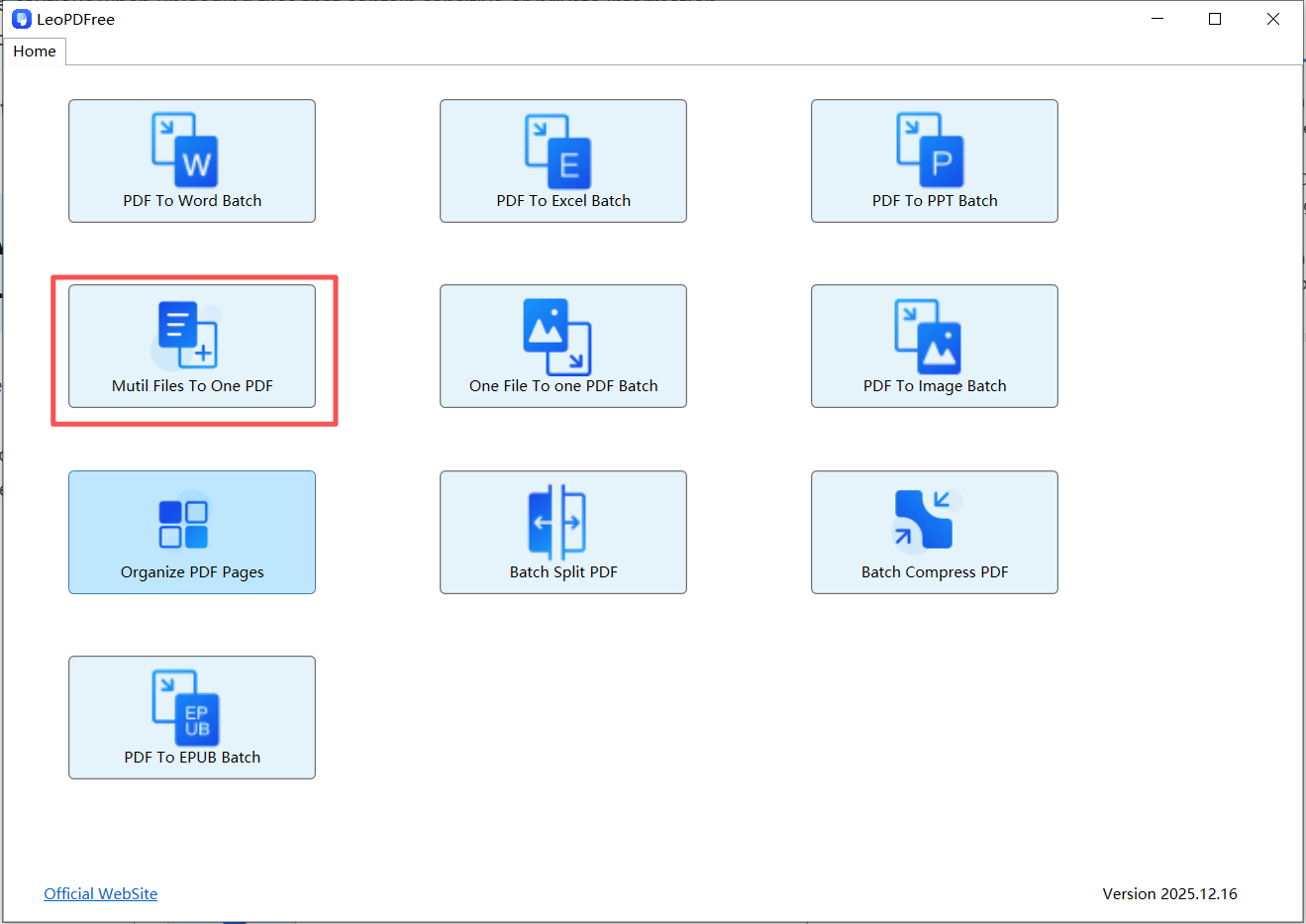
2️⃣.On the opened software interface, click the “Multi Files To One PDF” button, as shown in the image below.
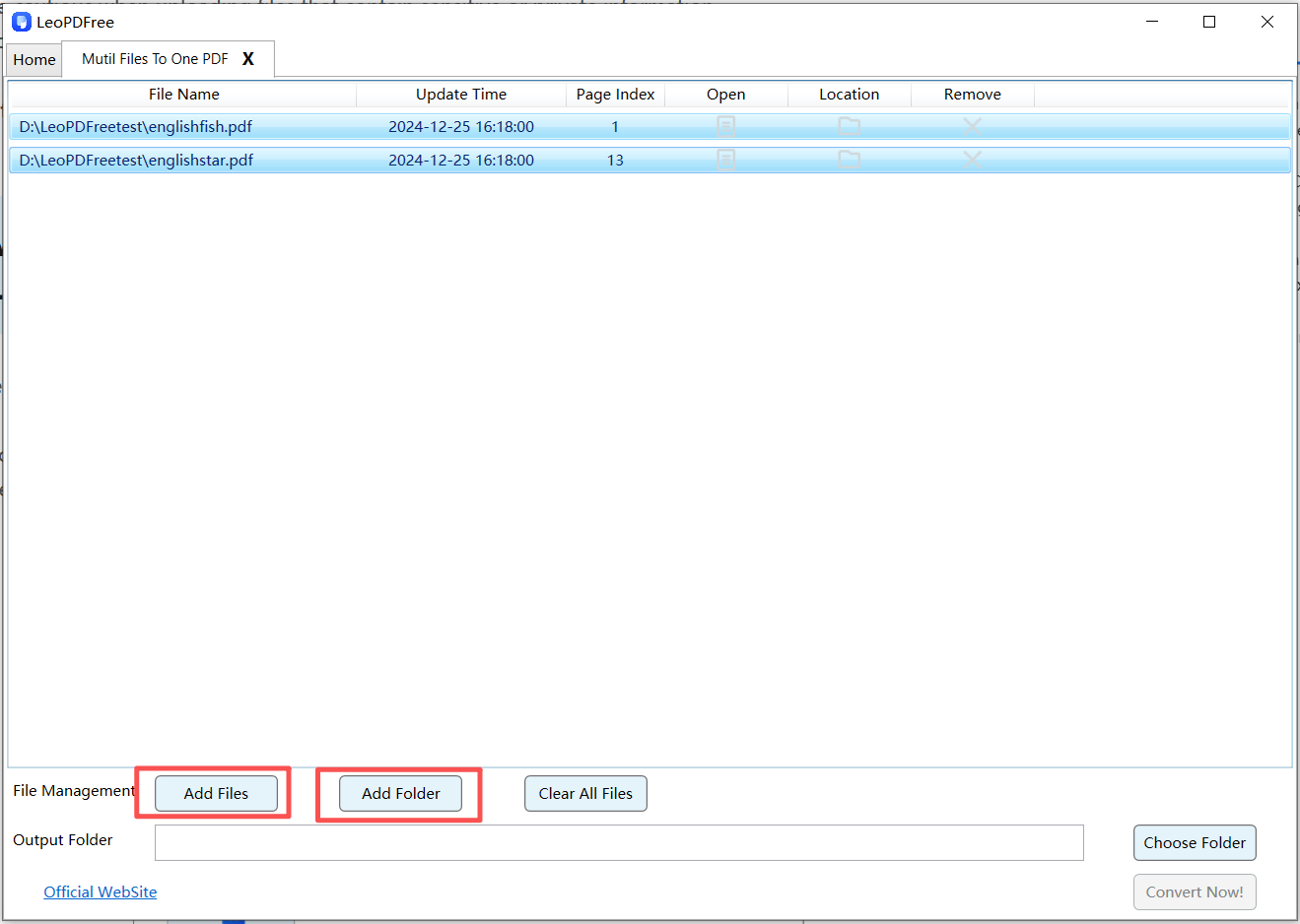
3️⃣.On the opened interface, click “Add Files” or “Add Folder” to add one or more PDF files you want to merge, as shown in the image below.
4️⃣.Click the “Choose Folder” button to select the save location for the merged PDF file, as shown in the image below.
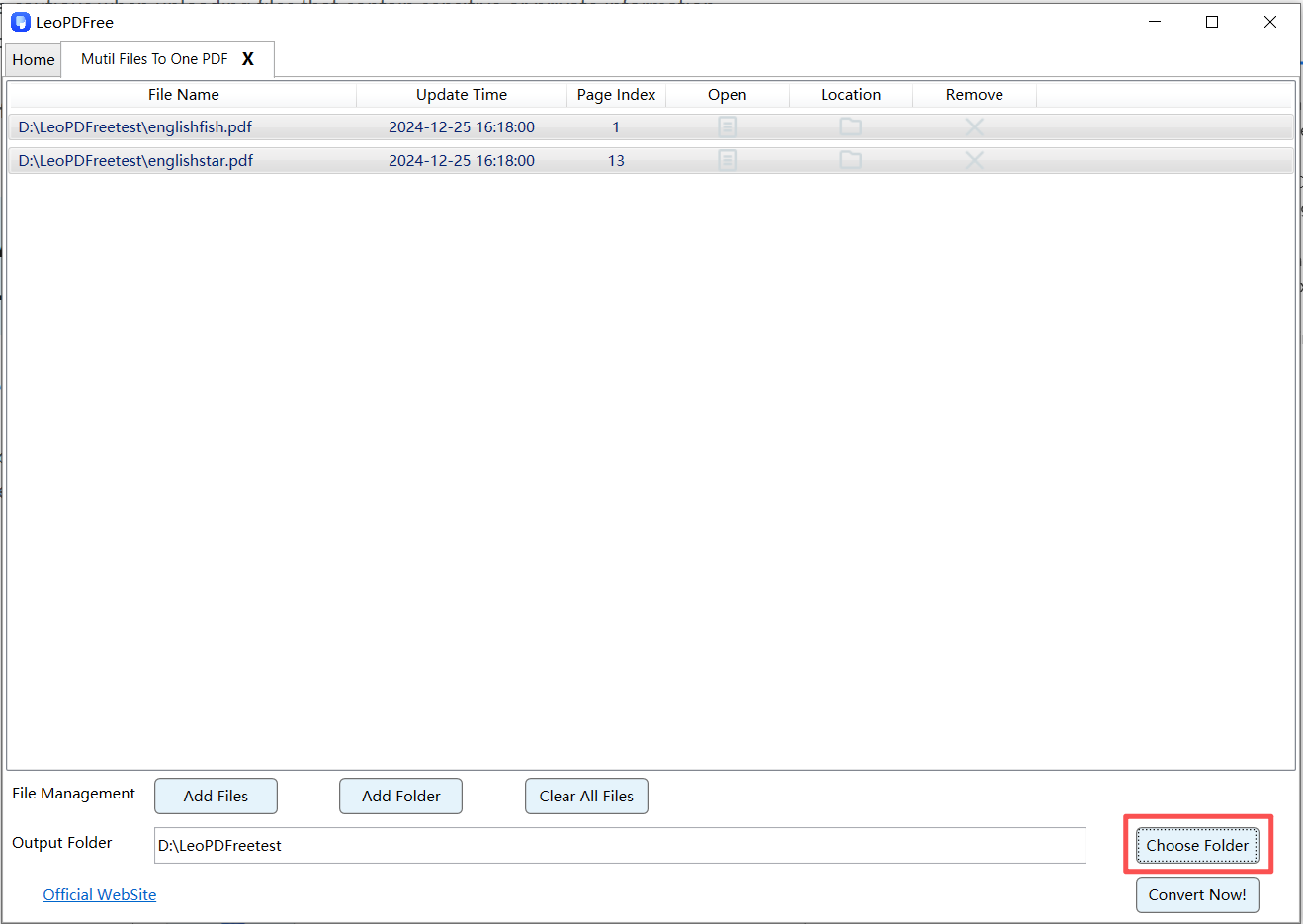
5️⃣.After all the files to be merged have been added and everything is ready, simply click the “Convert Now!” button. The software will quickly complete the merging process, as shown in the image below.
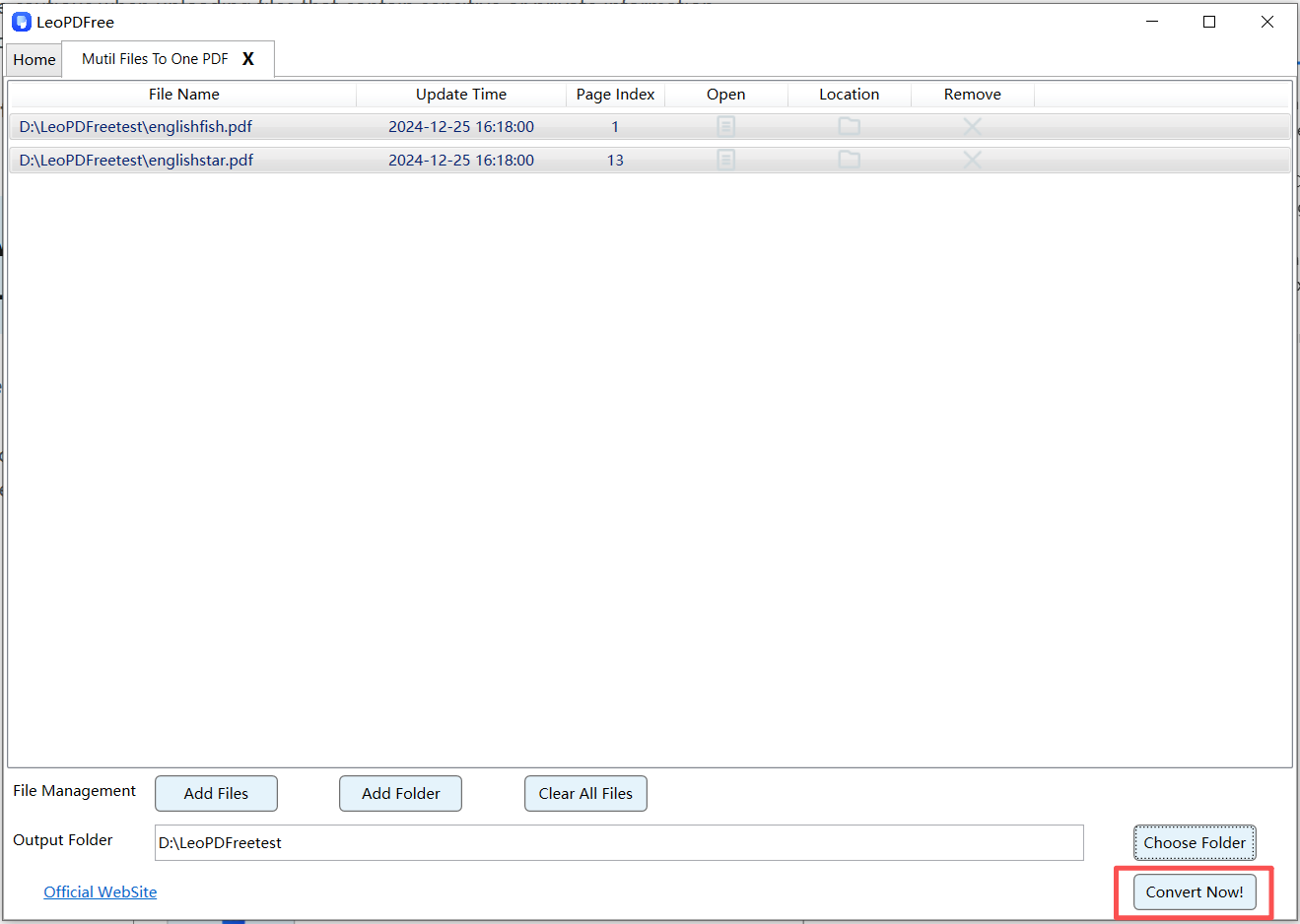
6️⃣.After the software completes the merging process, a small window will pop up. Simply click “Check Now” to quickly view the merged file result, as shown in the image below.
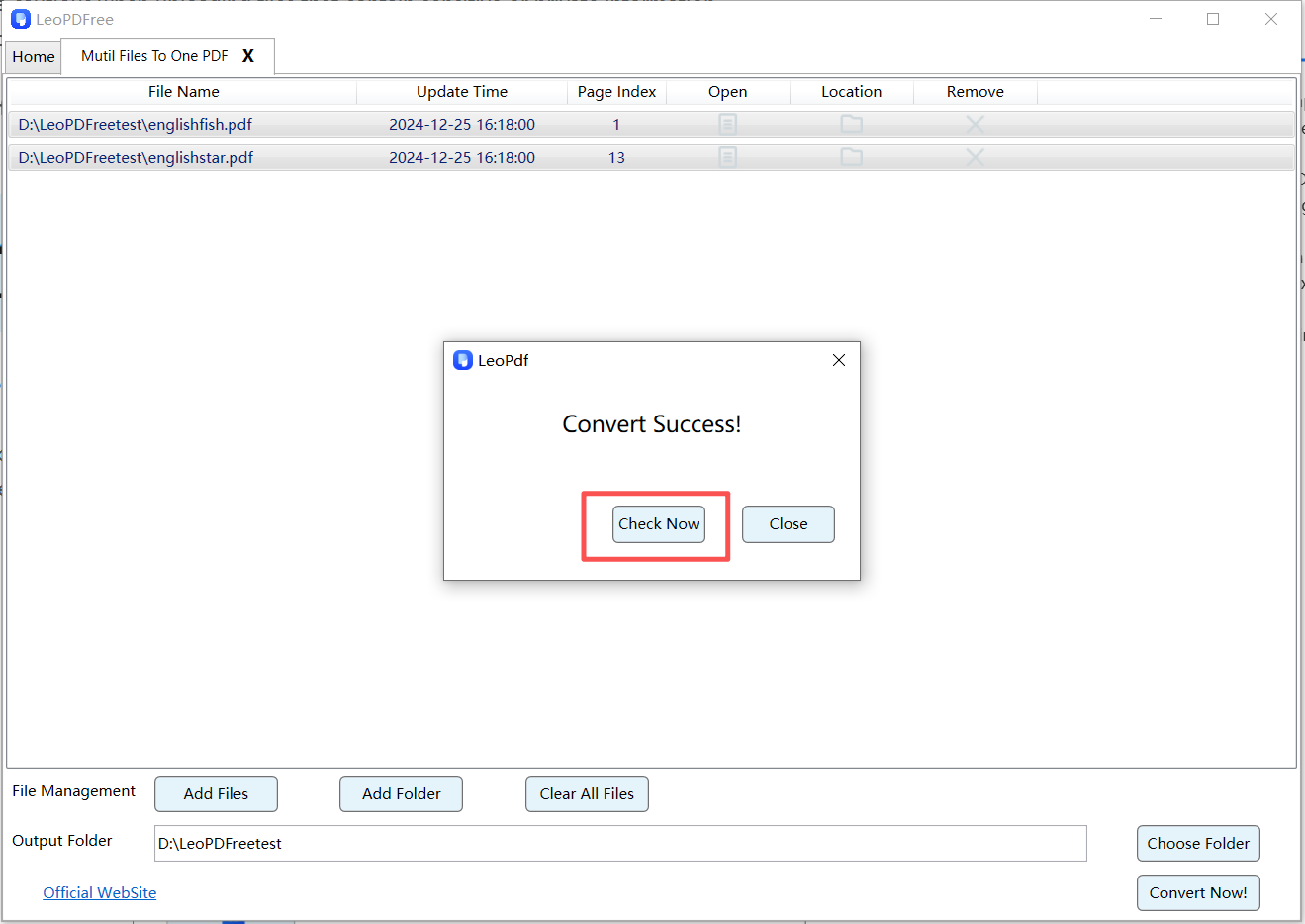
Advantages
⏺ No internet dependency
⏺ Supports large file merging
⏺ Allows editing, compressing, or rearranging pages
⏺ Supports batch processing
This is the most recommended method for enterprise and high-frequency office users.
4. Method Three: Use Windows 11 Built-in Printing Feature
Windows 11 provides a virtual printer called Microsoft Print to PDF, which allows merging files through printing.
Operation Idea
1️⃣.Open the first PDF file
2️⃣.Select “Print”
3️⃣.Choose “Microsoft Print to PDF”
4️⃣.Output multiple files in sequence into one document
Suitable Situations
⏺Temporary file processing
⏺ Users who do not want to install software
The downside is that the process involves more steps and is not suitable for frequent use.
5. Batch Merge Multiple PDF Files Efficiently
If you need to merge many PDF files at once, follow these tips:
⏺ Rename files in numerical order (such as 01, 02, 03)
⏺ Use tools that support batch file addition
⏺ Make sure output formats are consistent
Proper file organization helps avoid repeated adjustments.
6. Frequently Asked Questions
Will merging PDFs reduce file quality?
No. Normal PDF merging will not compress or reduce file quality.
Does Windows 11 have a built-in PDF merge button?
Windows 11 does not provide a standalone merge PDF feature. You need to use online tools or third-party software.
Can I merge only selected pages?
Yes. Most professional PDF tools allow you to select specific pages before merging.
Conclusion
| Usage Scenario | Recommended Method | Advantages |
|---|---|---|
| Occasional Use | Online PDF Merge Tool | No installation required, simple to use |
| Daily Office Work | Professional LeoPDF Software | Stable, secure, free to use, supports large files and batch processing |
| Temporary Emergency | Windows Built-in Print Function | System built-in, no additional tools required |
| Batch Processing | Tools supporting batch operations | Process multiple files at once, greatly improve efficiency |
By mastering these methods, you can efficiently merge PDF files on Windows 11 and improve your document management workflow.
