
In daily study and work, we often encounter situations like these: lecture notes sent by teachers are split into multiple PDF files, contract attachments are divided into several parts, or scanned materials are saved as separate pages. In such cases, merging multiple PDF files into one complete document becomes especially important.
This article will systematically explain how to merge PDF files and introduce three common, practical, and beginner-friendly PDF merging methods. No professional background is required—anyone can get started easily.
Why Do We Need to Merge PDF Files?
Before introducing specific methods, let’s first look at some common use cases for PDF merging:
📚 Study Material Integration:Combine multiple lecture slides or research papers into a single PDF
📄 Office Document Organization:Merge a contract’s main text with its attachments for submission
🖨️ Easier Printing:Avoid selecting and printing multiple files repeatedly
📤 More Professional Sharing:One complete file is better than multiple attachments
Therefore, mastering PDF merging is an essential skill for almost every student and working professional.
Method 1: Use Online iLovePDF Merging Tools
If you don’t want to install any software, online PDF merging tools are the most convenient option.
Steps:
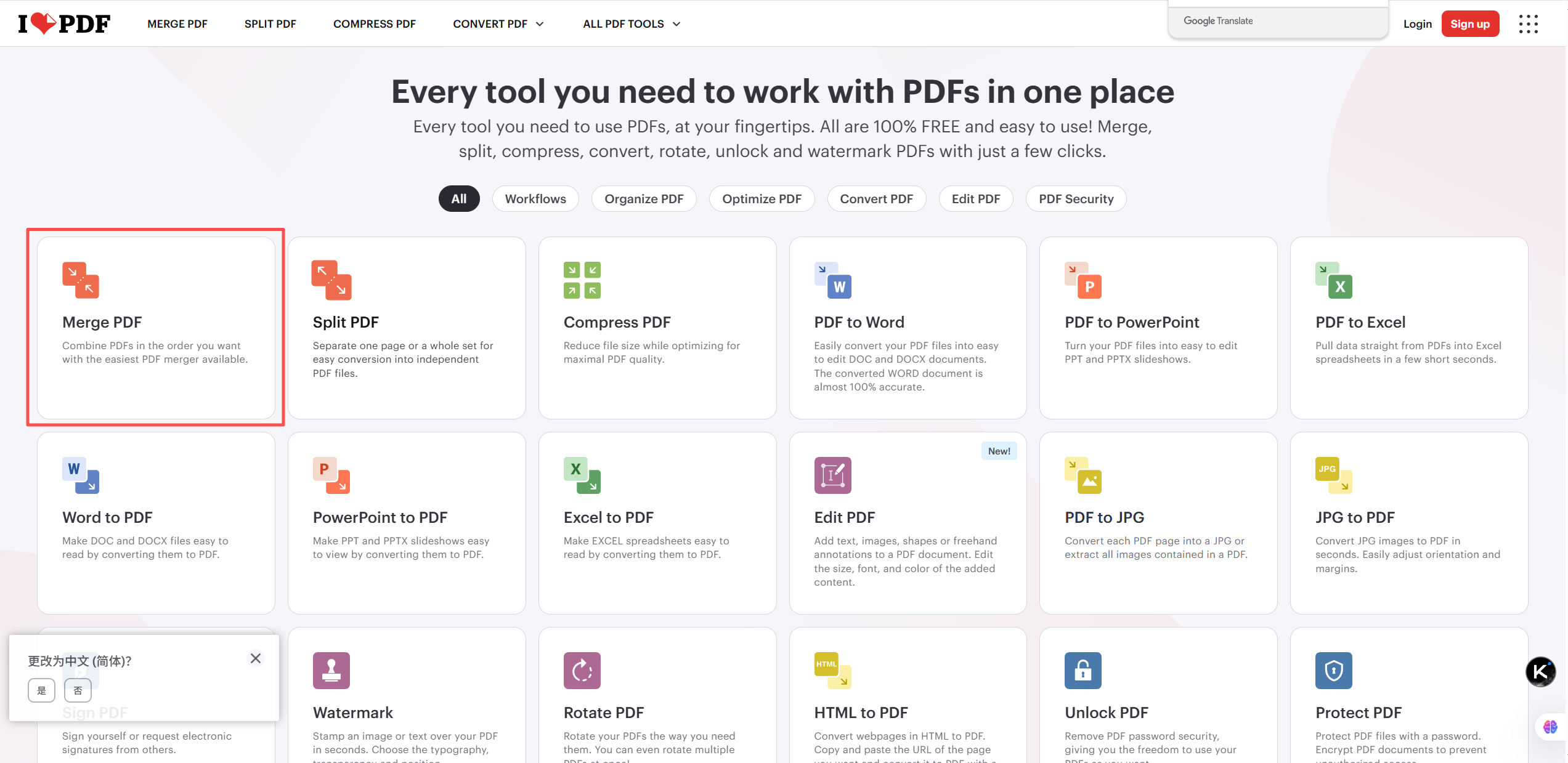
1️⃣.Open the iLovePDF website
2️⃣.Click “Merge PDF” and select the PDF files you want to merge.
3️⃣.Adjust the order of the PDFs
4️⃣.Click “Merge PDF”
5️⃣.Download the merged file
Advantages:
✅ No software installation required
✅ Simple operation with an intuitive interface
✅ Supports multiple platforms (Windows / Mac / Mobile)
Things to Note:
⚠️ Be cautious when uploading files that contain sensitive or private information
⚠️ Some websites limit file size or the number of merges
Best for: Users who only occasionally need to merge PDFs and want a fast, hassle-free solution.
Method 2: Merge PDFs Using the Desktop PDF Software LeoPDF (Stable and Efficient)
General Workflow:
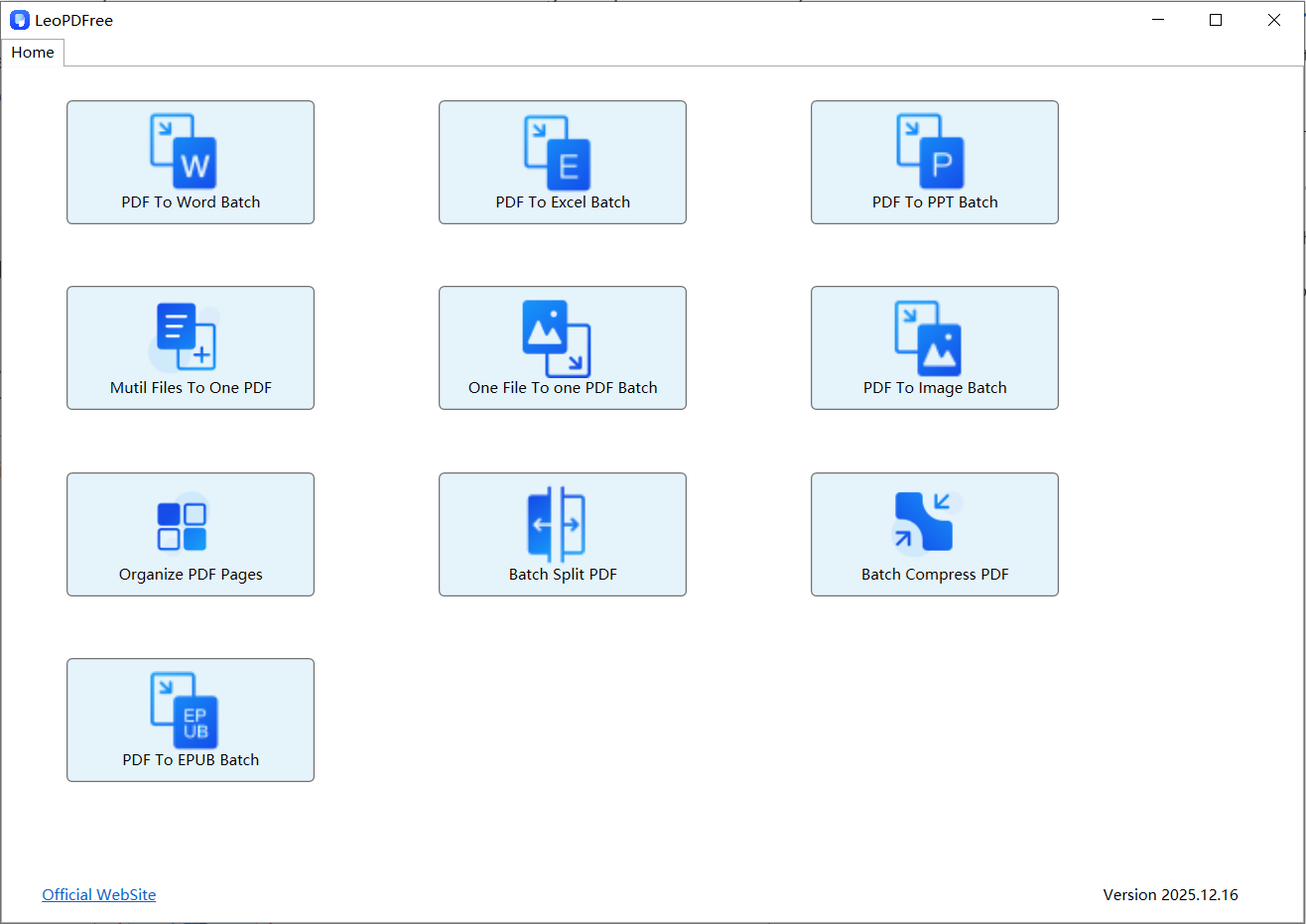
1️⃣.Download and install the LeoPDF tool for free on your computer, then open the software, as shown in the image below:
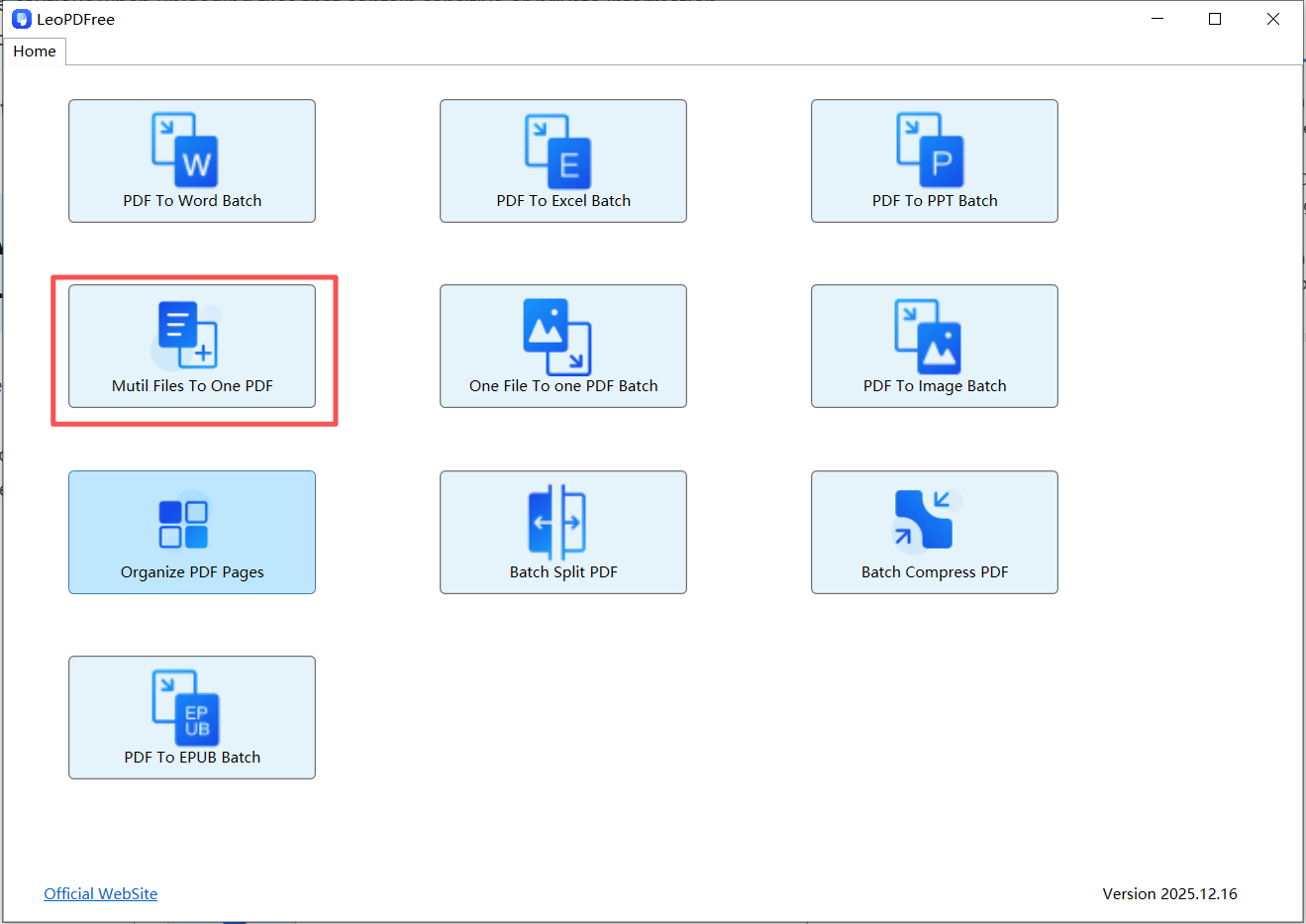
2️⃣.On the interface, click “Multi Files To One PDF”, as shown in the image below:
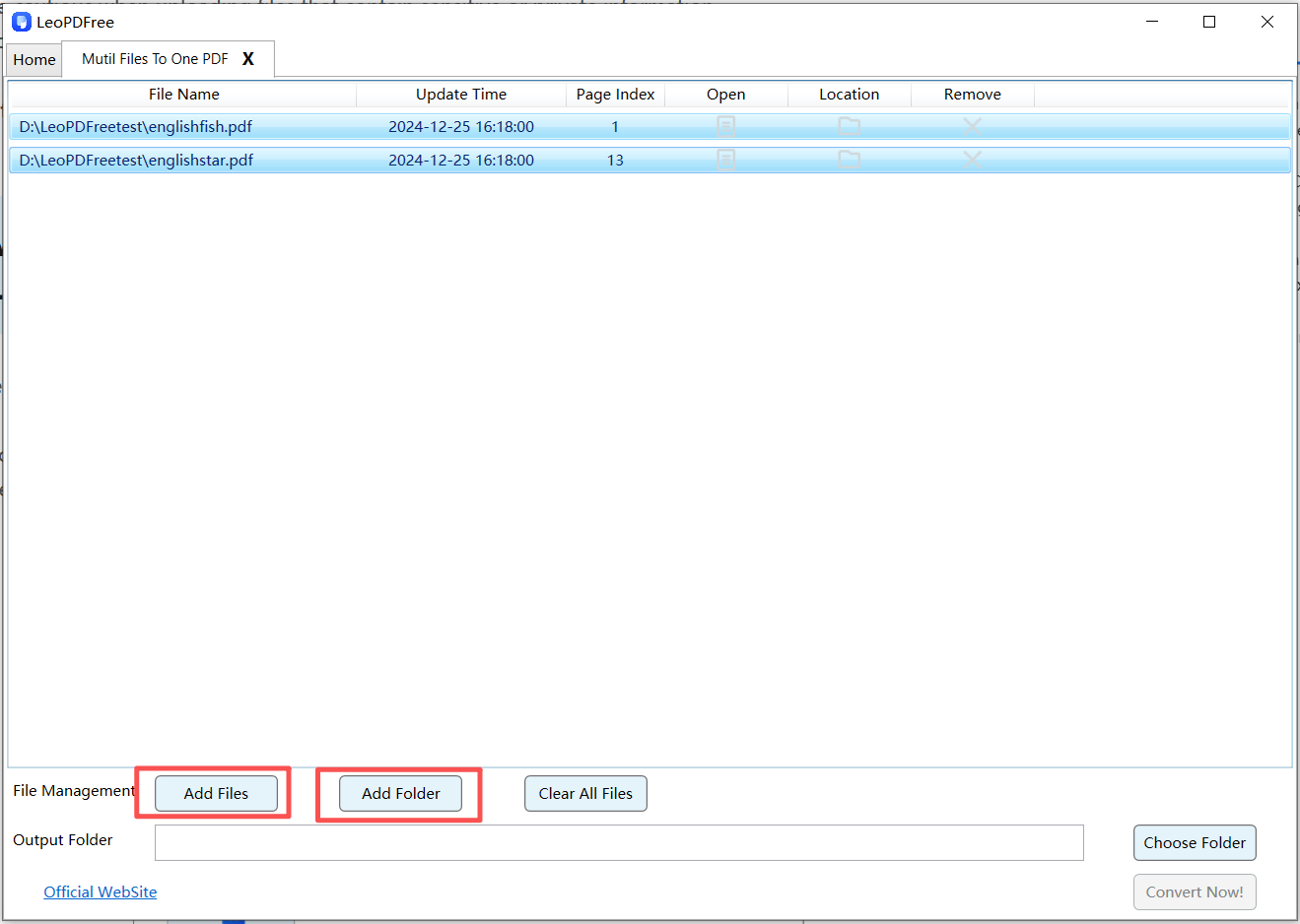
3️⃣.On the opened interface, click “Add Files” or “Add Folder” to add one or more PDF files, as shown in the figure below.
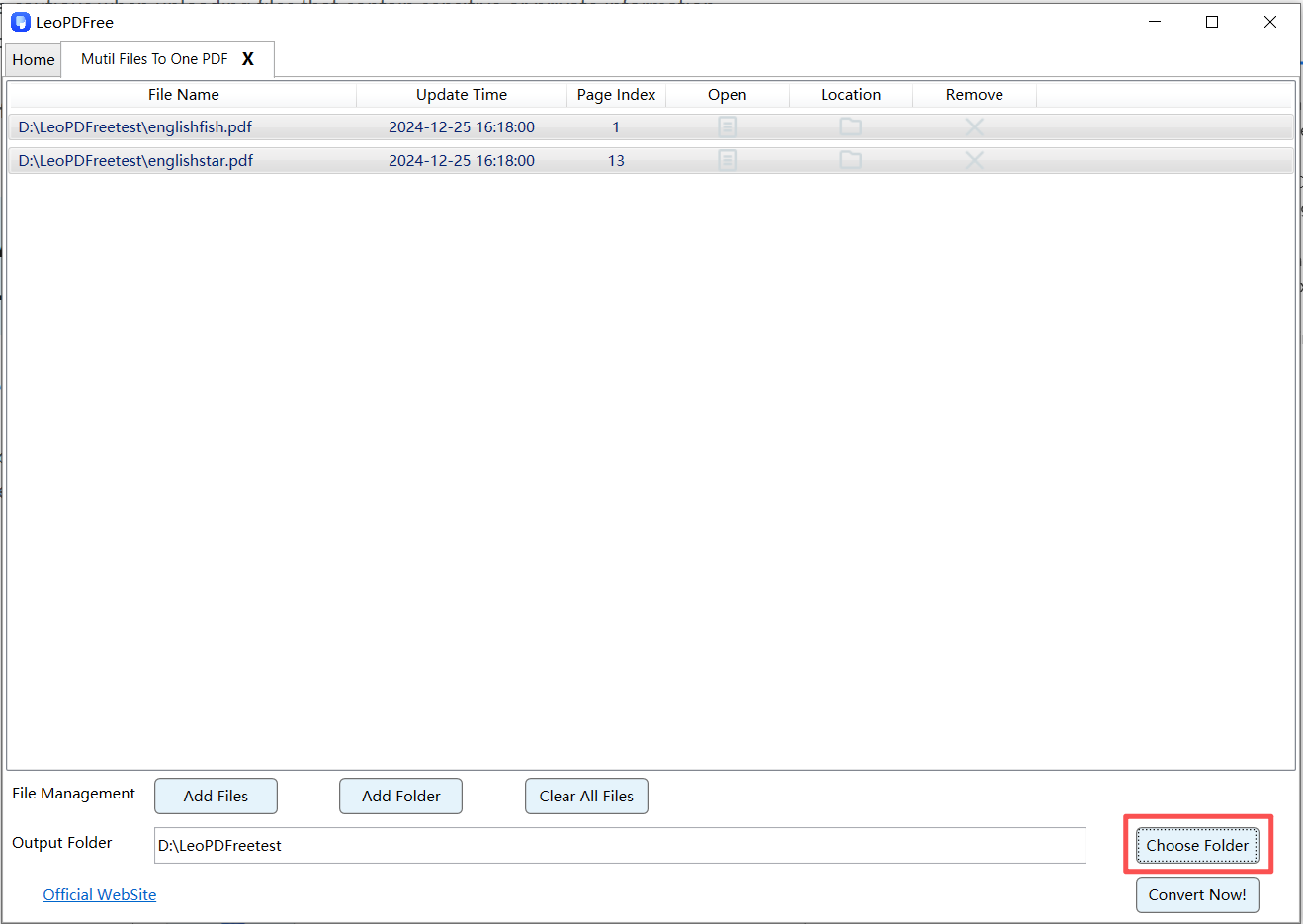
4️⃣.On the interface, click the “Choose Folder” button to set the save path for the merged PDF file, as shown in the figure below.
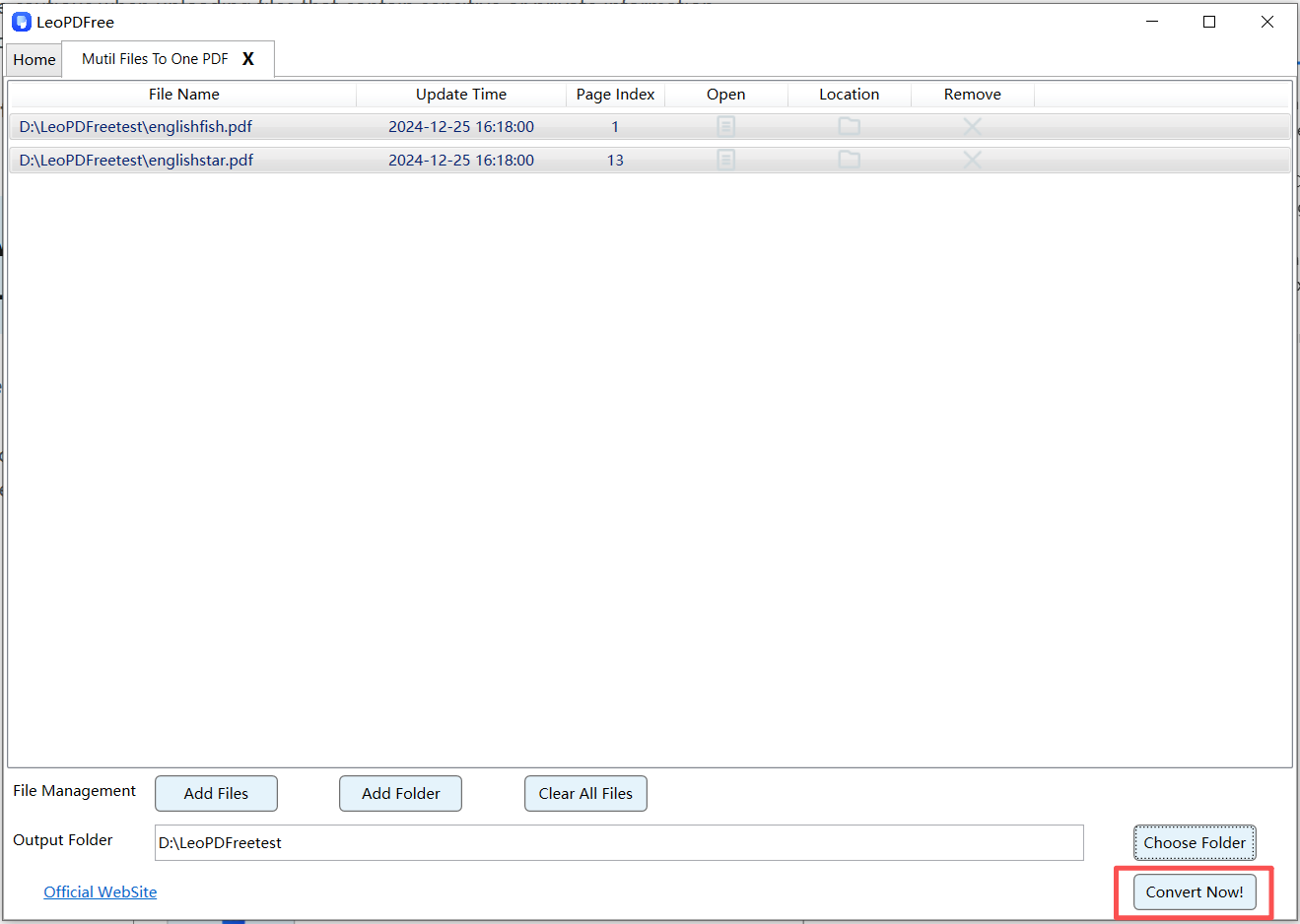
5️⃣.After all the pre-merging steps are completed, simply click the “Convert Now!” button on the interface. The software will quickly complete the merging process based on the size of the files to be merged, as shown in the figure below.
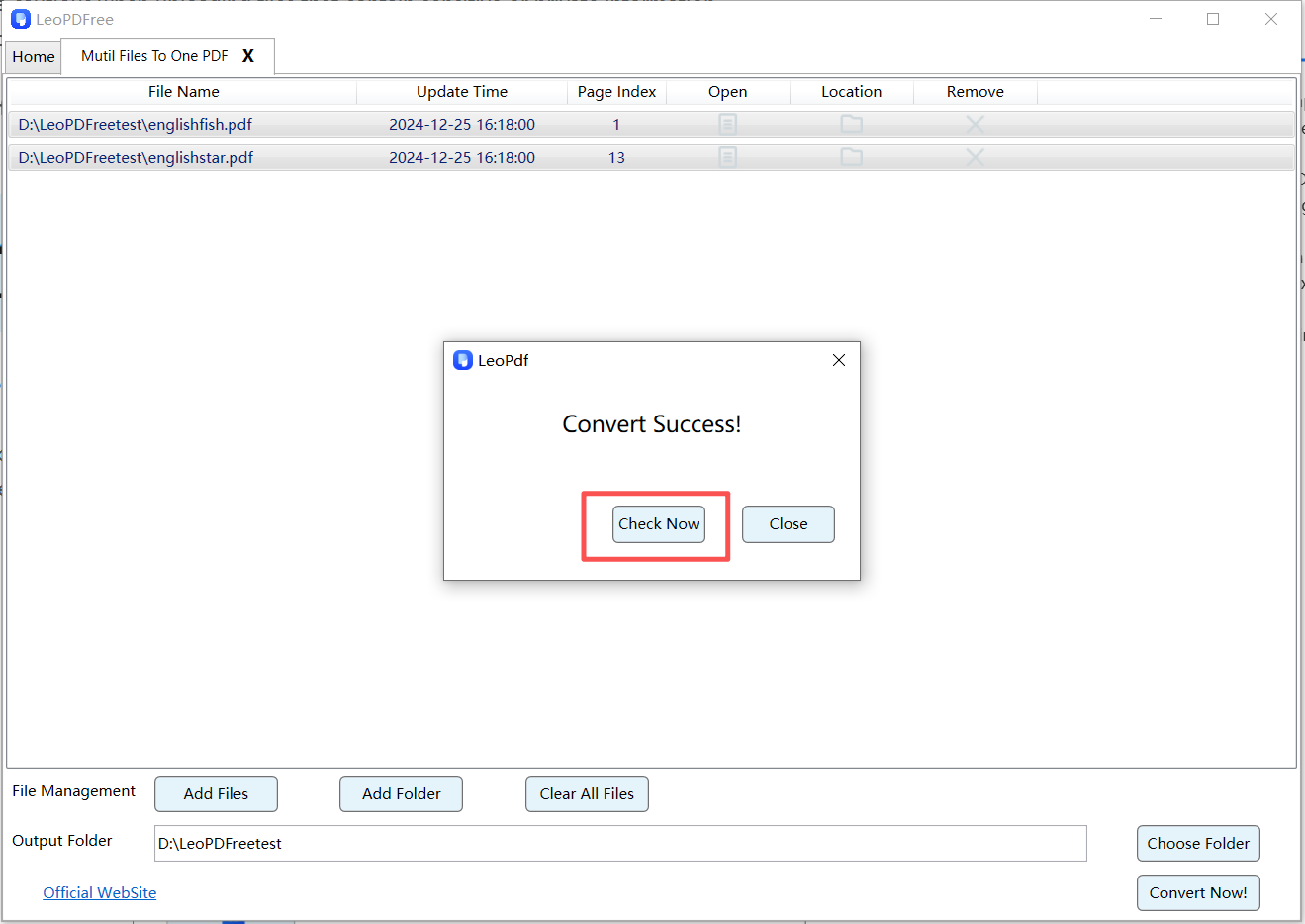
6️⃣.When the software pops up a new window, it indicates that the merging process has been completed. Simply click “Check Now” on the interface to quickly view the result of the merged file, as shown in the figure below.
Advantages:
✅ File security, no need to upload files to the internet, completely free
✅ Supports large files and high-quality merging
✅ Allows simultaneous operations such as compression, rotation, page deletion, and format conversion
Disadvantages:
❌ Requires downloading and installing the software
Suitable for:Office workers, students, and users who frequently work with PDF files.
Method 3: Merge PDFs Using Built-in System Features
In fact, on some operating systems, you can merge PDF files without using any third-party tools.
Examples:
macOS:Drag and merge files directly using the Preview app
Windows:Combine files by using the Print to PDF feature
Features:
✅ No additional tools required
❌ Relatively basic functionality, with slightly more complicated steps
Suitable for:Users who need to merge PDFs temporarily and do not have strict formatting requirements.
PDF Merge Frequently Asked Questions (FAQ)
1️⃣.Will merging PDFs affect image or document quality?
Under normal circumstances, no. As long as no compression is applied, merging PDFs will not reduce the quality of the original files.
2️⃣.Can I merge only specific pages?
Yes. Most PDF software and online tools support selecting specific pages to merge.
3️⃣.Can a merged PDF be split again?
Of course. PDF files can be split and pages can be extracted at any time.
Summary: Which PDF Merge Method Is Best for You?
| Use Case | Recommended Method |
|---|---|
| Occasional use | Online PDF merge tools |
| Frequent office work | Desktop LeoPDF software |
| Emergency or temporary use | Built-in system features |
No matter which method you choose, mastering how to merge PDF files can significantly improve your study and work efficiency. If you also need features such as PDF splitting, PDF page extraction, PDF rotation, PDF compression, or converting PDF to Word for your work, I recommend using the LeoPDF tool, which can fully meet your needs—and best of all, it’s completely free to use!
