
In daily work and study, we often encounter situations like these:
👉 You only need a few specific pages from a PDF
👉 You want to split a PDF into multiple smaller files
👉 You need to extract selected pages for printing, sharing, or archiving
So, how can you extract pages from a PDF?
It’s actually not complicated. Below, I’ll explain all the common methods for extracting PDF pages in a clear and easy-to-understand way. Whether you’re a beginner or an advanced user, you’ll find a solution that works for you.
What Is PDF Page Extraction?
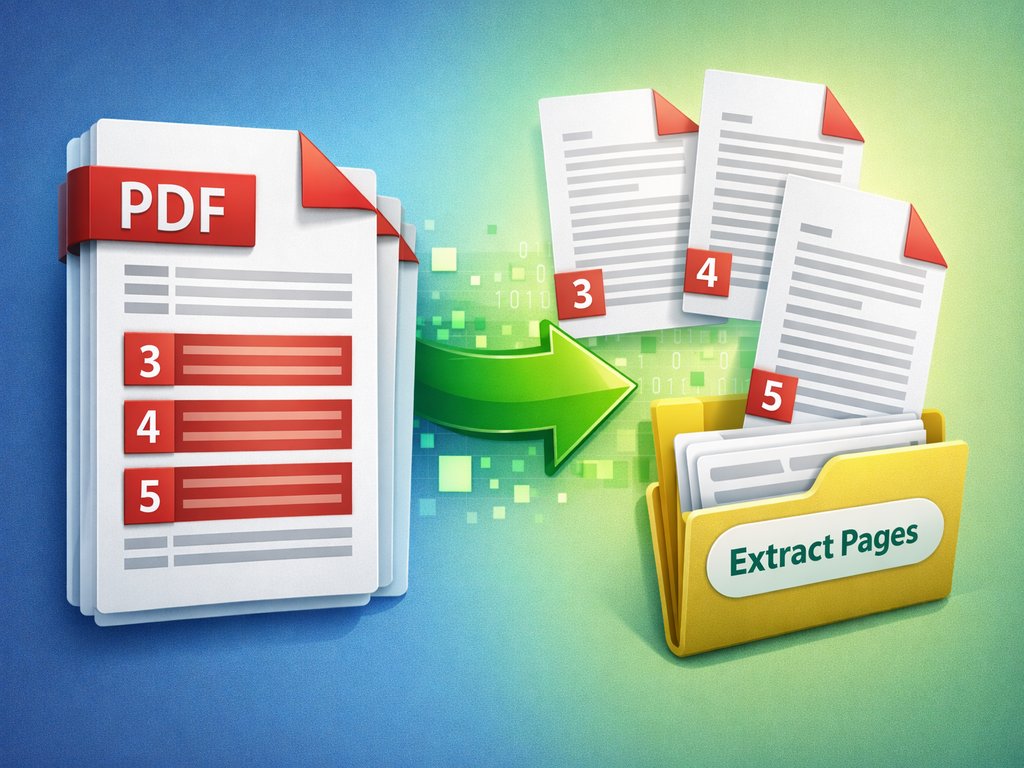
PDF page extraction refers to taking pages from a complete PDF file, including:
▶Extracting a single page
▶Extracting consecutive pages (such as pages 3–10)
▶Extracting non-consecutive pages (such as pages 1, 5, and 8)
and saving these pages as a new PDF file without affecting the original document.
Common Use Cases
▶Extracting key pages from a contract PDF
▶Extracting specific chapters from a textbook PDF
▶Splitting scanned PDFs for easier printing
▶Keeping only the necessary pages when submitting documents
Method 1: Use an Online PDF Page Extraction Tool (Easiest Way)
This is the most recommended method for beginners and does not require installing any software. However, since the extraction is done online, you need to upload your original file to a server, which means the security level is relatively lower.
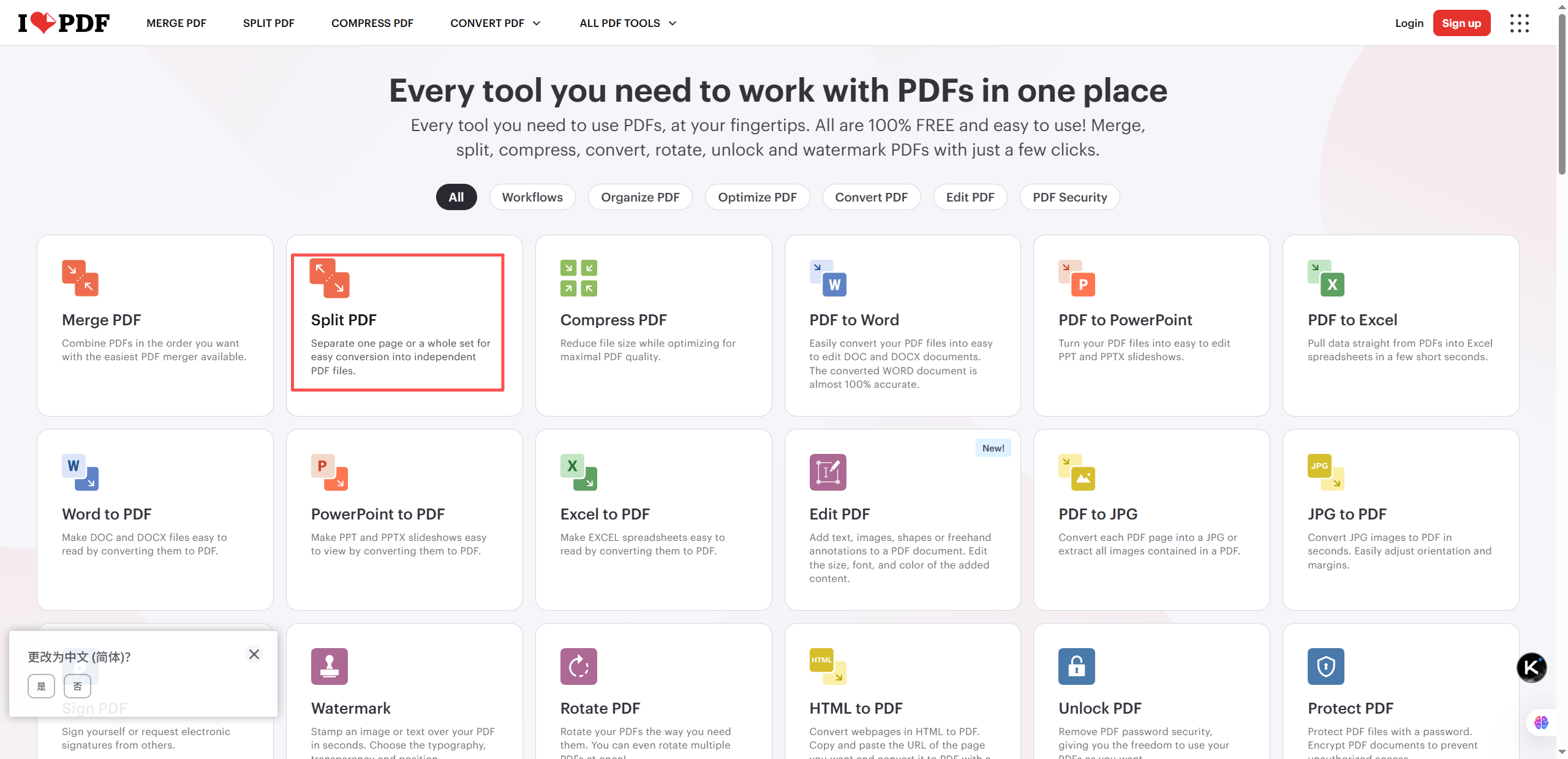
1️⃣.Open an online PDF page extraction tool
2️⃣.Click the “Split PDF” button
3️⃣.Enter the page numbers you want to extract
4️⃣.Single page: 3
5️⃣.Consecutive pages: 3–10
6️⃣.Non-consecutive pages: 1,5,8
7️⃣.Click “Split PDF” and download the newly generated PDF file.
Method 2: Extract PDF Pages Using Adobe Acrobat (Professional Method)
If you are using Adobe Acrobat Pro, you can complete the process directly within the software.

1️⃣.Open the PDF with Adobe Acrobat
2️⃣.Select “Organize Pages”
3️⃣.Choose the pages you want to extract
4️⃣.Click “Extract Pages”
5️⃣.Save the pages as a new PDF file
Method 3: Extract Pages Using the Free LeoPDF Software
LeoPDF is a free tool for extracting pages from PDF files. It offers high security, fast page extraction, and allows you to rotate pages during the extraction process. The tool is very simple and easy to use.
The steps are as follows:
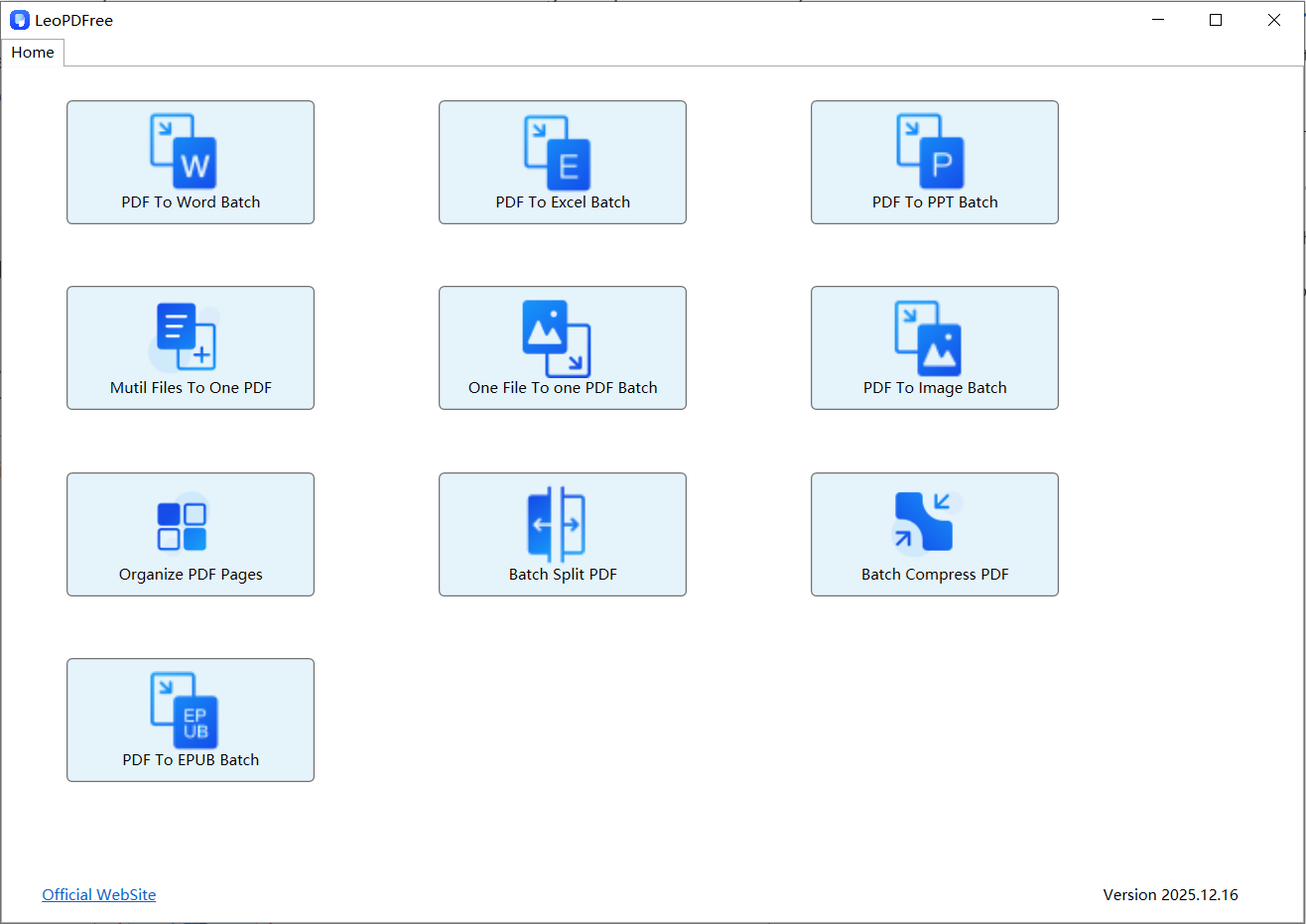
1️⃣.First, download and install the LeoPDF tool. After installation, open the software as shown in the image below:
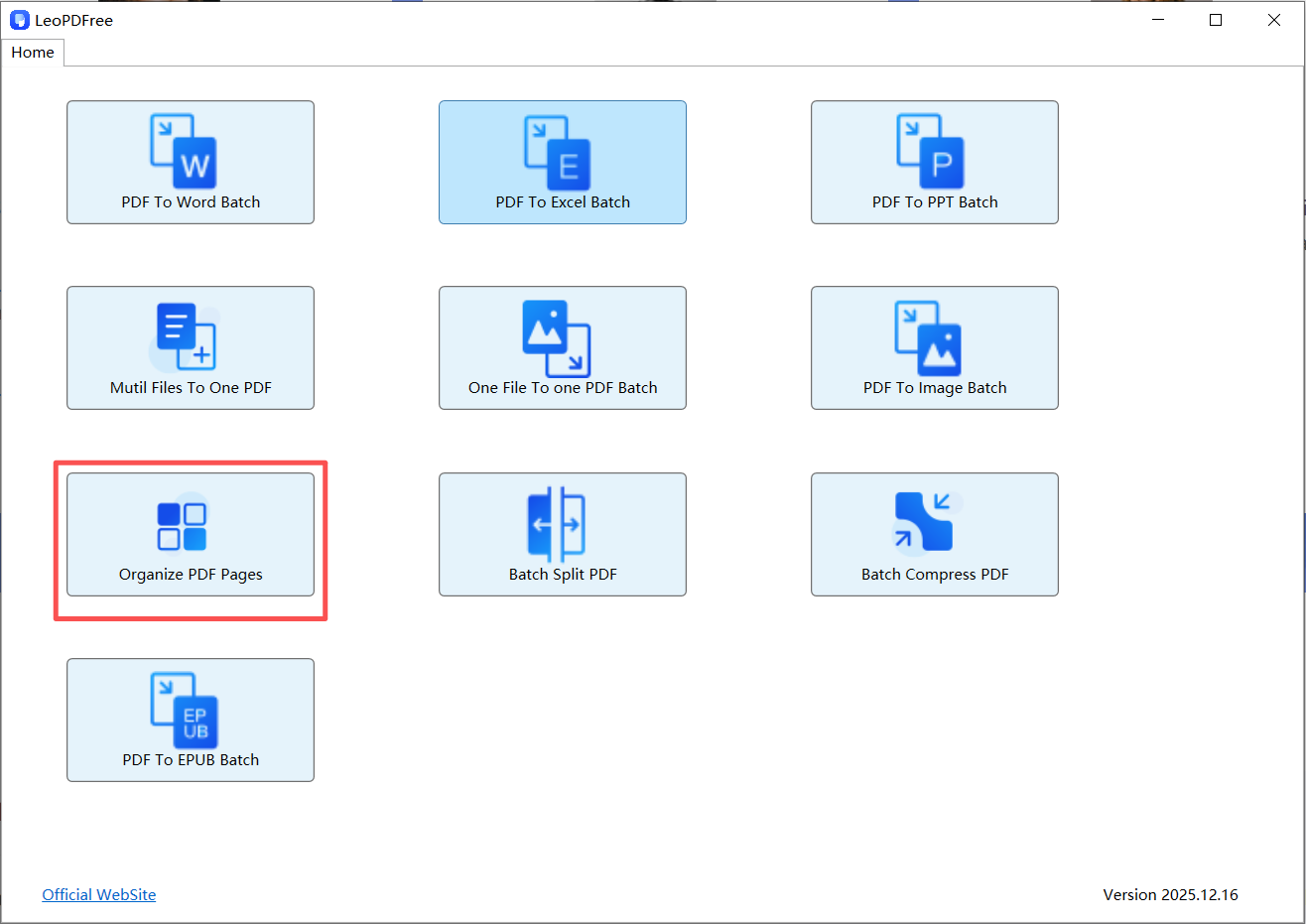
2️⃣.Click the “Organize PDF Page” button on the interface, as shown in the image below:
3️⃣.Select the PDF file from which you want to extract pages, as shown in the image below:
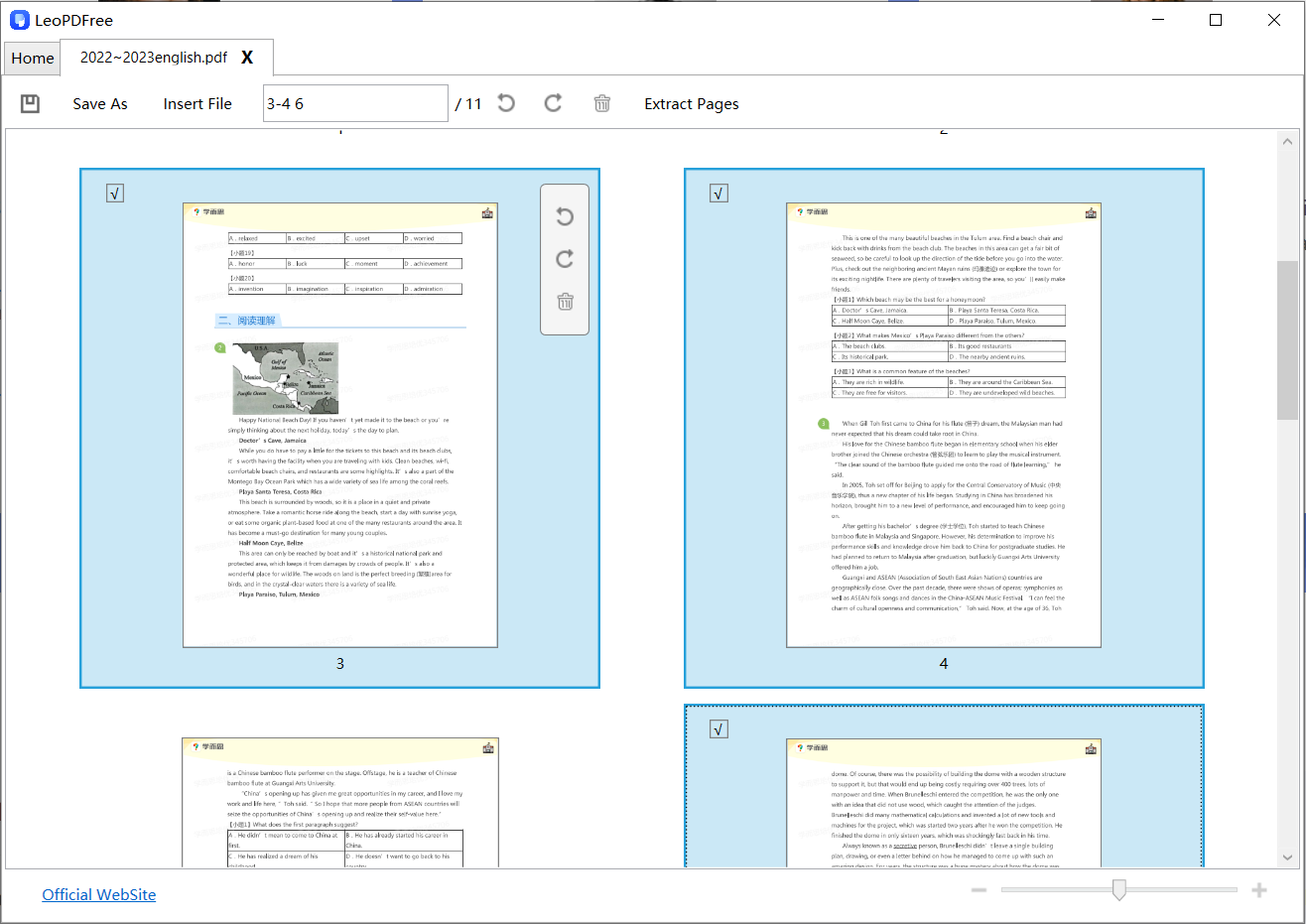
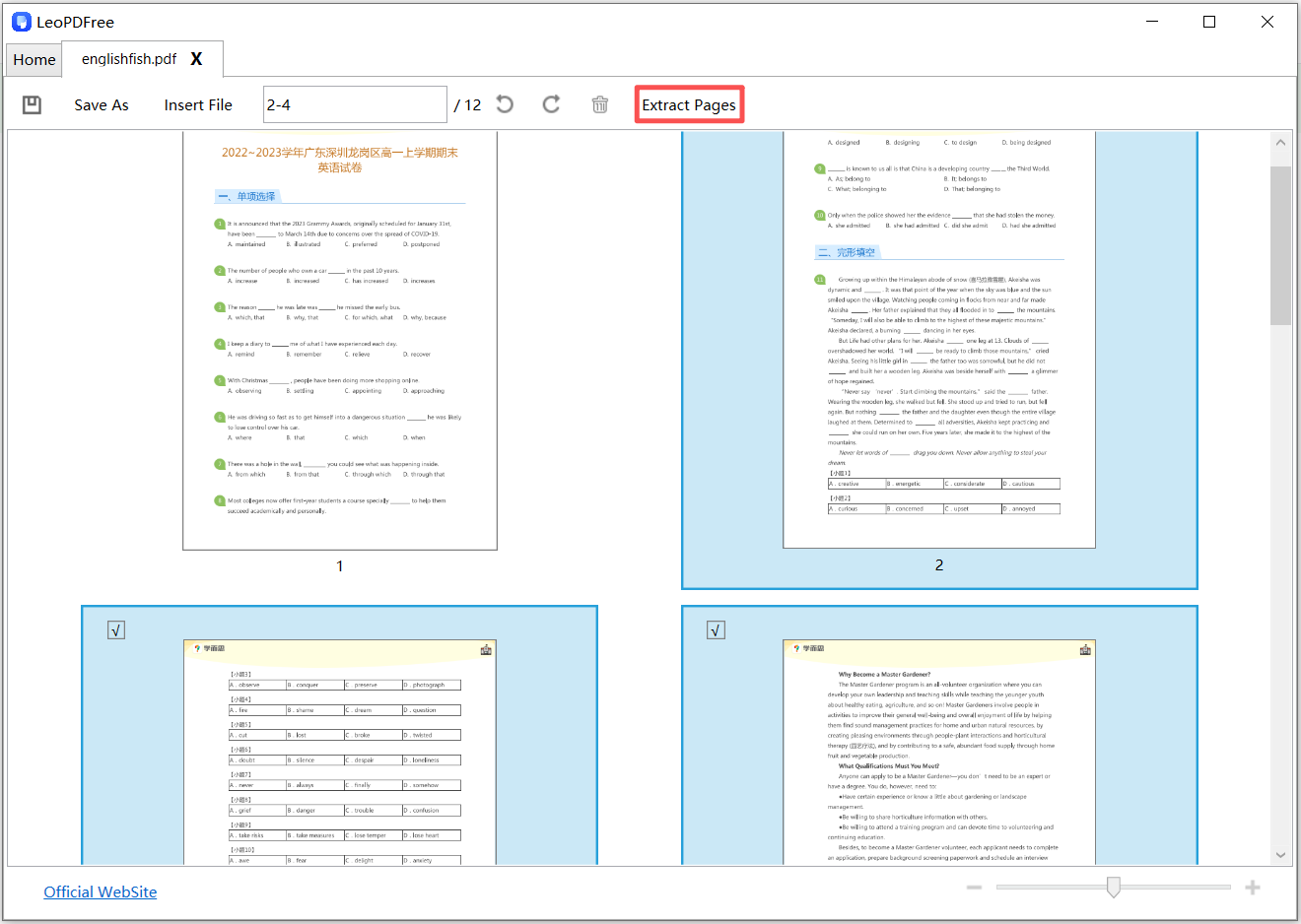
4️⃣.On the PDF loading screen, select the pages you want to extract. You can either select pages by dragging with the mouse or enter page numbers in the input box. After selecting the pages, click the “Extract Page” button, as shown in the image below.
5️⃣.In the pop-up Windows dialog, set the file name and save location for the newly extracted pages. Once this is done, the entire page extraction process is complete. Isn’t it very simple?
Recommended PDF Page Extraction Tools Comparison
| Tool Type | Installation Required | Free to Use | Best For |
|---|---|---|---|
| Online Tools | No | Mostly not free | General Users |
| Adobe Acrobat | Yes | Paid | Professional Users |
| LeoPDF | Yes | Yes | Frequent Users |
Conclusion
Extracting pages from a PDF is not complicated. As long as you choose the right method, the task can be completed in just a few seconds. Whether you need to extract a single page, consecutive pages, or non-consecutive pages, there are mature and reliable solutions available.
If you frequently work with PDF files, it is recommended to choose the LeoPDF tool, which is simple to use and supports extracting pages by specific page numbers. It is not only free but also secure. In addition, LeoPDF offers other completely free features such as splitting PDFs, merging PDFs, compressing PDFs, and converting PDFs to other formats. Go ahead and choose the tool that best fits your needs.
