
PDF files are everywhere – reports, manuals, guides, and eBooks. But sometimes, you want to make your PDF content accessible on the web. Converting PDF to HTML is the perfect solution: it creates searchable, web-friendly content while preserving the original structure.
In this guide, we’ll show three practical methods to convert PDF to HTML and provide tips to make the output clean, readable, and fully web-compatible.
Why Convert PDF to HTML?
▪ Accessibility: HTML content can be read by screen readers and mobile devices.
▪ SEO Benefits: Search engines can index text content, unlike PDFs.
▪ Better User Experience: HTML is responsive and easy to navigate.
▪ Content Reuse: Extract tables, images, and text for web pages or applications.
Method 1: Online PDF to HTML Converters (Quick and Simple)
Online tools are great for occasional use or small files.
Steps:
1️⃣. Open a reliable online converter like PDFtoHTML.net or IlovePDF.com.
2️⃣. Upload your PDF file.
3️⃣. Select “Convert to HTML.”
4️⃣. Download the generated HTML file.
Advantages:
▪ Fast and requires no installation.
▪ Good for basic PDF documents.
Limitations:
▪ Output may include messy inline CSS.
▪ Complex PDFs with tables and images might lose formatting.
Method 2:Use the completely free desktop software LeoPDF(Best for Larger Files)
For professional or repeated use, a desktop PDF tool like LeoPDF is ideal.
Steps:
1️⃣. Download and successfully install LeoPDF, then open the software, as shown in the image below.
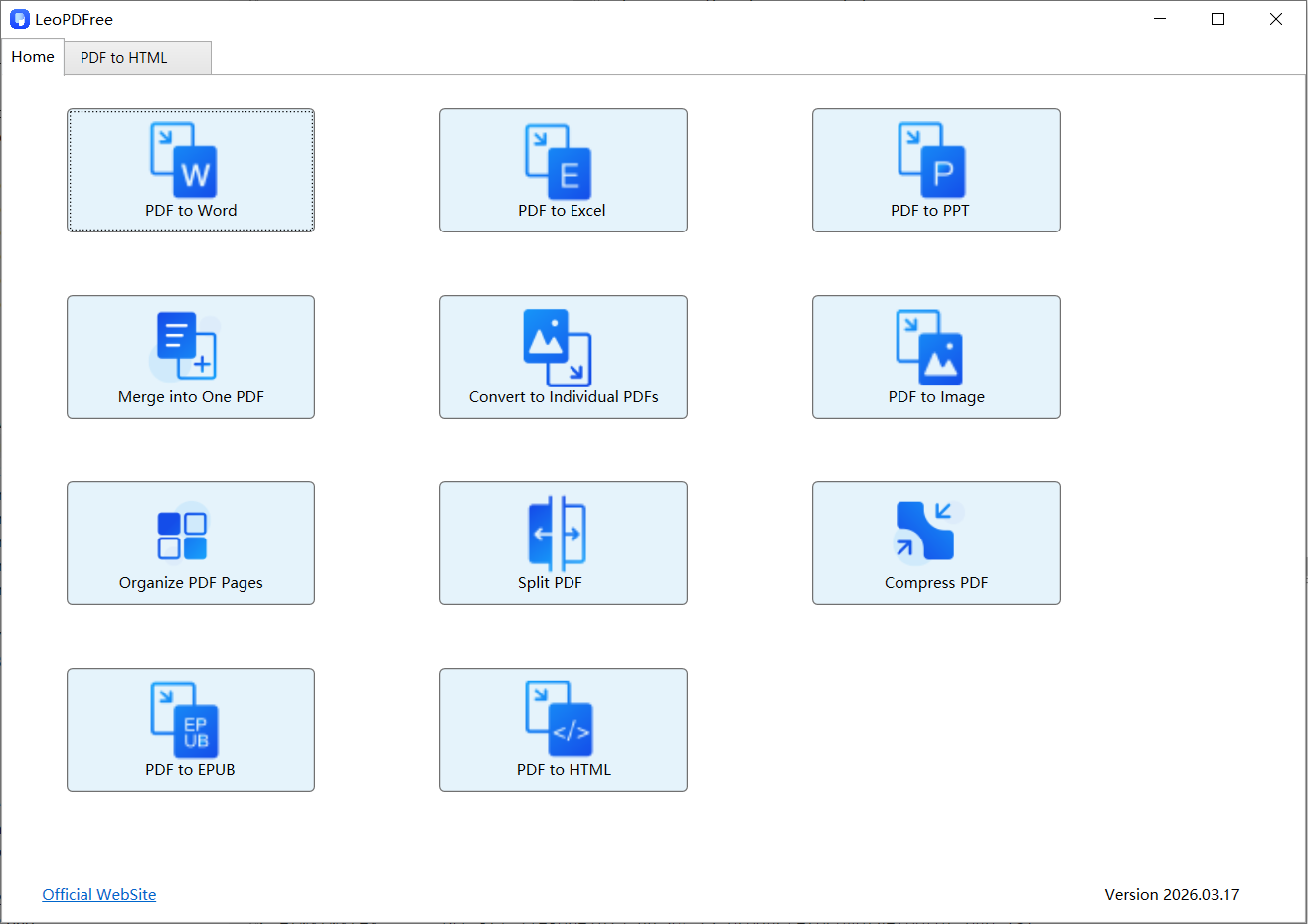
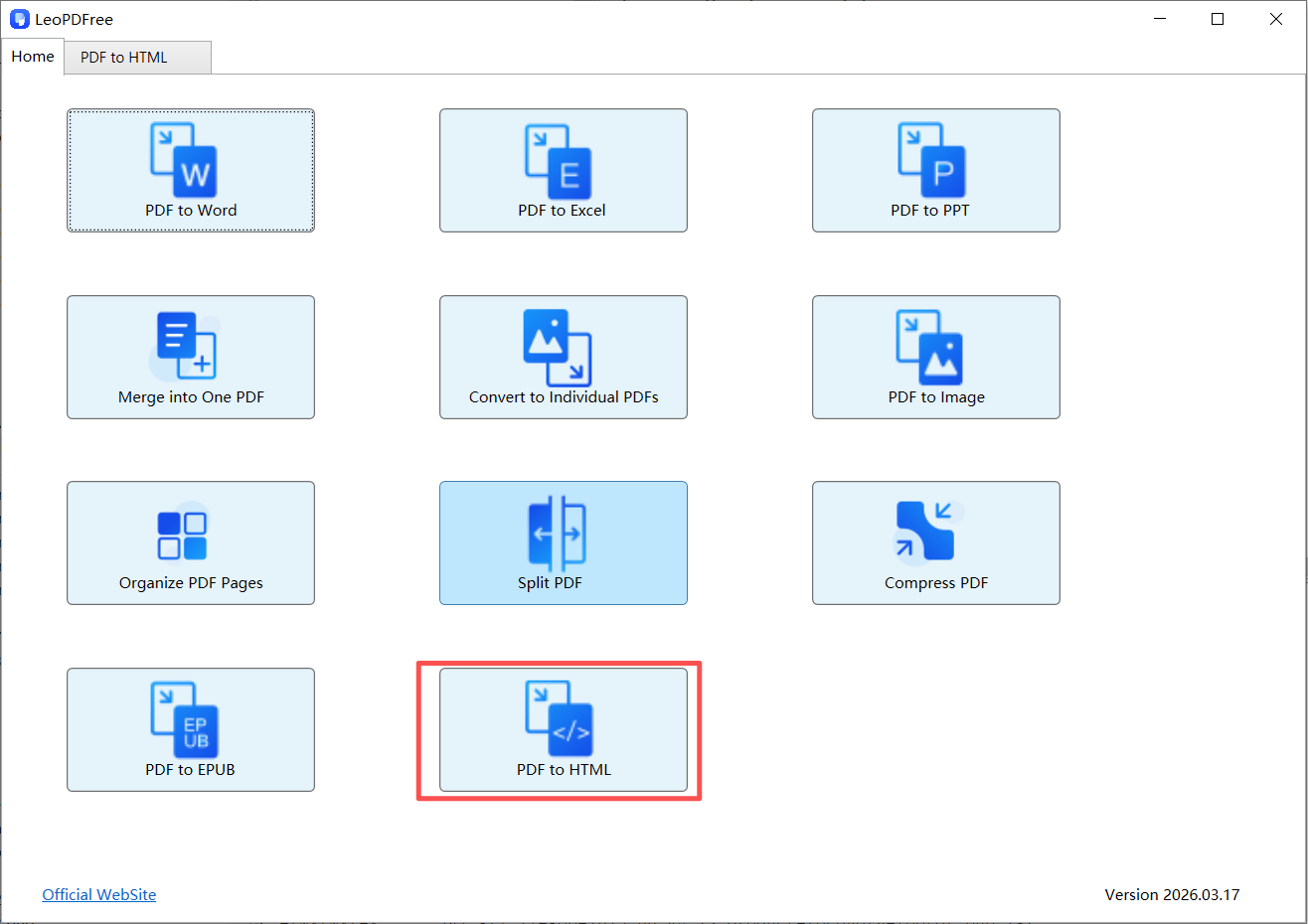
2️⃣. On the opened software interface, click “PDF to HTML”, as shown in the image below.
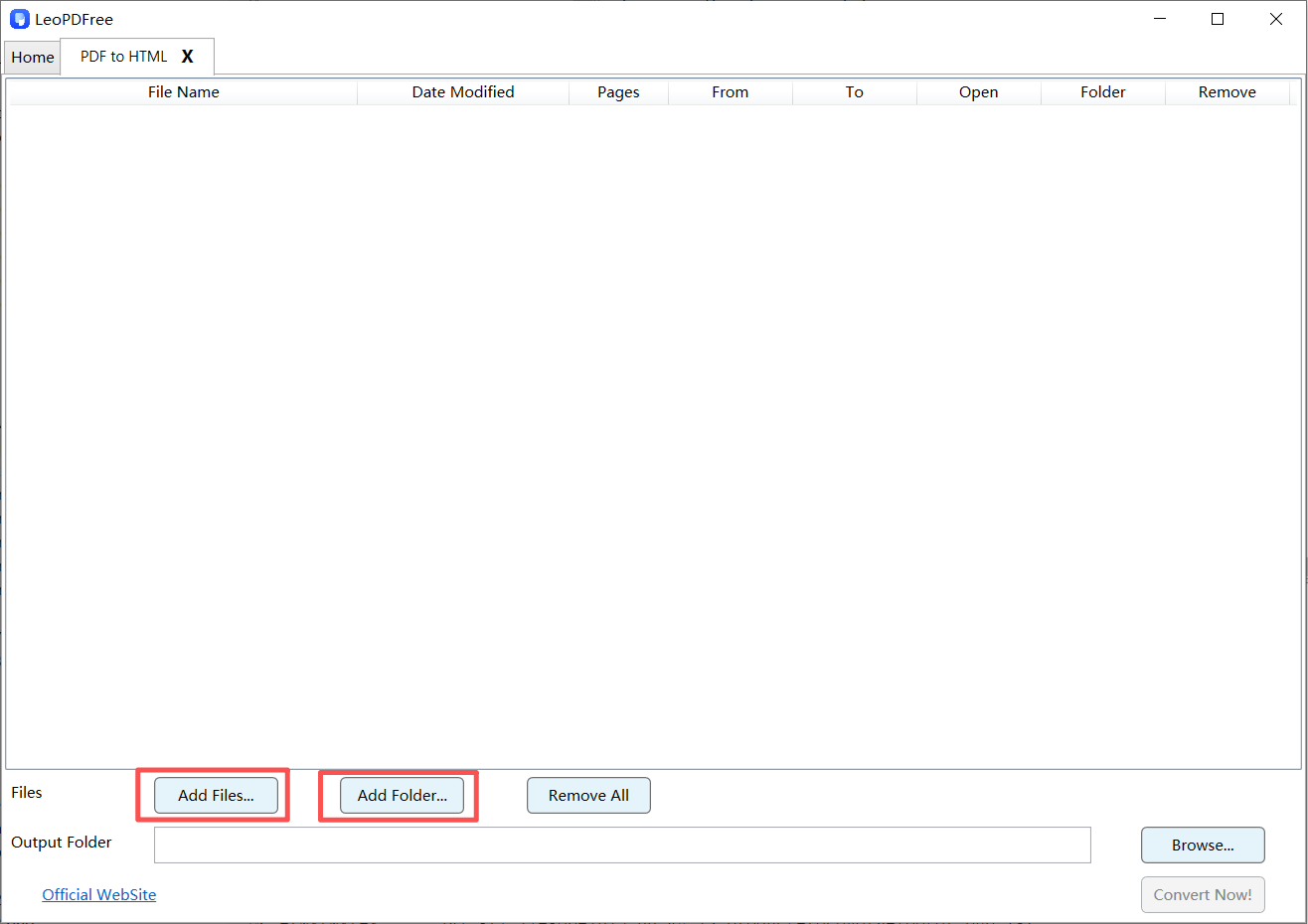
3️⃣. On the opened interface window, click “Add Files…” or “Add Folder…” to add one or more PDF files you want to convert, as shown in the image below.
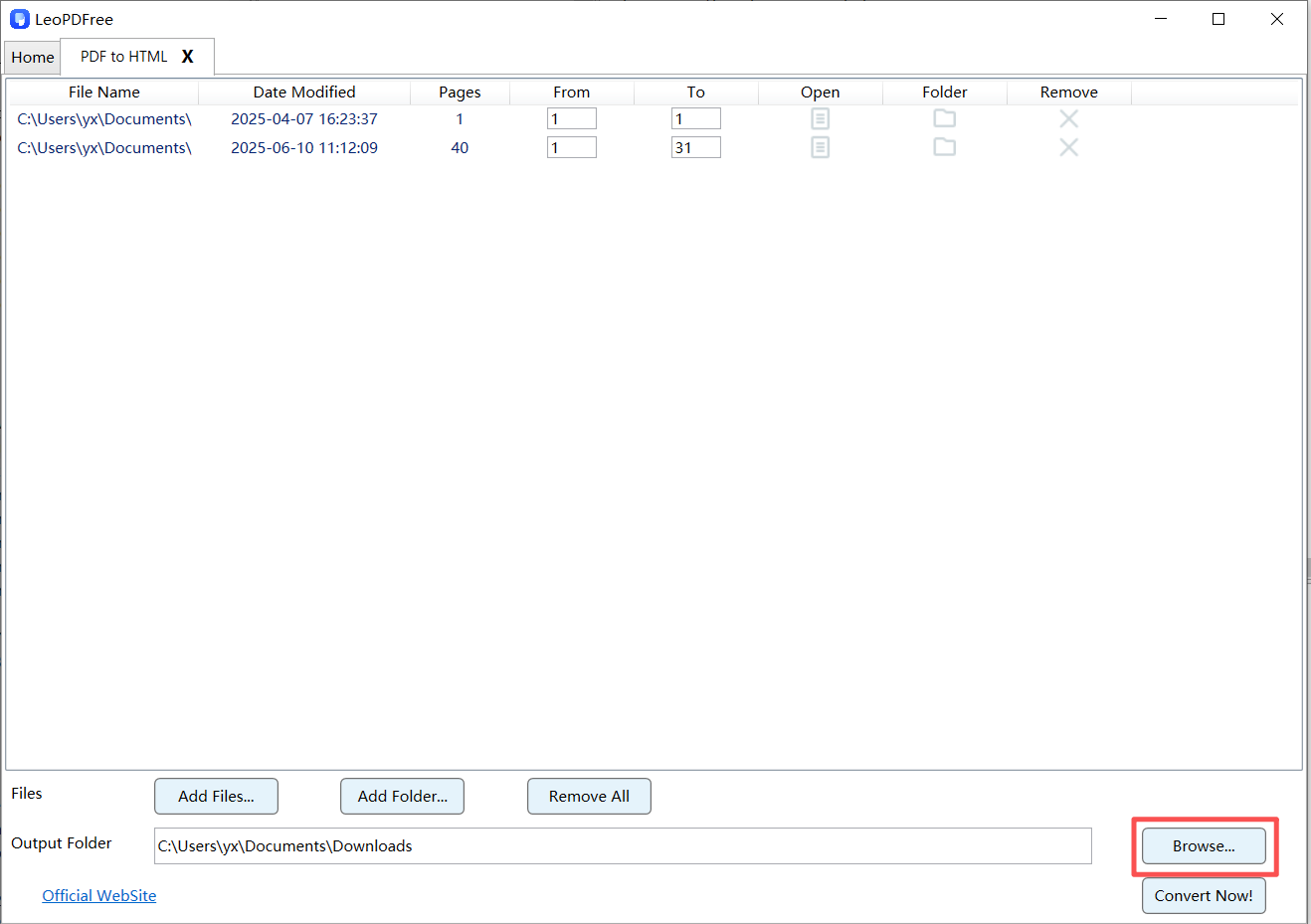
4️⃣. Next, click the “Browse…” button on the interface to set the save location for the converted files, as shown in the image below.
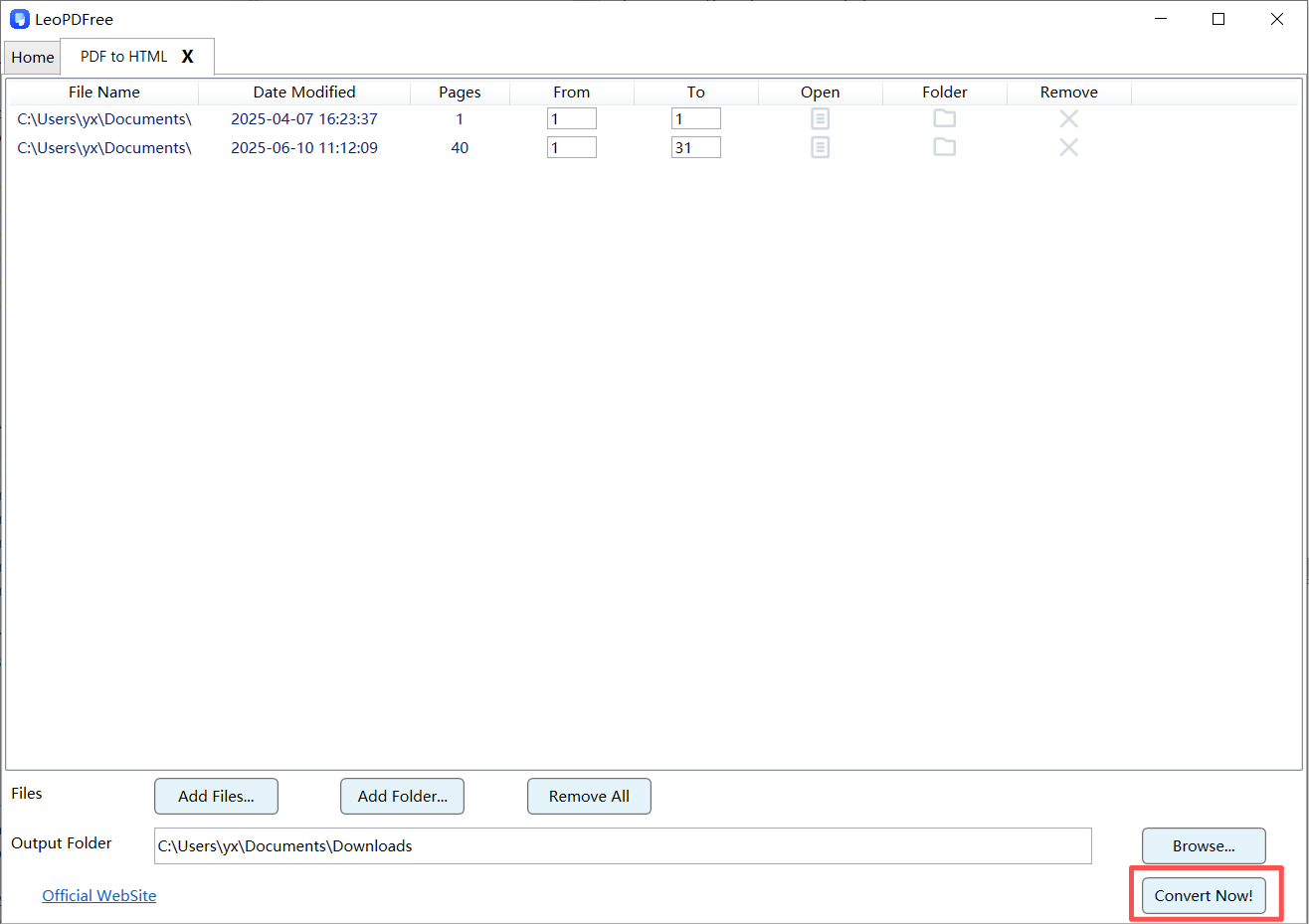
5️⃣. Once all the preparation for conversion is complete, simply click the “Convert Now!” button on the interface. The software will quickly complete the conversion based on the file size, as shown in the image below.
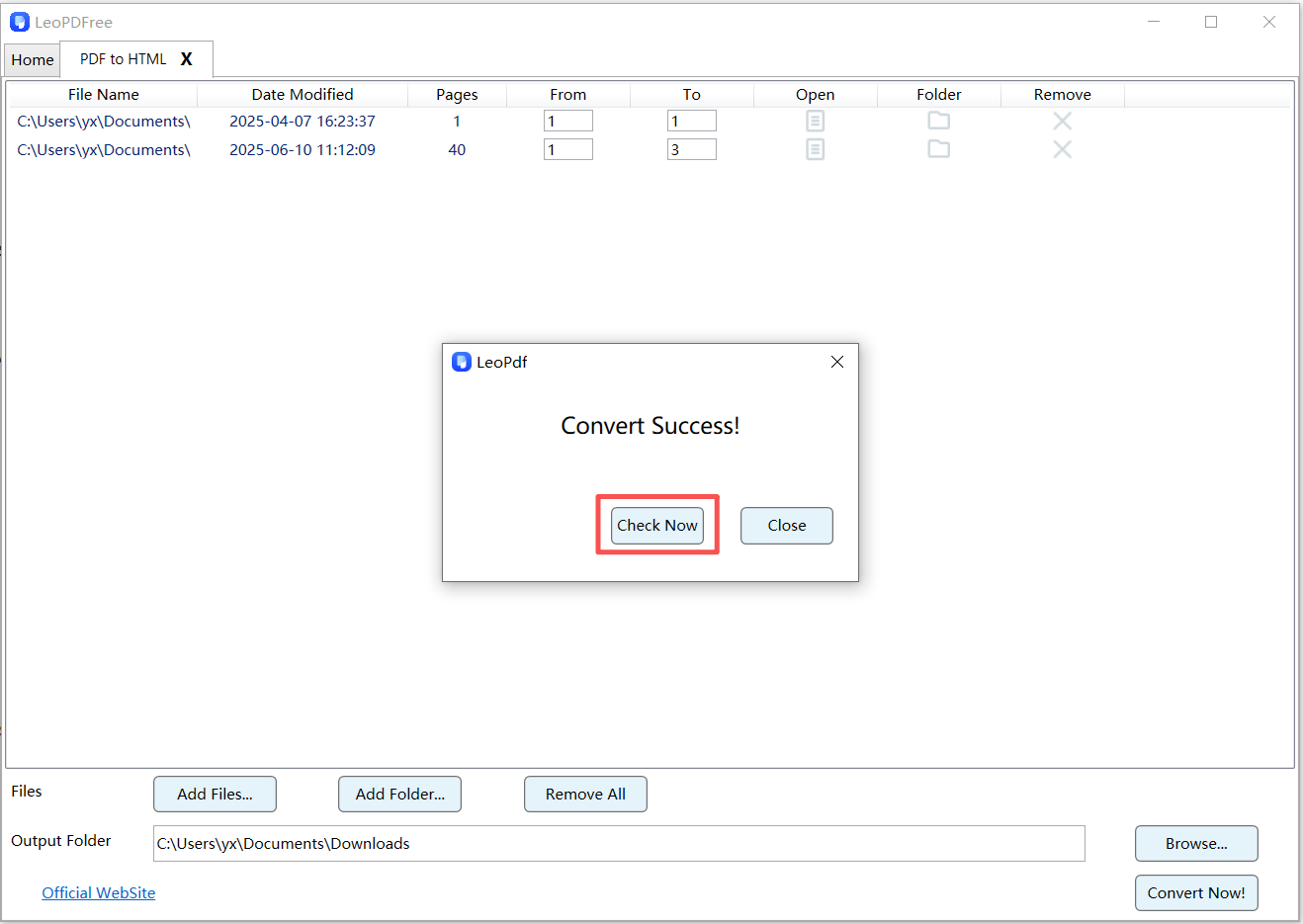
6️⃣. When the software pops up a small window indicating that all conversions are complete, you can click the “Check Now” button on the interface to quickly preview the converted files, as shown in the image below.
Advantages:
🔵 Handles large files smoothly.
🔵 Supports batch processing.
🔵 More control over formatting and structure.
Method 3: Manual Conversion via Word (Full Control)
This method works best if your PDF contains complex layouts, tables, or multi-column text.
Steps:
1️⃣. Convert PDF to Word using tools like LeoPDF PDF to Word Converter.
2️⃣. Open the Word document and check formatting.
3️⃣. Use Word’s “Save as HTML” feature to export the content.
4️⃣. Optimize HTML manually
Advantages:
🔵 Full control over structure and content.
🔵 Produces clean, editable HTML suitable for SEO.
Tips for Better PDF to HTML Conversion
1️⃣. Check for Scanned PDFs: Use OCR tools to extract text.
2️⃣. Simplify Complex Layouts: Avoid multi-column PDFs for conversion.
3️⃣. Optimize Images: Compress images and add alt text for SEO.
4️⃣. Test Responsiveness: Ensure HTML works on desktop and mobile.
5️⃣. Clean Up Code: Remove redundant tags and inline styles for faster loading.
Common Problems and Solutions
| Problem | Solution |
|---|---|
| PDF content appears as images | Use OCR to extract text before conversion |
| Tables misaligned | Manually format in Word or HTML editor |
| Large file size | Compress images and simplify layout |
| Broken links or references | Check and fix URLs manually in HTML |
Conclusion
Converting a PDF to HTML is no longer just a simple file export. By using the right tools and workflow, you can turn PDF content into searchable, responsive, and SEO-friendly web pages.
Whether you choose online tools, the LeoPDF desktop software, or a manual Word-to-HTML method, always remember to review, optimize, and clean up the HTML content to ensure the best readability and performance.
Start converting your PDFs to HTML today, and make your content more accessible, more searchable, and truly ready for the web.
