
A Smarter Guide to Turning Static PDF Tables into Editable Documents
Have you ever opened a PDF report and needed to copy a table into Word, only to find that the formatting breaks completely? Columns disappear, rows merge incorrectly, and the entire table becomes a mess.
If you’re searching for how to convert PDF tables to editable Word, you’re not alone. From financial reports to research papers and invoices, tables inside PDFs often contain valuable data that needs to be edited or reused.
This guide takes a different approach. Instead of just listing methods, we’ll walk through three smart strategies, explain when each method works best, and show you how to preserve table formatting during conversion.
The Hidden Challenge: Why PDF Tables Are Hard to Convert
Before jumping into solutions, it helps to understand the problem.
A PDF file is designed for viewing, not editing. Tables inside a PDF are often stored as:
🔵 Static text blocks
🔵 Vector layouts
🔵 Images (especially in scanned documents)
Because of this, converting them into an editable Word table requires software to recognize the table structure, including rows, columns, borders, and spacing.
That’s why some conversion tools fail while others perform surprisingly well.
Method 1:Use the Free PDF to Word Tool LeoPDF (Most Recommended Method)
For most users, the easiest way to convert PDF tables into editable Word documents is using a PDF-to-Word converter tool.
How It Works
These tools analyze the PDF layout and rebuild the document structure inside Word, including tables.
Steps
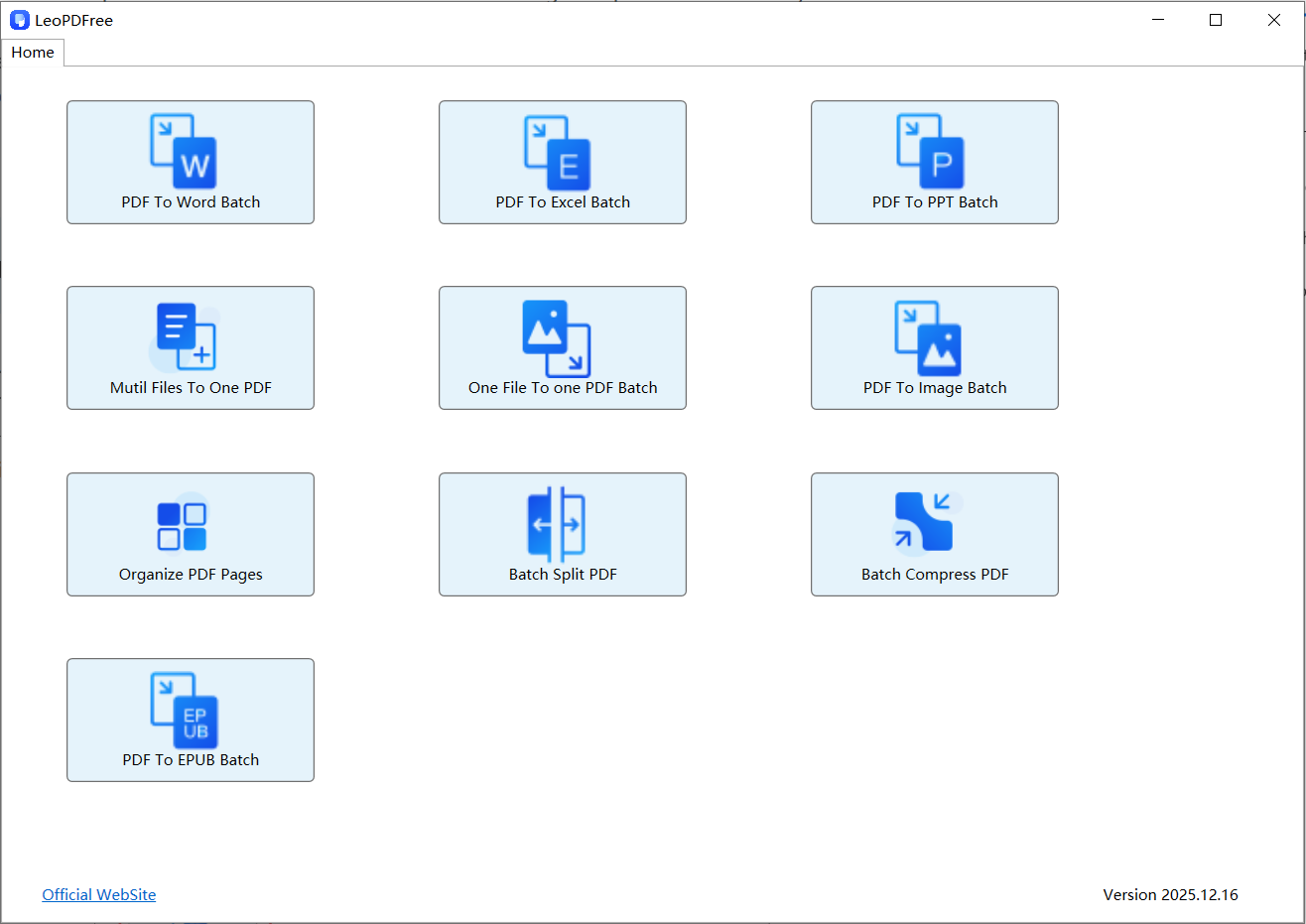
1️⃣. After downloading the software for free and successfully installing it on your computer, double-click the icon to open the software, as shown in the image below.
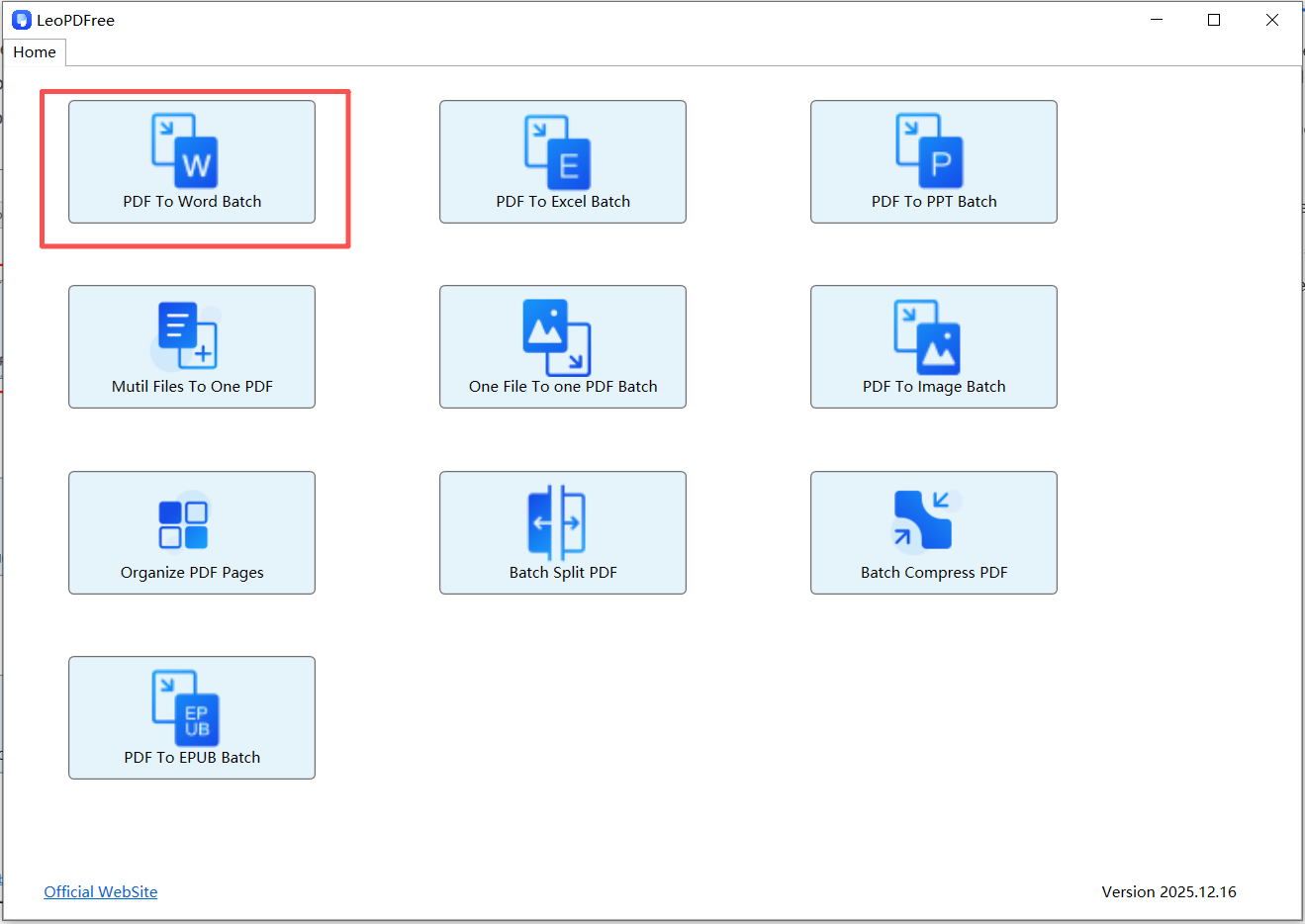
2️⃣. On the opened software interface, click the “PDF To Word Batch” button to start the conversion process, as shown in the image below.
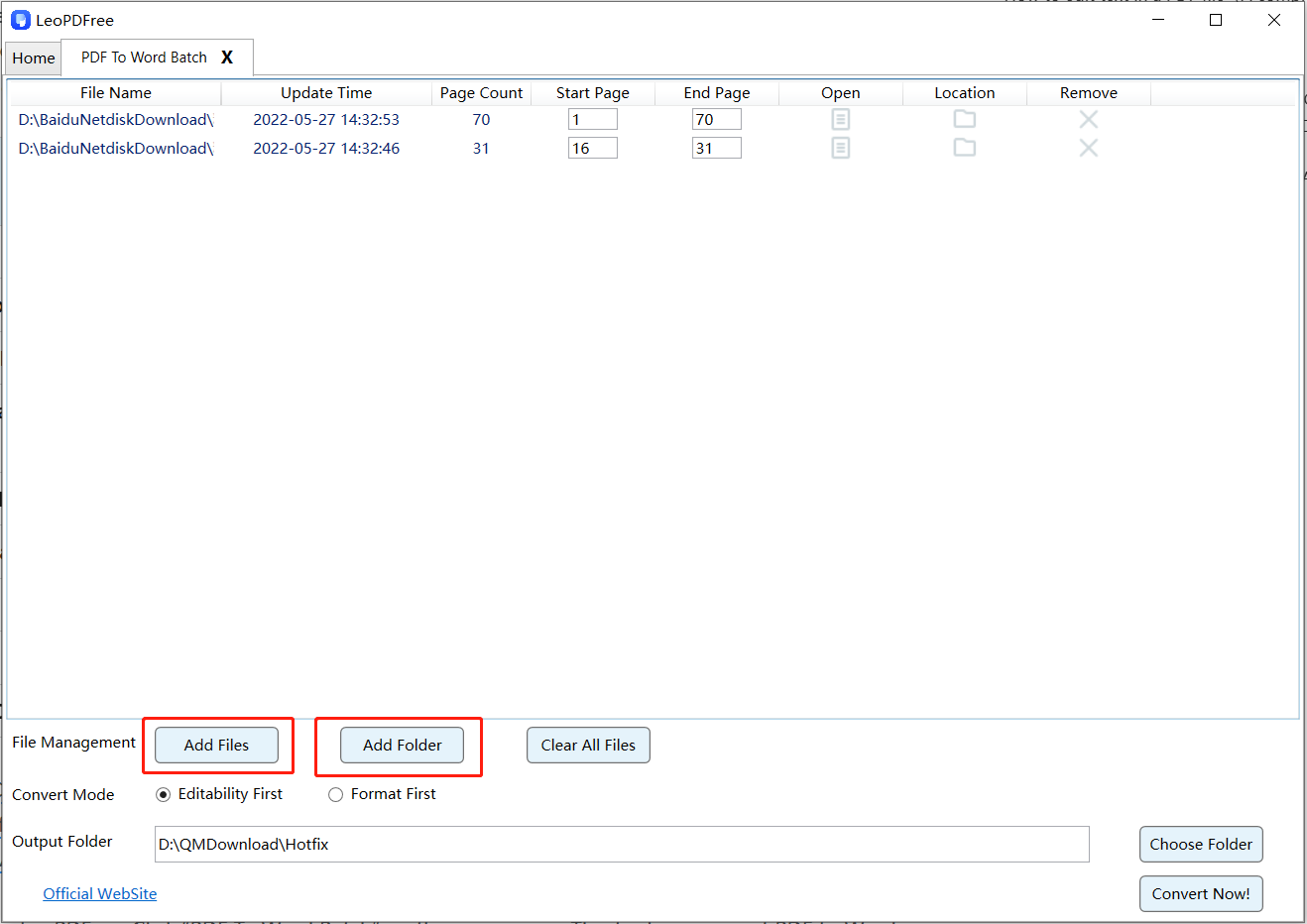
3️⃣. On the opened interface, click “Add Files” or “Add Folder” to add one or more PDF files you want to convert. Then, choose the conversion mode according to your needs: “Editability First” or “Format First”, as shown in the image below.
4️⃣. On the interface, click “Choose Folder” to set the save location for the converted files, as shown in the image below.

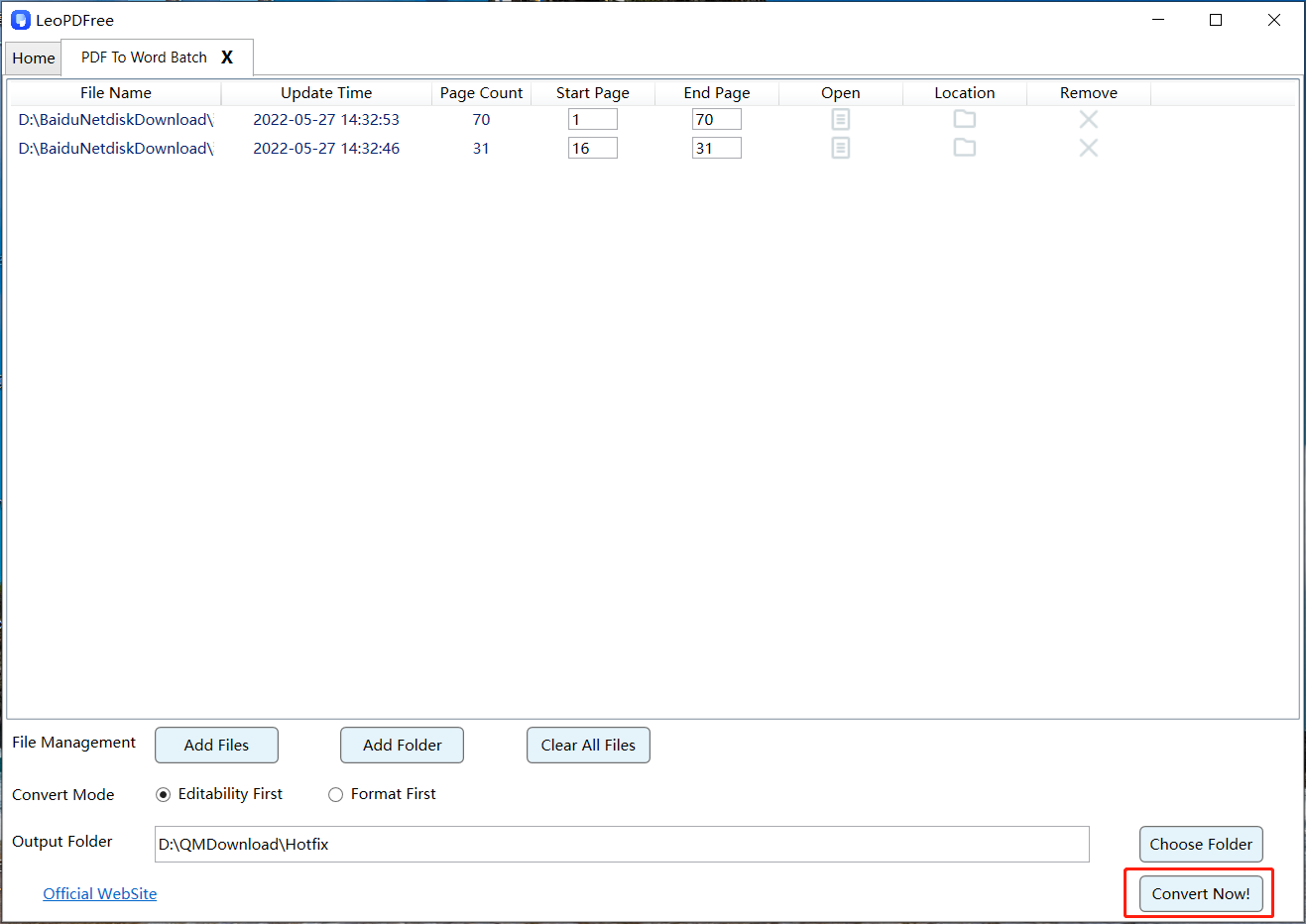
5️⃣. Once all the files are ready for conversion, simply click the “Convert Now!” button, and the software will quickly complete the conversion task for you, as shown in the image below.
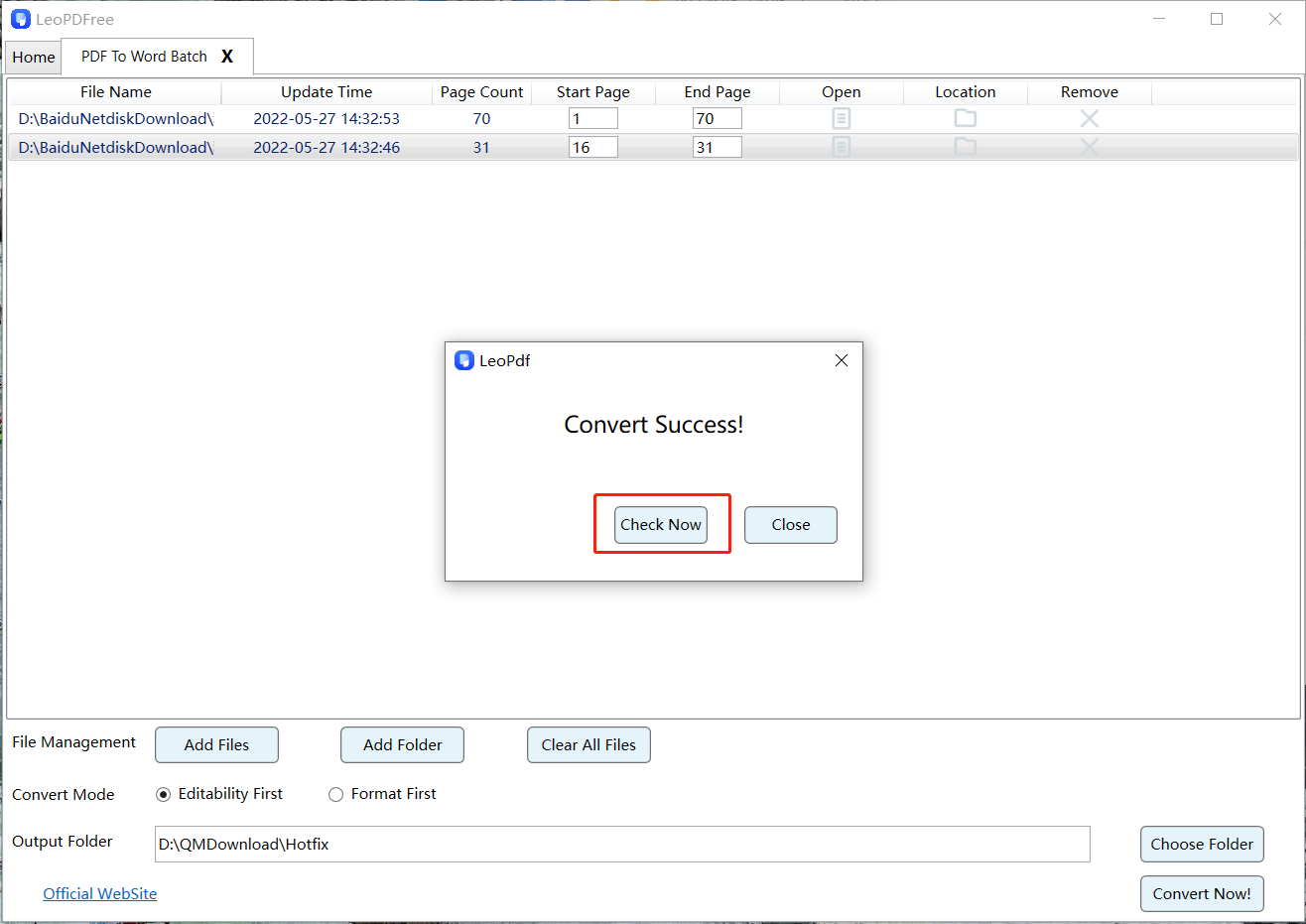
6️⃣. The system will quickly complete the conversion based on the file size. When the pop-up window appears, it indicates that the conversion is complete. Simply click the “Check Now” button to quickly preview the quality of the converted files, as shown in the image below.
Why This Method Works Well
🔵 Automatically detects table structures
🔵 Keeps rows and columns intact
🔵 Converts the entire document in seconds
This is the most efficient method for reports, spreadsheets, and structured documents.
Method 2: Copy Tables from PDF into Word (Quick Manual Trick)
If you only need one or two tables, copying them directly may be faster.
Steps
1️⃣. Open the PDF file
2️⃣. Select the table using the cursor
3️⃣. Copy the content
4️⃣. Paste it into Microsoft Word
5️⃣. Use Convert Text to Table in Word if needed
When This Method Works
🔵 Small tables
🔵 Simple layouts
🔵 Text-based PDFs
However, formatting may require manual adjustments.
Method 3: Use OCR for Scanned PDF Tables
Sometimes tables inside PDFs are actually images, especially in scanned documents.
In this case, you need OCR (Optical Character Recognition) technology.
Steps
1️⃣. Upload the scanned PDF to an OCR-enabled converter
2️⃣. Select PDF to Word
3️⃣. Enable OCR recognition
4️⃣. Download the editable Word file
Advantages
🔵 Extracts tables from images
🔵 Recognizes text inside scanned documents
🔵 Converts data into editable format
OCR is essential for digitizing printed reports or scanned forms.
Pro Tips to Keep Table Formatting Perfect
Even with the best tools, table formatting can sometimes shift. Here are some expert tips:
🔵 Use high-quality PDF files when possible
🔵 Avoid heavily scanned or low-resolution documents
🔵 Choose converters that support table detection
🔵 Check the Word document after conversion and adjust column widths if needed
These small steps can save significant editing time.
FAQ: Converting PDF Tables to Word
Can all PDF tables be converted perfectly?
Not always. Complex layouts, merged cells, or scanned tables may require minor adjustments after conversion.
Will the table remain editable in Word?
Yes. Once converted to DOCX format, the table becomes fully editable.
What is the best format for editing tables?
Microsoft Word (.docx) is ideal because it allows full editing of rows, columns, and formatting.
Conclusion
Mastering how to convert PDF tables to editable Word can greatly improve your work efficiency, especially when handling reports, research materials, or business documents.
Whether you choose to:
🔵 Use the free LeoPDF conversion tool for automatic conversion
🔵 Manually copy the tables
🔵 Use OCR to recognize scanned documents
Each method has its suitable scenario. By choosing the right approach, you can easily turn static PDF tables into fully editable Word tables, making document processing much more efficient.
