
Introduction
Splitting PDF files primarily enhances document management and sharing efficiency. For example, you can send a colleague only the specific chapter they need from an e-book instead of the entire large file, bypassing email attachment size limits and making transmission easier. Additionally, for signed contracts, you can share only select sections to maintain confidentiality. Smaller split files are also easier to store individually, print, or bind. When handling contracts, invoices, or large reports, precise extraction of required pages significantly boosts productivity.
Method 1:Split PDF Files with Adobe Acrobat

The two most common ways to split a PDF file in Adobe Acrobat are by page count and by page range.
一 Split by page number
1️⃣Open the PDF file and click on the Organize Pages button in the right-hand toolbar.
2️⃣In the “Organize Pages” tool, click the “Split” button.
3️⃣In the ‘Split Document’ window, select ‘By Page Count’.
4️⃣Enter the number of pages you want each split file to contain (e.g., enter “5” to split into files of 5 pages each).
5️⃣Click Output Options, then set the save location and file name rules.
6️⃣Click OK, then click the Split button to complete the operation.
二 Split by page range
1️⃣Open the PDF file and click Organize Pages in the right-hand toolbar.
2️⃣Click the “Split” button.
3️⃣In the ‘Split Document’ window, select ‘By Range’.
4️⃣Enter the page range you want to split (e.g., enter “1-5,8,10-15” to extract pages 1-5, page 8, and pages 10-15).
5️⃣Click Output Options, then set the save location and file name rules.
6️⃣Click OK, then click the Split button to complete the operation.
Method 2:Split PDF Files with LeoPDF
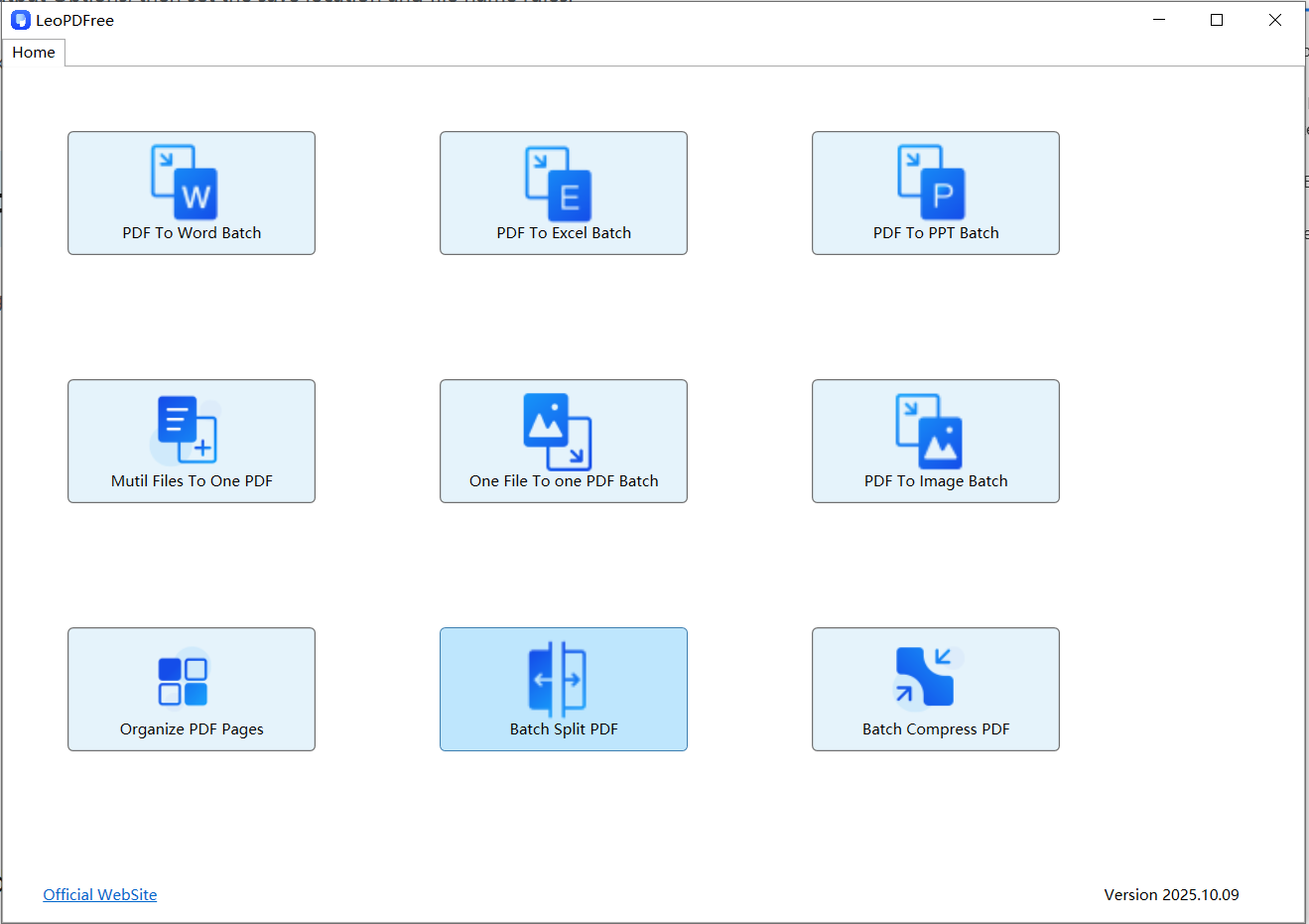
Among the many PDF processing tools, LeoPDF is a completely free option that often better meets the needs of most beginners. These free tools are typically easy to use, require no payment, are secure and reliable, and run efficiently. Next, I will introduce how to use LeoPDF.
1️⃣First, download and install LeoPDF for free. Then, open the software and click on “Batch Split PDF” on the interface. On the opened screen, click “Add Files” or “Add Folder” to add one or multiple files to be split. As shown in the following image:
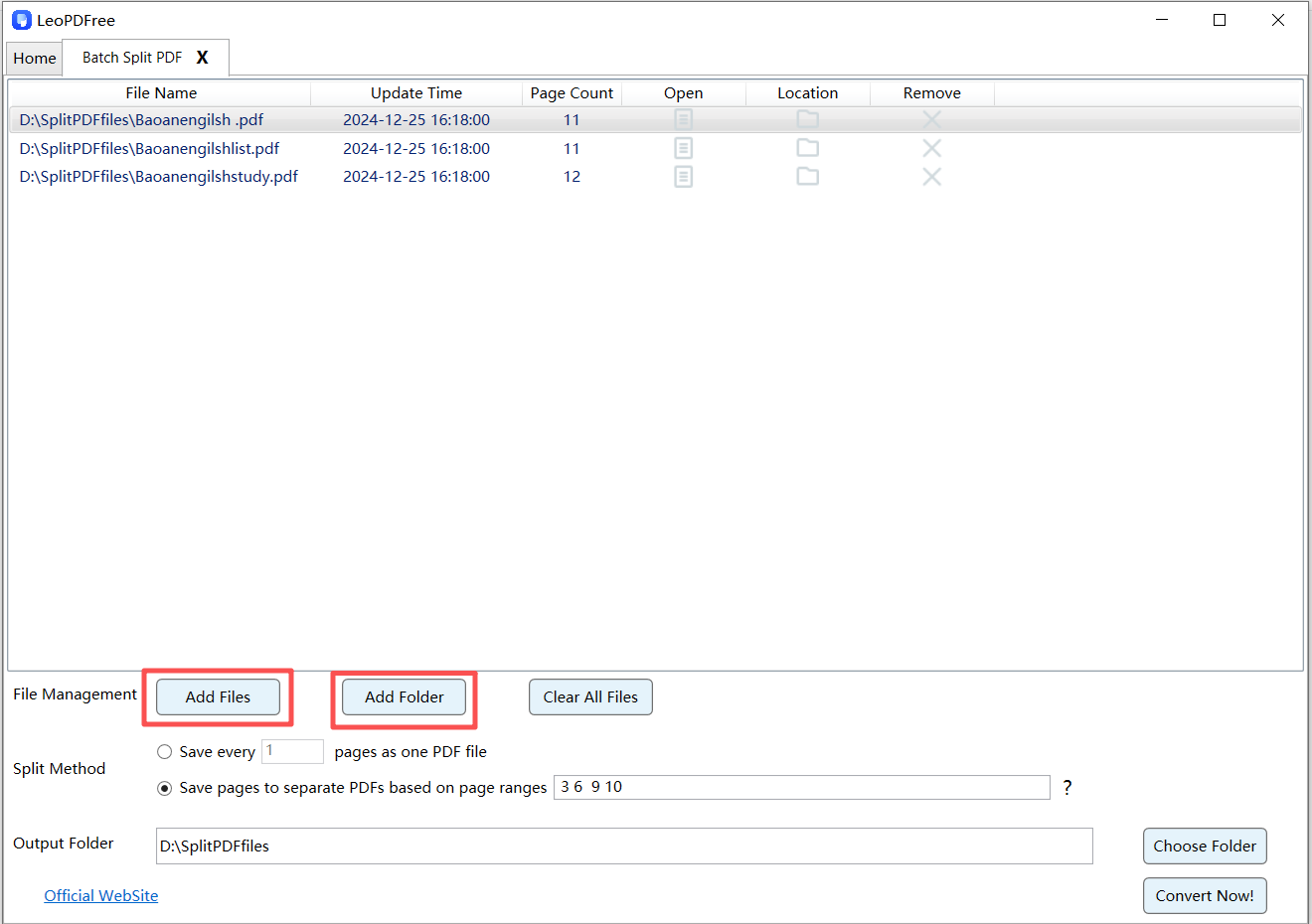
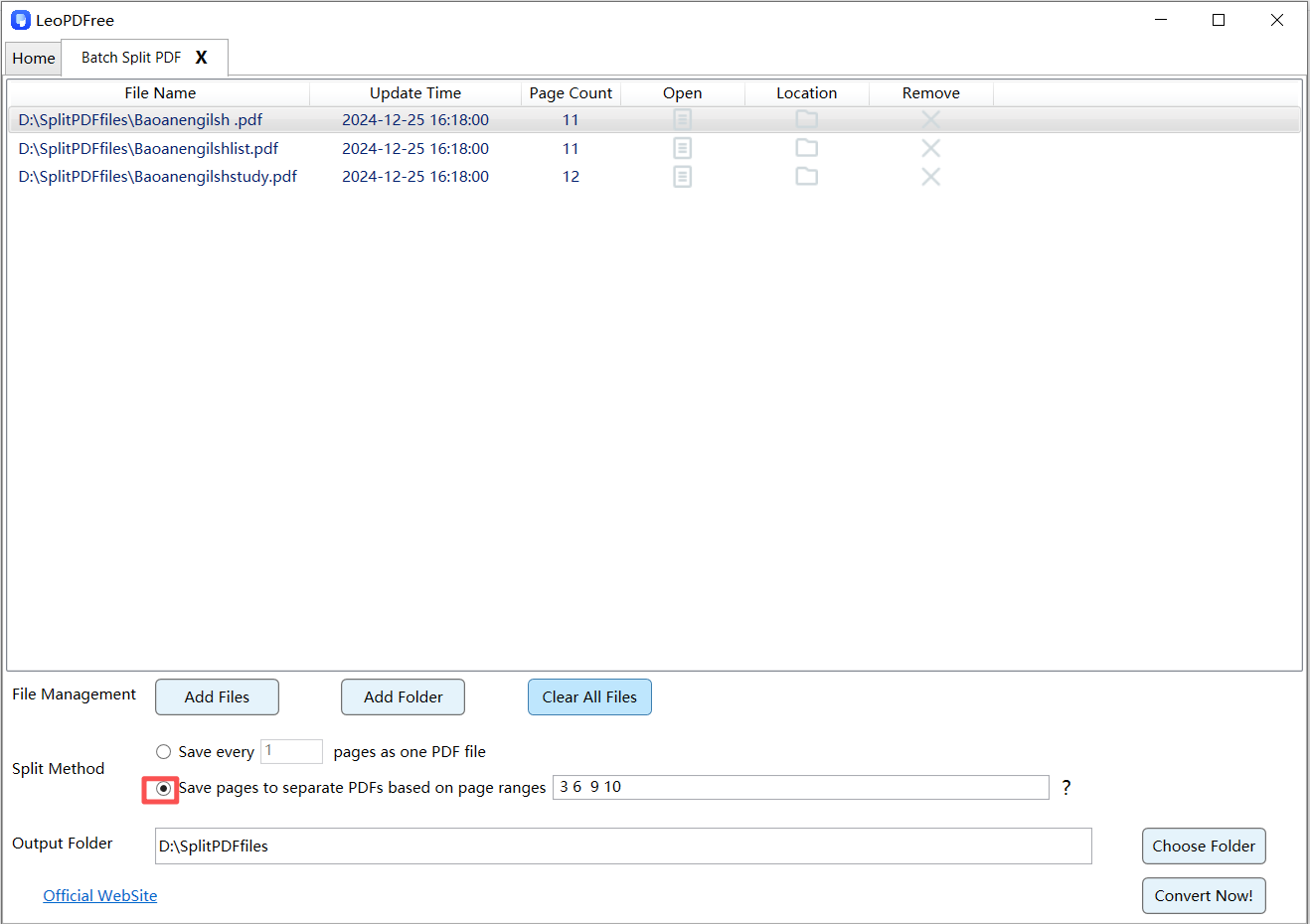
2️⃣Based on your own needs under “Split Method”, choose whether to split each page into a separate PDF or to split into individual PDF files based on page range, as shown in the following figure:
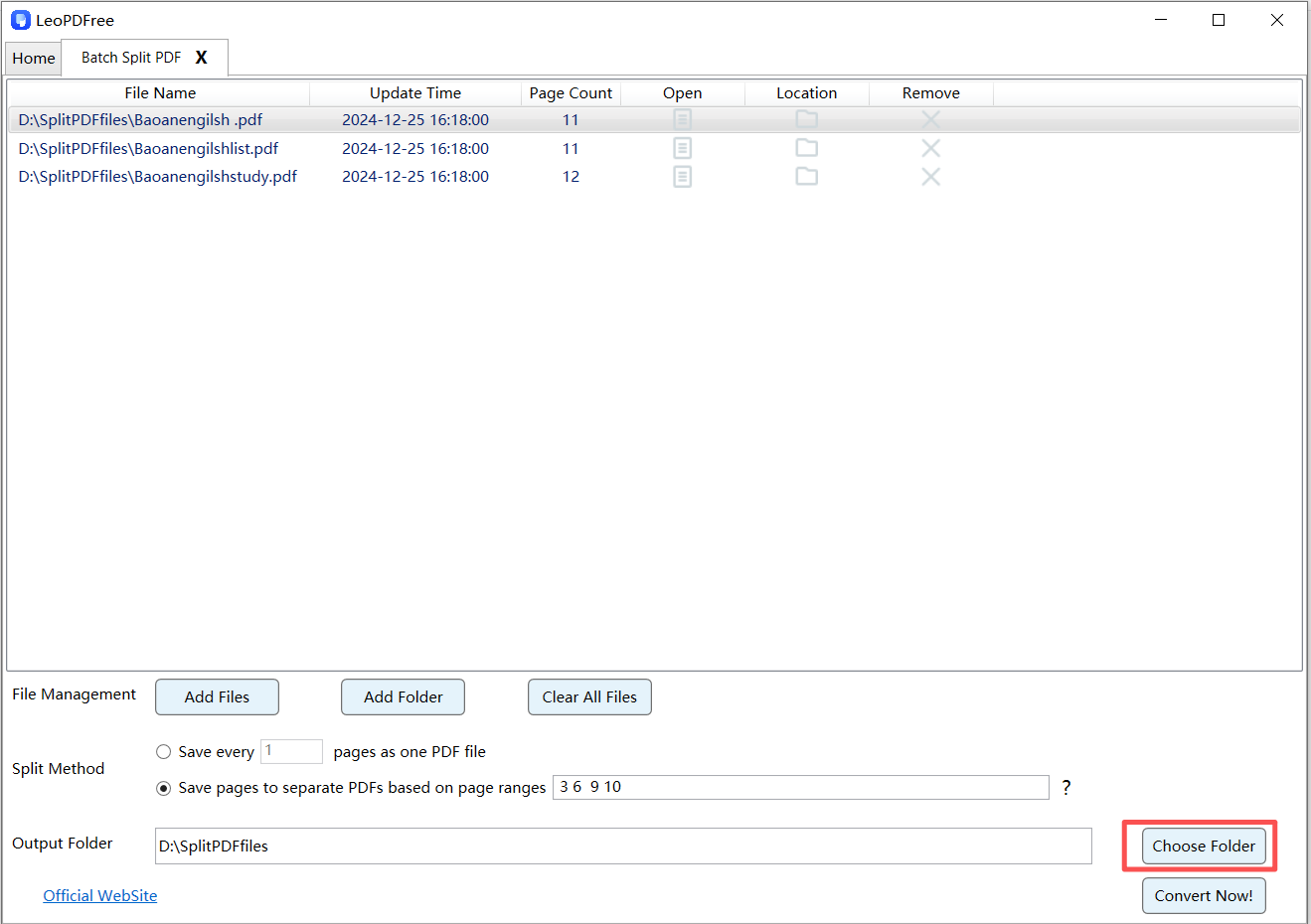
3️⃣Then click “Choose Folder” on the interface to set the save path for the new split files, as shown in the following figure:
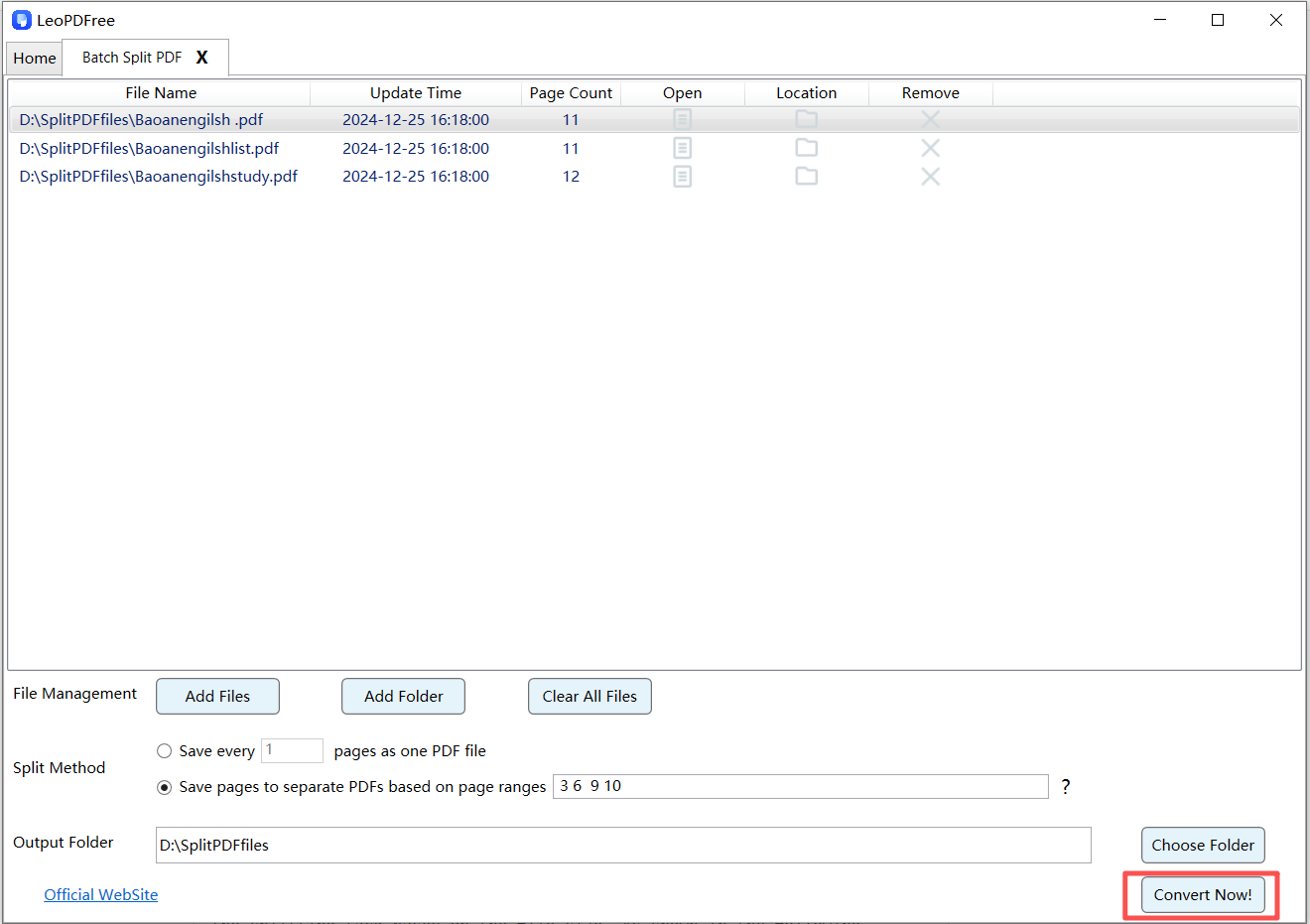
4️⃣After all the preparation work for splitting is completed, simply click “Convert Now!” on the interface, and the tool will quickly perform the splitting task based on the file size. As shown in the following figure:
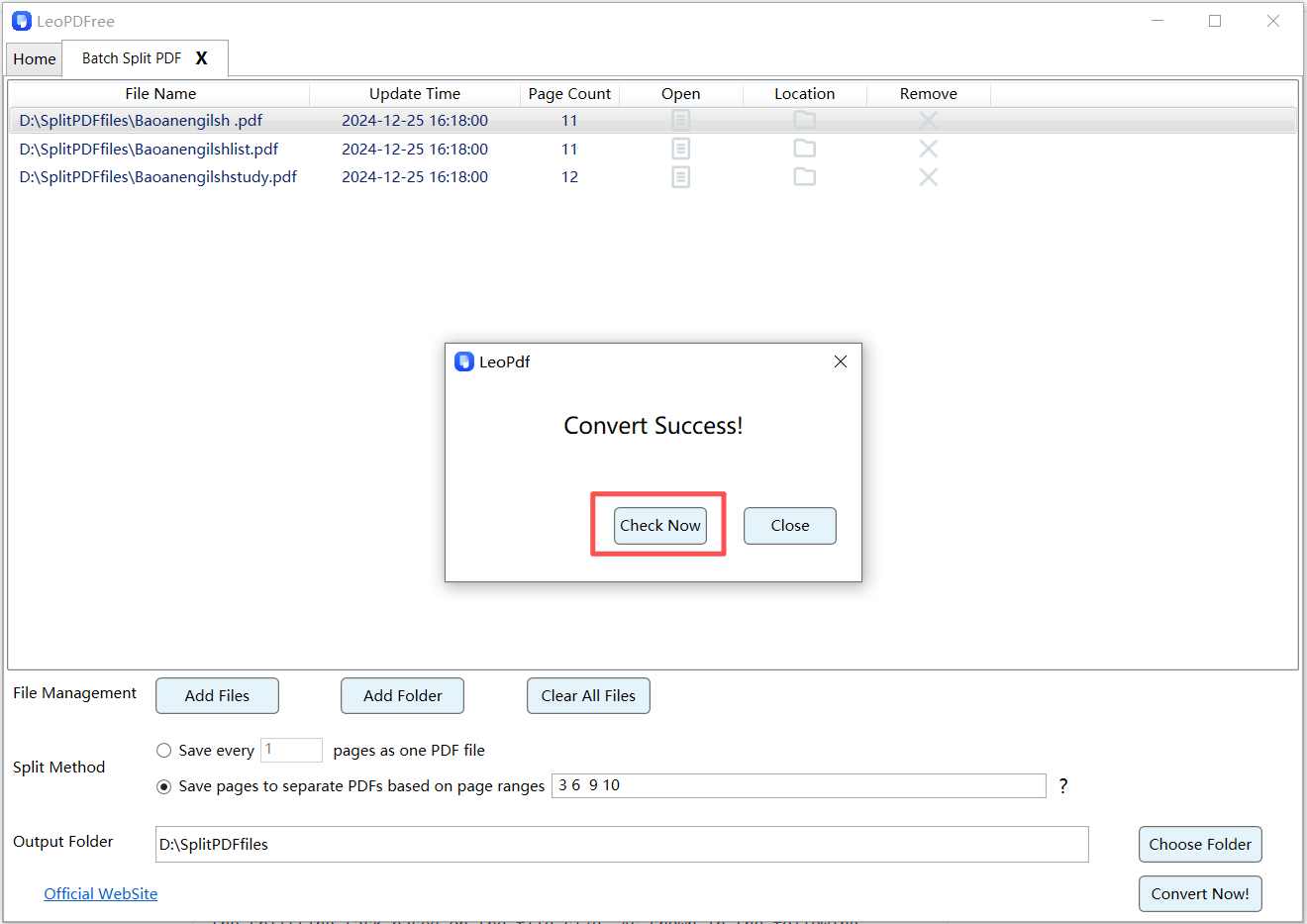
5️⃣When the tool displays the “Convert Success!” message, congratulations! It means the tool has completed the splitting for you. At this point, you can click “Check Now” to view the splitting results. Of course, you can also directly go to the save path to check individually. So far, the entire splitting process is actually all done. Isn’t it very simple to use? Go and experience it!
Method 3:Split PDF Files with iLovePDF
iLovePDF is an online tool for splitting, merging, and compressing PDFs. While its core functions are free, users with high-security needs should exercise caution. The paid version (Premium) only unlocks additional features like OCR recognition and PDF/A conversion, with basic functions subject to usage limits for free users.
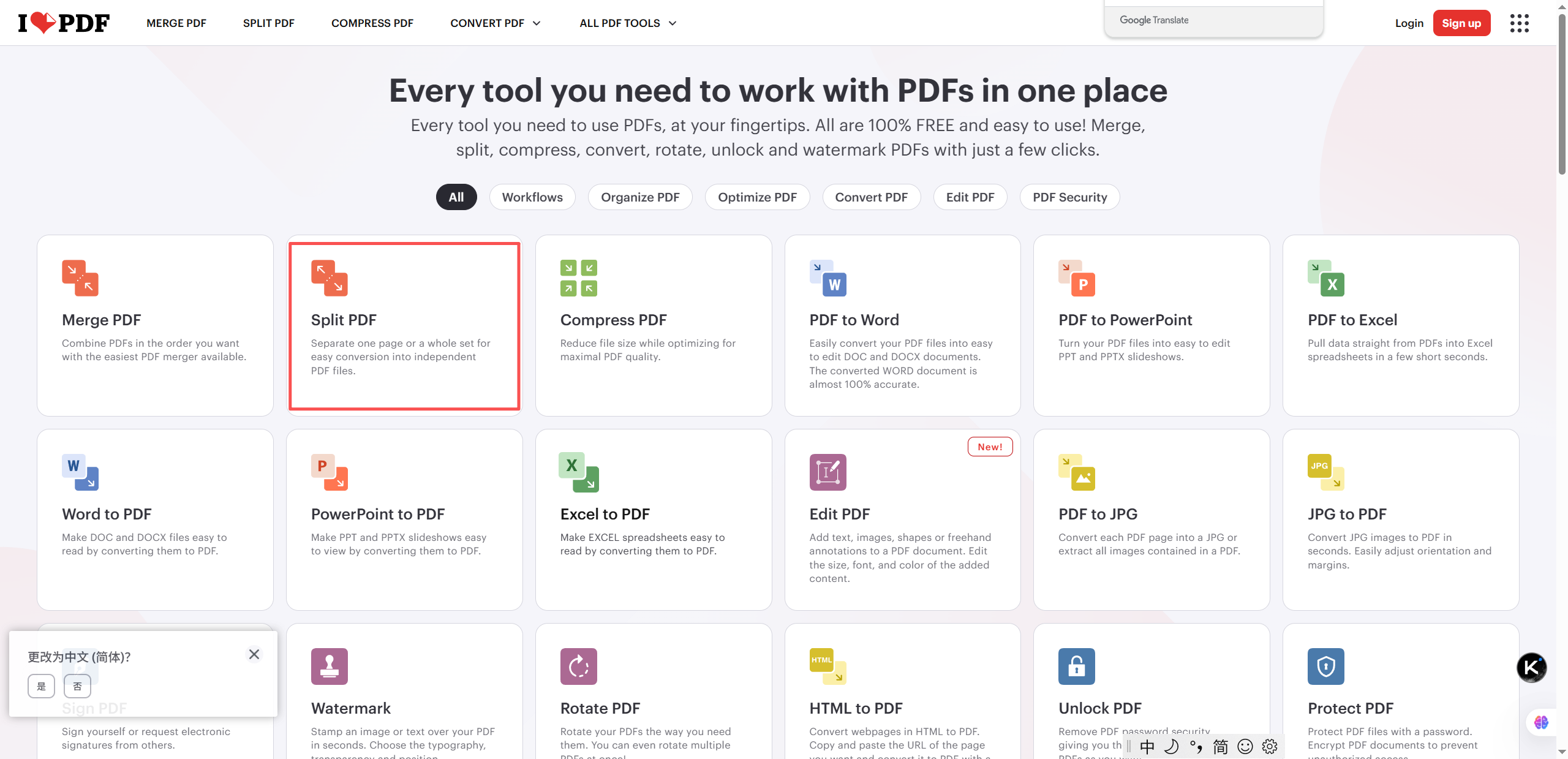
1️⃣Enter the ilovepdf website in the browser, then click on the “Split PDF” feature page on the site.
2️⃣Click the “Select File” button on the page, then choose the PDF file you need to split from your computer and upload it.
3️⃣After uploading, you can choose the “Split by Range” or “Extract Pages” mode. In “Split by Range,” enter the specific page ranges (e.g., “1-5,8,10-15” means extracting pages 1 to 5, page 8, and pages 10 to 15).
4️⃣After setting the split parameters, click the “Split PDF” button, and the system will process the file automatically.
5️⃣After processing is complete, click the “Download” button to save the split PDF file to your computer.
Conclusion
On this page, we provide you with information about three excellent PDF splitting tools that can help you divide large PDFs into the files you need. By using the websites and tools described in this article, you can quickly and easily complete this task.
If you often need to split PDF files into multiple PDFs, I highly recommend using the LeoPDF software. You’ll find that this tool is completely free, works offline without internet restrictions, ensures your file security, and is fast and easy to use.
