
In daily study and office work, we often encounter situations like these: a contract needs an additional explanatory page, a PDF report requires inserting a new chart, or a scanned document is missing a page. In such cases, inserting a page into a PDF file becomes a very practical and necessary operation.
This article focuses on how to insert a page into a PDF file and will introduce three common, easy-to-use, and efficient methods. Even beginners can follow these steps and complete the task with ease.
Why Do You Need to Insert Pages into a PDF?
Before explaining the specific methods, let’s look at some common use cases:
📄 Adding supplementary clauses or pages to contracts or agreements
📊 Inserting new charts or data pages into reports
📚 Appending explanations or reference materials to study documents
🖨️ Inserting missing pages into scanned PDF files
As you can see, mastering how to insert pages into a PDF is extremely important for both students and professionals in the workplace.
Method 1: Insert Pages Using Professional LeoPDF Software (Highly Recommended)
Using a professional PDF editing tool is the most stable and feature-complete option among free solutions.
Steps:
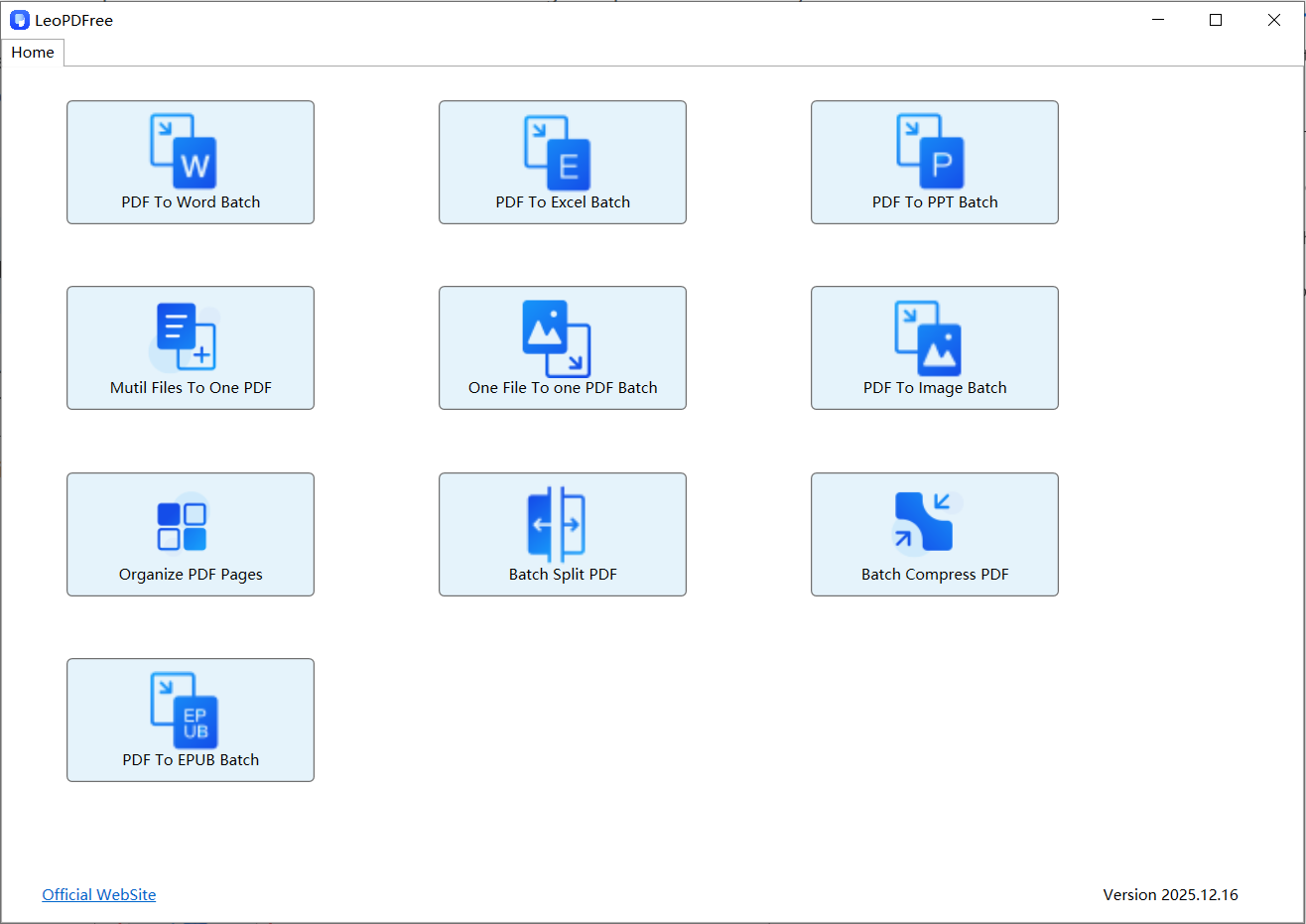
1️⃣.Download LeoPDF for free from the official website and install it successfully. Then double-click the desktop icon to open the program, as shown in the image below.
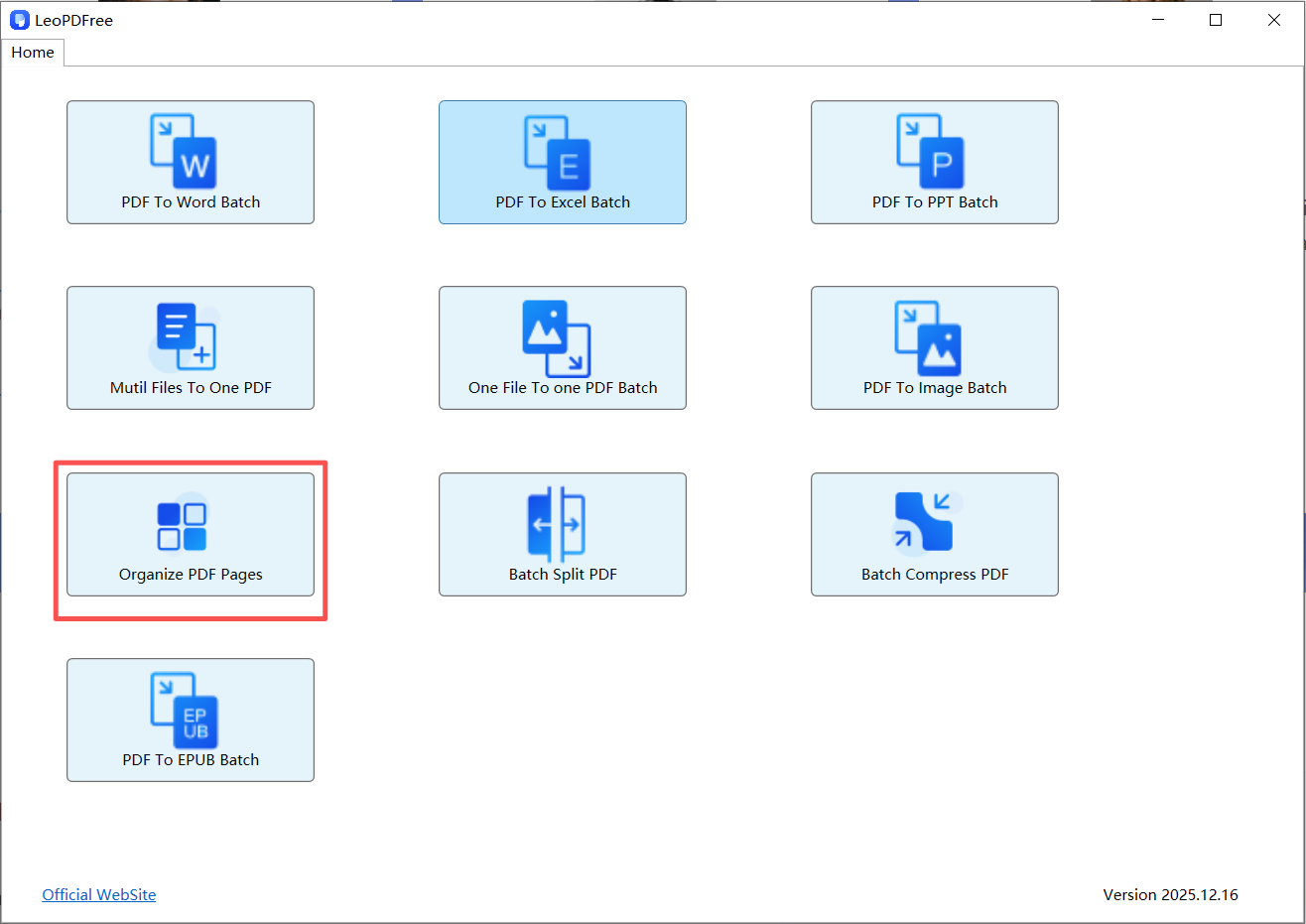
2️⃣.In the opened software interface, click “Organize PDF Pages” and open the PDF file into which you want to insert pages, as shown in the image below.
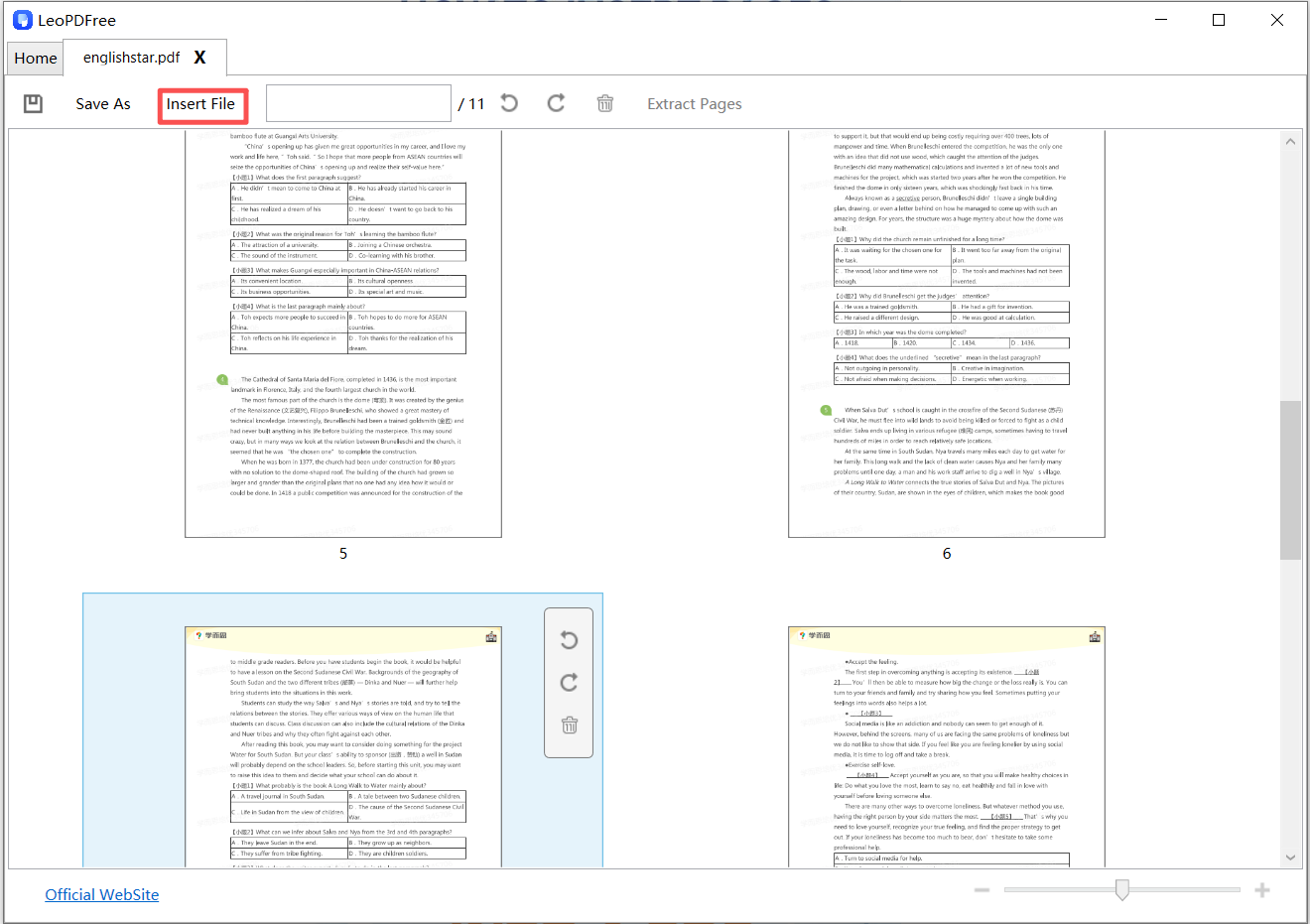
3️⃣.On the opened interface, click the “Insert File” button to add the pages you want to insert, as shown in the image below.
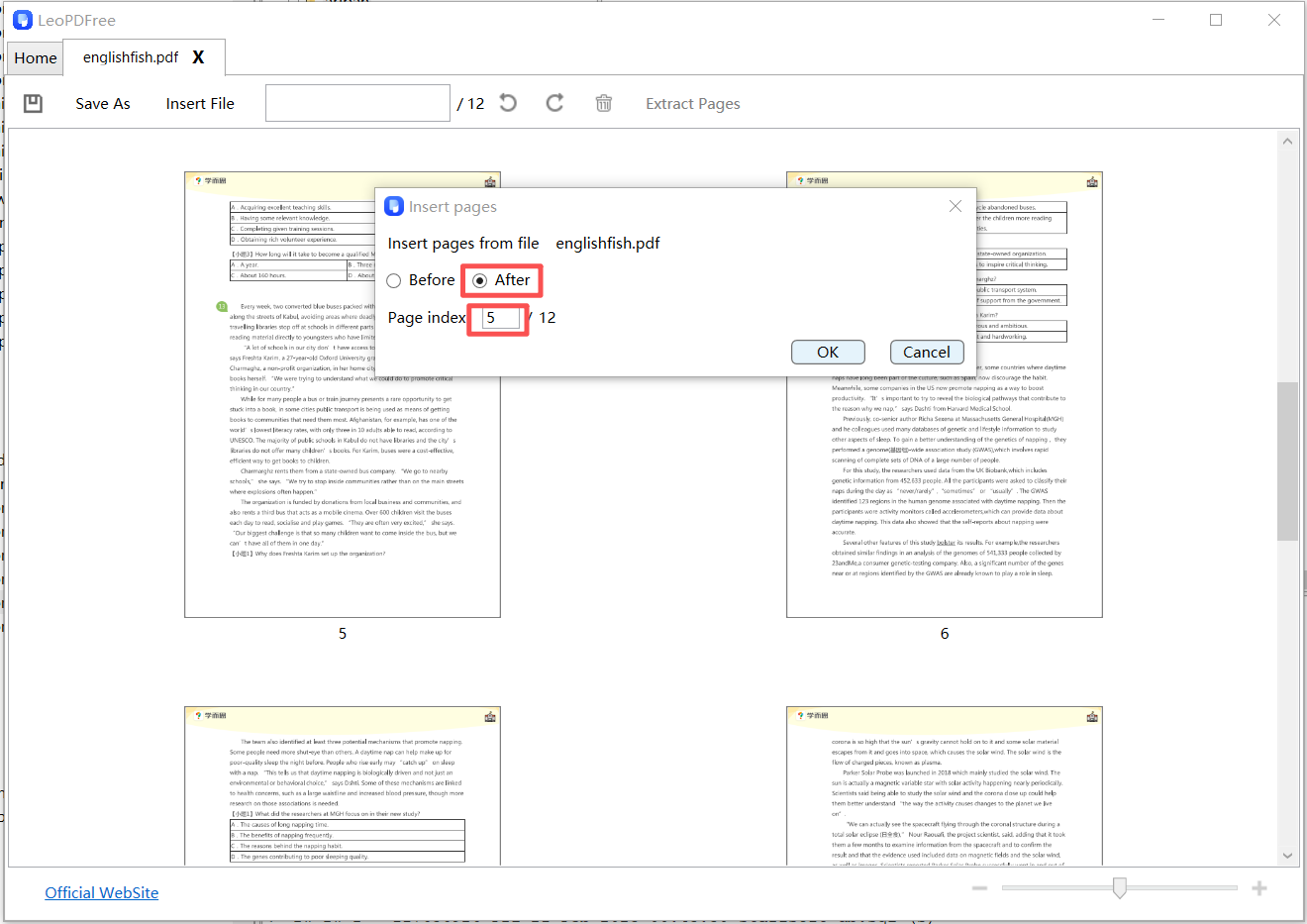
4️⃣.In the pop-up interface, first enter the page number where you want to insert the new page in the Page Index field. Then choose whether to insert it “Before” or “After” that page. After making your selection, click the “Ok” button, as shown in the image below.
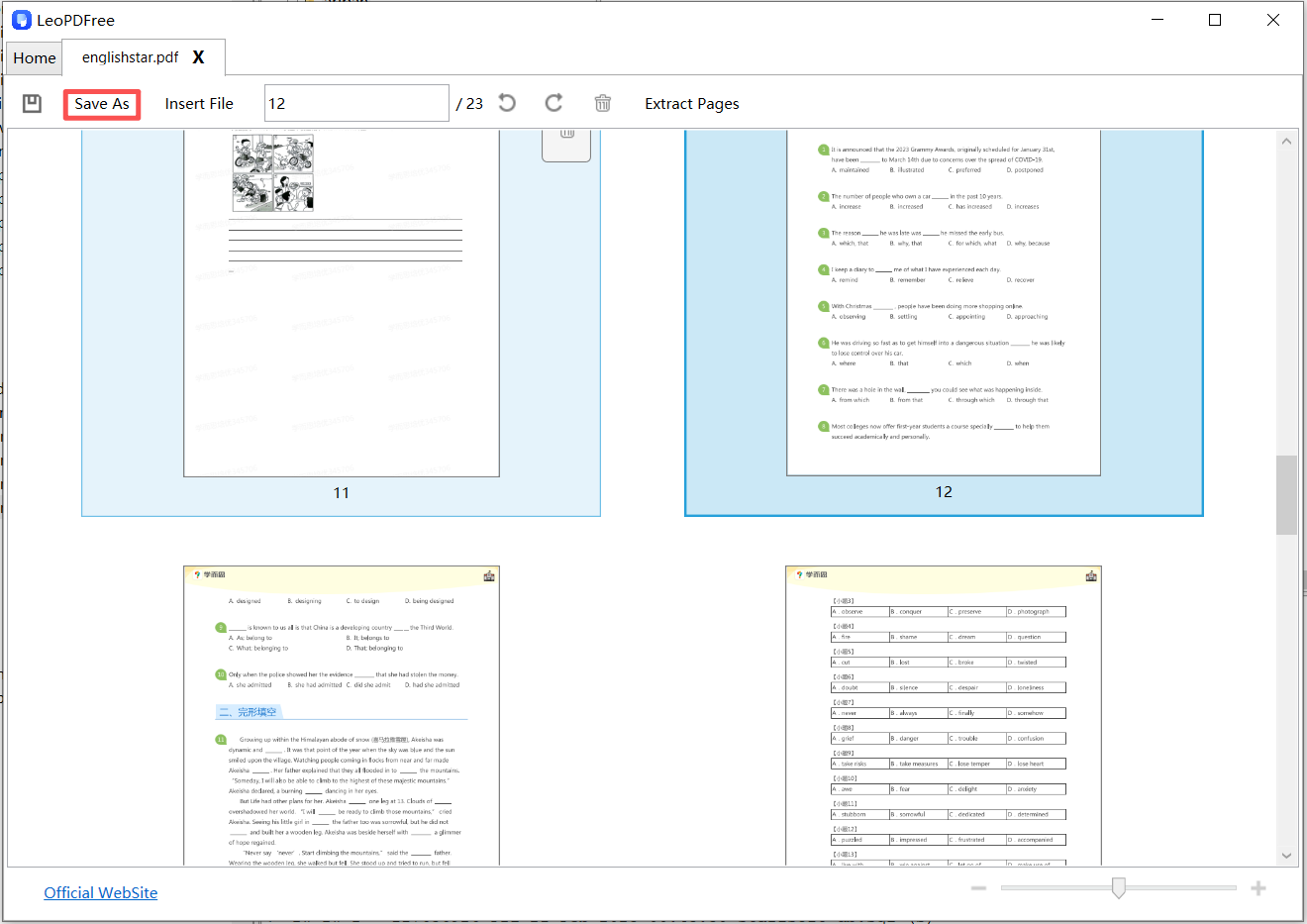
5️⃣.After the insertion is successful, if you are not satisfied, you can still use your mouse to select and drag the page to any position you want. Once you are happy with all the insertions, be sure to click “Save As” to save the updated PDF file, as shown in the image below.
Advantages:
✅ Supports inserting PDF pages, images, or blank pages
✅ Allows precise control over the insertion position, and you can freely adjust the page order afterward
✅ Completely free, and the processed PDF maintains the original page format and clarity
Suitable for:
Office users who frequently work with PDF files.
Method 2: Use an Online PDF Page Insertion Tool (No Installation Required, Most Features May Be Paid)
If you don’t want to install software, you can choose an online PDF page insertion tool.
Steps:
1.Open the online PDF tool website
2.Upload the original PDF file
3.Select the “Insert Page” feature
4.Upload the PDF or image you want to insert
5.Adjust the insertion order and export the file
Advantages:
✅ Simple and easy to use
✅ No need to download or install software
✅ Accessible on multiple devices
Notes:
⚠️ Be cautious when handling private or confidential files
⚠️ The free version may have file size limitations
Suitable for: Users who occasionally need to work with PDF files.
Method 3: Indirectly Insert Pages by Splitting and Merging PDFs
If your tool does not support directly “inserting pages”, you can achieve the same result by merging PDFs.
Steps:
1.Split the original PDF into two parts
2.Prepare the pages you want to insert as a separate PDF
3.Merge the three PDF files in the desired order
Features:
✅ Highly versatile, supported by almost all PDF tools
❌ More steps involved, less beginner-friendly, and if the insertion position is wrong, re-inserting can be costly
Suitable for: Users whose tools have limited features but still need to complete the task.
PDF Page Insertion Frequently Asked Questions (FAQ)
1. Will inserting pages affect the original PDF format?
Under normal circumstances, no. As long as no compression or reconversion is applied, inserting pages will not affect the clarity of the original PDF.
2. Can I insert an image as a new page?
Yes. Most PDF tools support inserting images such as JPG or PNG as individual pages.
3. Can I insert pages at a specific position?
Yes. Professional PDF software usually allows you to insert pages before or after any page.
Which PDF Page Insertion Method Is Best for You?
| Use Case | Recommended Method |
|---|---|
| Frequent office work | Completely free and professional LeoPDF software |
| Occasional use | Most paid online PDF tools |
| Limited tool features | Split and merge PDFs to insert pages |
Summary
No matter which method you choose, mastering how to insert a page into a PDF file can greatly improve your study and work efficiency. If you also need features such as PDF splitting, page extraction, rotation, compression, or converting PDF to Word, it is recommended to use LeoPDF, which allows you to complete all these tasks in one place and is completely free to use.
