
A Practical, No-Internet Workflow for Accurate Data Extraction
In a world full of online tools, many people overlook one powerful option: converting PDF to Excel offline.
Whether you’re dealing with sensitive financial data, large files, or unstable internet, offline conversion gives you full control, better security, and consistent performance.
In this guide, you’ll learn how to convert PDF to Excel offline step by step, along with smart techniques to improve accuracy and avoid common errors.
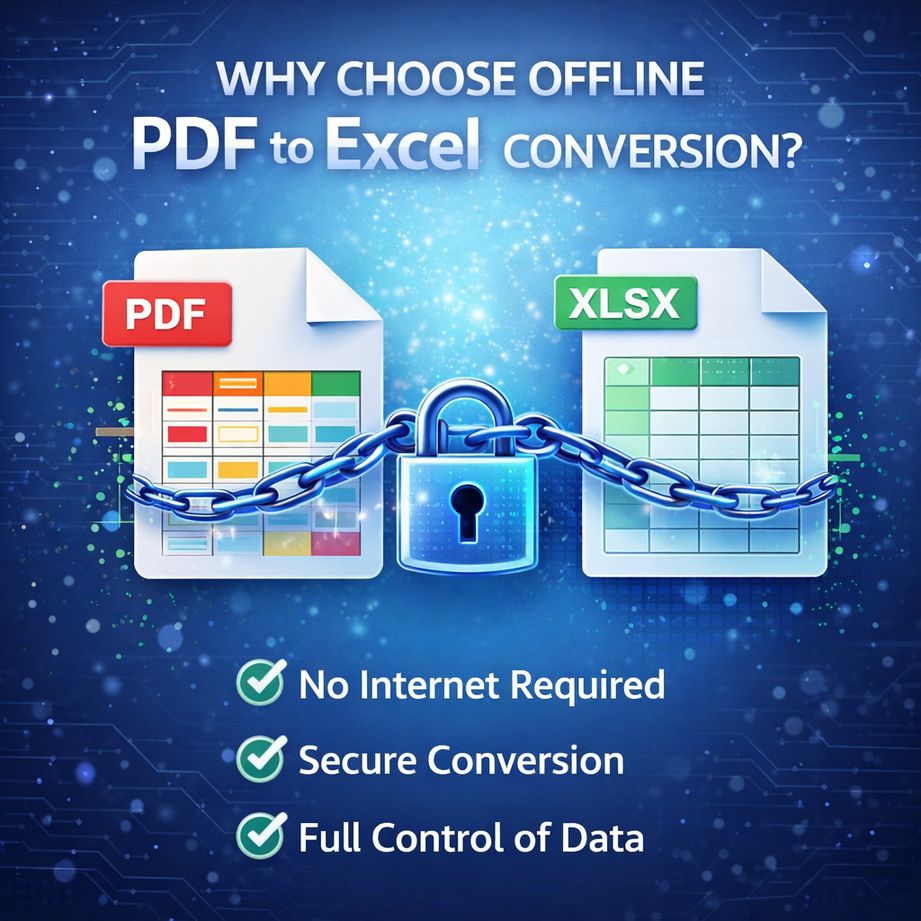
🔍 Why Choose Offline PDF to Excel Conversion?
Before jumping into methods, let’s answer a simple question:
👉 Why not just use online tools?
Key Advantages of Offline Conversion
▪ 🔒 Data Security – No need to upload confidential files
▪ ⚡ Stable Performance – No internet dependency
▪ 📁 Handle Large Files Easily – No size limits
▪ 🔁 Batch Processing – Convert multiple PDFs at once
👉 If you work with invoices, reports, or business data, offline tools are often the better choice.
⚡ Method 1: Use the LeoPDF Desktop Software (Fast & Accurate)
The easiest and most reliable way to convert PDF to Excel offline is by using dedicated desktop software.
Steps
1️⃣. Download and successfully install the LeoPDF software, then open the program, as shown in the image below.
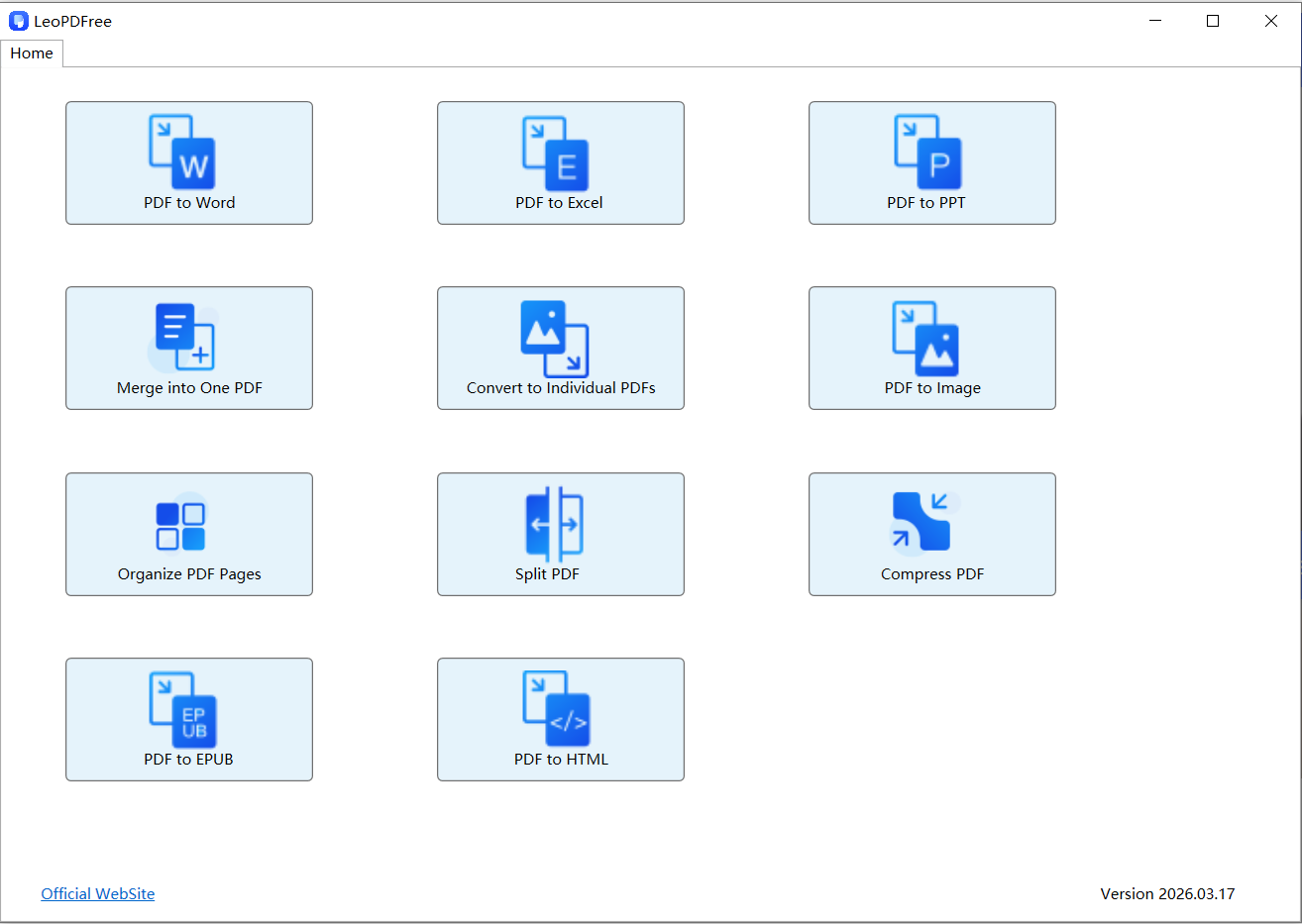
2️⃣. Click the “PDF to Excel” button on the opened interface, as shown in the image below.
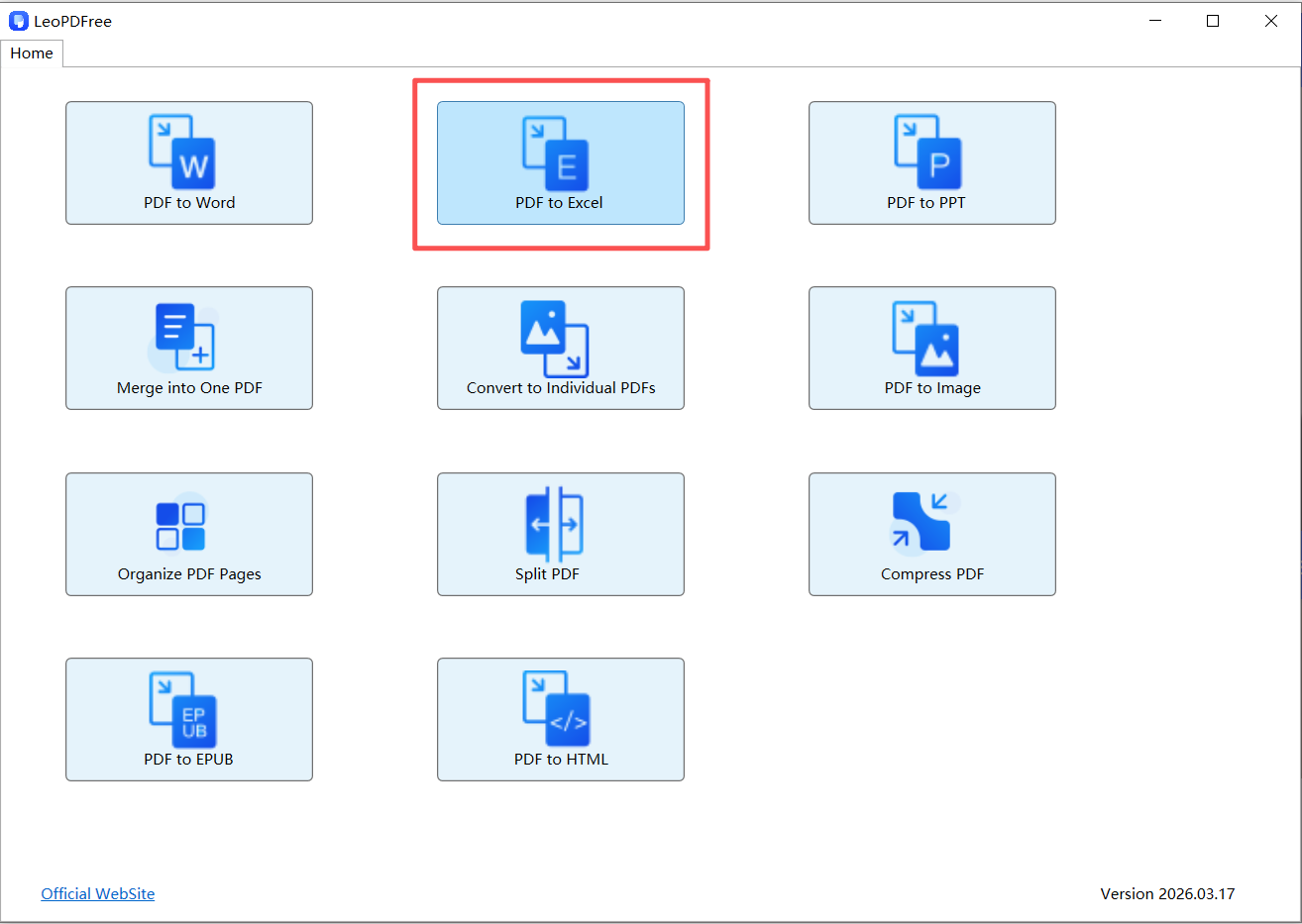
3️⃣. On the opened interface, click “Add Files…” or “Add Folder…” to add one or more files to be converted, as shown in the image below.
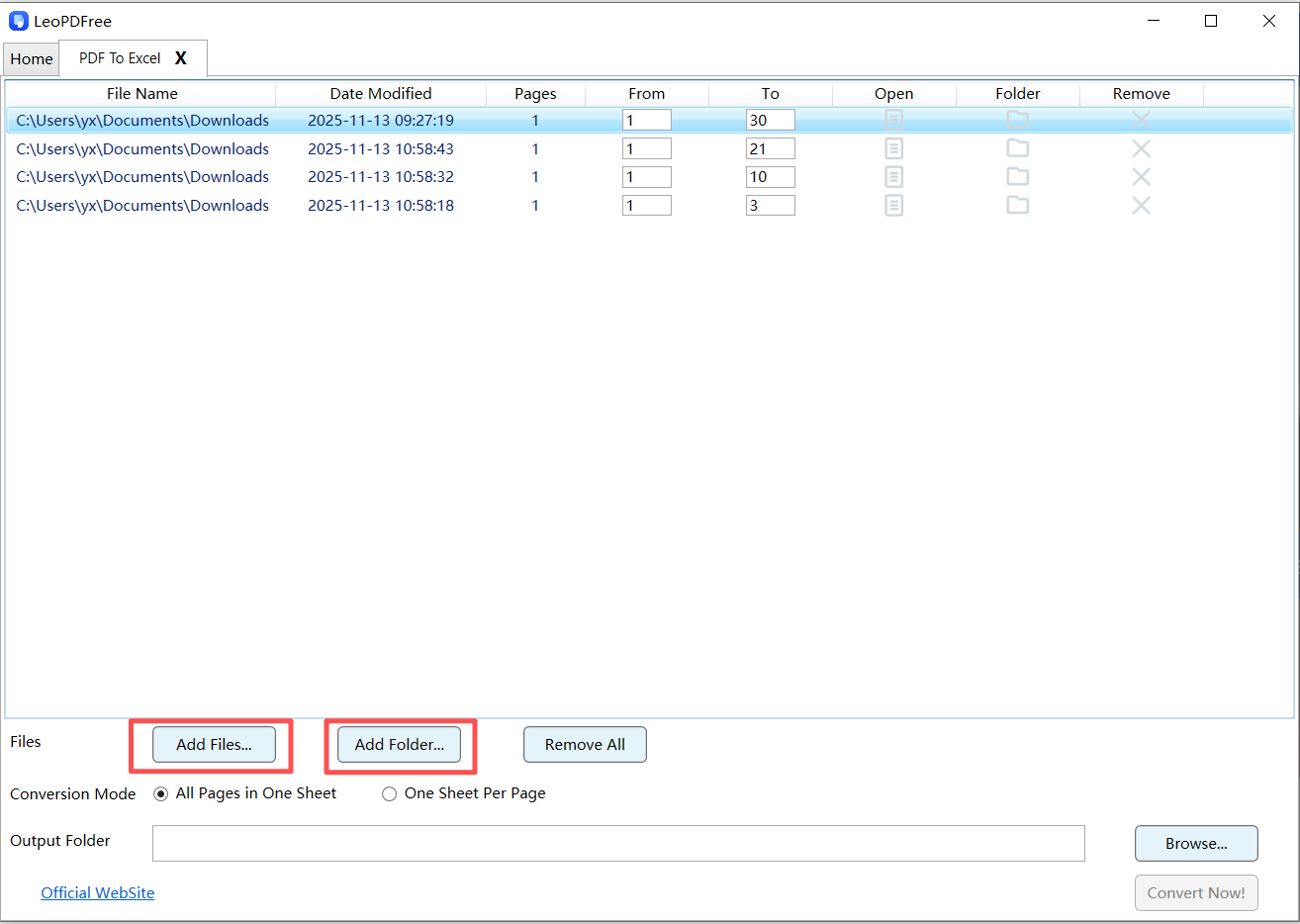
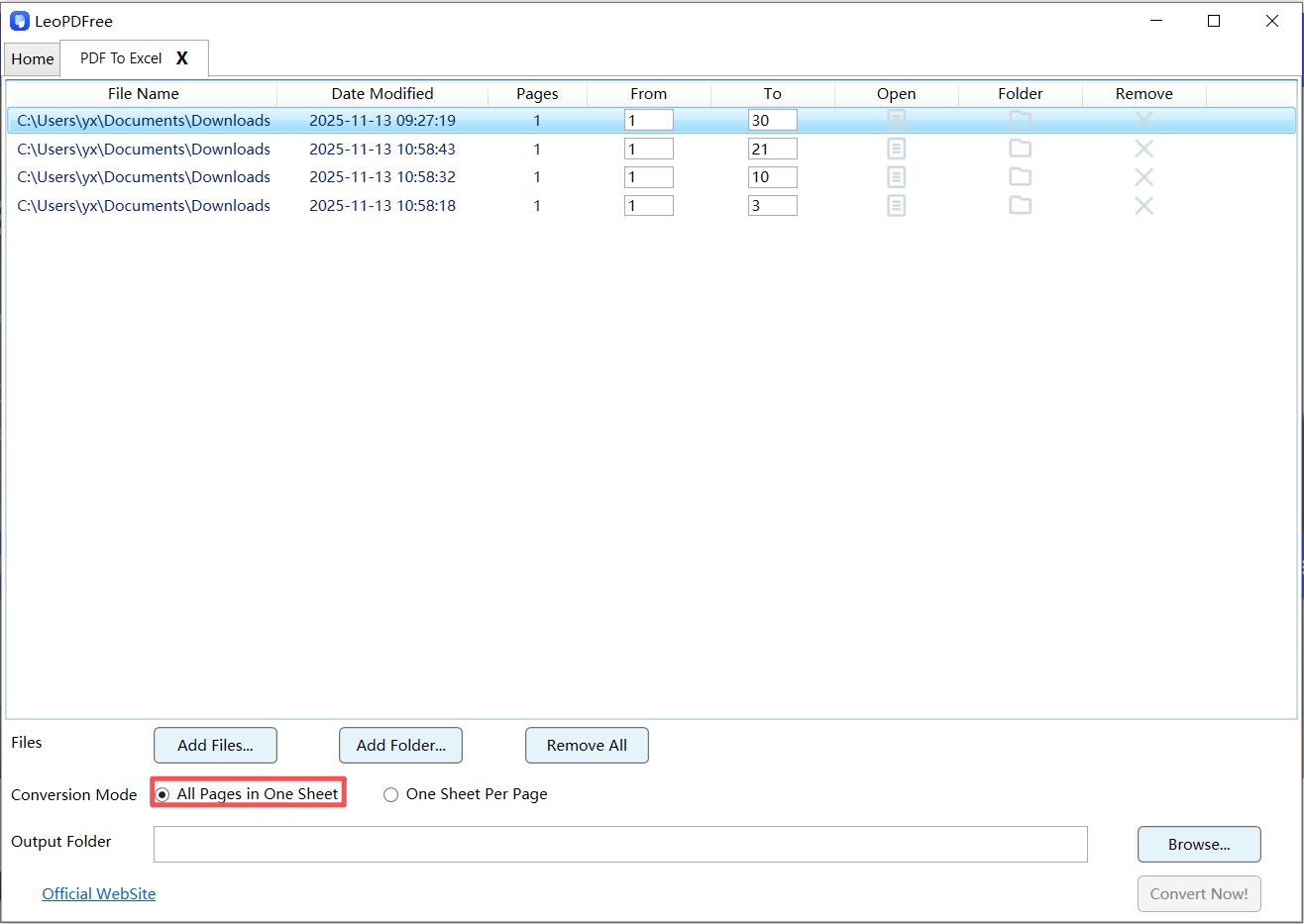
4️⃣. Next, in the opened interface, choose either “All Pages in One Sheet” or “One Sheet Per Page” under “Conversion Mode” according to your needs, as shown in the image below.
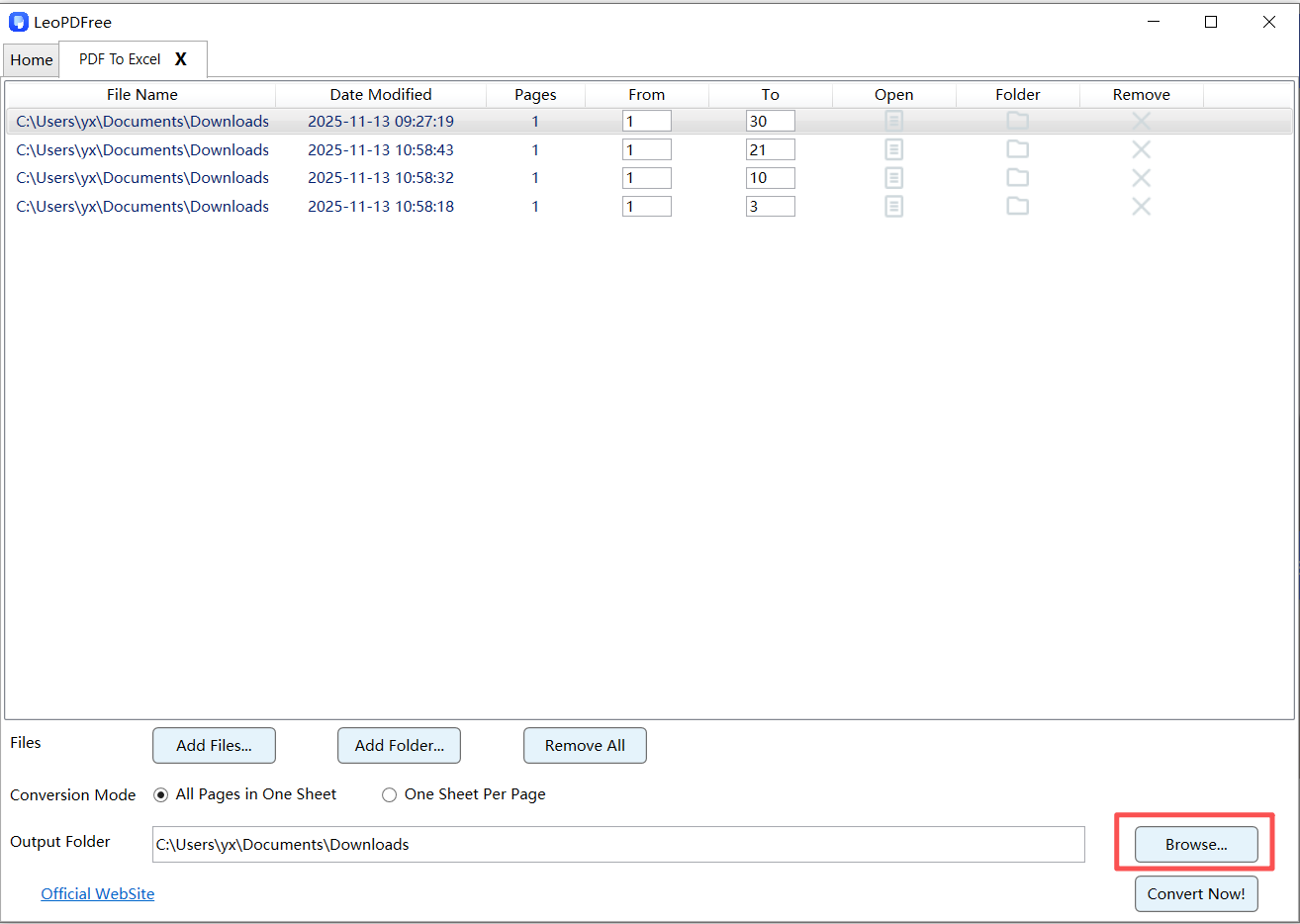
5️⃣. Then click the “Browse…” button on the interface to set the save path for the converted file, as shown in the figure below.
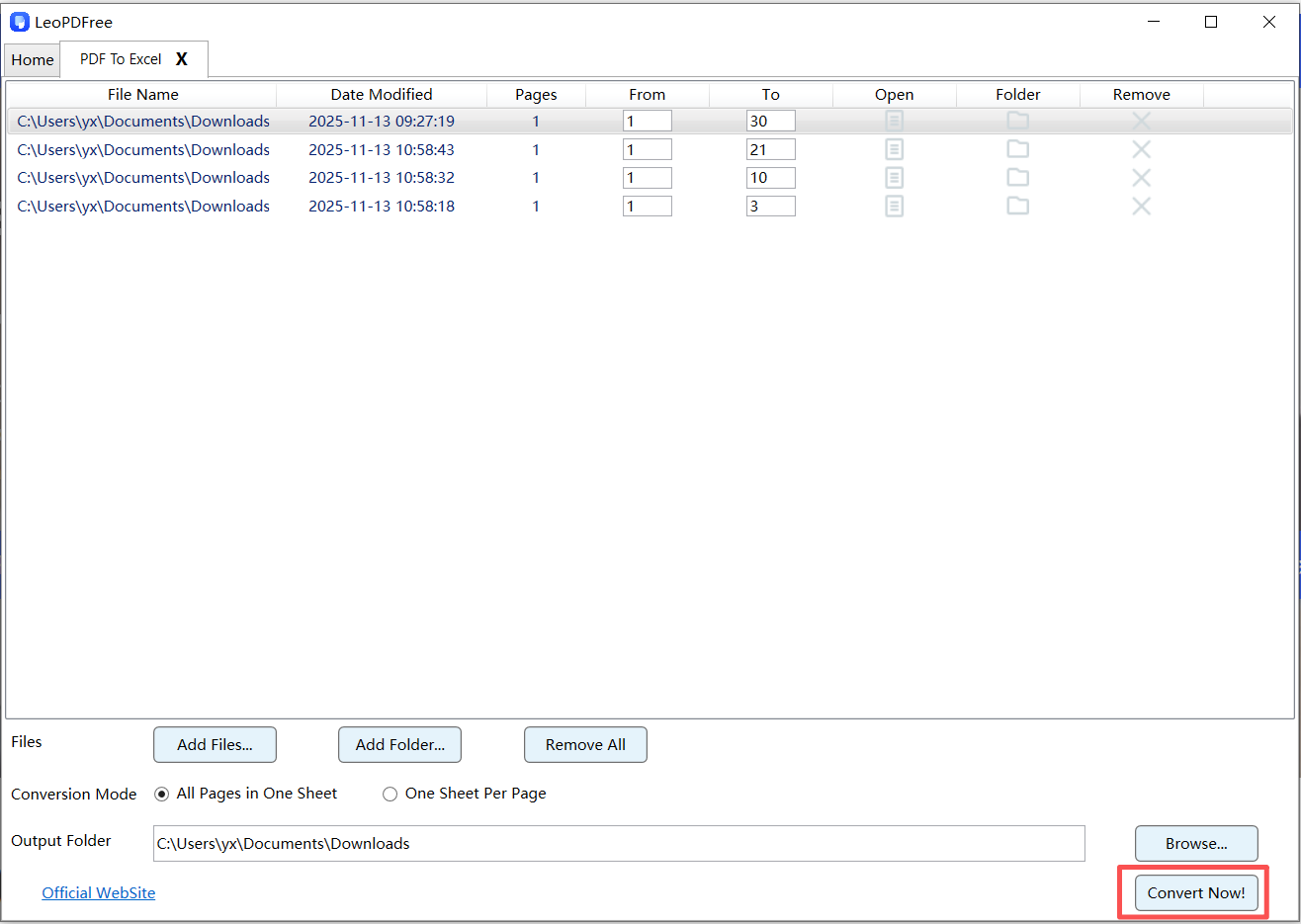
6️⃣. Once all preparations are complete, simply click the “Convert Now!” button on the interface. The software will quickly complete the conversion based on the size of the file, as shown in the figure below.
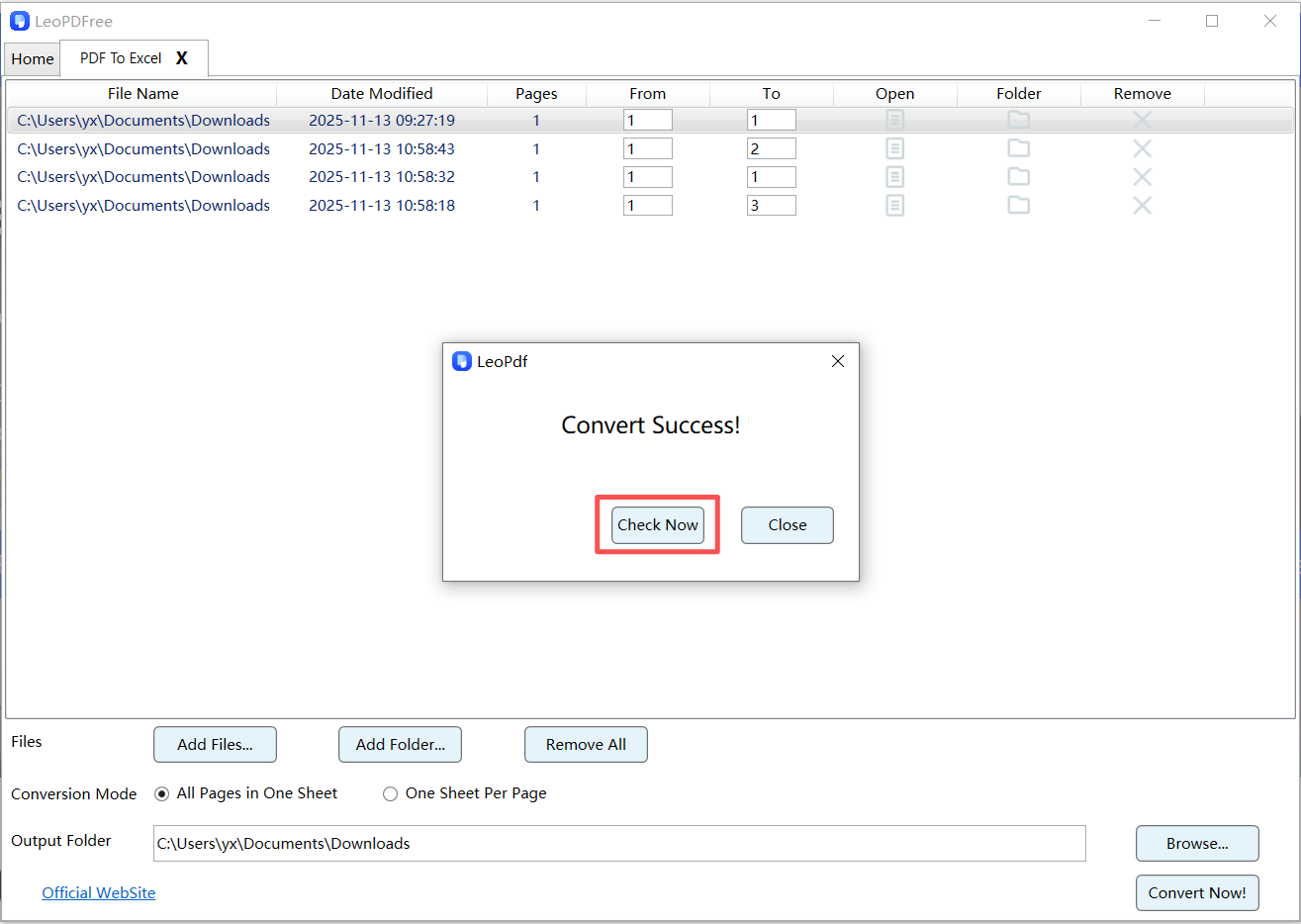
7️⃣. After the software completes the conversion task, a small pop-up window will appear. You can click the “Check Now” button to quickly view the converted file. As shown in the figure below.
Why This Method Works Best
- ▪ Automatically detects tables
▪ Preserves rows and columns
▪ Supports batch conversion
👉 Best for: business users, accountants, and frequent PDF processing
🧩 Method 2: Use Microsoft Excel (Built-in Feature)
Few people know that Excel itself can import PDF data.
Steps
1️⃣. Open Microsoft Excel
2️⃣. Go to Data → Get Data → From File → From PDF
3️⃣. Select your PDF file
4️⃣. Choose the table you want to import
5️⃣. Load it into Excel
Advantages
🔵 No additional software required
🔵 Direct table extraction
🔵 Good for structured PDFs
Limitations
🔵 Works best with clean, text-based PDFs
🔵 May struggle with complex layouts
🧠 Method 3: OCR for Scanned PDFs (Advanced Case)
If your PDF is scanned (image-based), you’ll need OCR (Optical Character Recognition).
Steps
1️⃣. Open a desktop PDF tool with OCR support
2️⃣. Import the scanned PDF
3️⃣. Enable OCR text recognition
4️⃣. Convert to Excel
5️⃣. Review and correct extracted data
When to Use
🔵 Scanned invoices
🔵 Printed reports
🔵 Image-based documents
👉 Without OCR, scanned PDFs cannot be converted properly.
📊 Accuracy Tips: Get Clean Excel Data Every Time
Even with the best tools, accuracy depends on the input.
Follow These Tips:
🔵 Use high-quality PDFs (avoid blurry scans)
🔵 Ensure tables are clearly structured
🔵 Avoid multi-column layouts
🔵 Manually review important data
🔵 Clean up merged cells after conversion
👉 Small adjustments can greatly improve results.
❌ Common Problems and Fixes
| Problem | Solution |
|---|---|
| Tables are broken | Use software with better table detection |
| Numbers misaligned | Adjust column formatting in Excel |
| Scanned PDF not working | Enable OCR before conversion |
| Extra spaces or symbols | Clean data using Excel functions |
🧾 Offline vs Online: Which Is Better?
| Feature | Offline | Online |
|---|---|---|
| Security | ⭐⭐⭐⭐⭐ | ⭐⭐ |
| Speed | ⭐⭐⭐⭐ | ⭐⭐⭐⭐⭐ |
| File Size Limit | No limit | Limited |
| Accuracy | ⭐⭐⭐⭐ | ⭐⭐⭐ |
👉 Offline conversion is more reliable for professional use.
📌 FAQ
Can I convert PDF to Excel offline for free?
Yes, the LeoPDF desktop software’s Excel feature is available for free, and other features are also free to use.
What is the best offline method?
👉 Using desktop PDF software offers the best balance of speed and accuracy.
Does offline conversion support batch files?
Yes. Most professional tools support batch processing.
🚀 Conclusion
Learning how to convert PDF to Excel offline gives you more than convenience—it gives you control, privacy, and efficiency.
1️⃣. Use desktop software LeoPDF for the best results
2️⃣. Use Excel for quick table extraction
3️⃣. Use OCR for scanned files
By choosing the right method, you can turn PDF data into accurate, editable Excel spreadsheets—without ever going online.
