
In our daily work, we often need to handle various file formats, among which converting PDF to Excel is a relatively common requirement, especially since data analysis is an indispensable part. Sometimes, we need to extract data from PDF reports and convert them into Excel format for further analysis and processing. However, many conversion tools on the market are either paid or have unsatisfactory conversion effects. Today, I will share a free and efficient method to help everyone accurately convert PDF files into Excel files.
Method 1: Select a suitable conversion tool
First, we need to find a reliable free conversion tool. Among numerous tools, I recommend the offline and free LeoPDF conversion tool. This tool typically has the following features:
▪Free to use:You can enjoy high-quality conversion services without paying any fees.
▪High-precision conversion:Utilizing LeoPDF’s unique technology, it can intelligently recognize tables, text, and formats within PDFs, ensuring that the converted Excel files remain highly consistent with the original PDFs.
▪Batch processing:It supports uploading multiple PDF files simultaneously for batch conversion, enhancing work efficiency.
▪Safe and reliable:Emphasis is placed on protecting user privacy. Since the conversion is conducted offline, the content of users’ files will not be saved or leaked during the conversion process.
Method 2: Detailed explanation of the specific conversion steps of LeoPDF
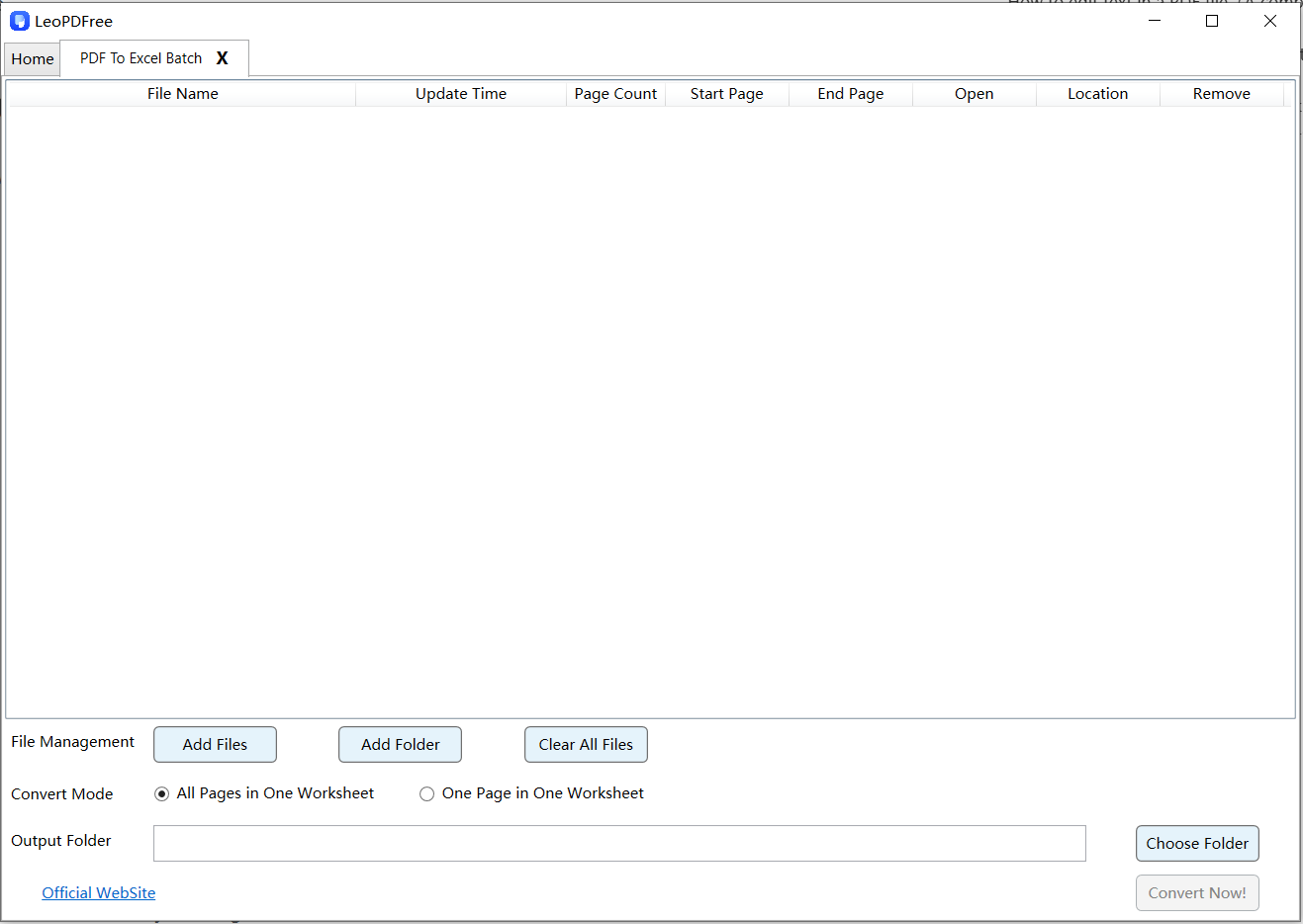
1️⃣.First, download LeoPDF and install it on your computer. Launch the software and click the “PDF To Excel Batch” button on the interface, as shown in the following figure:
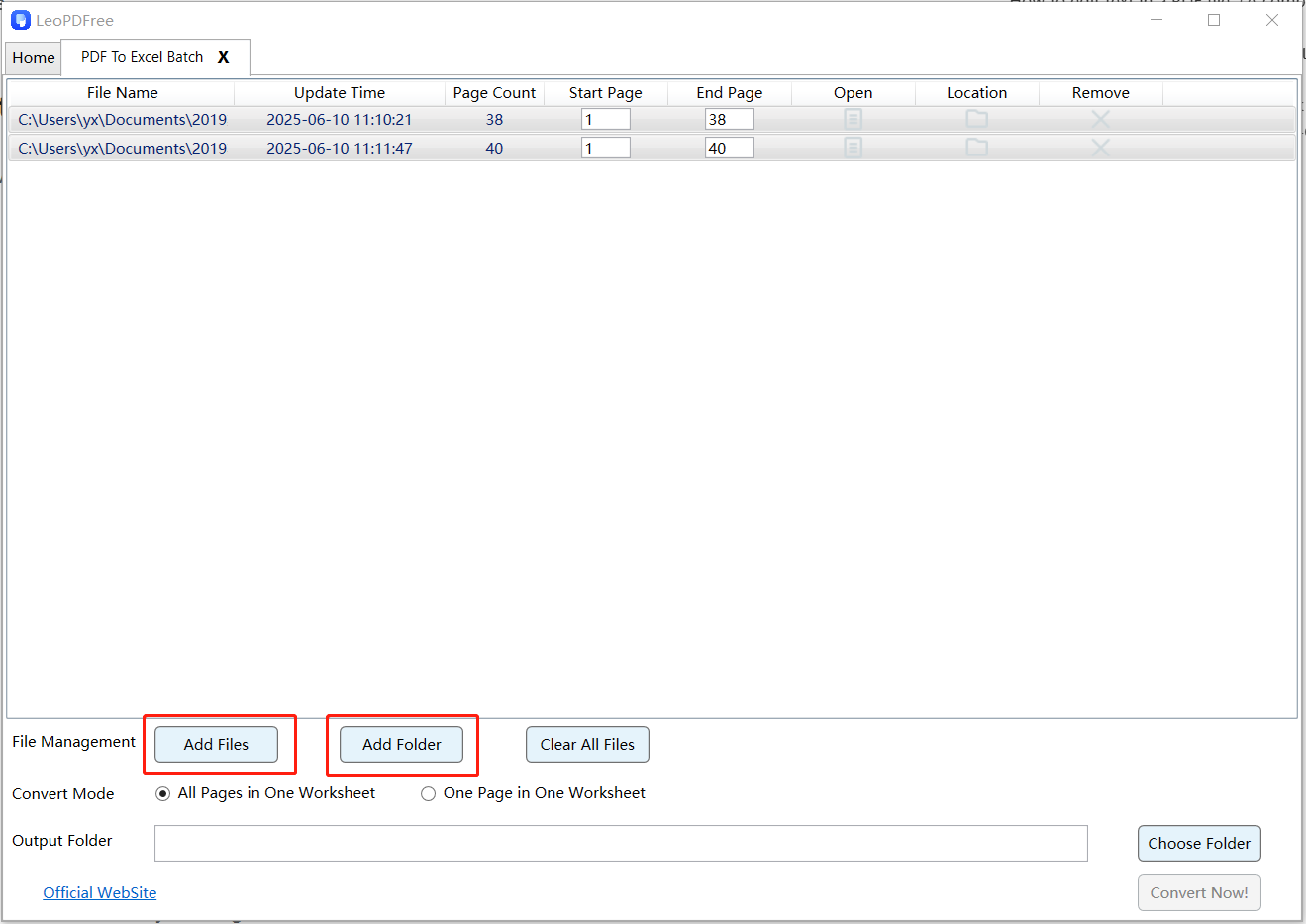
2️⃣.Next, click “Add Files” or “Add Folder” on the interface to add one or more files to be converted, as shown in the following figure:
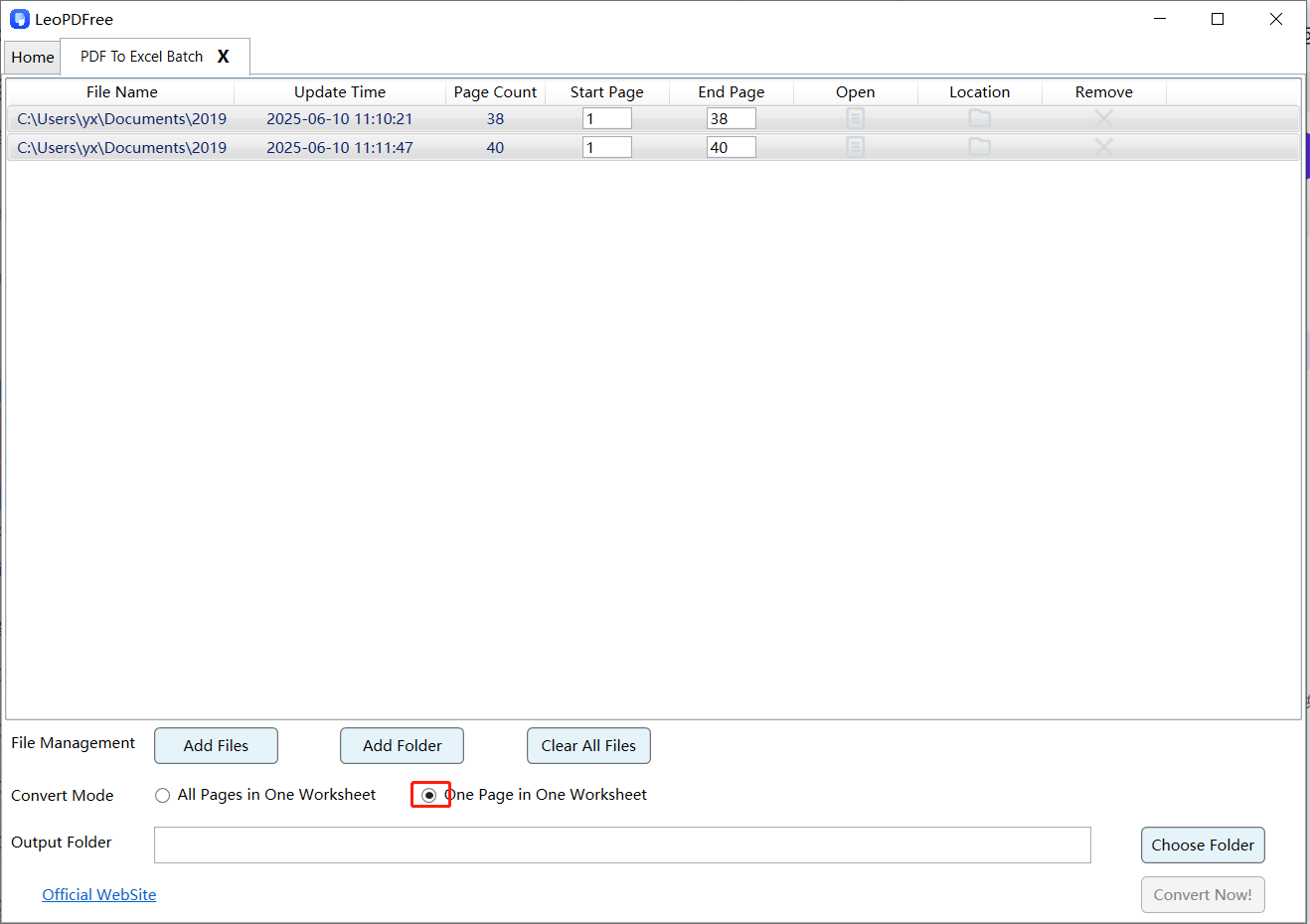
3️⃣.Select the conversion mode according to your needs in “Convert Mode”. As shown in the figure below:
4️⃣.Then click on “Choose Folder” to set the save path for the new converted files, as shown in the figure below:
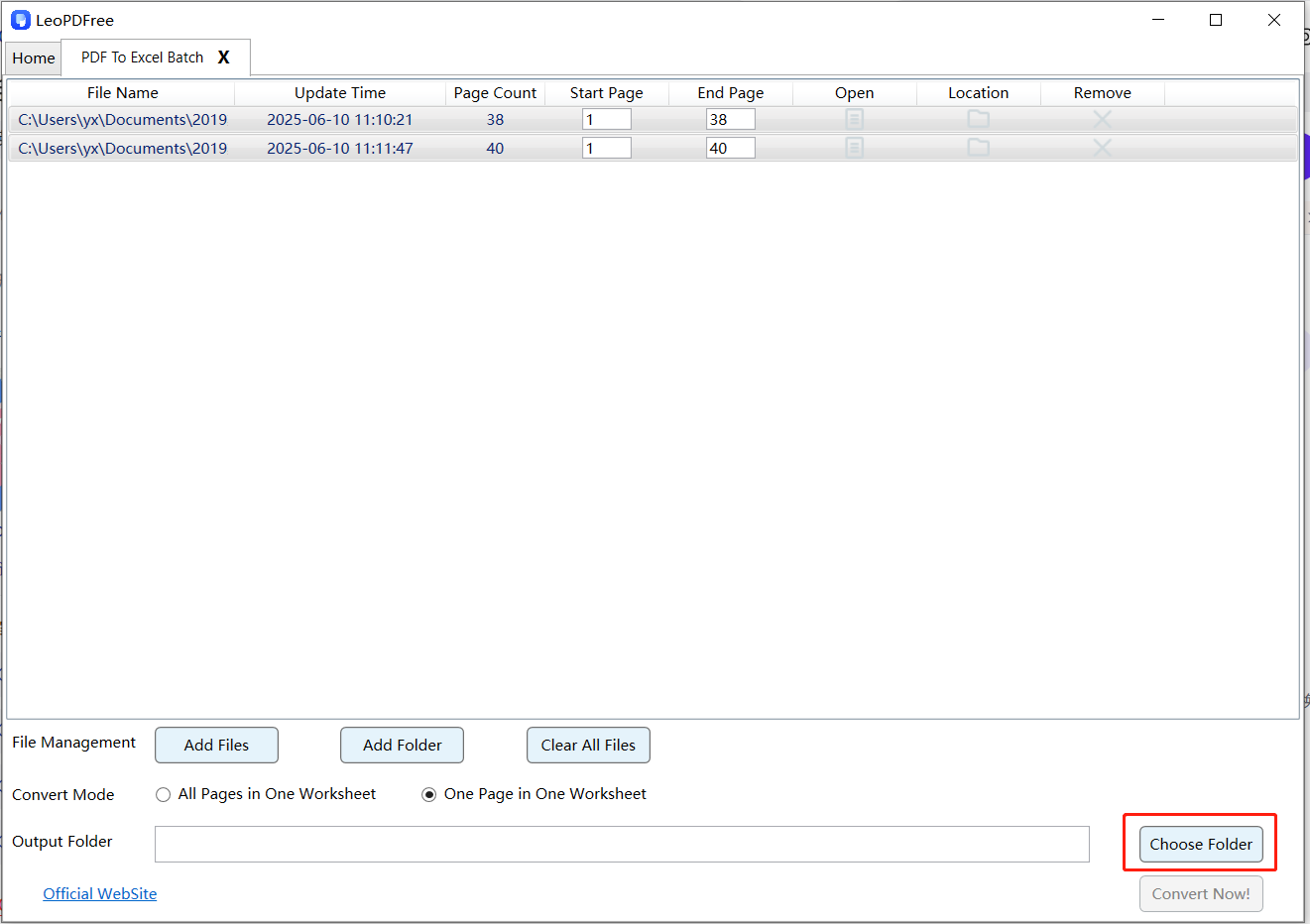
5️⃣.When all the preliminary preparations are complete, click “Convert Now!” on the interface, and the software will swiftly help you complete the format conversion. As shown in the figure below:
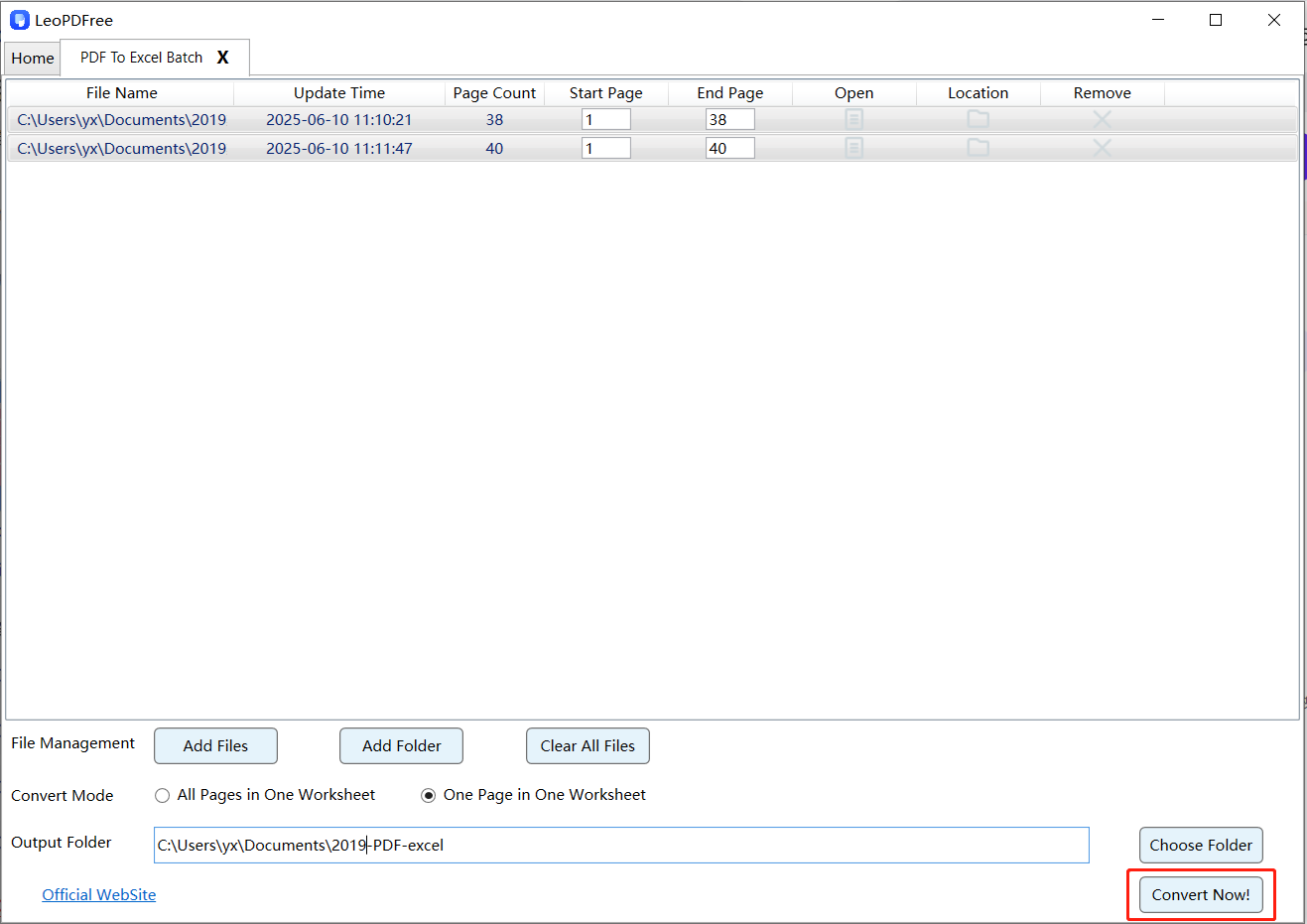
6️⃣.Finally, after the conversion is completed, click “Check Now” on the popped-up interface to quickly view the effect of the file conversion. It’s very convenient and efficient, isn’t it? Go ahead and give it a try.
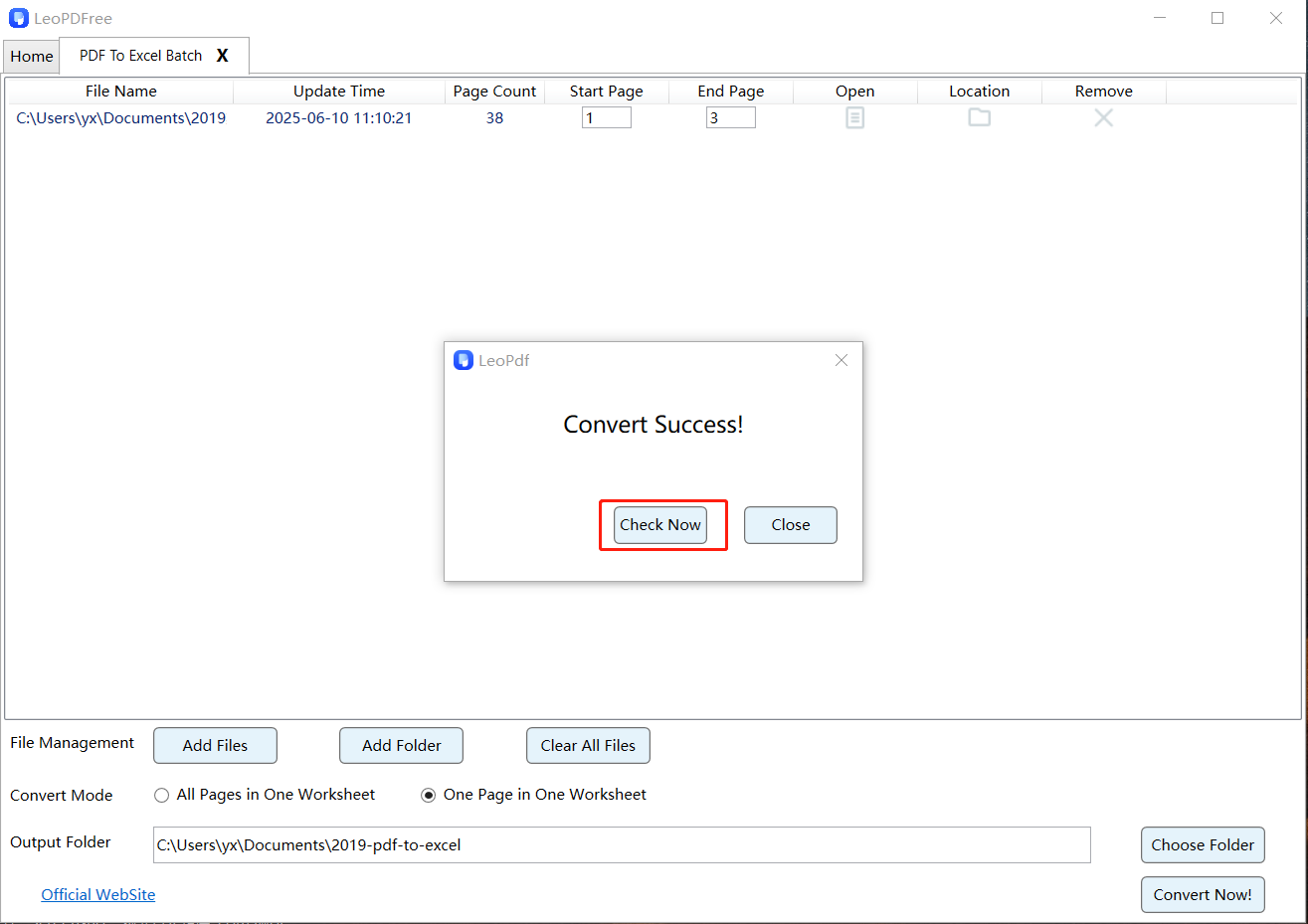
Method 3: Points to note
▪File size limit:Some free conversion platforms impose restrictions on the size of uploadable files or require payment, whereas LeoPDF has no such restrictions.
▪Network environment: As it is an offline conversion tool, it does not require support from a stable network environment.
▪Privacy protection: When converting PDF files containing sensitive information, please be sure to choose a trustworthy conversion platform and carefully read its privacy policy to ensure the security of the file content.
Summary
Through the aforementioned steps, LeoPDF can help you convert PDF files into Excel files for free and efficiently, providing convenience for daily office work and data analysis. I hope this guide proves helpful to everyone!
