
Turn Financial PDFs into Clean, Usable Data (Without the Usual Headaches)
Bank statements are designed for reading—not for working with data.
But in real life, you often need to analyze, filter, calculate, and report. That’s where converting a bank statement PDF to Excel becomes essential.
This guide takes a different approach: instead of just showing tools, it focuses on how to get clean, accurate, analysis-ready data—the part most articles ignore.
💡 The Real Goal: Not Conversion, But Usable Data
Most people think:
🔵 PDF → Excel = Done
But the real goal is:
🔵 PDF → Structured Financial Data You Can Trust
Because messy Excel output is just another problem.
⚡ Method 1: Use Desktop Software-LeoPDF (Best for Accuracy & Privacy)
If you deal with bank statements regularly, this is the most reliable method.
Steps
1️⃣. Download for free and successfully install the LeoPDF software. Open the software as shown in the figure below.
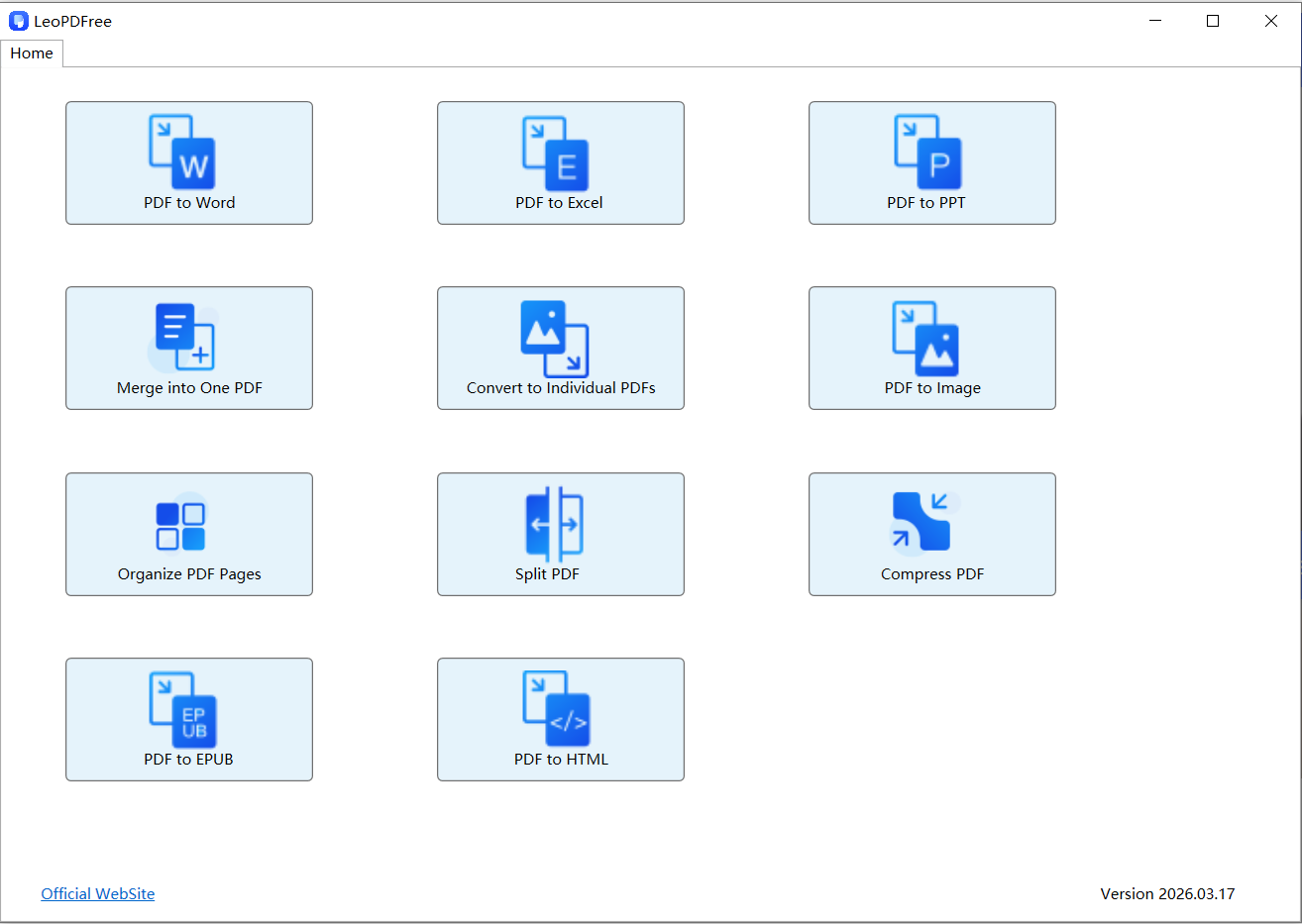
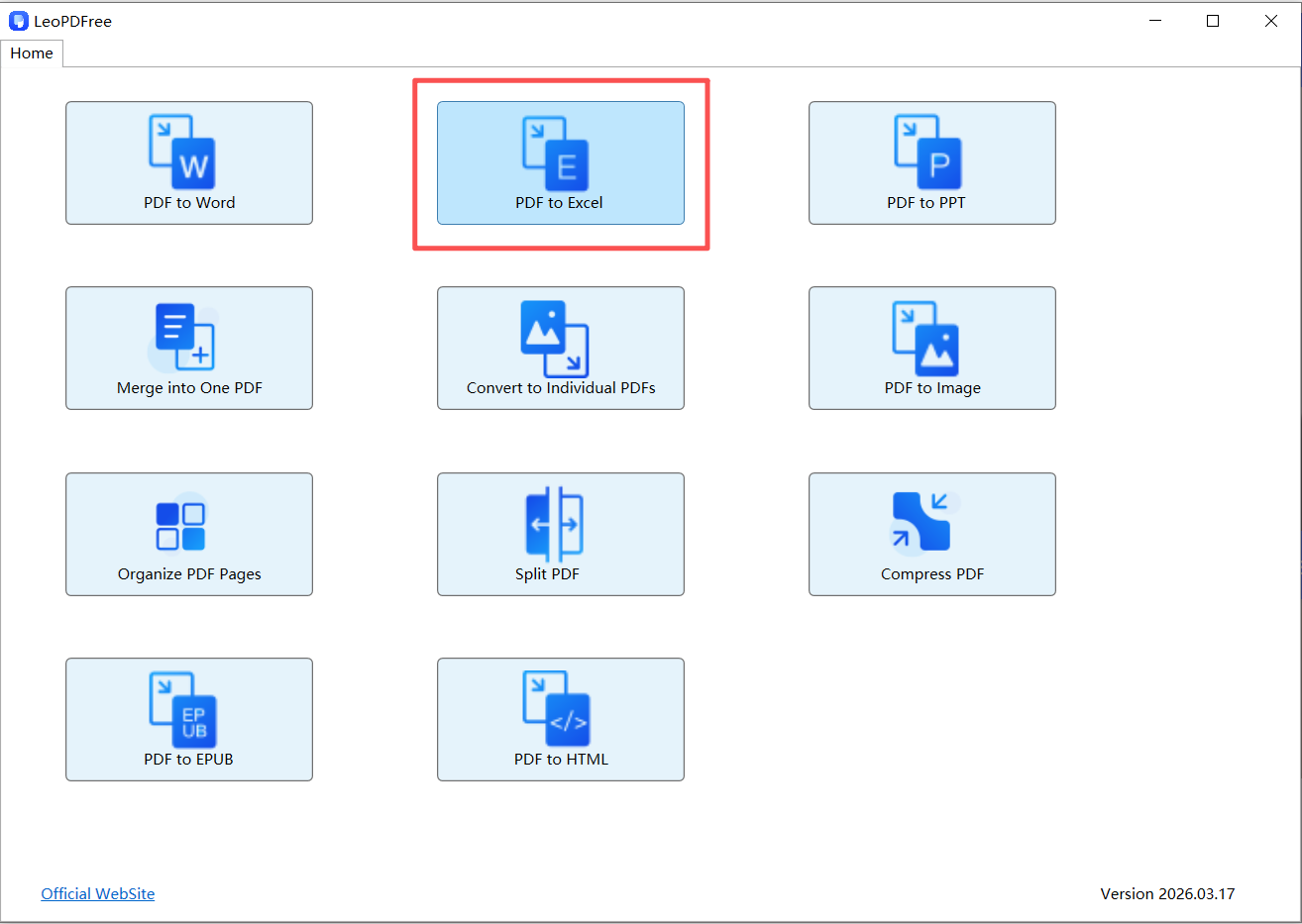
2️⃣. On the opened interface, click “PDF to Excel”, as shown in the figure below.
3️⃣. Next, on the opened interface, click the “Add Files…” or “Add Folder…” button to add one or more PDF files to be converted, as shown in the figure below.
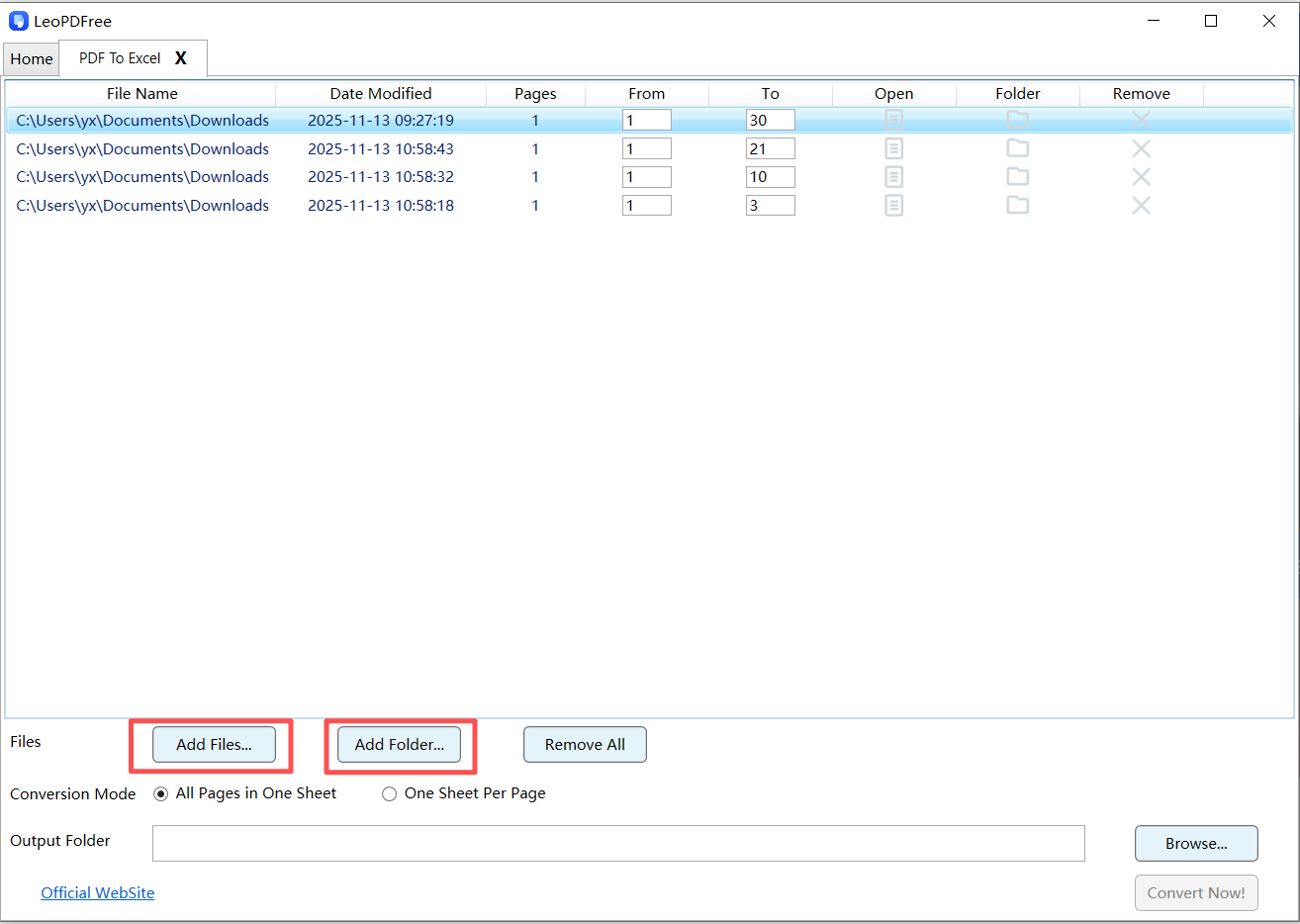
4️⃣. Then select either “All Pages in One Sheet” or “One Sheet Per Page” in the “Conversion Mode” option according to your needs. In this example, we use “All Pages in One Sheet”, as shown in the figure below.
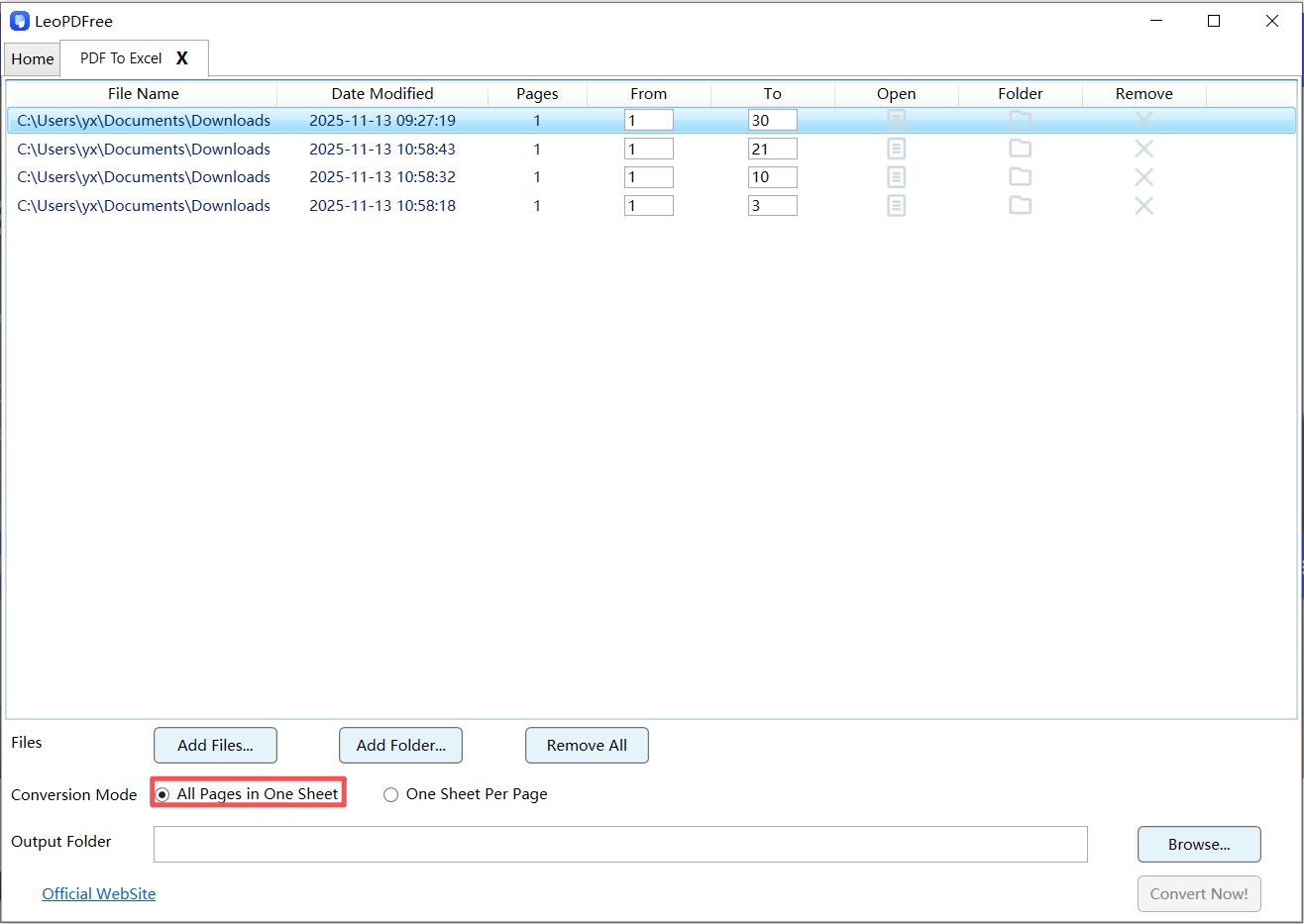
5️⃣. Next, click the “Browse…” button to set the save path for the converted file, as shown in the figure below.
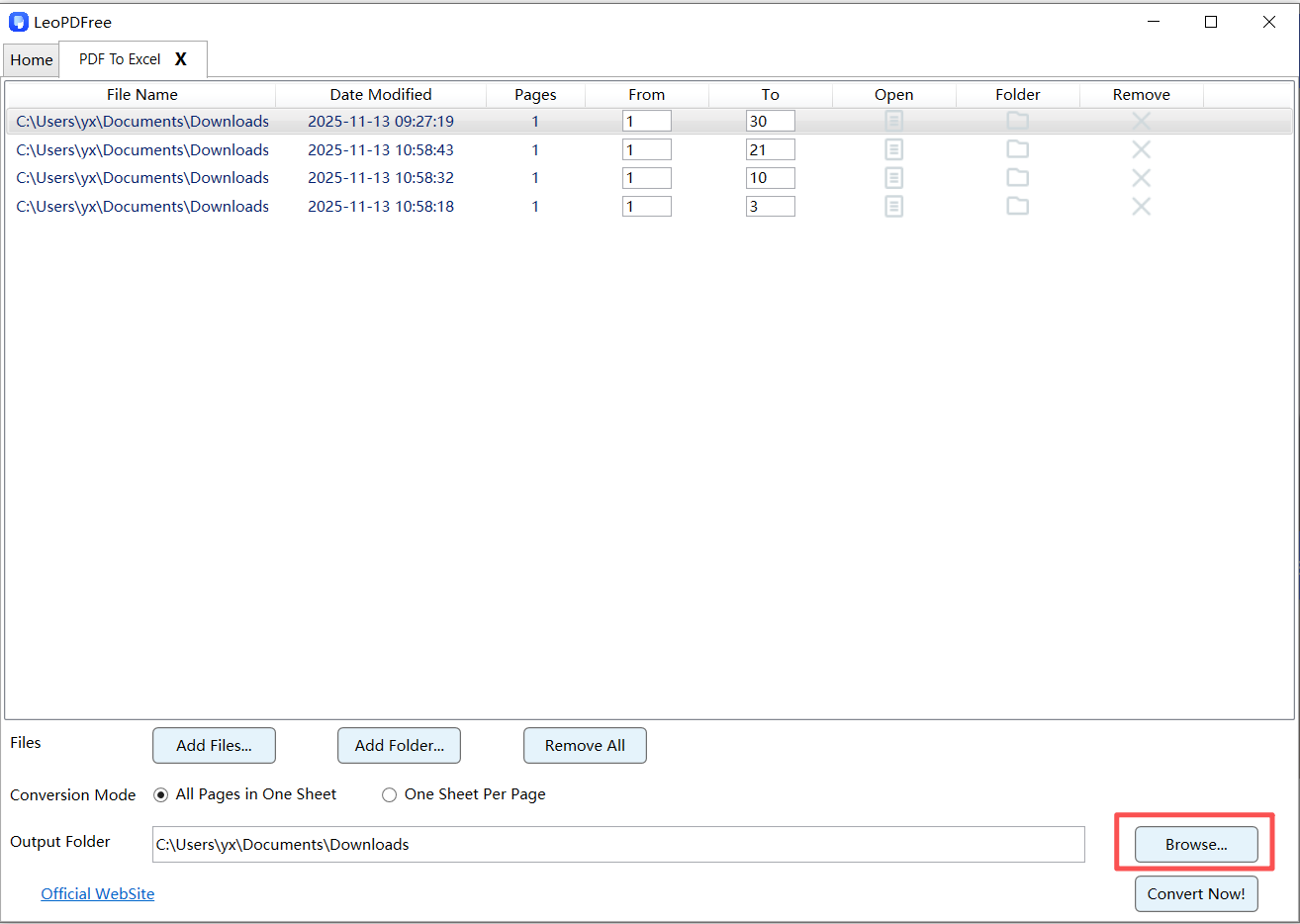
6️⃣. Once all preparations are complete, simply click “Convert Now!” on the interface. The software will quickly complete the conversion based on the file size, as shown in the figure below.
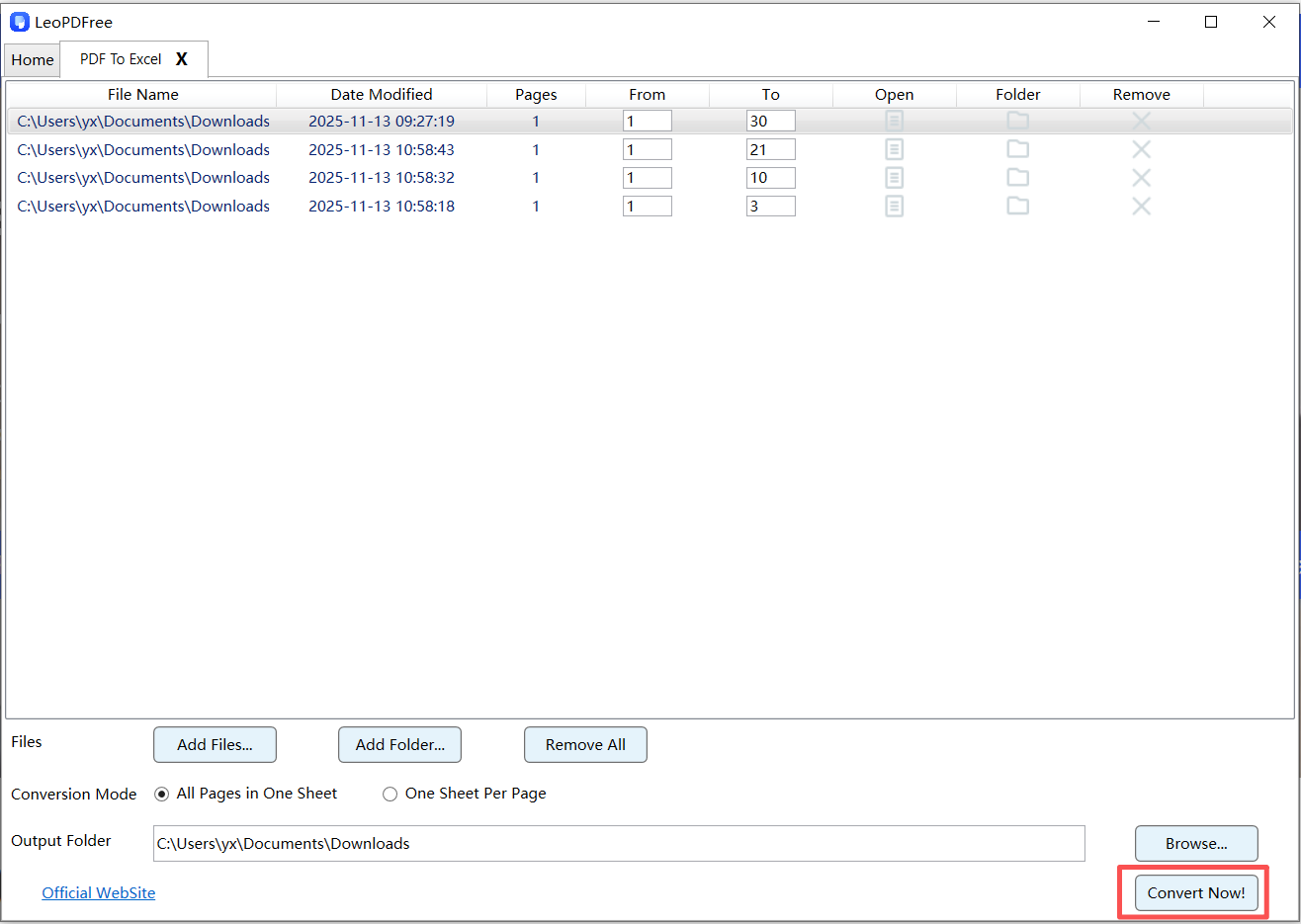
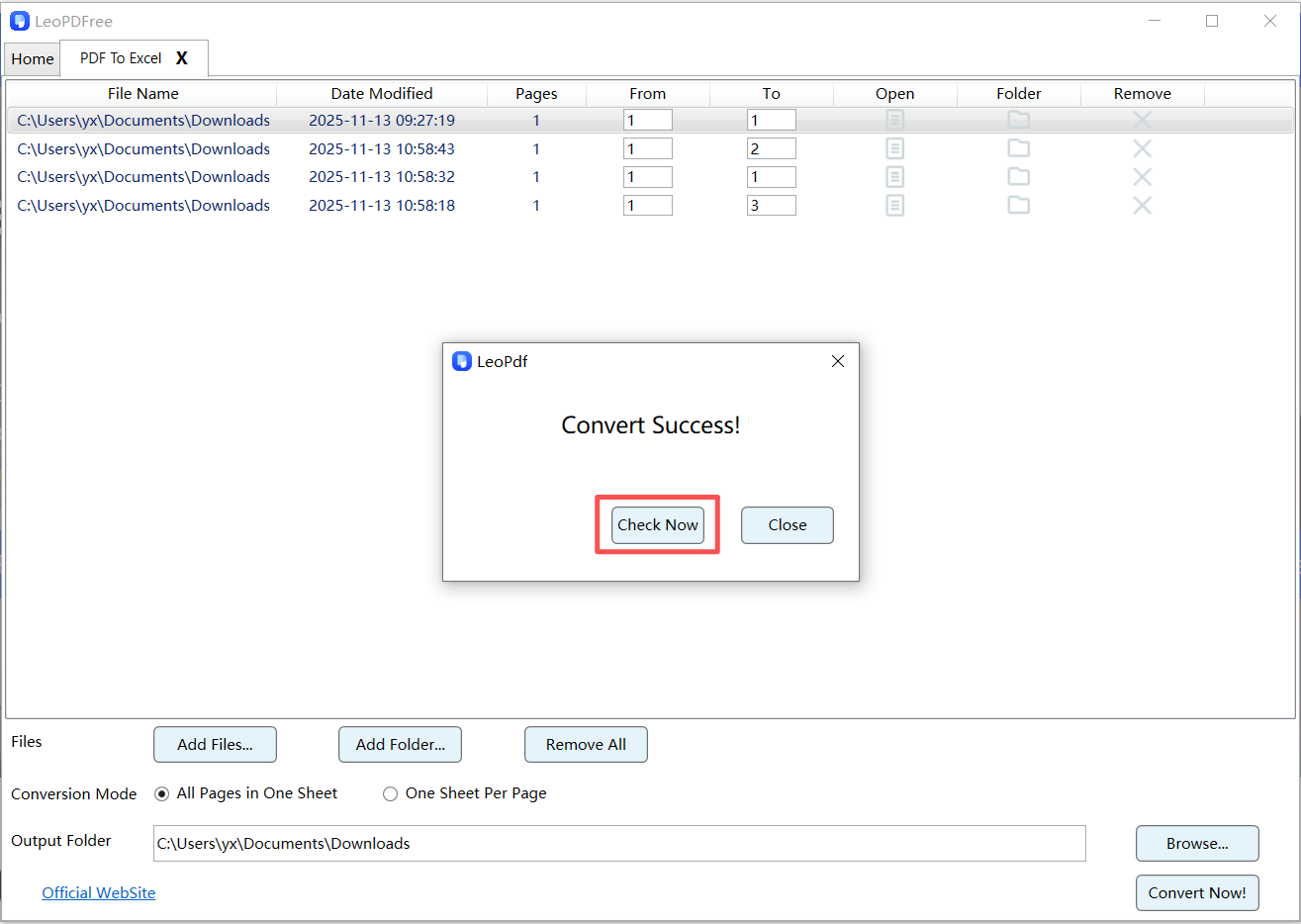
7️⃣. After the conversion is completed, a small pop-up window will appear. Click the “Check Now” button on the pop-up window to quickly view the converted result. Isn’t it very fast and convenient? Go ahead and try it out!
Why This Works
🔵 Detects transaction tables automatically
🔵 Preserves columns like date, description, amount
🔵 Works offline (important for financial data)
👉 Ideal for: accountants, freelancers, business owners
🧩 Method 2: Excel Built-in Import (Quick & Simple)
If your PDF is clean and text-based, Excel can do the job directly.
Steps
1️⃣. Open Microsoft Excel
2️⃣. Go to Data → Get Data → From PDF
3️⃣. Select your file
4️⃣. Choose the transaction table
5️⃣. Load into Excel
When to Use
🔵 Simple bank statements
🔵 Clearly structured tables
👉 Fast, but may require minor cleanup.
🧠 Method 3: OCR for Scanned Statements (When Nothing Else Works)
Some bank statements are scanned images.
In that case, you need OCR.
Steps
1️⃣. Open a PDF tool with OCR support
2️⃣. Upload the scanned PDF
3️⃣. Enable text recognition
4️⃣. Convert to Excel
5️⃣. Review extracted data carefully
👉 Without OCR, scanned statements cannot be converted properly.
📊 What Clean Output Should Look Like
After conversion, a good Excel file should have:
| Date | Description | Debit | Credit | Balance |
|---|---|---|---|---|
👉 If your result doesn’t look like this, it needs cleanup.
🔧 Make Your Data Analysis-Ready (Key Step Most People Skip)
This is where real value happens.
After conversion:
1. Standardize Columns
🔵 Ensure consistent date format
🔵 Separate debit/credit columns
2. Remove Noise
🔵 Delete headers, footers, repeated rows
3. Normalize Data
🔵 Convert text numbers into numeric format
🔵 Fix currency symbols
4. Add Filters
🔵 Enable sorting and filtering for quick insights
❌ Common Problems (and Smart Fixes)
| Problem | Fix |
|---|---|
| Transactions split across rows | Merge cells or reformat manually |
| Amounts misaligned | Use Excel “Text to Columns” |
| Duplicate headers | Remove repeated rows |
| Missing data | Recheck original PDF |
🔐 Why Offline Conversion Matters for Bank Statements
Financial data is sensitive.
Using offline tools means:
🔵 No uploads to third-party servers
🔵 Better privacy protection
🔵 Full control over your files
👉 This is critical for personal finance and business accounting.
📌 FAQ
Can I convert bank statement PDFs to Excel for free?
Yes, the LeoPDF tool also offers free conversion.
What is the most accurate method?
👉 Desktop software with table recognition gives the best results.
Is manual cleanup always needed?
For financial data, a quick review is always recommended.
🧾 Final Thought
Converting a bank statement PDF to Excel is not just about saving time—it’s about unlocking your financial data.
🔵 Use the right tool-LeoPDF for clean extraction
🔵 Spend a few minutes refining the output
🔵 Turn static statements into dynamic insights
A PDF shows your money.
Excel helps you understand it.
Start converting your bank statements today—and take control of your data.
