
In today’s increasingly prevalent digital reading landscape, e-book format conversion has become a significant demand for many readers. Particularly when one has e-books in PDF format but desires a smoother EPUB reading experience on e-readers or smartphones, format conversion becomes crucial. This article will introduce several methods for converting PDF to EPUB for free, helping you effortlessly achieve format conversion and enhance your reading experience.
Method One: Use the online conversion tool
1.Choose a reliable online conversion website:
▪There are numerous websites on the market (that (or “which”) provide free PDF-to-EPUB conversion services, such as Zamzar, Online-Convert, and iLOVEPDF.
▪When making a choice, please ensure the security of the website to prevent personal information leakage.
2.Upload PDF file(s):
▪After entering the website, locate the “PDF to EPUB” or a similar option.
▪Click the “Upload” button and select the PDF file(s) you wish to convert.
3.Start Conversion and Download :
▪After uploading, the website will automatically initiate the conversion process.
▪Once the conversion is complete, click the “Download” button to save the EPUB file to your local device.
Method Two: Utilize open-source software
1.Calibre e-book management software:
▪After downloading and installing Calibre, open the software, click the “Add books” button, and select the PDF file you want to convert.
▪After selecting the file, click the “Convert books” button and choose EPUB as the output format.
▪Adjust conversion settings as needed, such as cover image, table of contents, etc.
▪Click “OK” to start the conversion. Once completed, locate the EPUB file in the designated location.
Method Three: With the help of browser extensions
1.Select a suitable browser extension:
▪Some browser extensions also offer PDF to EPUB conversion functionality, such as “PDF to EPUB Converter” and others.
▪Search for and install the appropriate extension in your browser’s extension store.
2.Perform conversion using the extension:
▪After installation, click on the extension icon in the browser’s toolbar.
▪Follow the extension’s prompts to upload the PDF file and select EPUB as the output format.
▪Initiate the conversion and wait for it to complete. Then, download the EPUB file to your local device.
Method Four: Convert (files) for free using the LeoPDF tool
1.Download and install LeoPDF, then open the LeoPDF tool:
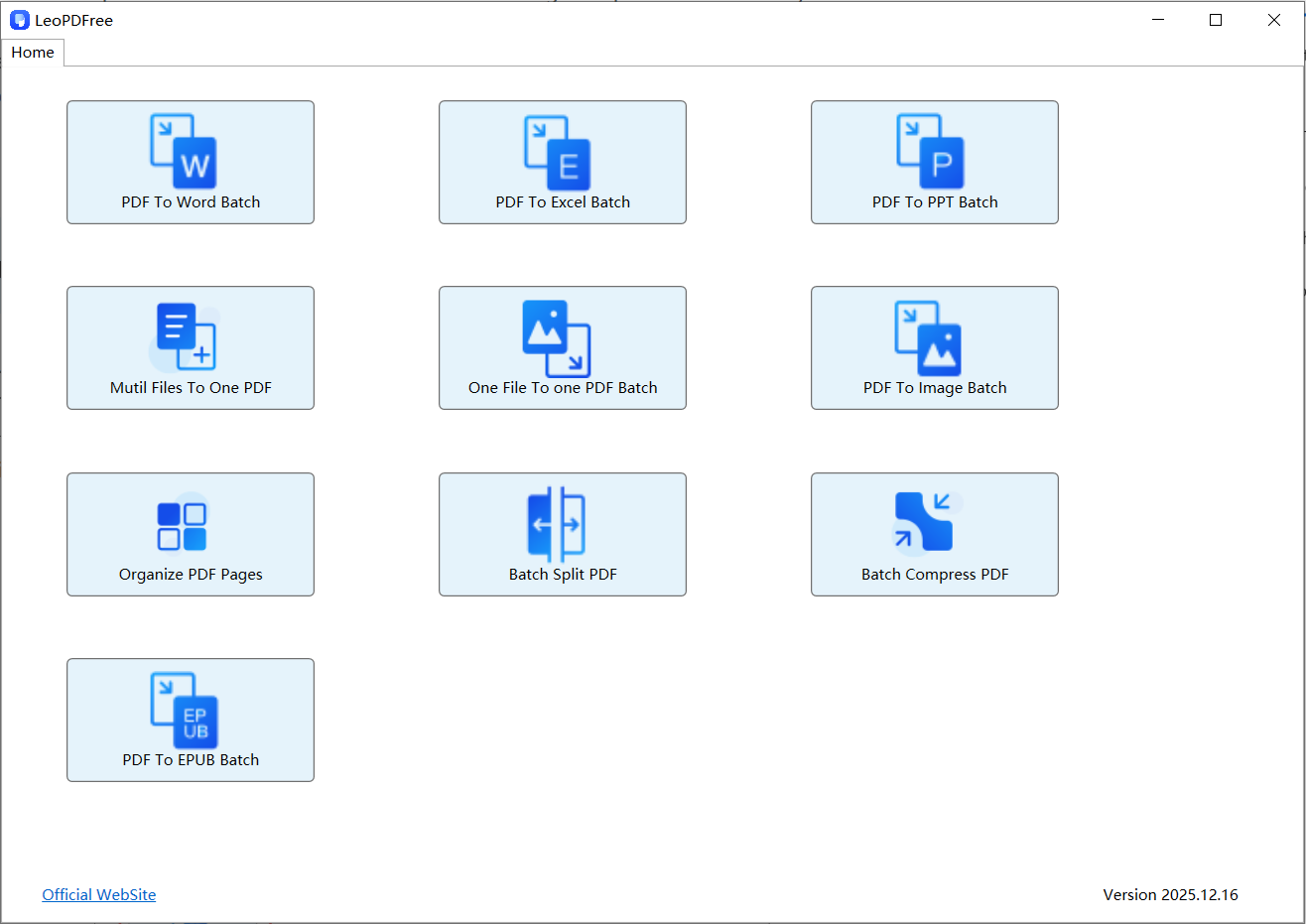
2.Click the “PDF To EPUB Batch” button on the interface, as shown in the following image:

3.Click “Add Files” or “Add Folder” to add one or multiple files to be converted. As shown in the following image:

4.Click “Choose Folder” to set the saving directory for the new converted files. As shown in the following image:

5.After all the preparation work for conversion is completed, simply click “Convert Now!”. The system will help you quickly finish the conversion based on the file size. As shown in the following image:

6.When the software pops up a new window saying “Convert Success”, it indicates that the conversion has been completed. At this point, you only need to click the “Check Now” button to quickly view the results of the converted files. As shown in the following image:

Conclusion
Based on a comparison of the aforementioned methods, LeoPDF stands out as a completely free and professional PDF-to-EPUB conversion tool, excelling with its exceptional conversion efficiency and output quality, making it particularly ideal for users with multi-device reading needs. Its core “precision-customizable” conversion technology ensures layout accuracy while swiftly generating EPUB files compatible with various devices. Additionally, it offers functions for converting to Word, Excel, and PPT formats, as well as features for compression, page extraction, splitting, and merging. As an offline conversion tool, it is especially suitable for converting highly sensitive files. Moreover, being completely free, it is perfect for users with limited budgets. That’s all for today’s recommendation—go ahead and give it a try!
