
In 2026, extracting tables from PDFs is no longer just about getting the data — it’s about preserving structure, accuracy, and usability. Whether you’re working with financial reports, invoices, or research data, losing formatting can cost hours of manual correction.
This guide goes beyond the basics. Instead of repeating outdated methods, we’ll show you modern, efficient, and formatting-safe ways to convert PDF tables into Excel — with minimal cleanup.
🔍 Why Formatting Gets Lost (And How to Avoid It)
Before jumping into tools, understand the root problem:
| Issue | What Happens | Why It Breaks |
|---|---|---|
| Merged cells | Split into multiple columns | PDF has no true table structure |
| Column shifts | Data misaligned | Text positioning ≠ table logic |
| Numeric errors | Numbers stored as text | Encoding mismatch |
| Broken rows | Data scattered | Complex layouts or images |
👉 Key insight (2026 trend):
Modern tools now use AI layout recognition, not just text extraction — this is the game changer.
🚀 4 Modern Methods (Ranked by Accuracy)
1. AI-Powered PDF to Excel Tool-LeoPDF (Best Overall)
LeoPDF tool analyze structure, not just text.
Best for: Complex tables, financial data, reports
Workflow:
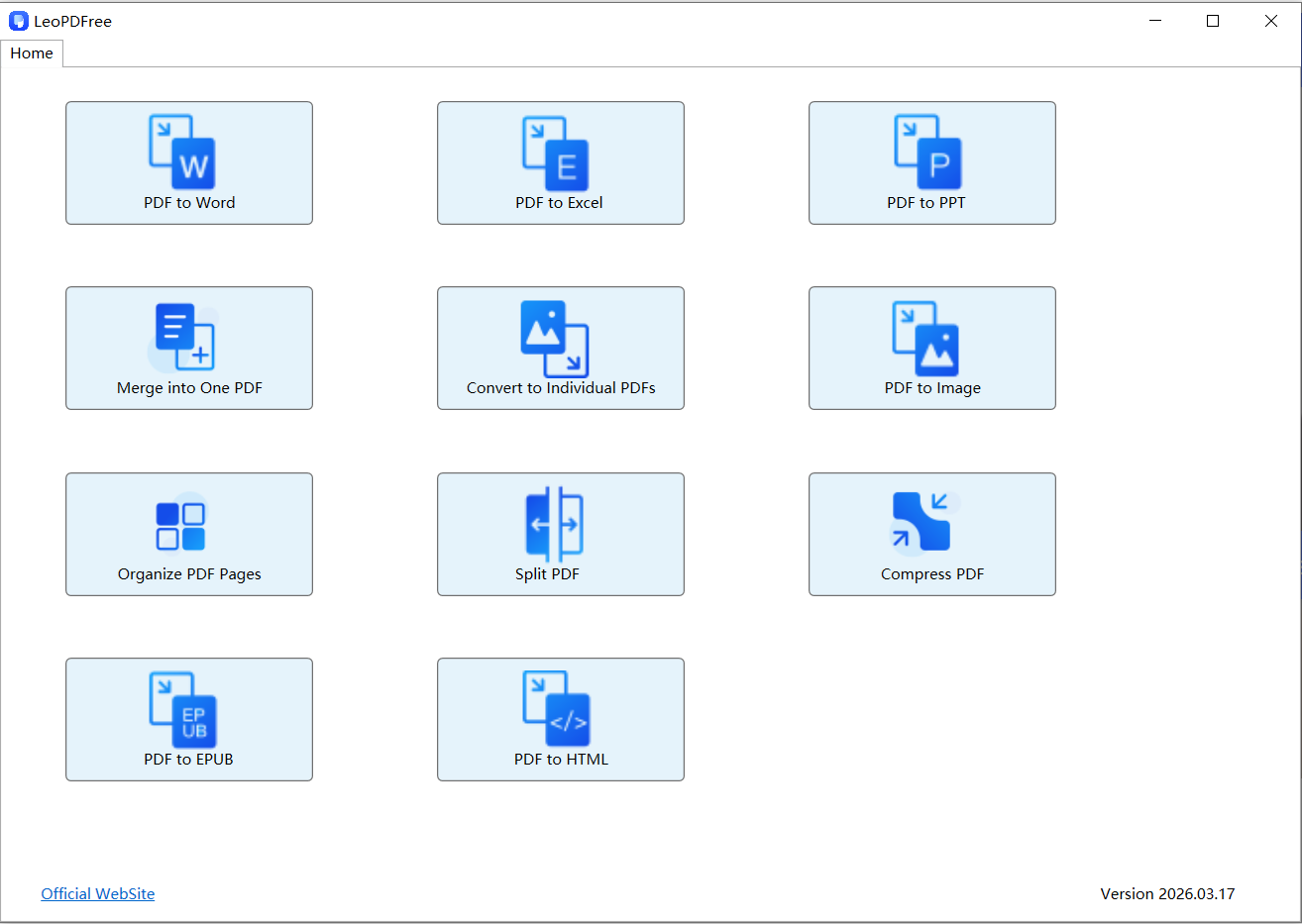
1️⃣. Download and install LeoPDF for free. After the installation is successful, open the software as shown in the figure below.
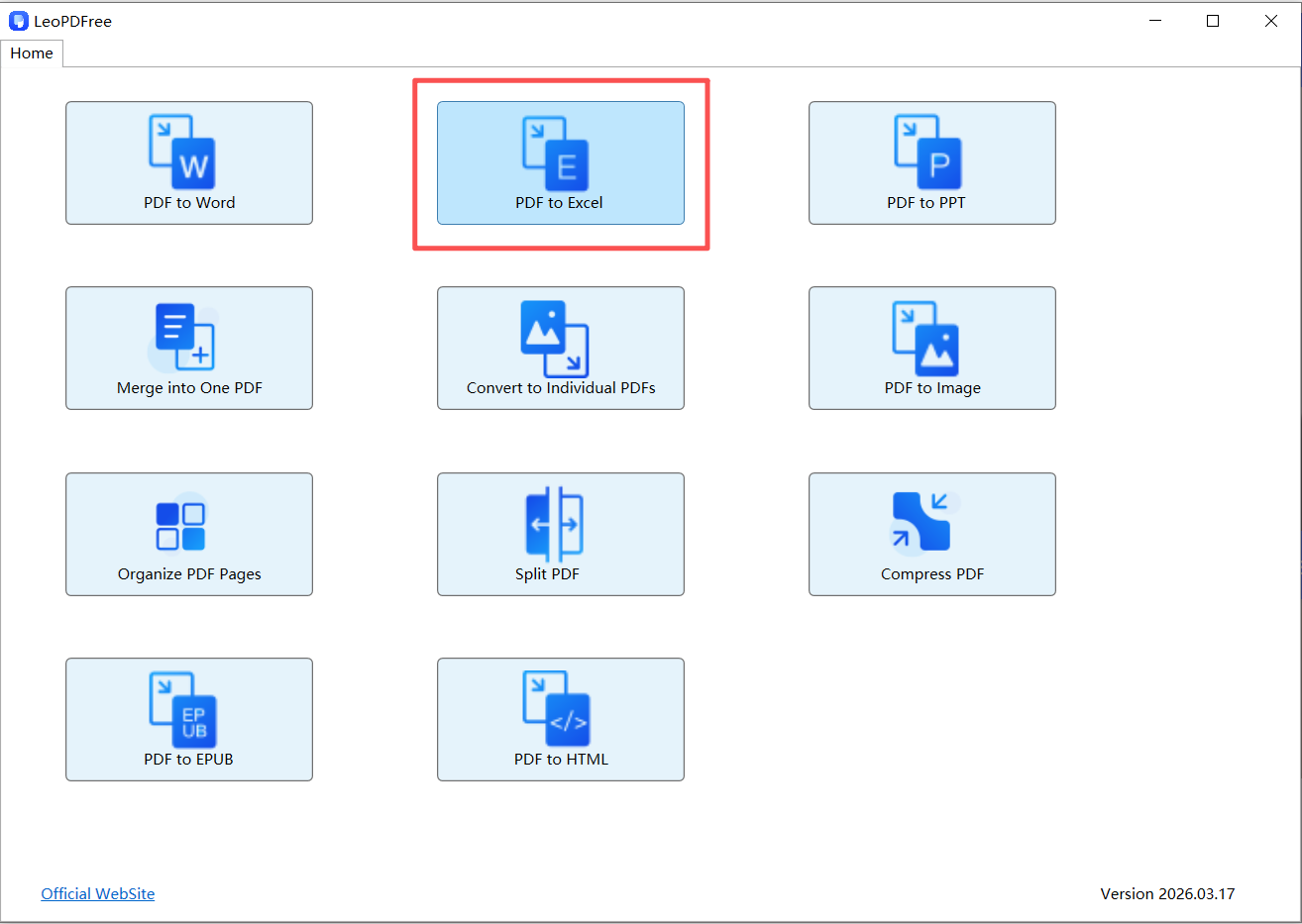
2️⃣. On the opened interface, click “PDF to Excel”, as shown in the figure below.
3️⃣. Next, click “Add Files…” or “Add Folder…” on the interface to add one or more PDF files to be converted, as shown in the figure below.
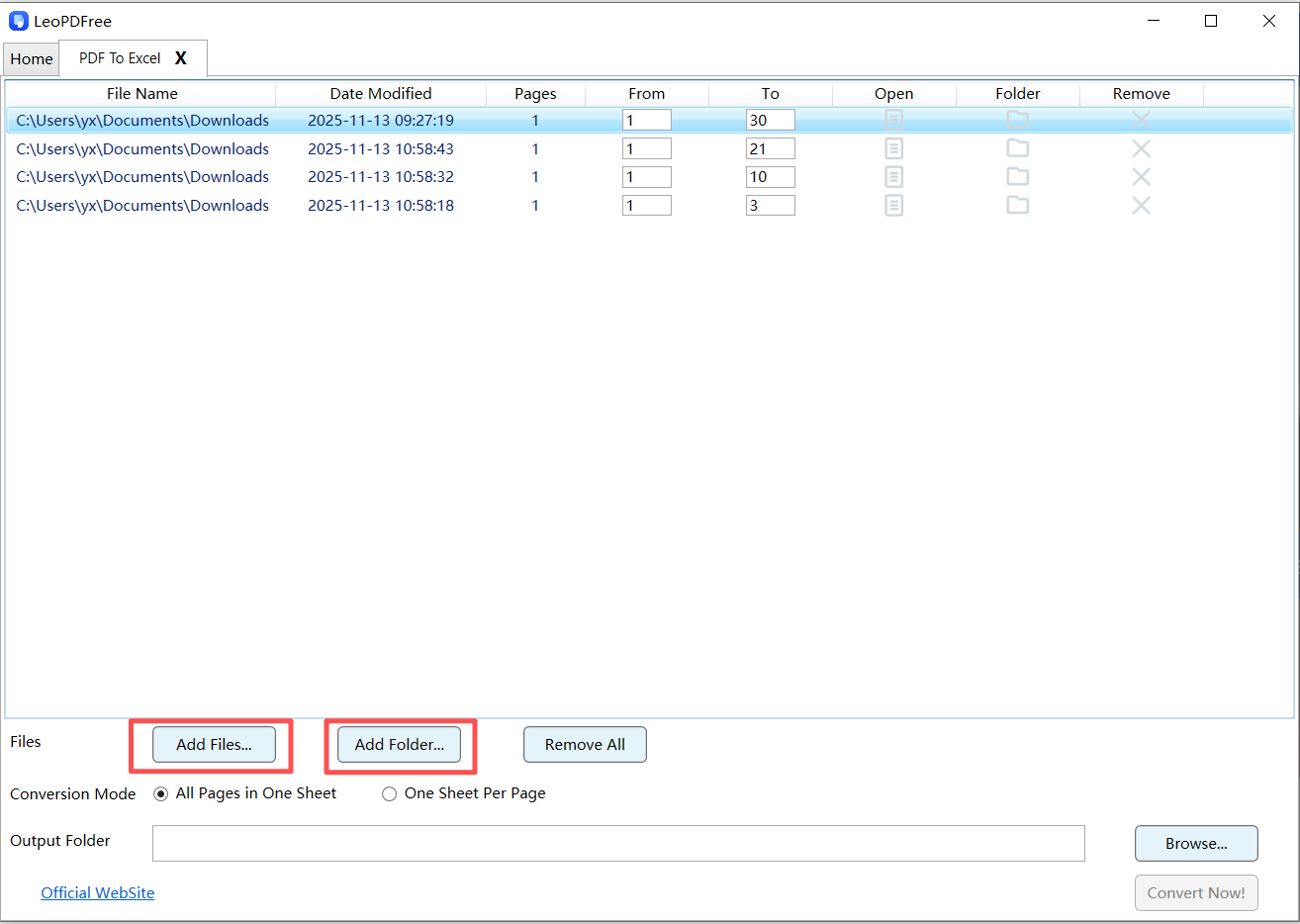
4️⃣. Then, in “Conversion Mode”, select the mode according to your needs. In this example, we choose “All Pages in One Sheet”, as shown in the figure below.
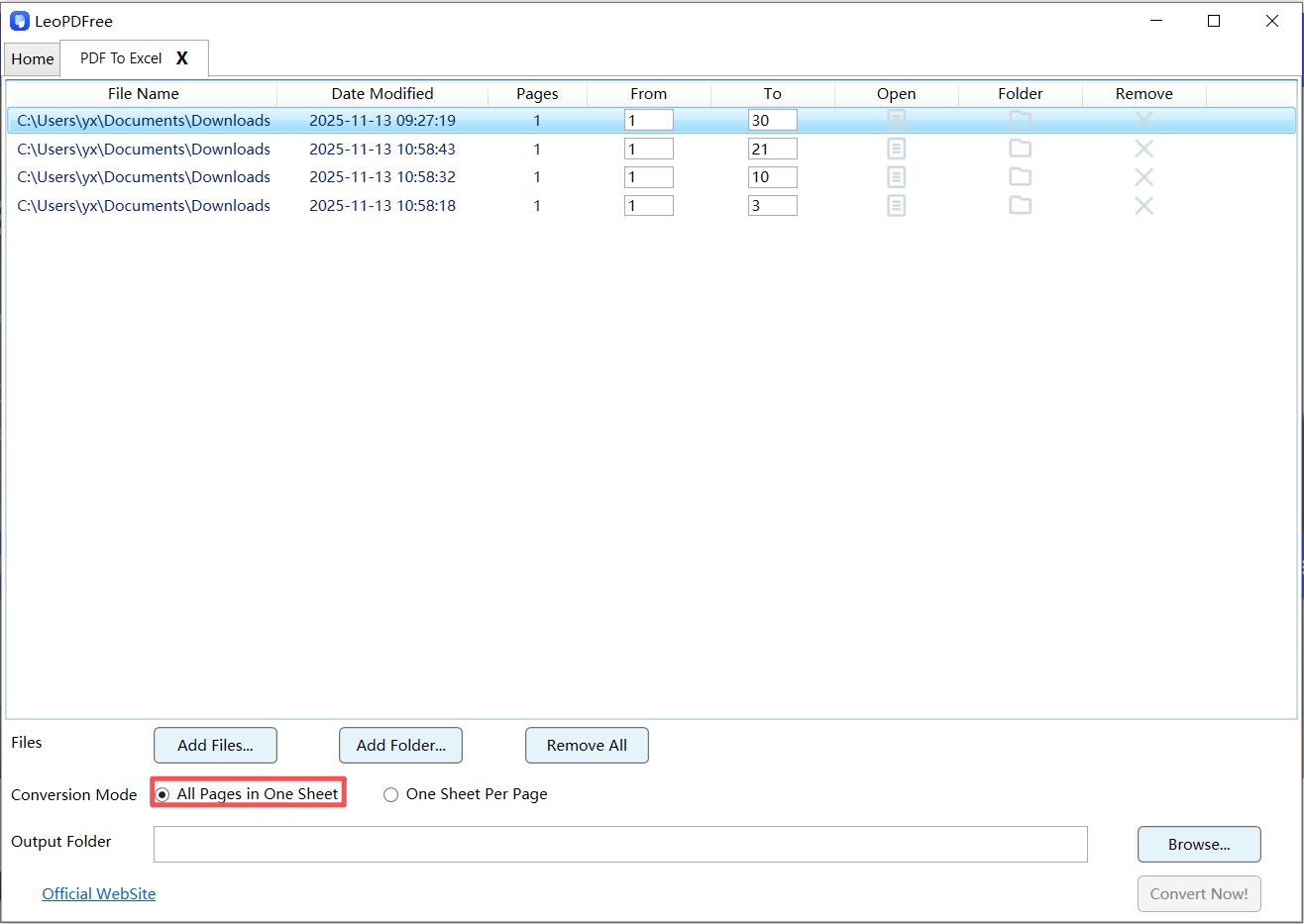
5️⃣. Next, click the “Browse…” button to set the save path for the converted file, as shown in the figure below.
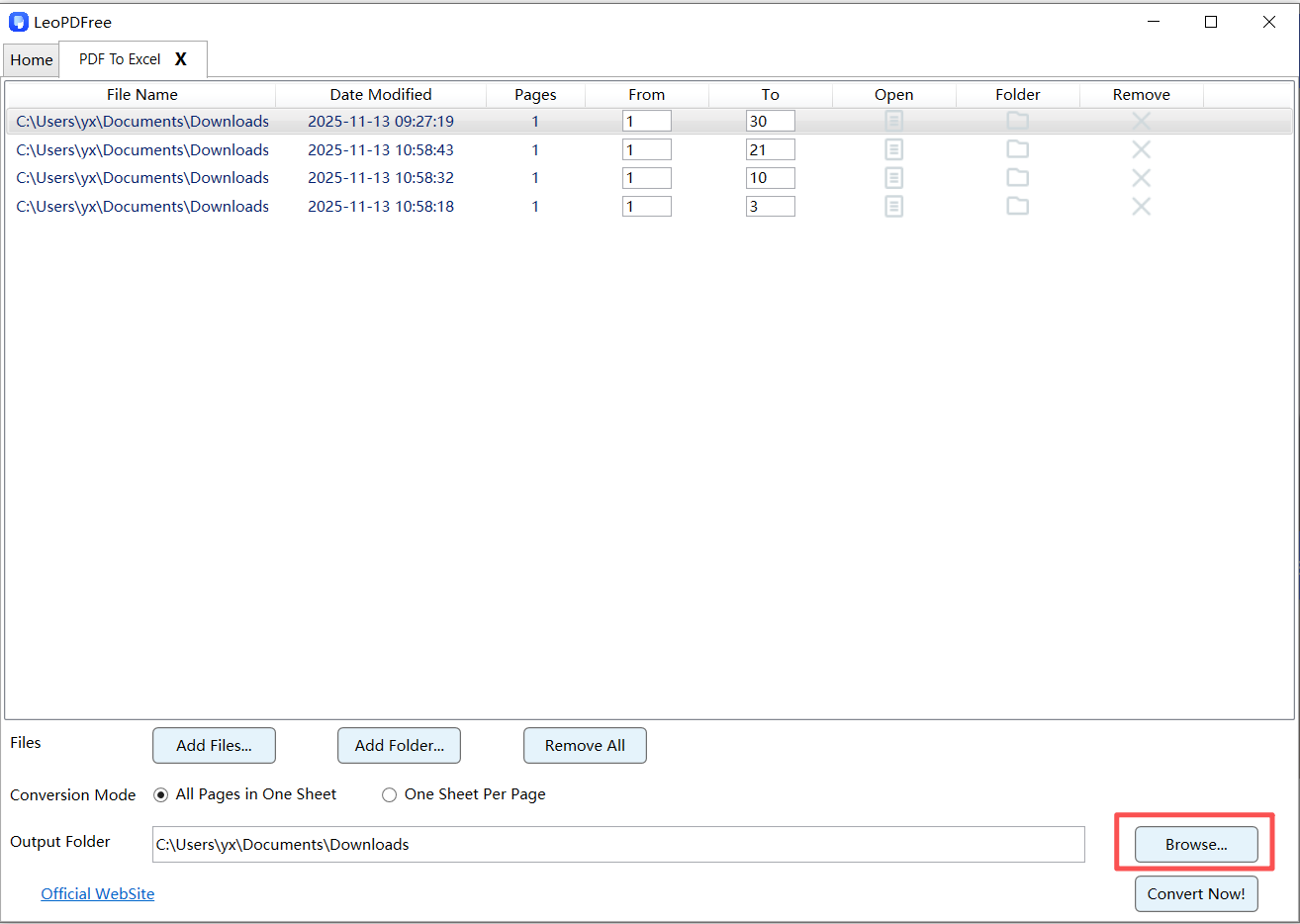
6️⃣. Once all preparation steps are complete, simply click the “Convert Now!” button. The tool will quickly complete the conversion using AI computing power, as shown in the figure below.
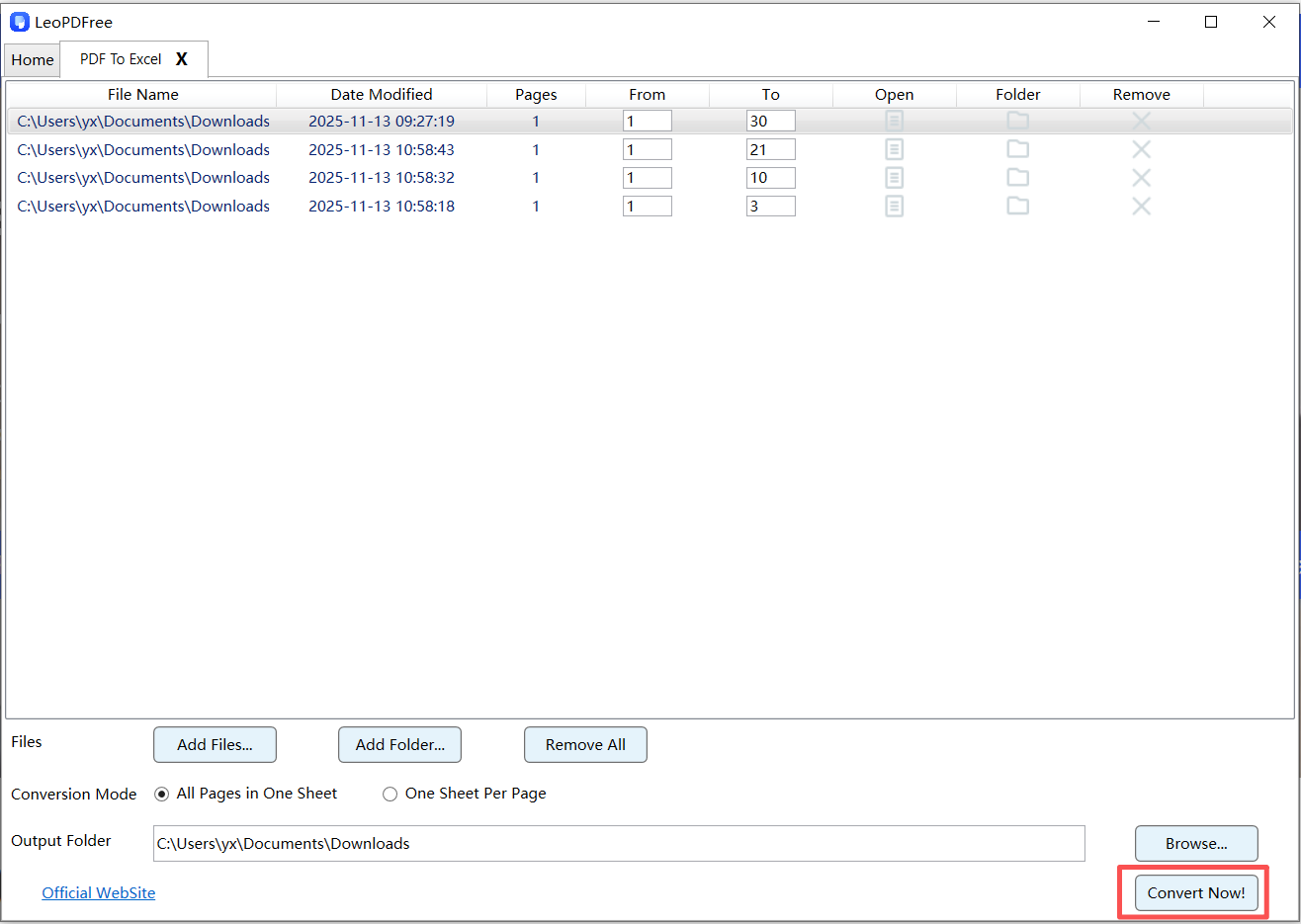
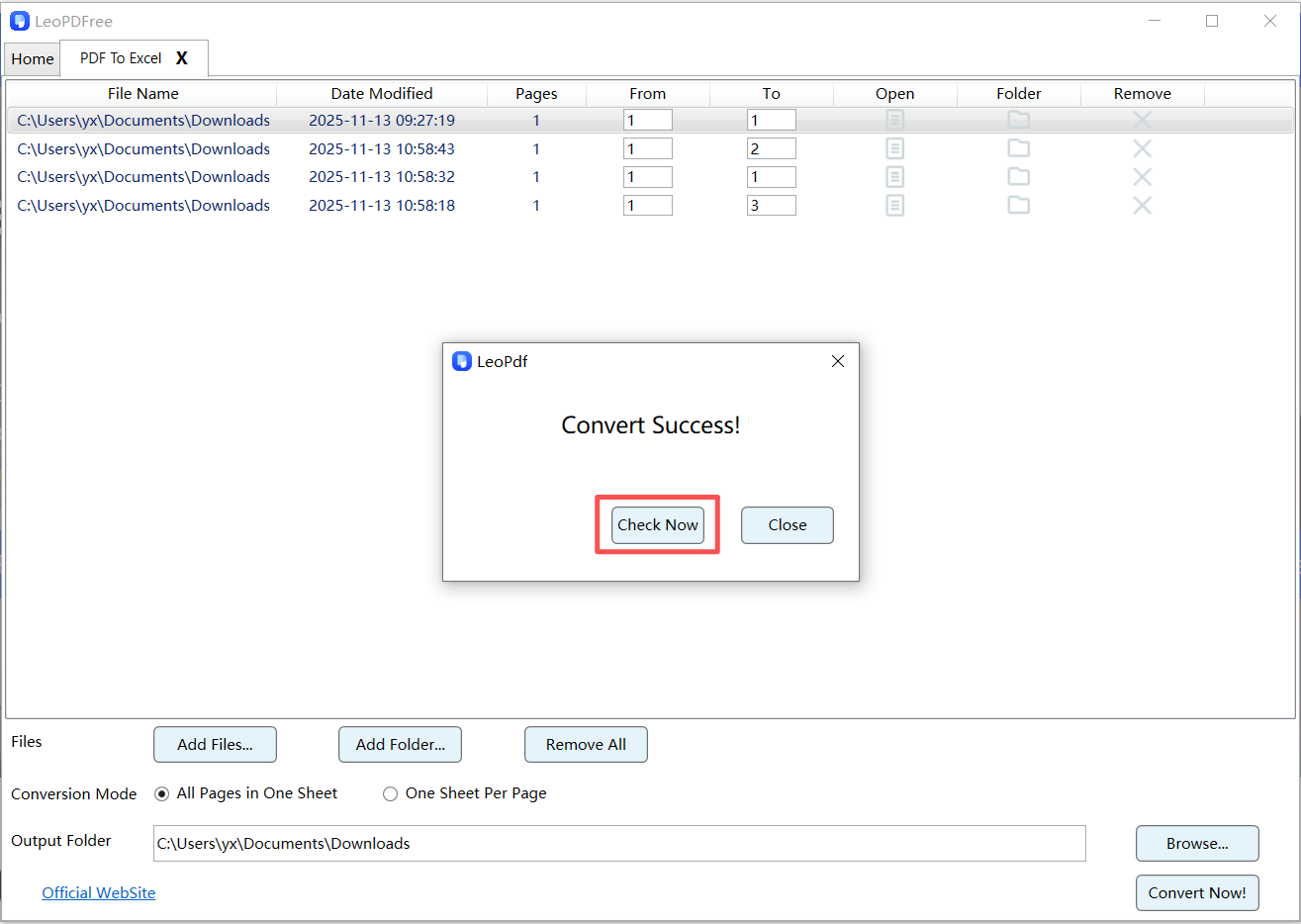
7️⃣. After the conversion is completed, a small pop-up window will appear. Click “Check Now” to quickly view the converted formatting results. It is very convenient and practical! As shown in the figure below.
Advantages:
▪ Preserves merged cells
▪ Keeps column alignment
▪ Handles multi-page tables
Pro Tip:
Choose tools with “structure recognition” or “layout retention mode”
2. OCR-Based Extraction (For Scanned PDFs)
If your PDF is actually an image, OCR is required.
Best for: Scanned documents, screenshots, printed reports
Steps:
1️⃣. Run OCR (Optical Character Recognition)
2️⃣. Detect table regions
3️⃣. Export as Excel
Watch out for:
▪ Language settings
▪ Table borders visibility
▪ Image quality
👉 New in 2026: AI OCR can now rebuild tables even without borders
3. Excel Built-in Import (Quick & Free)
Excel now has improved PDF import features.
Steps:
1️⃣. Open Excel
2️⃣. Go to: Data → Get Data → From PDF
3️⃣. Select table preview
4️⃣. Load into sheet
Pros:
▪ No extra software
▪ Fast for simple tables
Cons:
▪ Struggles with complex layouts
▪ Limited formatting retention
4. Hybrid Method (Most Accurate for Professionals)
This is what power users do:
Step-by-step:
Extract PDF →
1️⃣. HTML (preserves layout better)
2️⃣. Clean HTML table
3️⃣. Import into Excel
Why it works:
▪ HTML keeps table structure
▪ Excel reads HTML tables perfectly
👉 This method often gives better results than direct PDF conversion
🧠 Formatting Preservation Checklist (Critical)
Before exporting, make sure:
✅ Tables have clear borders
✅ Fonts are consistent
✅ No overlapping text
✅ Page is not skewed
✅ Columns are aligned visually
After exporting:
✔ Convert text to numbers
✔ Use “Text to Columns” if needed
✔ Merge cells manually (if required)
⚡ Common Problems & Fixes
| Problem | Fix |
|---|---|
| Table split into parts | Merge in Excel using Power Query |
| Misaligned columns | Use “Text to Columns” |
| Numbers not recognized | Change format to Number |
| Missing data | Re-extract with OCR enabled |
🔮 What’s New in 2026 (Important for Users)
▪ AI tools now understand table semantics
▪ Multi-page tables can be merged automatically
▪ Smart detection of headers, totals, and formulas
▪ Faster cloud-based batch processing
👉 This means manual cleanup is becoming almost obsolete
💡 Pro Workflow (Recommended Setup)
If you want the best balance of speed + accuracy, use this:
Simple PDF → Excel built-in tool
Complex PDF → LeoPDF tool + minor cleanup
Scanned PDF → OCR + structure detection
🏁 Final Thoughts
In the past, extracting tables from PDFs while preserving formatting was a very tedious task. But in 2026, with AI-powered tools like LeoPDF and smarter methods, this process has become much faster and more accurate.
The key is to choose the right method based on the type of PDF, rather than blindly using the same tool for everything.
