
Turn Static Tables into Smart, Usable Data — Without Paying a Cent
Most PDFs are built for viewing, not working.
But inside many of them are valuable tables—financial reports, invoices, research data—that you actually need in Excel.
So the real question isn’t:
“How do I extract tables from a PDF?”
It’s:
How do I extract tables from a PDF to Excel for free—cleanly and correctly?
This guide gives you a simple, modern workflow that focuses on one thing most articles ignore:
👉 getting usable tables, not just converted files.
💡 Rethinking “Free”: It’s About Efficiency, Not Just Cost
Free doesn’t mean low quality.
A truly “free” solution should also be:
⏺ ✔ Accurate
⏺ ✔ Easy to use
⏺ ✔ Minimal cleanup required
Because if you spend hours fixing a bad conversion, it’s no longer free—it costs your time.
⚡ Method 1: Use Free Desktop Software LeoPDF (Best Overall)
If you want reliable results without paying, desktop tools are your best option.
Steps
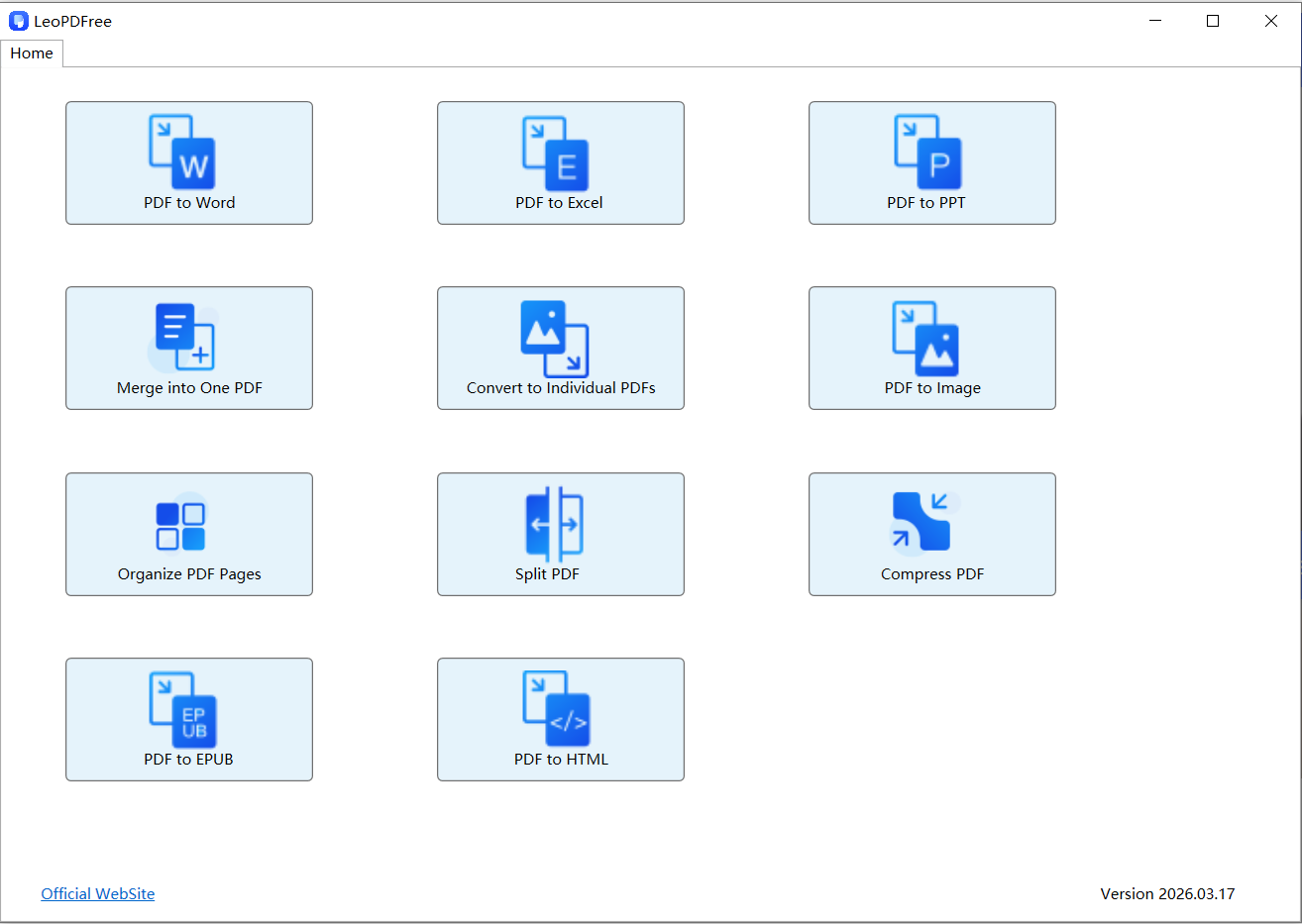
1️⃣. Install the LeoPDF software for free, then open the software as shown in the figure below.
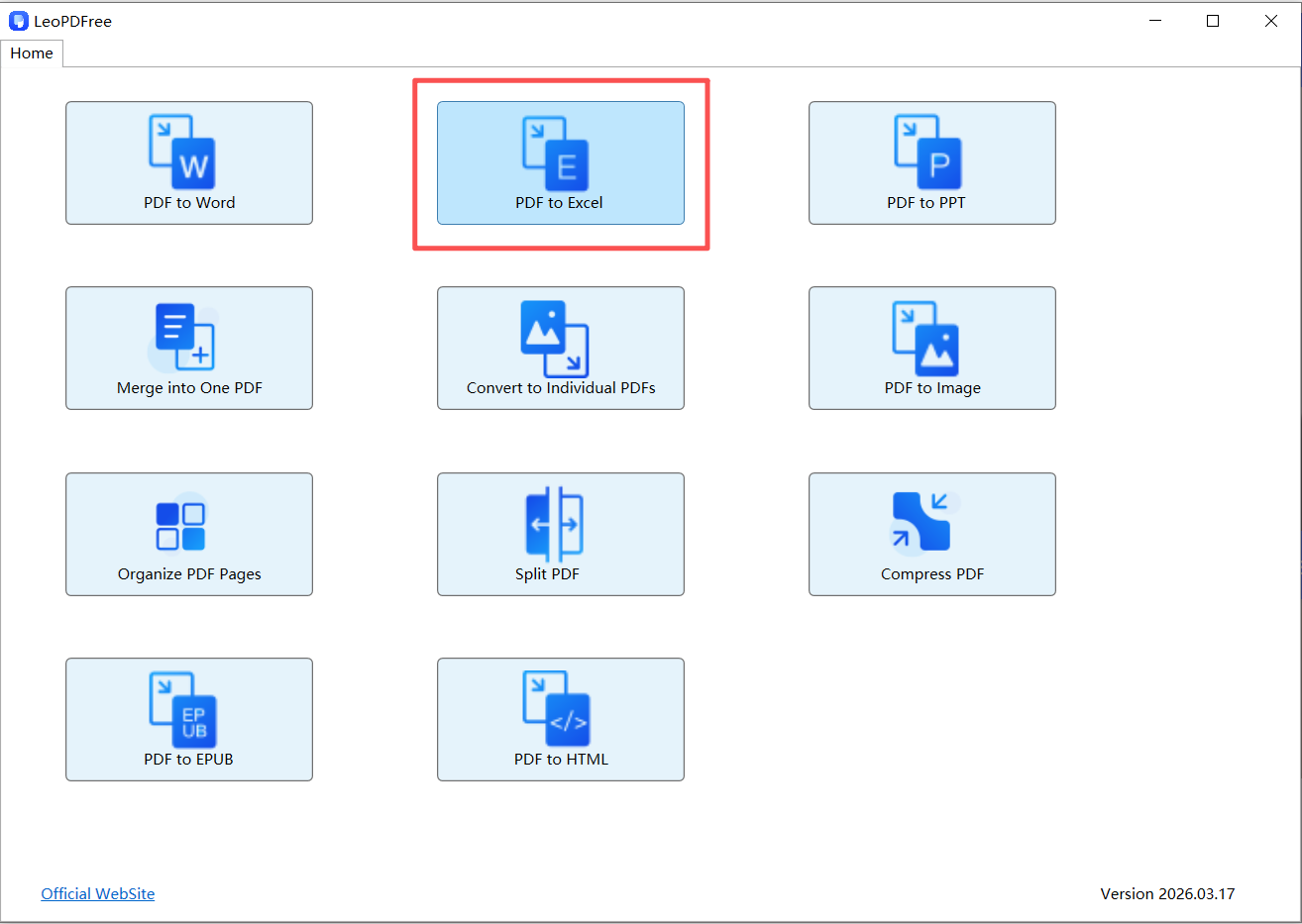
2️⃣. On the software interface, click “PDF to Excel”, as shown in the figure below.
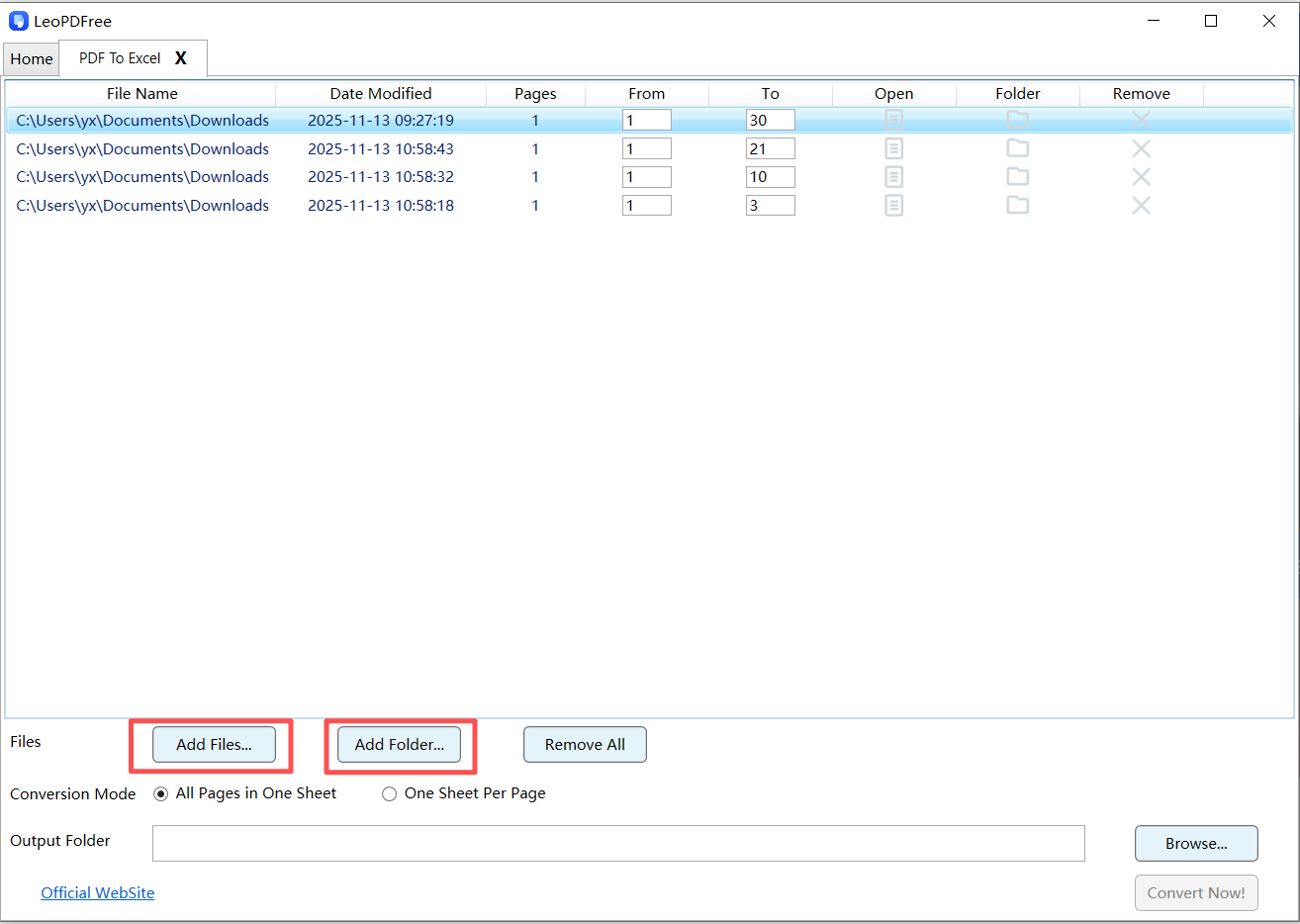
3️⃣. Then, on the interface, click the “Add Files…” or “Add Folder…” button to add one or more PDF files to be converted, as shown in the figure below.
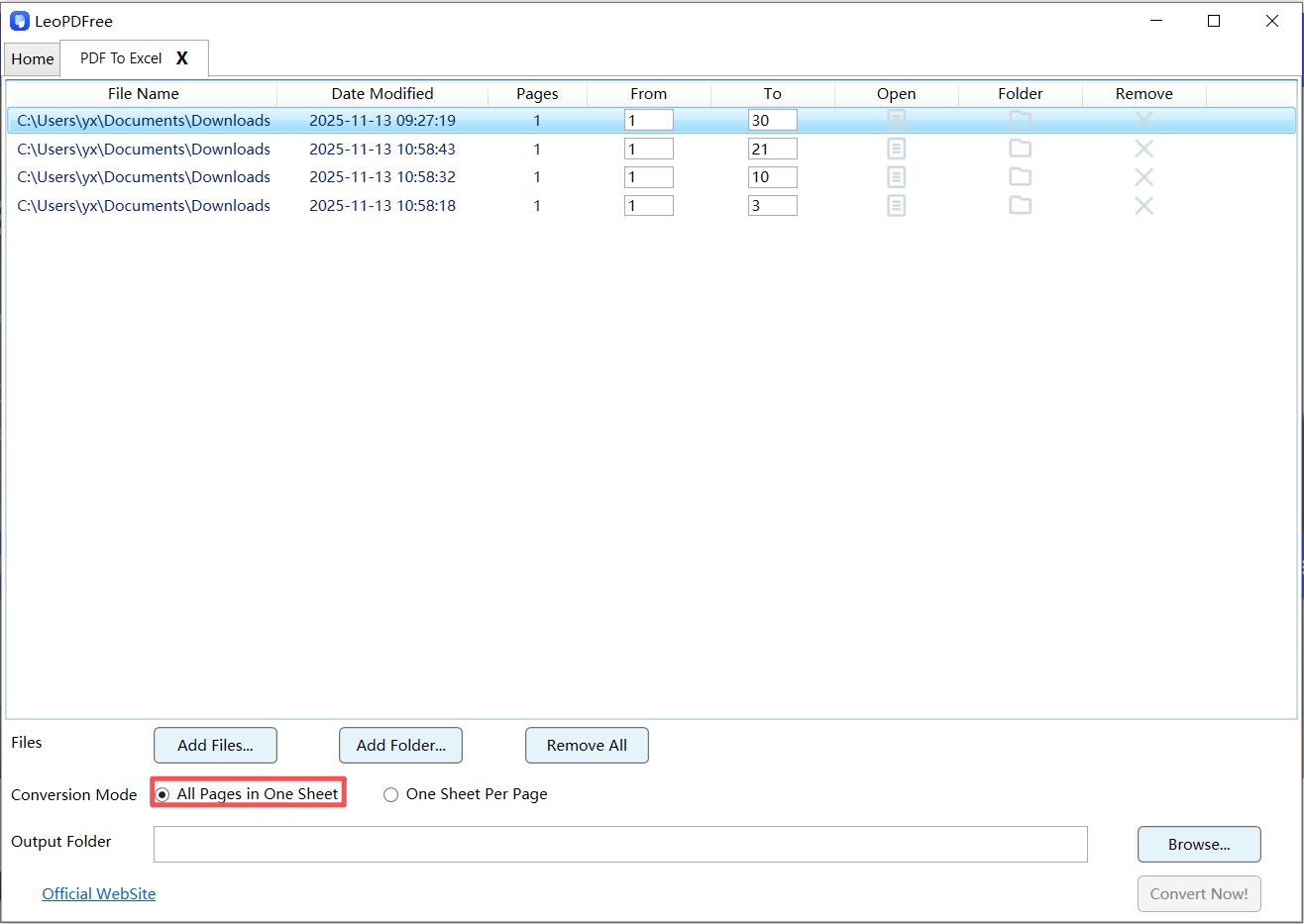
4️⃣. Then select the desired option in the “Conversion Mode” according to your needs. In this example, we choose “All Pages in One Sheet”, as shown in the figure below.
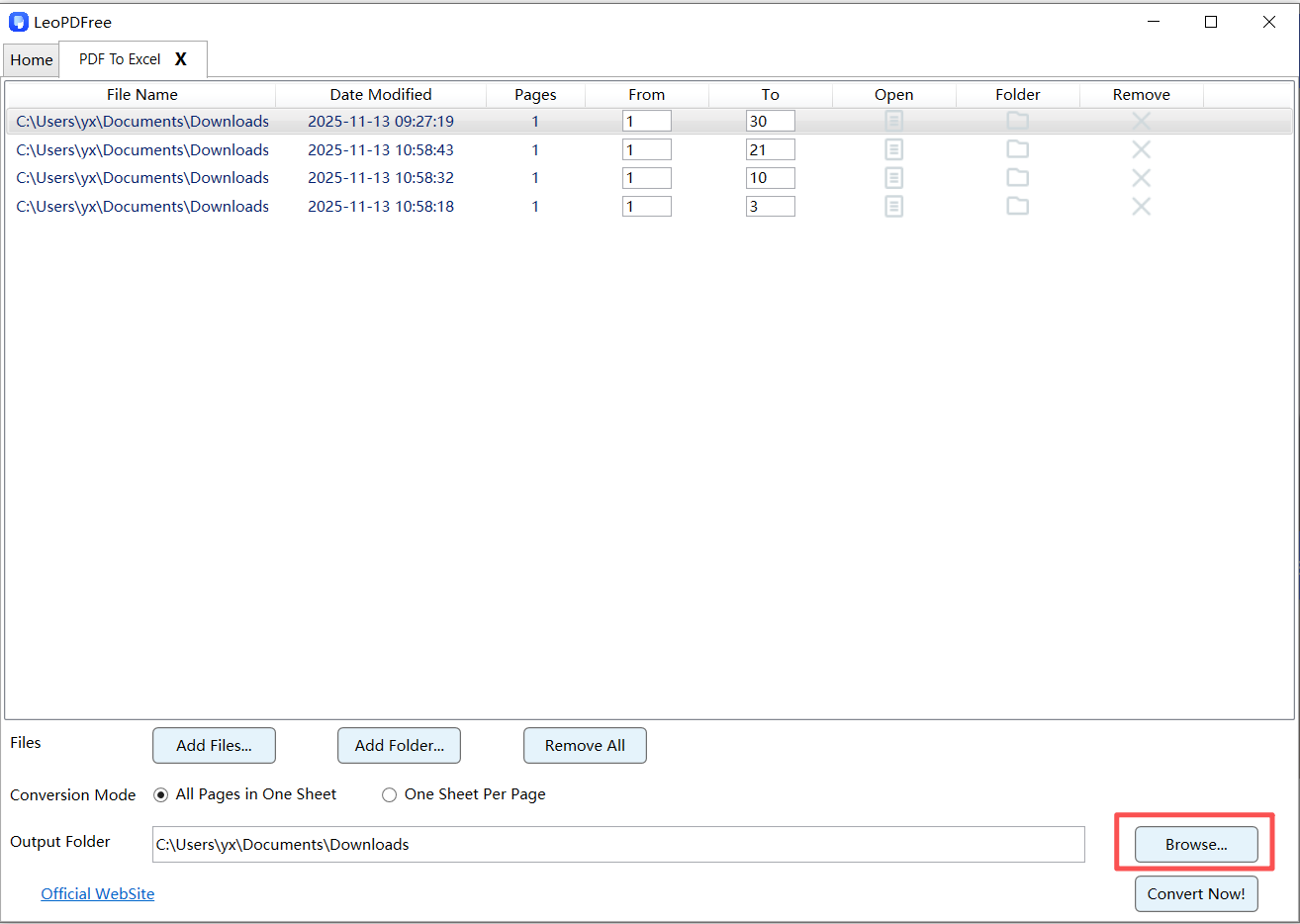
5️⃣. Next, click the “Browse…” button to set the save path for the converted file, as shown in the figure below.
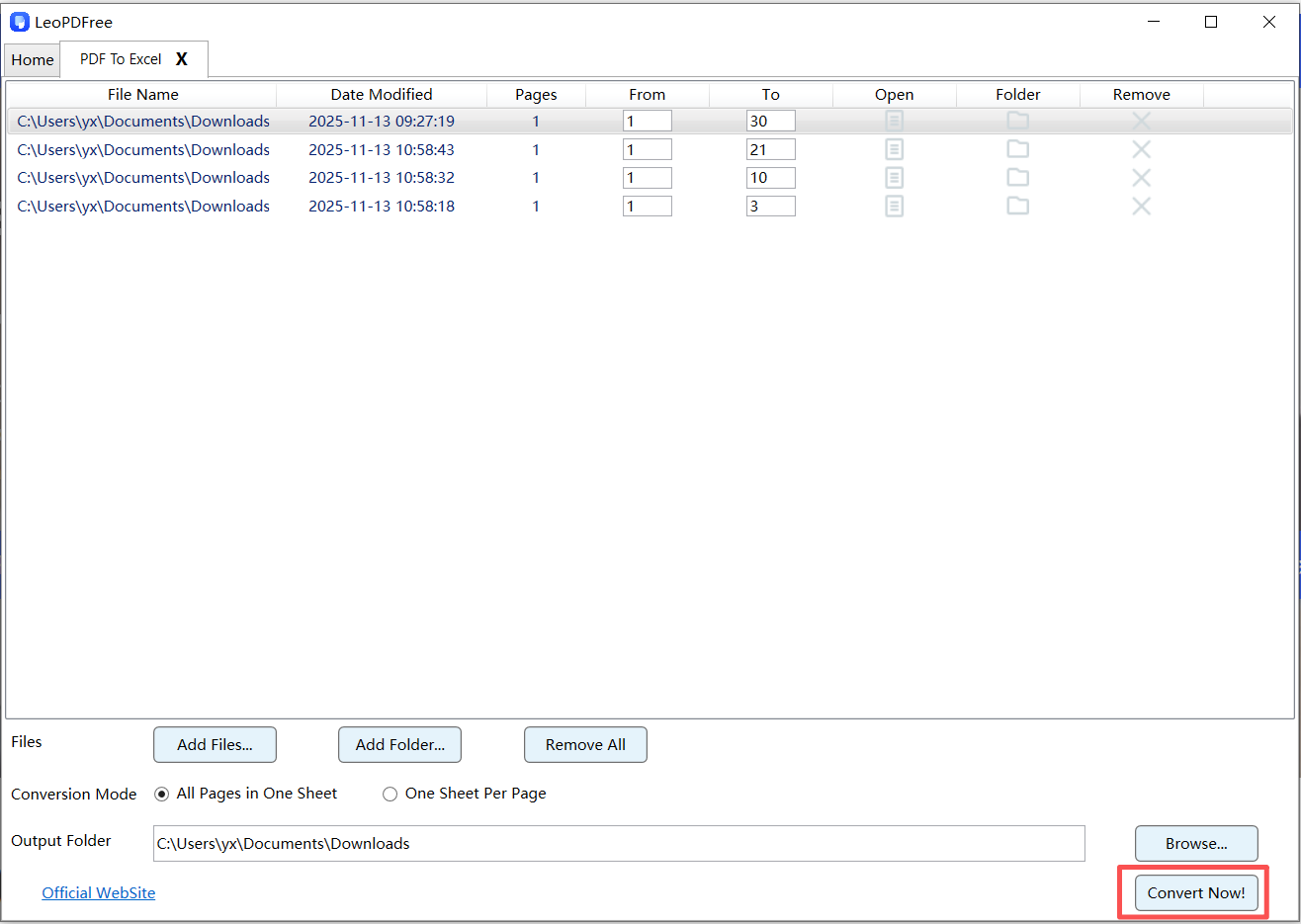
6️⃣. Once all preparations are complete, simply click “Convert Now!” on the interface. The software will quickly complete the conversion based on the file size, as shown in the figure below.
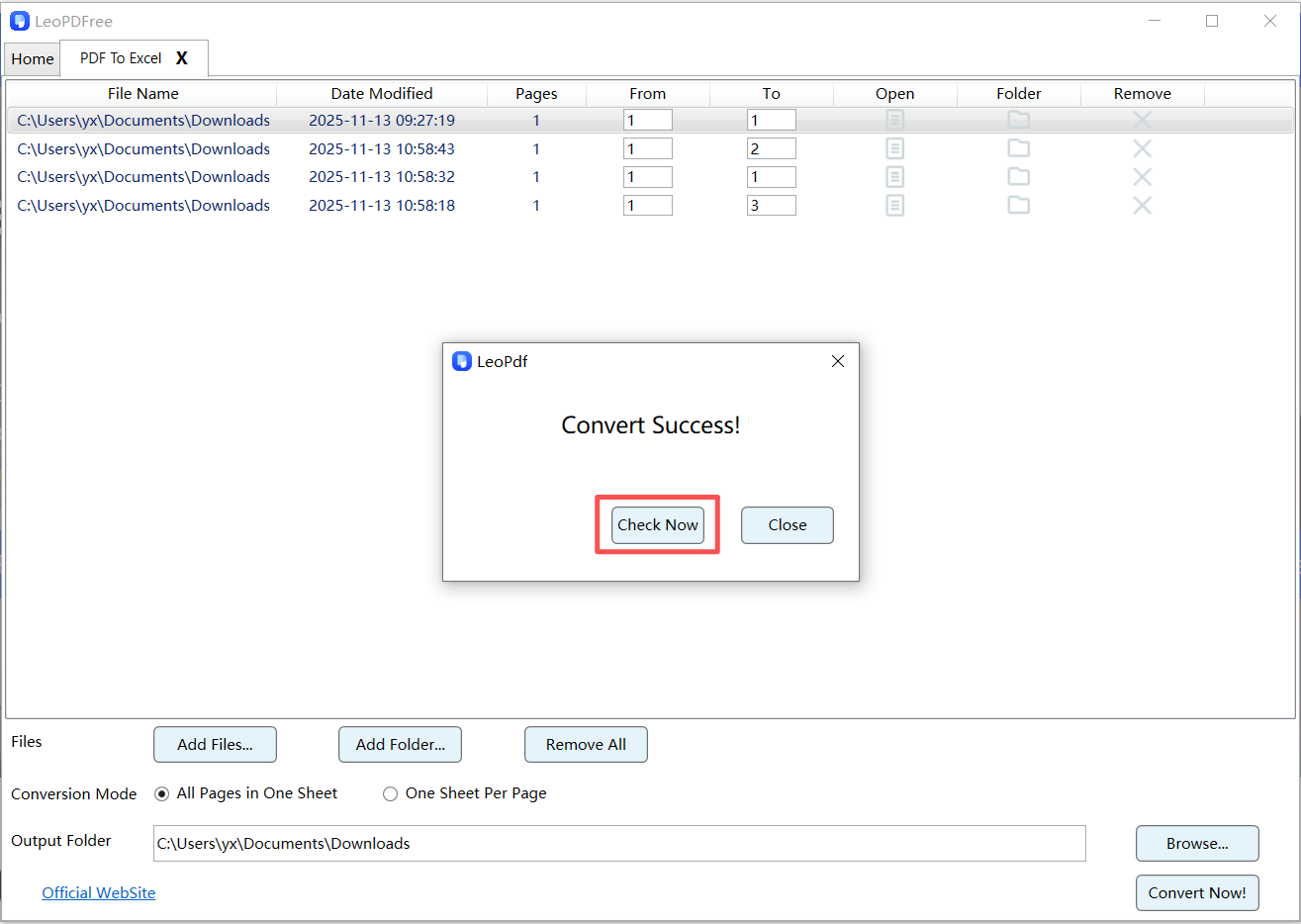
7️⃣. After the conversion is completed, a small pop-up window will appear. Click the “Check Now” button on the pop-up window to quickly view the converted result. Isn’t it very fast and convenient? Go ahead and try it out!
Why It Stands Out
- 🔵 Automatically identifies table structures
- 🔵 Keeps rows and columns aligned
- 🔵 Works offline (no upload needed)
👉 Ideal for: invoices, bank statements, structured reports
🧩 Method 2: Use Adobe Acrobat (Paid Version Required)
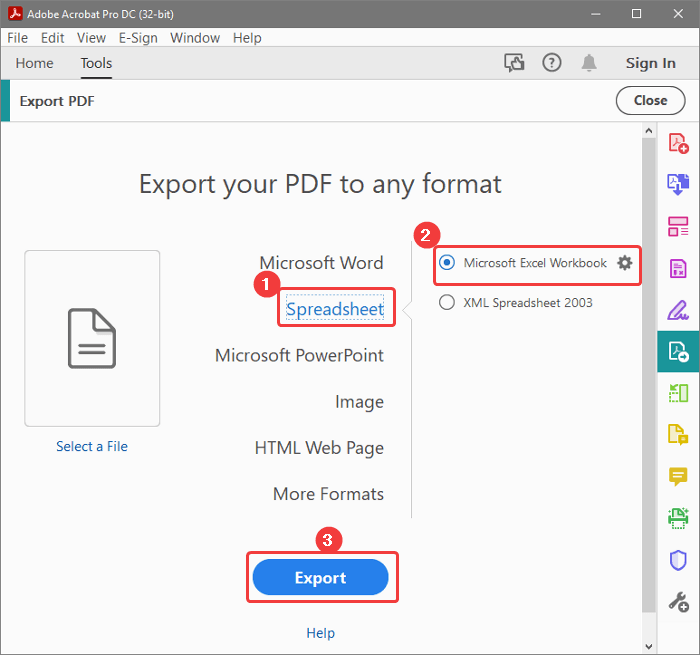
Steps
1️⃣. Open Adobe Acrobat
2️⃣. Import your PDF file
3️⃣. Click “Export PDF”
4️⃣. Choose Excel (XLSX) format
5️⃣. Export and save the file
When to Use
🔵 Complex table structures
🔵 High accuracy requirements
🔵 Business or professional documents
👉 Advantage: Highly accurate table recognition and stable conversion results
🧠 Method 3: Use iLovePDF (Online Tool)
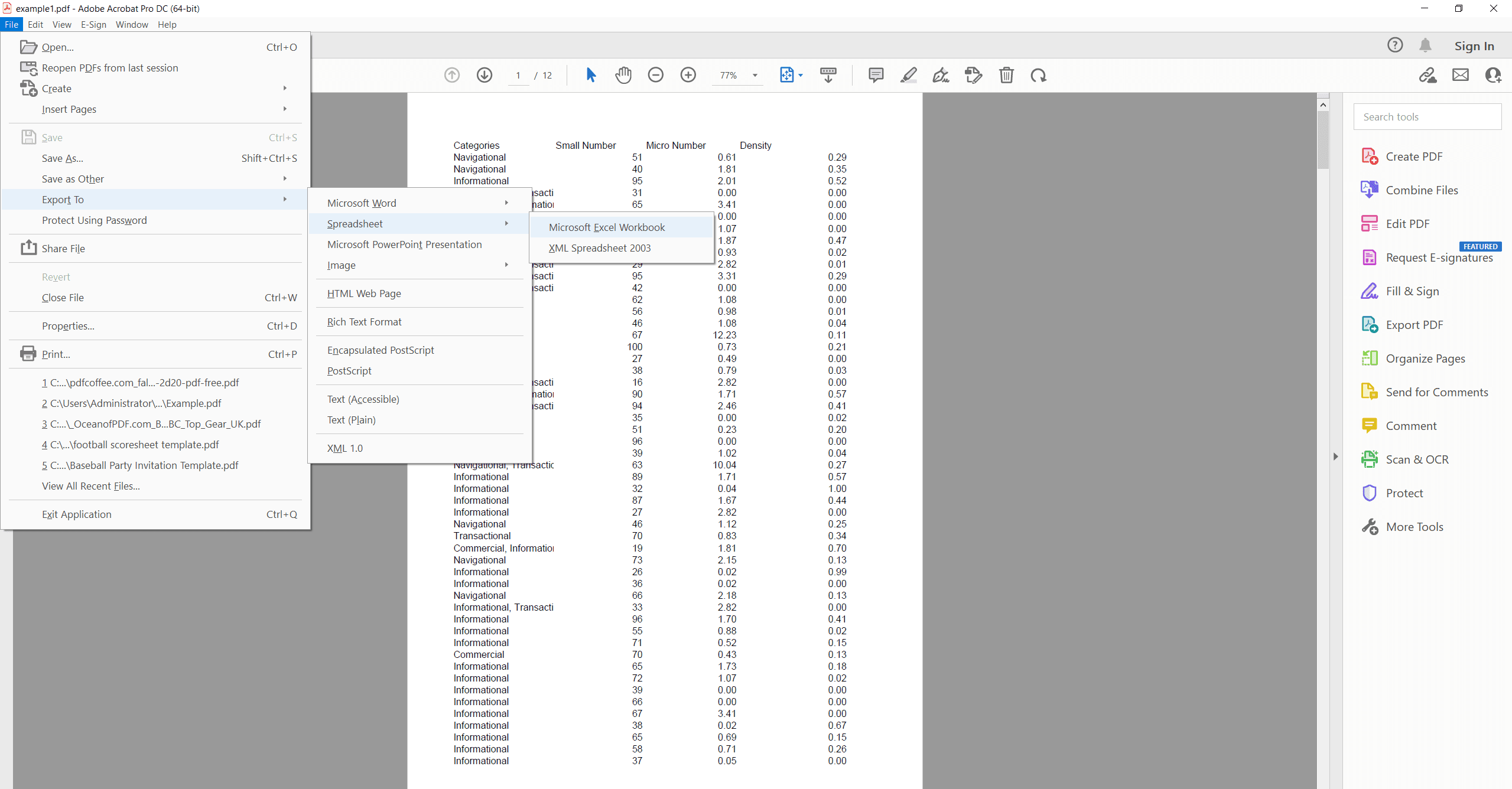
Steps
1️⃣. Open the iLovePDF website
2️⃣. Select PDF to Excel
3️⃣. Upload your PDF file
4️⃣. Click Convert
5️⃣. Download the Excel file
When to Use
🔵 Complex table structures
🔵 High accuracy requirements
🔵 Business or professional documents
👉 Advantage: Highly accurate table recognition and stable conversion results
📊 What a “Good Extraction” Looks Like
A successful extraction should give you:
| Column 1 | Column 2 | Column 3 | Column 4 |
|---|---|---|---|
| Clean data | Proper alignment | No broken rows | Editable cells |
👉 If your Excel looks messy, the job isn’t finished yet.
🔧 The Missing Step: Table Refinement
Here’s where most guides stop—but you shouldn’t.
After extraction, spend a few minutes to:
✔ Fix Structure
🔵 Merge or split cells correctly
🔵 Align columns
✔ Clean Data
🔵 Remove empty rows
🔵 Delete repeated headers
✔ Standardize Format
🔵 Convert text to numbers
🔵 Apply consistent date formats
👉 This step turns “raw extraction” into usable data.
❌ Common Problems (and Fast Fixes)
| Problem | Solution |
|---|---|
| Table breaks into multiple parts | Merge manually in Excel |
| Columns misaligned | Use “Text to Columns” |
| Numbers recognized as text | Convert format to numeric |
| Missing rows | Recheck original PDF |
🔐 Why Free + Offline Matters
When extracting tables from PDFs, especially financial or business files:
🔵 Privacy is critical
🔵 Uploading files is risky
🔵 File size limits are frustrating
👉 Free offline tools solve all three problems.
📌 FAQ
Can I extract tables from PDF to Excel for free?
Yes. LeoPDF tools and Excel itself support free extraction.
What’s the most accurate free method?
👉 Desktop tools with table recognition usually provide the best results.
Do I always need to clean the data?
In most cases, a quick cleanup ensures accuracy and usability.
🧾 Final Thought
Extracting tables from PDF to Excel for free is not just about saving money.
It’s about unlocking data that’s trapped in static files.
🔵 Choose the right method
🔵 Focus on clean output
🔵 Spend a few minutes refining
A table in a PDF is information.
A table in Excel is opportunity.
Start extracting your tables today—and turn static data into something you can actually use.
