
Most guides teach you how to extract data.
This one teaches you how to keep your table exactly as it is.
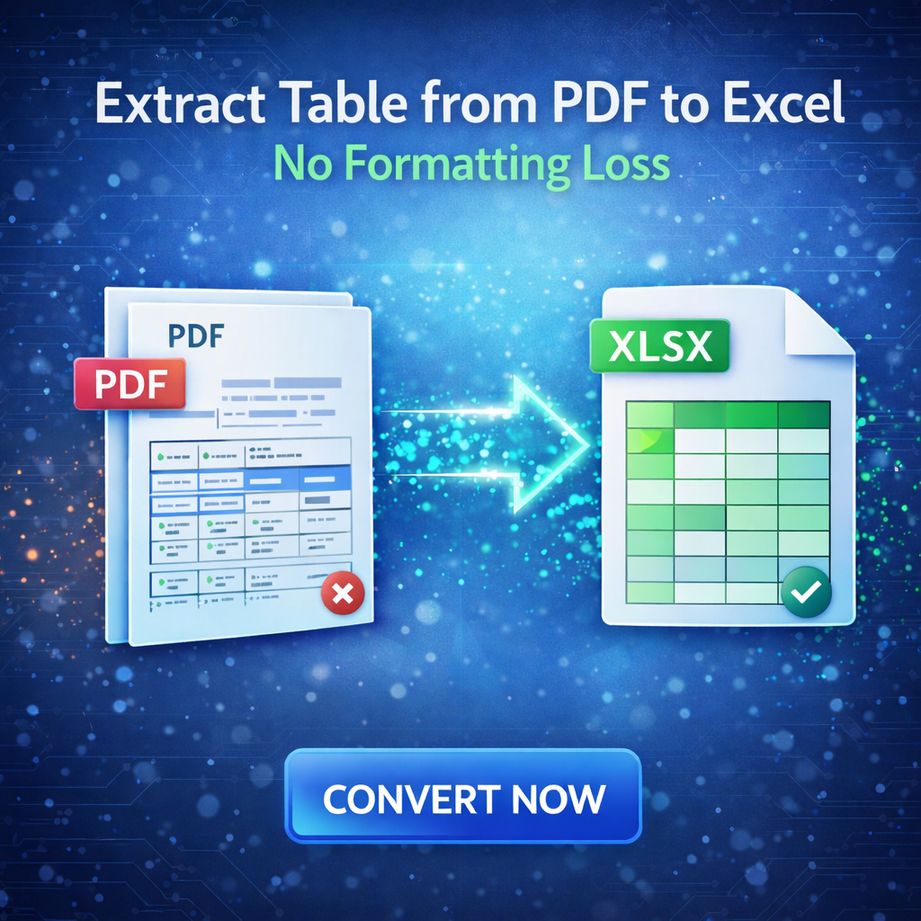
🧠 The Real Problem Isn’t Extraction — It’s Structure
Anyone can copy data from a PDF.
But here’s what usually goes wrong:
▪ Columns shift
▪ Rows break
▪ Numbers turn into text
▪ Merged cells disappear
👉 Because a PDF is not a table file — it’s just visual positioning.
Insight (2026):
Modern tools no longer “read text” — they understand layout.
🔍 Why Formatting Gets Destroyed
Think of a PDF like a picture of a table.
When converting:
| What You See | What the System Sees |
|---|---|
| Table grid | Random text blocks |
| Columns | X-Y coordinates |
| Rows | No real structure |
👉 That’s why traditional converters fail.
🚀 4 Smart Ways to Extract Tables Without Losing Formatting
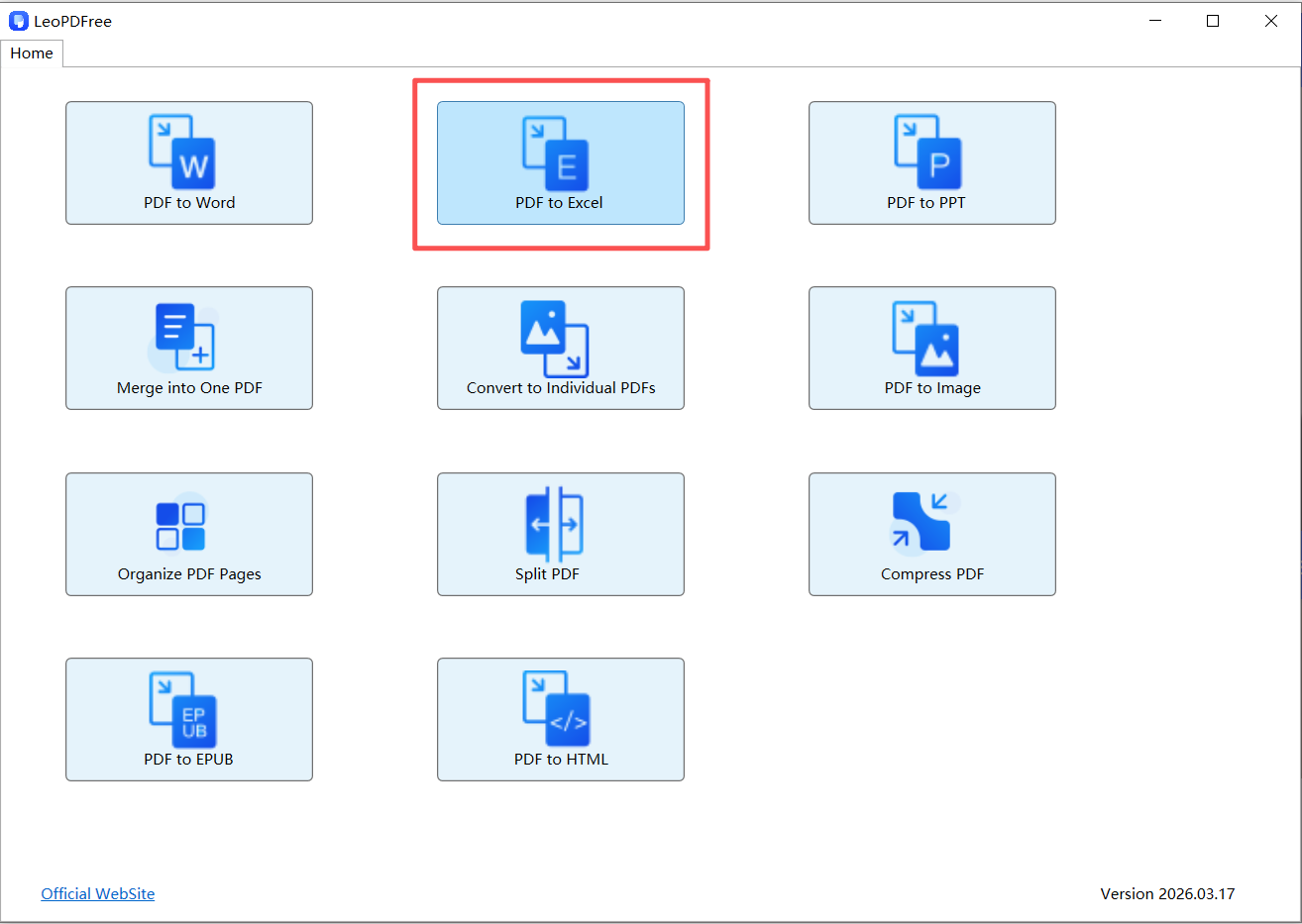
1.Smart Tool – LeoPDF Auto-Structure Recognition (Best Solution)
Instead of extracting text,LeoPDF tools:
▪ Free to Download, Free to Use
▪ Detect table boundaries
▪ Rebuild rows and columns
▪ Preserve merged cells
Best for:
Financial reports, invoices, complex tables
💡 2026 tip: Look for “Structure Retention Mode”
2. OCR + Table Reconstruction (For Scanned PDFs)
When your PDF is actually an image:
1️⃣. OCR extracts text
2️⃣. AI rebuilds table structure
New capability (2026):
▪ Works even without visible lines
▪ Detects headers automatically
3. PDF → HTML → Excel (Hidden Pro Trick)
Most people don’t know this:
👉 HTML preserves tables better than PDF
Workflow:
1️⃣. Convert PDF → HTML
2️⃣. Clean the table (optional)
3️⃣. Open in Excel
Why it works:
▪ HTML = real table structure
▪ Excel reads it perfectly
4. Excel Native Import (Quick Method)
Inside Excel:
▪ Data → Get Data → From PDF
Good for:
▪ Simple tables
▪ Quick extraction
Limitation:
▪ Weak structure recognition
⚡ The “Zero Formatting Loss” Workflow (Recommended)
If you want near-perfect results:
👉 Use this decision logic:
▪ Simple PDF → Excel built-in
▪ Complex PDF → LeoPDF tool
▪ Scanned PDF → OCR + AI
▪ Critical formatting → HTML method
🧩 Pre-Conversion Optimization (Most People Skip This)
Before converting, check:
▪ ✔ Straight alignment
▪ ✔ No overlapping text
▪ ✔ Clear spacing between columns
▪ ✔ Consistent fonts
👉 Clean input = clean output
🛠️ Post-Conversion Fixes (Minimal Cleanup)
Even with LeoPDF, small fixes may be needed:
| Problem | Fix |
|---|---|
| Columns slightly off | Use “Text to Columns” |
| Numbers as text | Convert to Number |
| Split tables | Merge using Excel |
| Missing rows | Re-run with OCR |
🔮 What Changed in 2026 (Game Changer)
▪ AI understands table semantics
▪ Multi-page tables auto-merge
▪ Header & total rows detected
▪ Batch processing in seconds
👉 Manual formatting is becoming obsolete
💡 Advanced Insight: Why Some Tools Still Fail
Even in 2026, not all tools are equal.
Weak tools:
▪ Only extract text
▪ Ignore layout
▪ Break tables
Strong tools:
▪ Analyze spacing patterns
▪ Detect relationships between cells
▪ Reconstruct structure
👉 That’s the real difference.
🏁 Final Takeaway
Extracting tables from PDF to Excel without losing formatting is no longer difficult — if you use the right method.
The secret isn’t the tool.
It’s choosing the right approach for the right PDF type.
